Bikin HRFeatures
Documents & Document inbox
Keep employee and company documents encrypted, get expiry reminders, and sort many documents at once with the Document inbox.
Bikin HR keeps employee and company documents in one place. Every file is encrypted, every opening is logged, and expiry dates trigger reminders.
Employee documents
On an employee's profile, open the Documents tab and press Upload on the right of the card. In the Upload a document window:
- Choose the Type: KTP, Family card, NPWP, Diploma, CV, Contract, SK, Certificate, BPJS card, SIM, Doctor's note or Other.
- Fill in the Title (optional), Document no., Issued date and Valid until if there is one.
- Choose the File (photo or PDF) and press Save.
A Valid until date shows reminders on Home 90, 60 and 30 days before. Each document in the list has an Open button to open its file.
Company documents
In Company › Documents you keep the deed, NIB, business permit, company NPWP, BPJS certificate, company rules, lease and others, with the same upload steps. Their expiry dates trigger reminders too.
Opening a file
Files are encrypted. Opening one asks for a code from your email, then the file opens through a link that only works for a short time and only for the person who asked. Every opening is written to the Access log (see Privacy & security). Document numbers also stay masked until opened.
Document inbox: drop everything at once
Employee documents still scattered across phone galleries and folders? The Document inbox is made for that. Its menu (left sidebar, PEOPLE group) is visible to the Owner and HR admins; if your plan doesn't include the AI document inbox yet, the page explains how to upgrade.
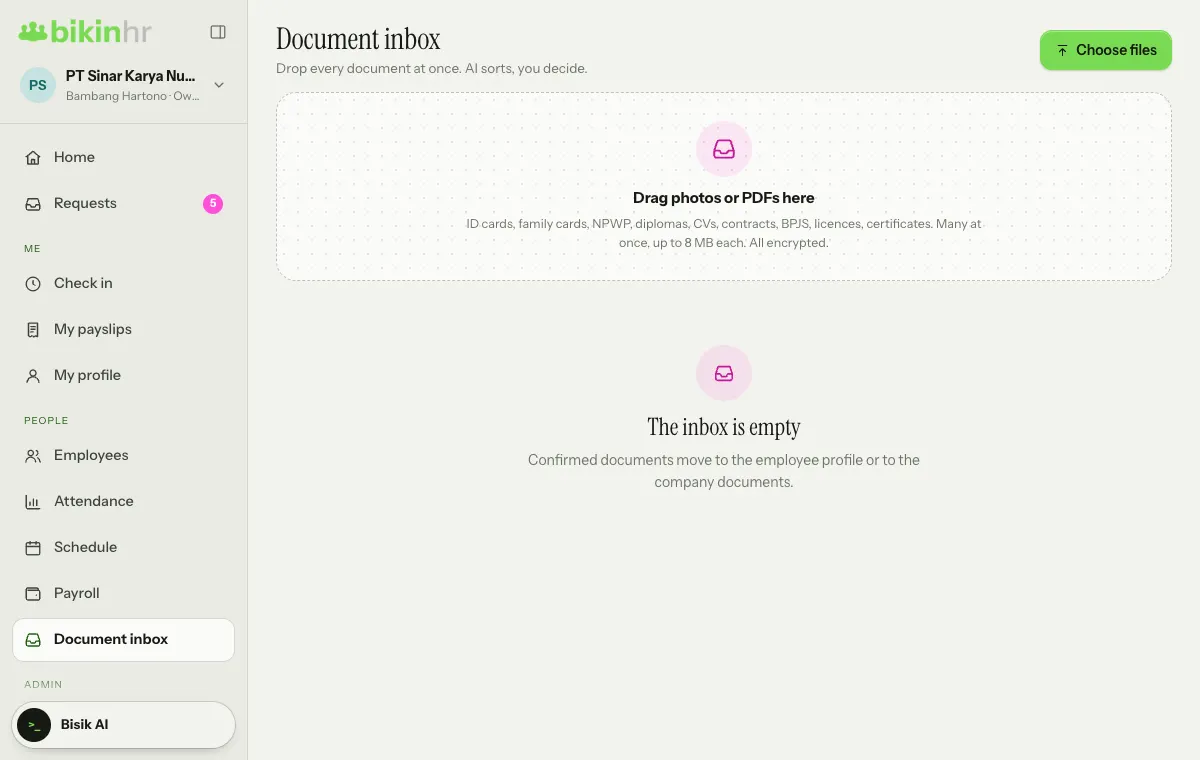
- Open Document inbox and press Choose files at the top right, or drag photos and PDFs onto the dotted area. Many at once, up to 8 MB per file.
- AI reads each file: it recognises the type (ID card, family card, NPWP, diploma, CV, contract, BPJS, licence, certificate), guesses the owner (marked NIK match or name match) and reads the fields.
- Files that are ready show Ready to confirm. Press Review.
- Check the type, owner, number and dates. Under Fill into the profile, tick the fields you want copied into the profile (for example NIK, place of birth, ID card address). Fields that already have a value are marked "already in the profile, will be replaced".
- Press Save document. The document moves to the employee profile or to the company documents.
AI only guesses; you decide. Nothing is saved to a profile until you press Save document.
When AI isn't sure
- Sort by hand: AI isn't sure; choose the type and owner yourself.
- Read again with AI: ask AI to read that file once more.
- Later: leave it in the inbox to review another time.
- Discard: remove the file from the inbox.
Sensitive data filled in from a document (such as NIK or family card no.) is still stored encrypted, exactly as if you had typed it.
My documents
Accounts linked to an employee record that don't manage documents (for example Employees and Managers) see the My documents menu: their ID card, contract, diploma and other documents, so they know what the company has on file. It is for viewing and opening files only; HR still does the uploads. The Owner and HR admins find their own documents in My profile, on the Documents tab.
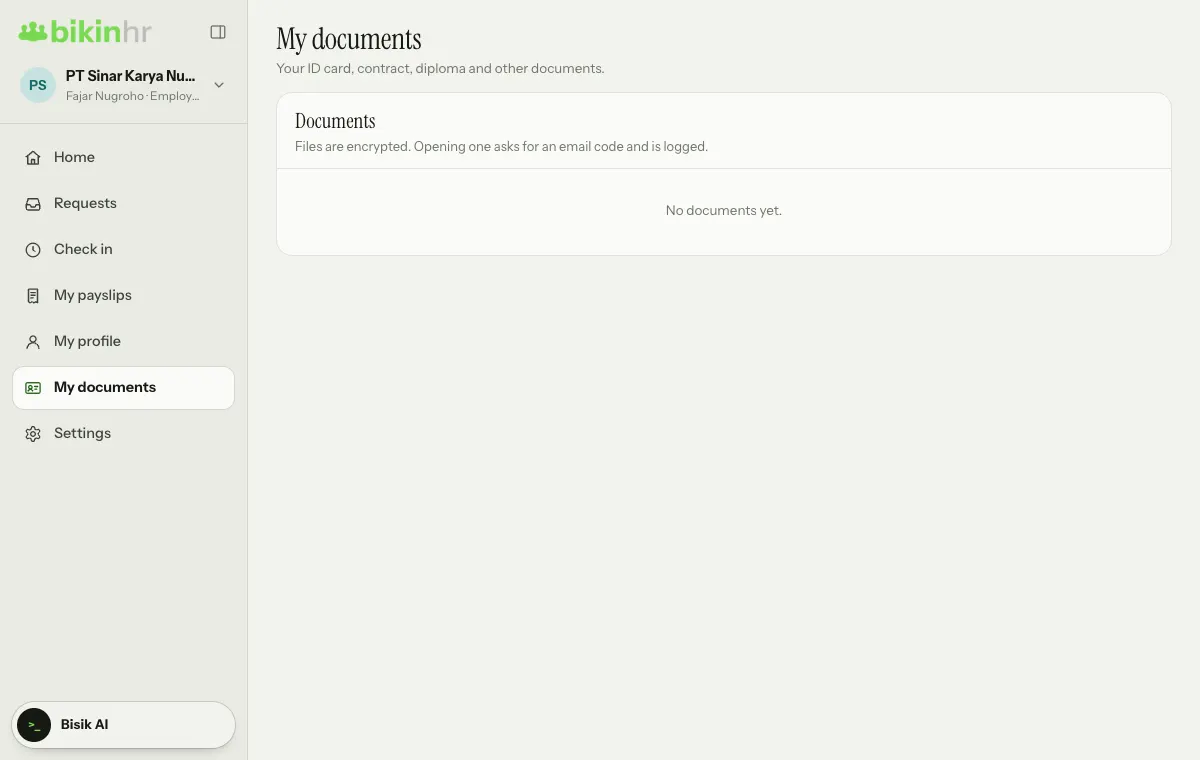
Employees can also ask Bisik for their own documents, for example "send my contract".
Who can see documents
| Role | Documents |
|---|---|
| Owner, HR admin | All employee and company documents |
| Finance | No employee documents, unless given Documents extra access |
| Documents extra access | Employee documents, stacked on another role |
| Manager | Not their team's ID documents |
| Employee | Their own documents |
Document storage and the monthly AI reading allowance (counted across every company in the group) are limited by your plan; see Plan & billing. When the AI reading allowance is used up, you can still upload documents and sort them by hand.
Last updated: