Bikin HRFeatures
Employees & master data
How to fill in company details, currency, structure and employee profiles in Bikin HR, including personal, job, BPJS, bank and family details.
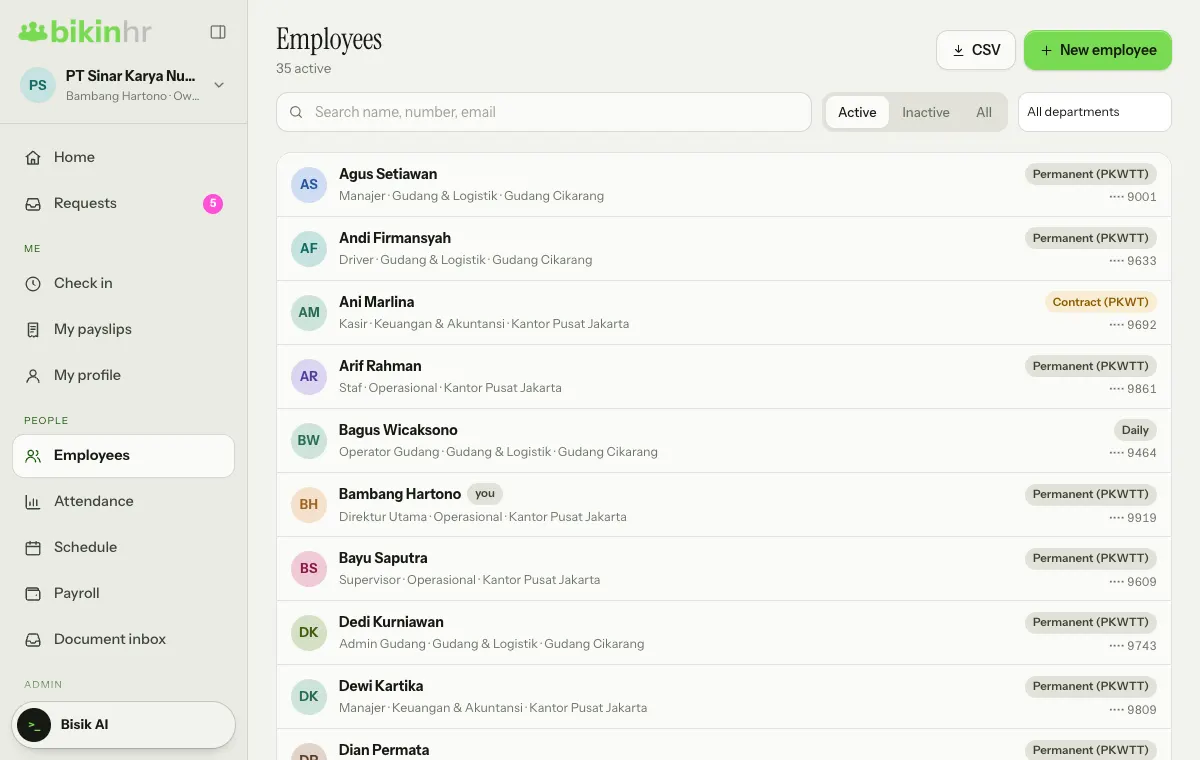
Master data is the core of Bikin HR. Attendance, leave and pay all read employee and company data, so start here. The employee list lives in the Employees menu (left sidebar, PEOPLE group), and company details in the Company menu (ADMIN group).
Company details
Open Company. Owners and HR admins can edit it; Finance can only view it. On the Company details tab, press Edit at the top right of the Legal details card to fill in or change the details.
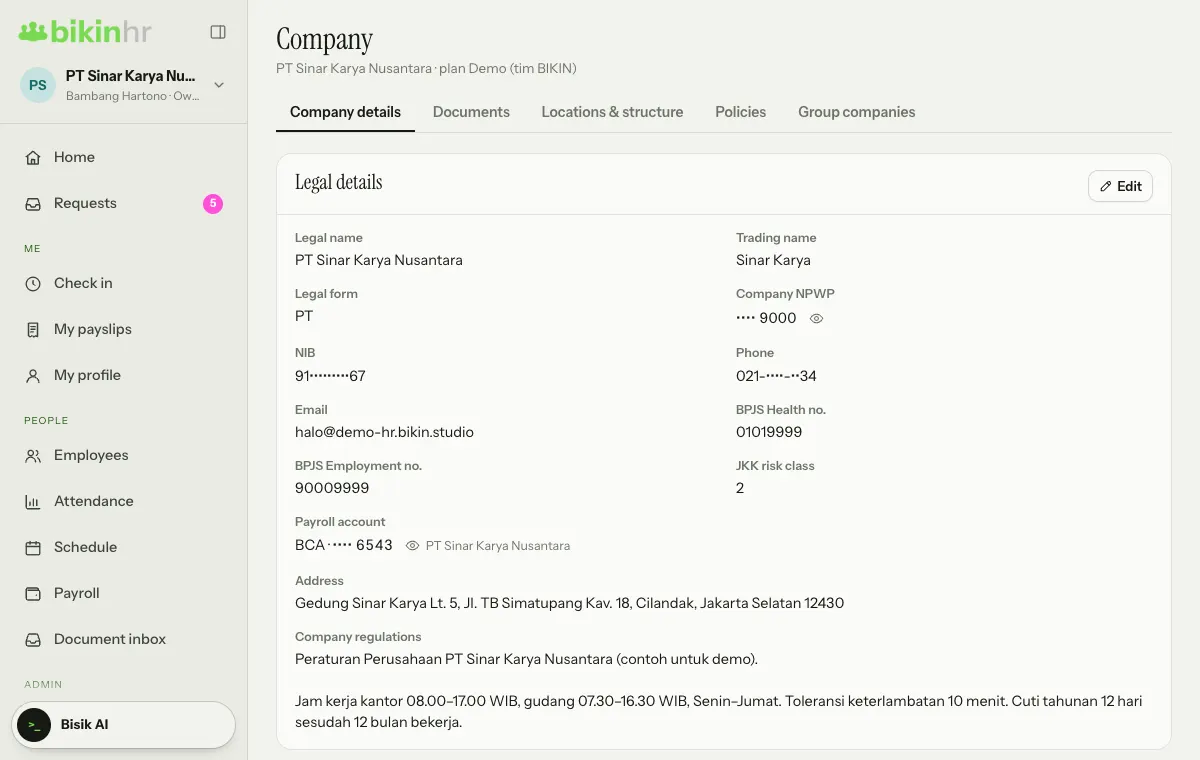
The Company page has several tabs:
- Company details: legal name, trading name, legal form, company NPWP, NIB, address, phone, email, BPJS Health and BPJS Employment numbers, JKK risk class, Payroll account and company regulations. The NPWP and the account are stored encrypted.
- Documents: deed, NIB, permits, BPJS certificate, lease and others. See Documents.
- Locations & structure: work locations (for check-in), the Face check-in card, and the Departments and Titles lists. To add a department or title, type its name in the Add… box on its card. Locations are explained in Check-in.
- Policies: approval, leave, cash advance and warning-letter rules. See Requests.
- Group companies: visible to the Owner, and to everyone once your group has more than one company. The Owner can Add a company (asks for an email code); each company has its own employees, attendance, leave and payroll, while one plan and subscription covers them all, with limits counted across the group. Switch companies via the company name at the top of the sidebar.
The company's legal name, address and NPWP appear on payslips and the withholding summary, so fill them in correctly.
Currency
On the Company details tab, the Currency card below the Legal details card sets the currency for pay, cash advances, reimbursements and every amount in this company. Thousand and decimal separators follow that currency, such as Rp 1.250.000 for Indonesian rupiah and RM 1,250.50 for Malaysian ringgit, and amount fields add the thousand separators as you type. A new company gets the currency of the country it signs up from.
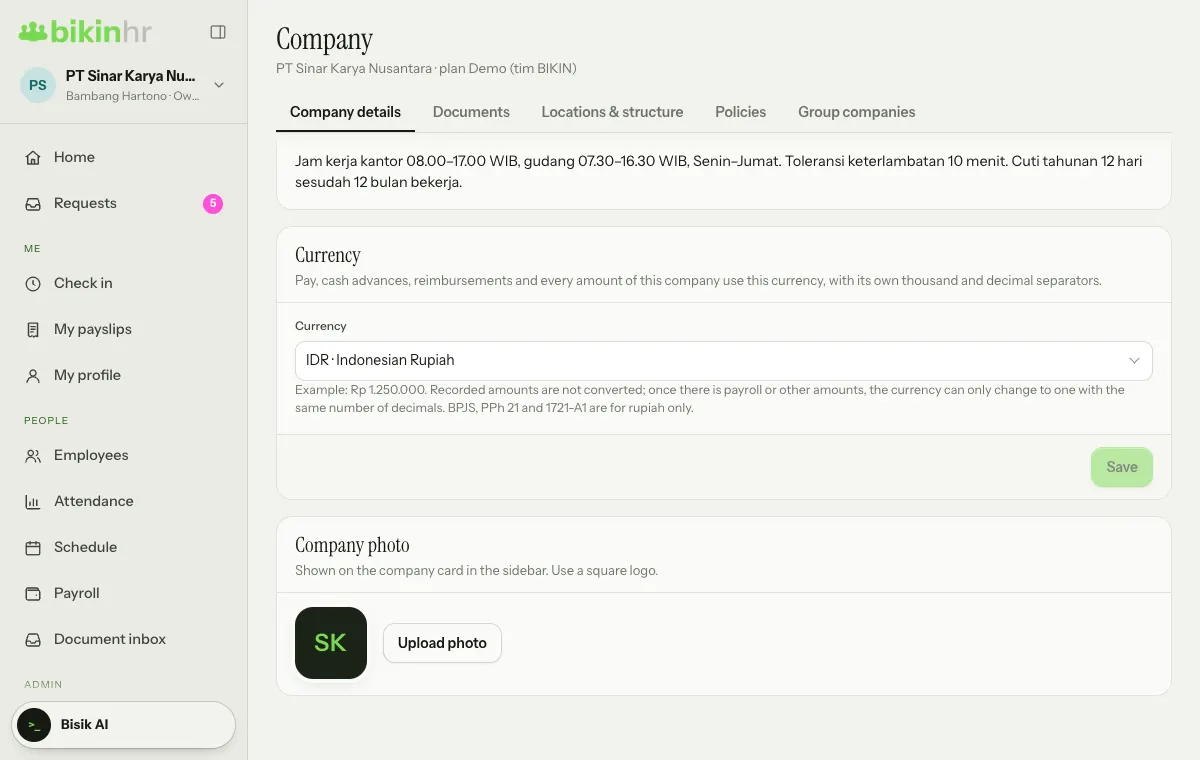
- Only the owner changes it: pick a currency in the list (type in the search box to find it), then Save. HR admins and Finance see the card with Only the owner changes it.
- Until there is payroll or other amounts, you can change the currency freely. After that it can only change to a currency with the same number of decimals, because recorded amounts are never converted.
- BPJS, PPh 21, the tax recap and 1721-A1 are only for companies that use Indonesian rupiah (IDR). With another currency, payslips are worked out without BPJS and PPh 21, and the BPJS & PPh 21 recap and 1721-A1 buttons carry a padlock with the message Only for businesses that use Indonesian rupiah (IDR). THR is still worked out.
- Bikin HR plan prices, bills and referral commission stay in rupiah.
Add an employee
- Open Employees and press + New employee at the top right.
- Fill in the basics first: Full name, Employee no. (optional), Start date, Employment type, Title, Department, Work location, Phone and Email (optional). The title, department and location choices come from the Locations & structure tab in Company, so fill that in first.
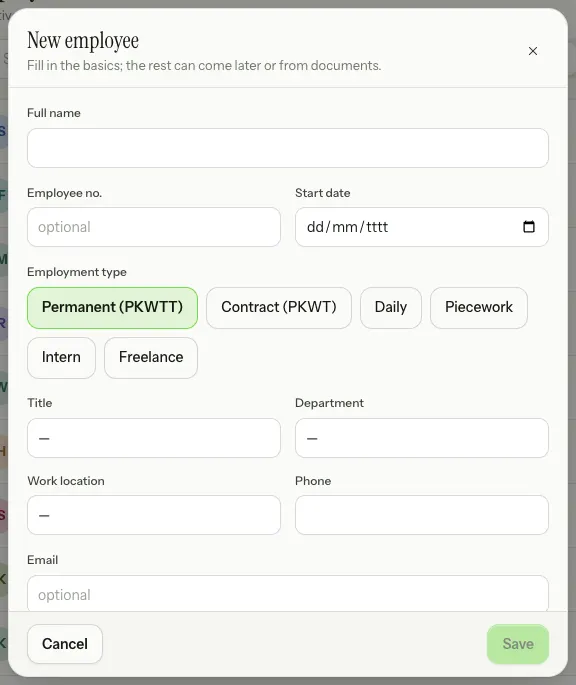
- Press Save. The new employee's profile opens right away. Set their Manager on the Work tab, then the personal, BPJS and bank details on the other tabs.
Got a pile of ID cards and documents? Drop them all into the Document inbox; AI reads them and fills empty fields once you have checked.
The Employment type options are Permanent (PKWTT), Contract (PKWT), Daily, Piecework, Intern and Freelance. For PKWT, fill in Contract end on the Work tab so the reminder shows up.
The employee list can be searched by name, employee number or email, and filtered with Active, Inactive, All or a department. If your plan includes exports, the CSV button downloads the employee list.
Complete the profile
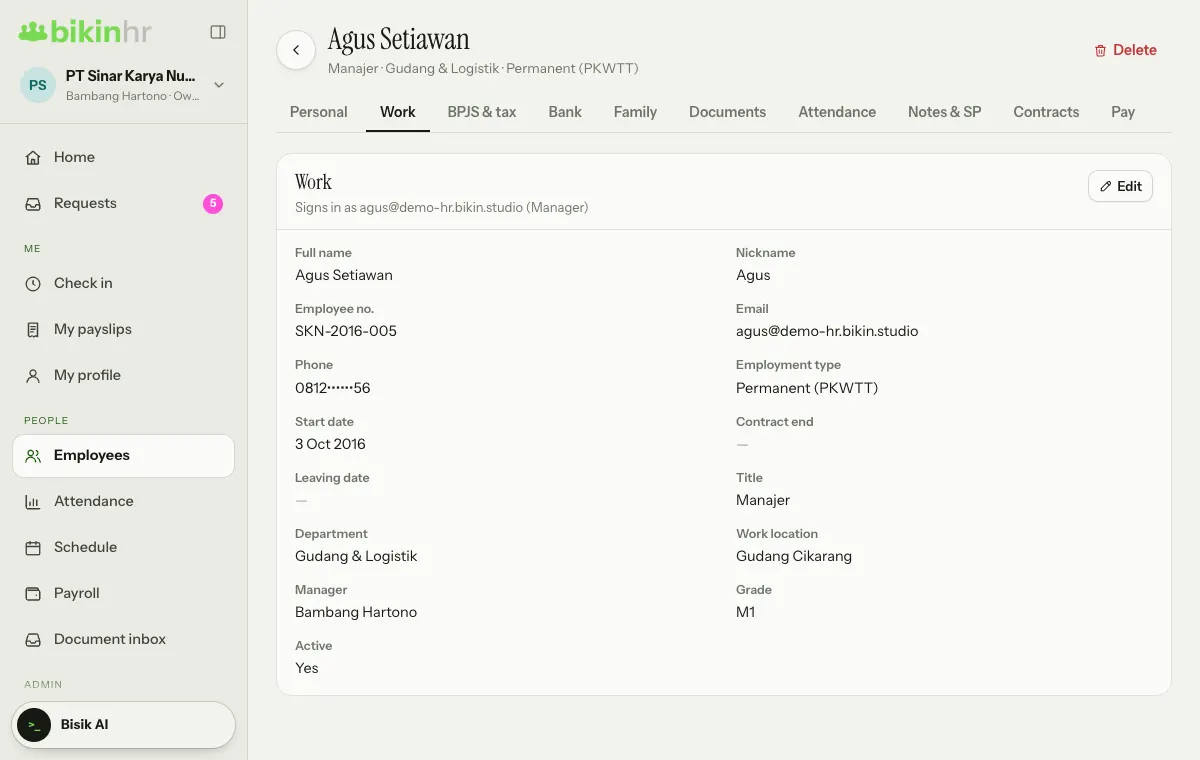
Tap an employee's name in the list to open their profile. The tabs under the name depend on your role. On a tab you may edit, press Edit at the top right of the card, fill in the fields, then Save.
| Tab | What's in it |
|---|---|
| Personal | NIK, family card no., place and date of birth, sex, religion, marital status, ID card and home address, education, uniform size, emergency contact, notes |
| Work | Full name and nickname, employee no., email, phone, employment type, start and leaving dates, contract end, title, department, work location, manager, grade, Active |
| BPJS & tax | BPJS Health number and health facility (faskes), BPJS Employment number, programmes, NPWP, PTKP status |
| Bank | Bank, account no., account name and base pay |
| Family | Family members and dependants for BPJS and PTKP status (Add button) |
| Documents | ID card, family card, contract, diploma and more (Upload button) |
| Attendance | Attendance PIN, QR card and face data for the kiosk (visible to the employee and HR) |
| Notes & SP | Praise, work notes and warning letters |
| Contracts | PKWT history, renewals and making permanent |
| Pay | Current pay and its history (only roles that may see pay) |
Sensitive data
NIK, family card no., NPWP, bank accounts and pay are stored encrypted and shown masked. To change one, type the new value in the field marked "type to replace"; leave it empty to keep it. Opening the full value (the eye icon) asks for a code from your email and is written to the access log. Once the code is right, other important actions won't ask again for 10 minutes.
When someone leaves
For an employee who leaves, open the Work tab, press Edit, set the Leaving date and turn off Active. Their data stays, they no longer count as an active employee, and their face data is deleted. Choose Inactive in the employee list to find them again.
Delete (red, at the top right of the profile) is only for records entered by mistake: the employee's data, family and every document are deleted for good and can't be restored.
Sign-in accounts for employees
An employee record and a sign-in account are two different things. For an employee to check in and request leave from their phone, invite them in Users & roles and pick their record in the Employee record field. A linked account sees My profile and My documents. Employees whose account has a profile photo show with that photo in the Employees list. See Roles & access.
The number of active employees is limited by your plan. Once it is full, the New employee button can't be pressed and the Employees page shows how to upgrade. See Plan & billing.
Home
Home is the first screen after you sign in. For the Owner, HR admins, Finance and Managers, it shows from top to bottom:
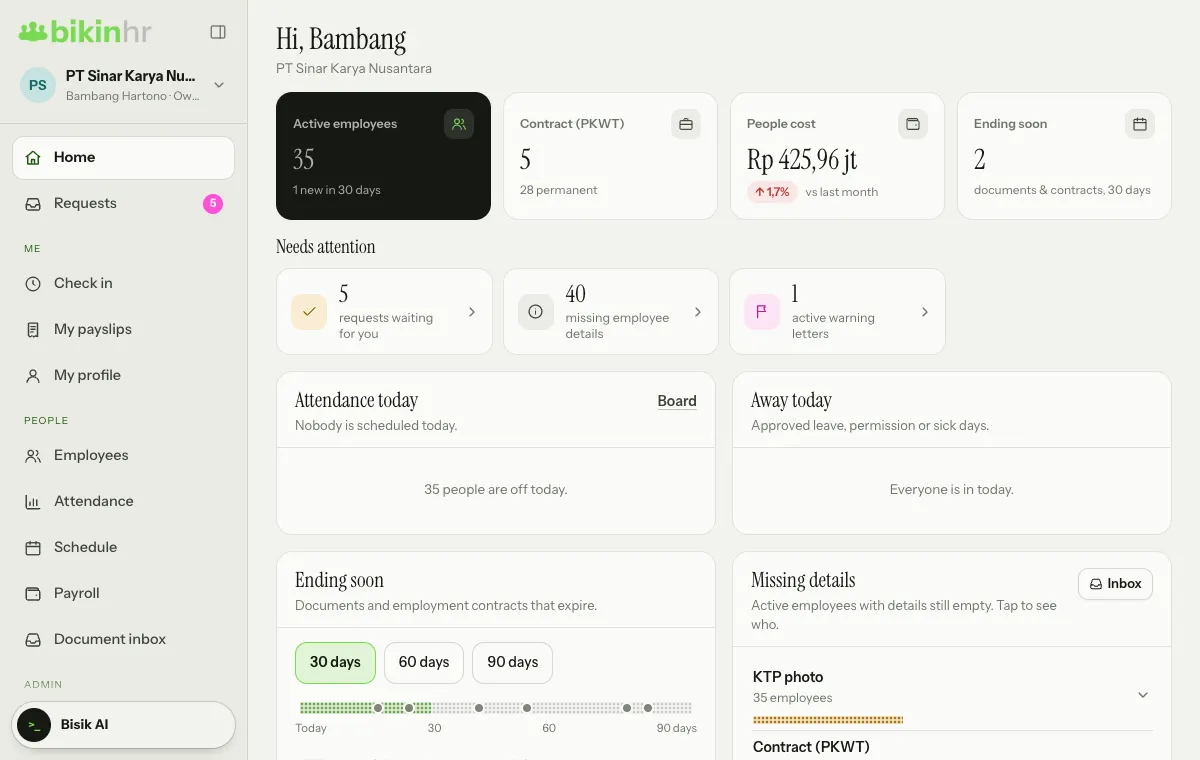
- Key numbers: Active employees (and those new in the last 30 days); In today with a dot grid of the share (on a day nobody is scheduled, as in the picture, this card shows the Contract (PKWT) count instead); People cost for the latest month compared with the month before (for those who may see pay); and Ending soon, the documents and contracts ending within 30 days.
- Needs attention: requests waiting for you, people absent without notice, people late today, documents or contracts ending within 14 days, missing employee details and active warning letters. Only the ones with something in them show.
- Paired cards: Attendance today by state and Away today; Ending soon (choose 30, 60 or 90 days, with a timeline) and Missing details per kind of data, with an Inbox button; People cost and Team make-up by employment type and department; and Often late this week and Waiting for you.
Last updated: