Bikin HRFeatures
Payroll
Manual payroll in Bikin HR: work out pay, PPh 21, BPJS, overtime, cash advances and THR, print payslips, then transfer yourself from the company account.
Bikin HR works out pay, deductions, BPJS and PPh 21, then makes payslips, cash slips, a transfer list and recaps. You make the transfers yourself from the company bank account. BIKIN never holds or moves your money, and doesn't file tax or BPJS for you. BPJS, PPh 21, the tax recap and 1721-A1 are only for companies that use Indonesian rupiah (IDR); see Currency.
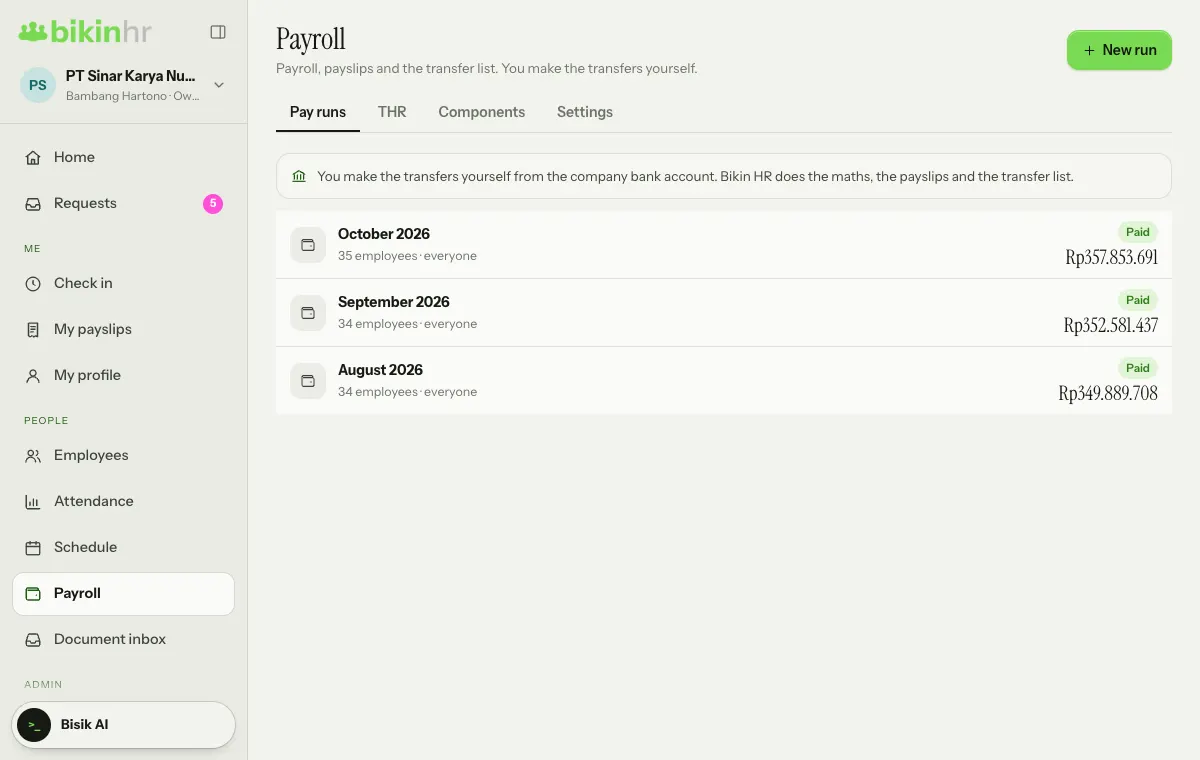
Everything is in the Payroll menu (left sidebar, PEOPLE group), with four tabs: Pay runs, THR, Components and Settings.
Who can do what
| Role | Payroll |
|---|---|
| Owner, Finance | Set pay, create and finalise runs, mark them paid |
| Pay extra access | See and set pay, stacked on another role |
| HR admin without pay access | Only sees run status, no figures |
| Manager | Doesn't see pay |
| Employee | Their own payslips in My payslips, once a run is finalised |
Only the Owner or Finance can finalise a run, and only the Owner can reopen a finalised run.
1. Set each employee's pay
On the employee profile, open the Pay tab (the last tab on the right), then press Change pay:
- Effective from and a Note (for example Annual raise). Changes are kept as history, so raises stay on record.
- Pay type: Monthly, Daily (rate × days present), Piecework (rate × output) or Monthly + piecework.
- Monthly base pay, Daily rate or Piece rates (for example per shirt sewn).
- Allowances from the pay components, how it is paid (transfer or cash), and extra BPJS Health members.
Saving pay asks for a code from your email. Remember to fill in the account on the Bank tab; without accounts, the transfer list stays empty.
2. Components and settings
On the Components tab, the Pay components card holds the earning and deduction components. Tap a component to change it, or press + Add to make a New component. The defaults include a position allowance (fixed), a performance allowance (variable), meal and transport money (per day present), incentives, bonuses, commission and other deductions. Fixed allowances count towards BPJS, THR and overtime pay. Cash advances, lateness and absences aren't components; they are deducted automatically.
On the Settings tab:
- Cut-off: calendar month, or a set day each month.
- Pro-rata for joiners/leavers: calendar days or working days.
- PPh 21: Gross (from pay), Gross-up (tax allowance) or Net (company pays).
- Late deduction (none, per minute or per late arrival) and Absence deducts a day of pay.
- JKK risk class, BPJS Health wage cap and JP wage cap per year.
- Holidays for THR.
Official BPJS and tax values can change at any time. Dates marked as estimates need checking against the official announcement. Check the figures with BPJS or your accountant.
3. Create a pay run
- On the Pay runs tab, press + New run at the top right.
- Choose the Period: Monthly, Weekly or Two-weekly (for daily and piecework staff).
- Choose the Employees: Monthly pay, Daily & piecework, or Everyone. Press Create draft.
- Check the table: earnings, deductions, employer and staff BPJS, PPh 21 and take-home pay. Rows with Warnings (for example no bank account, no NPWP/NIK, no PTKP, or a cash advance over the remaining pay) need a look.
- Open one employee's payslip to fill in Piecework this period or One-off adjustments (reason required), then Save & recalculate.
- Press Finalise. Figures are recalculated with the latest attendance, overtime and advances, then locked. This step asks for the email code.
One employee can't be in two runs with overlapping periods. Take-home pay never goes below zero: a cash advance that can't be fully deducted moves to the next month.
4. Pay and record it
Once final, a run has several outputs:
- Transfer list: a masked preview, and Download CSV with full account numbers (asks for the email code). It is a generic CSV, not tied to a bank: copy it into your bank's bulk-transfer template, or transfer one by one.
- Print payslips and Print cash slips (cash slips with signature boxes), via Print / save PDF.
- BPJS & PPh 21 recap: a BPJS CSV for manual reporting and a PPh 21 CSV that mirrors the e-Bupot 21 import columns.
After you have transferred the money or handed over the cash, press Mark paid and fill in Paid on, Method and Reference (optional). The run's status in the list changes to Paid.
You still file and pay tax and BPJS yourself in DJP Online and the BPJS systems. Check the PPh 21 CSV before uploading it.
Missed something? The Owner can Reopen a run with a reason: it goes back to draft, cash advance deductions are undone, and payslips are hidden from staff until it is finalised again.
THR
If your plan includes THR, the THR tab creates a religious holiday allowance run per holiday (or for everyone at once) with Create THR run. Add the holiday dates on the Settings tab first. 12 or more months of service gets 1 month of pay, 1–12 months is pro-rata, and THR is paid at least 7 days before the holiday. It's best to run that month's payroll first, then THR.
Payslips and summaries
- Employees open their payslips in the My payslips menu once the run is finalised.
- On the employee profile's Pay tab, the 1721-A1 button opens a yearly withholding summary from finalised payslips. The official withholding slip is still made in DJP e-Bupot.
- The Owner and Finance see People cost on Home: the latest month's total, the change from last month, a 6-month overtime trend and the biggest departments.
Last updated: