Bikin HRFeatures
Notes, warnings & contracts
Write praise and work notes, issue printable SP1–SP3 warning letters, and manage PKWT contracts, renewals and making staff permanent.
Two tabs on the employee profile keep work history that often gets lost on paper: Notes & SP for praise, notes and warning letters, and Contracts for PKWT contracts and making staff permanent. Open the profile from the Employees menu, then pick the tab in the row of tabs under the employee's name.
Notes & SP
Owners and HR admins can write for every employee; Managers for their team. Open the employee profile, the Notes & SP tab, and press + Write on the right of the card.
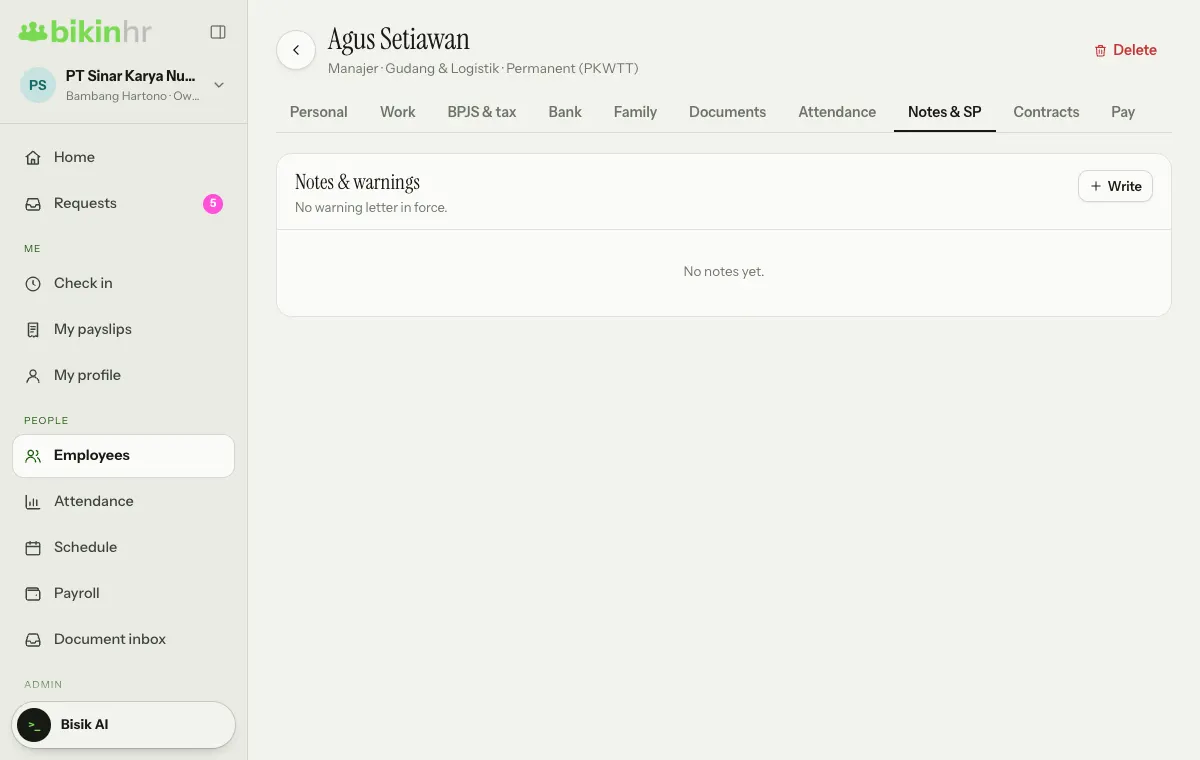
In the Work note or warning window, choose the type:
| Type | Use |
|---|---|
| Praise | Record good work |
| Note | An ordinary work note |
| SP1, SP2, SP3 | First, Second and Third Warning Letter |
Praise and notes
Write it in the Content box, then press Save. The Show to the employee switch is on by default, so the employee sees the praise or note on their profile. Turn the switch off for a private note that only the Owner, HR admins and the employee's manager can see.
Warning letters
- Choose SP1, SP2 or SP3. If the employee still has a warning letter in force, Bikin HR shows until when it is valid and suggests the next level.
- Write The violation and why.
- Press Issue SP1 (or SP2, SP3).
Each letter gets a running number per company per year, for example 001/SP1/HR/XI/2026. Its validity follows Warning validity (months) in Company › Policies. The top of the tab shows how many warning letters are still in force.
Warning letters are always visible to the employee. They open it in the app and press I've read it; the date they read it is recorded. To print, press Letter on that warning's row, then Print / save PDF. The letter uses the company letterhead, with signature boxes for Issued by and Received by.
Bikin HR helps you record and print warning letters. The procedure for issuing them still follows your company regulations and Indonesian labour rules.
Contracts
The Contracts tab keeps the employee's contract history. The line under the Employment contracts card title shows the contract in force, for example PKWT no. 2 until a given date, or Permanent (PKWTT).
Add a contract
- Press + Contract on the right of the Employment contracts card.
- In the New contract window, choose PKWT (fixed-term) or PKWTT (permanent).
- Fill in Start and, for PKWT, End. Add a Note if needed, then press Save.
PKWT contracts are numbered (PKWT no. 1, no. 2 and so on) and have a status: active, ended, renewed or made permanent.
Reminders
Contracts that are about to end appear on the Ending soon card on Home, together with expiring documents. Choose a range of 30 days, 60 days or 90 days to see the days left. Those with 14 days or less also show under Needs attention.
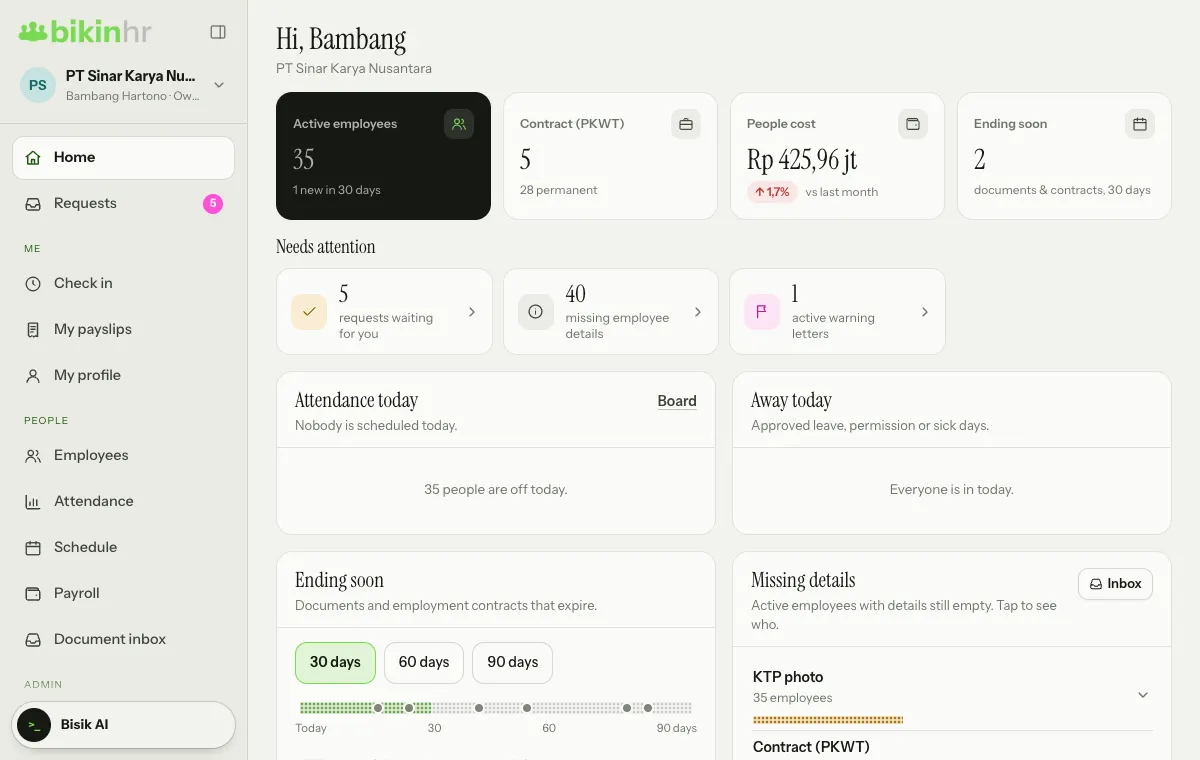
You can also ask Bisik "whose contract ends next month?".
Renew or make permanent
Both buttons sit on the row of a PKWT contract that is still active:
- Renew: opens Renew PKWT. Fill in the End; the new PKWT contract starts the day after the old one ends and is linked to it. If the total PKWT time goes over 5 years, Bikin HR shows a warning (PP 35/2021).
- Make permanent: once you confirm, the employment type becomes PKWTT and the contract end date is cleared.
PKWT compensation
For PKWT, Bikin HR shows an estimate of the PKWT compensation based on the contract length (pay × months of contract ÷ 12). Only roles that may see pay can see this figure. The company still makes the payment itself.
Who sees what
| Role | Notes & SP | Contracts |
|---|---|---|
| Owner, HR admin | Every employee | Every employee |
| Manager | Their team | Their team, without the compensation figure |
| Employee | Warning letters and shared notes | Their own contracts |
Last updated: