Bikin HRFeatures
Connected apps
Connect Bikin HR to BIKIN AI and BIKIN SIGHT so the AI there understands a summary of your team, without sharing personal data or documents.
Connected apps let BIKIN apps talk to each other. Once connected, the AI in other BIKIN apps understands your team from Bikin HR summaries. Right now Bikin HR can be connected to BIKIN AI and BIKIN SIGHT.
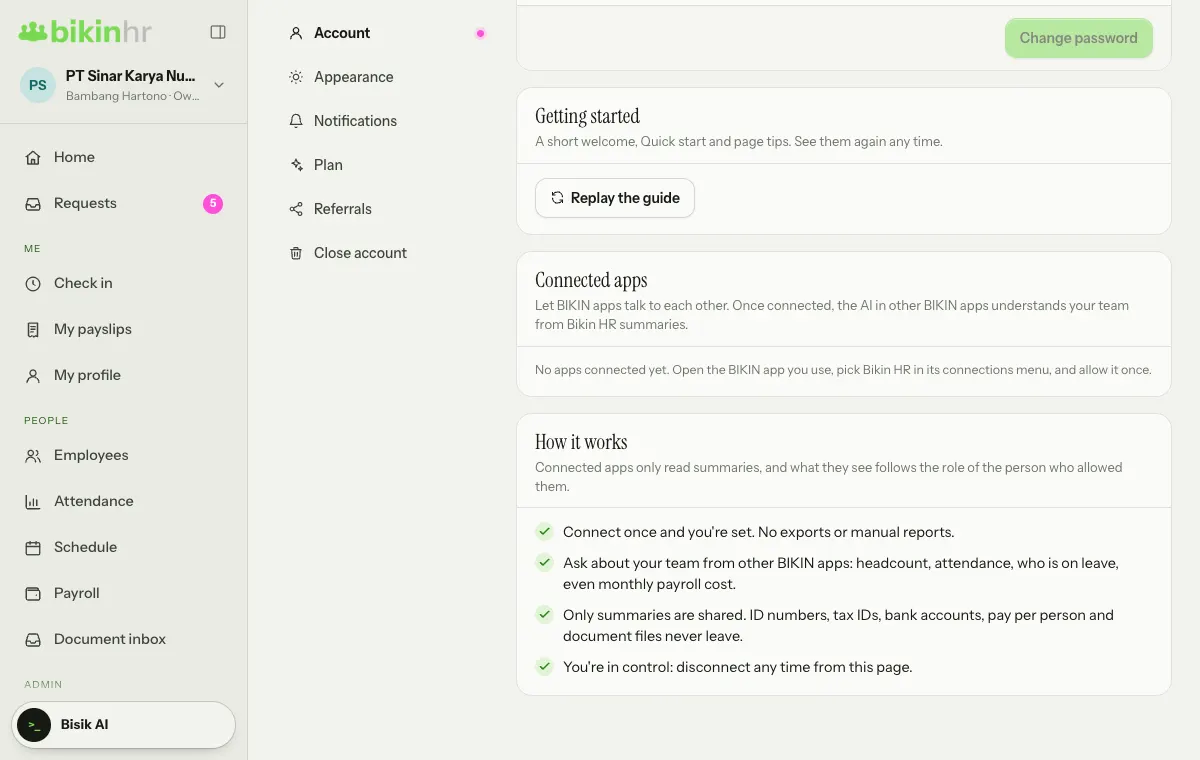
What other apps read
Connected apps only read summaries, and never create, change or delete anything in Bikin HR. The summaries include:
- basic company details and headcount (active, new, by employment type, department and location, and the trend);
- attendance summaries: attendance rate, lateness, absences and who is most often late;
- who is on leave and pending requests;
- people joining and leaving (turnover);
- documents and contracts about to end;
- monthly payroll totals, only when the person who allowed the connection is the Owner, Finance, or has Pay extra access.
Department costs are only shown for departments with at least 3 people; smaller ones are grouped together.
What is never shared
Whatever the role of the person who allowed it, these never leave Bikin HR over a connection:
- NIK, family card numbers, NPWP, bank account numbers and account names;
- pay per person and payslips;
- document numbers, document files, doctor's notes, attendance photos and face data;
- the reasons written in leave and other requests.
Connect
A connection starts in the BIKIN app you want to connect, not in Bikin HR.
- Open BIKIN AI or BIKIN SIGHT and choose Bikin HR in its connections menu.
- You are taken to Bikin HR. Sign in if needed (email, password and email code).
- Bikin HR shows what can be read, what is never shared, and who is allowing it. If your last email code was a while ago, you are asked for a new one.
- Press Allow. You go back to the app, and the connection is ready.
Only the Owner or an HR admin can allow it. Other roles see an explanation and go back to the app. What the app reads follows the role of the person who allowed it.
See and disconnect
Open Settings › Account and scroll to the Connected apps card (below Getting started). The Owner sees every connection in the company; HR admins see their own. Each connection shows who connected it, when, and when it was last used. While there are no connections, the card explains how to start one.
Press Disconnect on a connection's row and confirm to end it. You can connect it again any time from the app.
A connection also ends on its own when the person who allowed it is deactivated, their role changes to one that can't allow connections, or they change their password. When that happens, connect again from the app.
Connected BIKIN apps is a plan feature. If your plan doesn't include it, this card shows how to upgrade. If the plan changes so the feature is no longer included, the connection stays but can't read anything until the plan includes it again.
Last updated: