BIKIN BOOKINGFeatures
WhatsApp & capture
Connect your business WhatsApp number, send fixed messages to registered customers, set up reminders, and turn booking chats into bookings with booking capture.
BIKIN BOOKING sends WhatsApp messages from your own business number, connected like WhatsApp Web. Messages only go to and come from registered customers of your business.
Connecting your number
Open Settings › WhatsApp. The Your business WhatsApp card shows the connection state and number. Scan the QR code with WhatsApp on your business phone, the way you link WhatsApp Web.
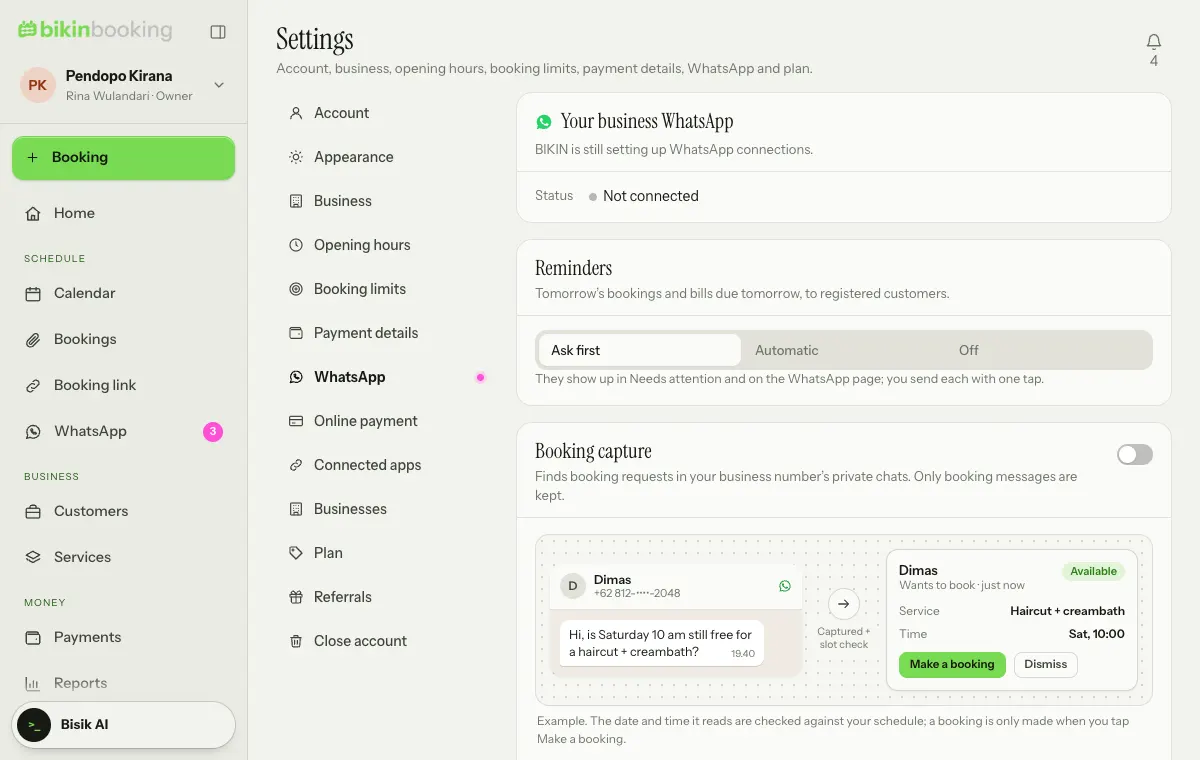
Until a number is connected, the WhatsApp button on a booking opens WhatsApp on your device with the message ready.
The WhatsApp menu
The WhatsApp menu (sidebar, Schedule group) is always there for the owner, admins, front desk and finance, even before the business number is connected. The page holds Captures and Tomorrow's reminders; what you see follows your role.
Until the business number is connected, a line above the page content reads WhatsApp isn't connected yet. The owner sees a Connect WhatsApp button that opens Settings › WhatsApp; other roles are told the business owner can connect it. If your plan doesn't include any WhatsApp feature yet (sending from the business number, automatic reminders or booking capture), the line reads WhatsApp isn't part of your plan and the owner sees See plans. The rest of the page still works; for example, tomorrow's reminders can still be sent with one tap through WhatsApp on your device.
Messages to customers
On the booking details, Customer link › WhatsApp sends a message with a fixed text: request received, confirmation, bill, schedule reminder, payment reminder, or thank you. Pick a variant, check the preview, then send. One message per tap, no broadcasts and no free-text box.
The Reminders card sets up reminders for tomorrow's bookings: Ask first (they show under Needs attention and on the WhatsApp page, and you send each with one tap), Automatic or Off.
Booking capture
Many customers book by chat. Booking capture turns chats such as "is the ballroom free on the 21st?" into cards that are one step away from a booking.
- It only works once your business number is connected. The switch is in Settings › WhatsApp, it is off by default, and only the owner turns it on, with an email code.
- Only text messages in private chats, incoming and outgoing, are checked. Groups are never read, and photos and files are never downloaded.
- Only messages about bookings are kept, as captures. Other messages are dropped without being stored.
- Captures nobody touches are deleted automatically after 14 days.
Captures show in the WhatsApp menu, on the Captures tab, with a badge on the menu and a tile under Needs attention.
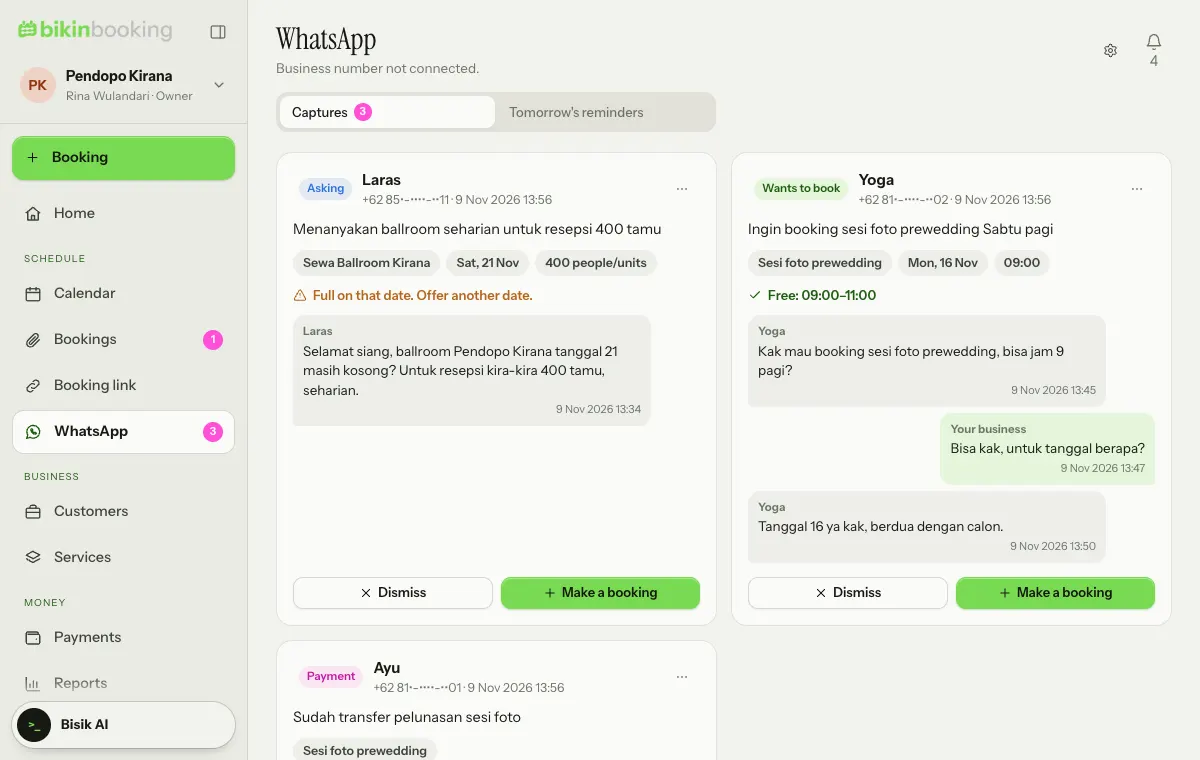
- Make a booking opens New booking filled in with the name, WhatsApp, service, date and time. The number only becomes a registered customer once the booking is saved.
- Dismiss deletes the capture straight away.
- The ⋯ menu on a card has Stop capturing this number, so that number's messages aren't checked again.
Booking capture follows your plan. The owner can let admins and the front desk see and follow up captures.
Your responsibility
The WhatsApp number and its chats belong to your business. Tell your customers that booking messages are recorded when capture is on. WhatsApp may limit a number it considers spammy; the app paces messages and keeps daily limits to protect your number.
Last updated: