BIKIN BOOKINGFeatures
Services & terms
Set up services with six schedule types, Simple or Advanced contents (customers pick one or several), cost prices, stock and team that are never double-booked, paid extras, date prices, and terms for deposits, balances, cancellations, rescheduling and security deposits, plus booking limits per hour, day, week or month.
Services has three tabs: Services (what you sell), Stock & team (rooms, equipment and people that can never be double-booked) and Terms (money and cancellation rules). The tab names follow your type of business, such as Wedding packages and Teams for a wedding organizer, or Event spaces for a venue. Only the owner and admins can change them.
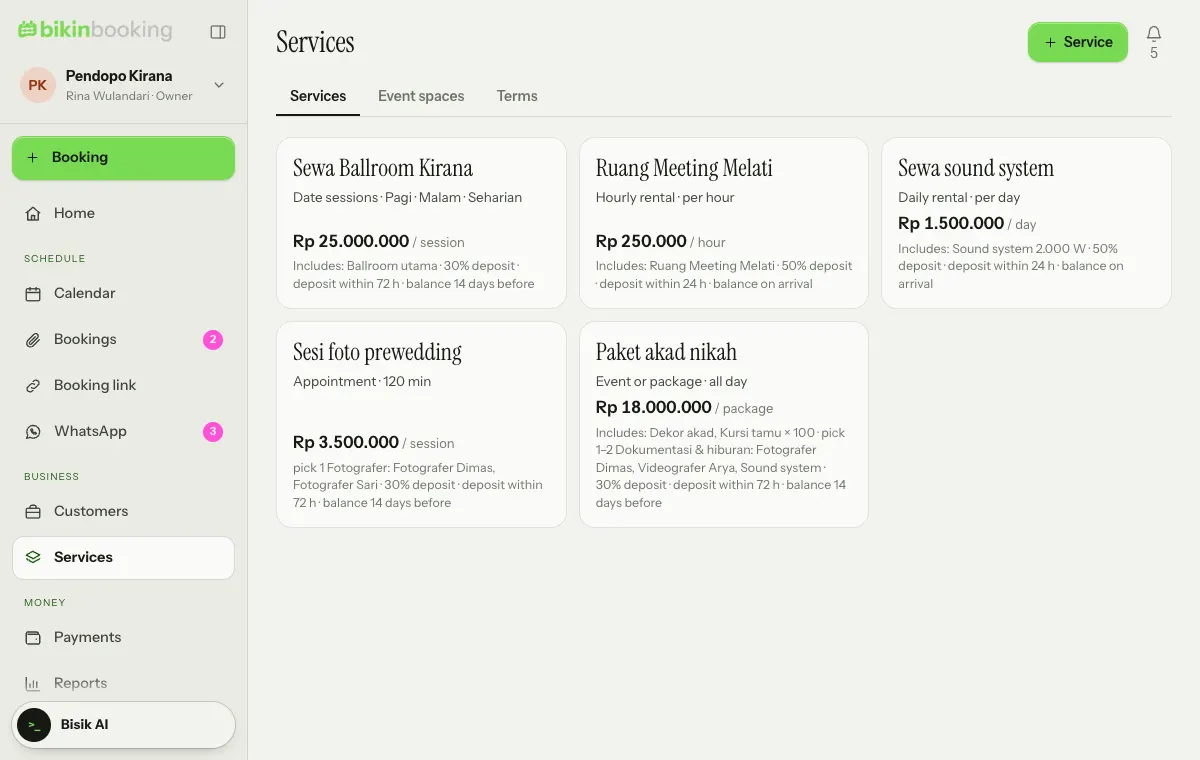
Services
Choose + Service or tap a service card to edit it. Fill in the name, Schedule type, price and the Service contents.
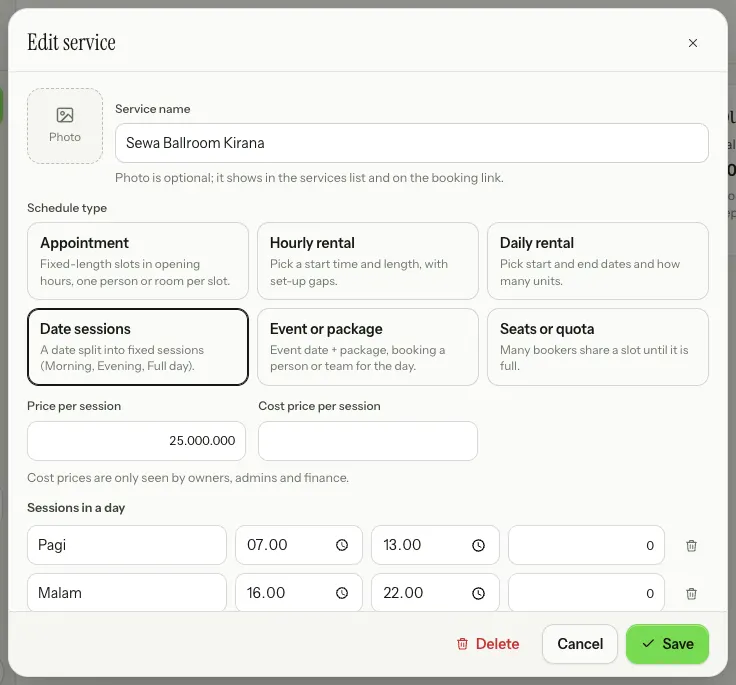
- Photo (optional): tap the Photo box beside the name to pick a JPG, PNG or WebP image. It shows on the service card and on the booking link; Remove photo takes it off.
- Schedule type: Appointment, Hourly rental, Daily rental, Date sessions, Event or package, or Seats or quota (see About BIKIN BOOKING).
- Cost price per session (or per hour, day and so on; optional): only owners, admins and finance see it. Below it shows the Gross profit per unit.
- Service contents: what's included, set up Simple or Advanced (see below).
- Gaps before and after, for set-up and clean-up.
- Paid extras, charged once per booking or per hour/day, which can be scheduled from stock (such as an extra sound system) and have their own Cost.
- The Active (can be booked) and Show on the booking link switches.
Service contents: Simple or Advanced
Service contents are everything included when the service is booked. Choose how beside the Service contents heading:
- Simple: everything listed is always included. Add the items one by one with a Qty, for example the main ballroom, Futura chairs × 350 and a stage.
- Advanced: the items that are Always included, then one Customer's choice with a name (such as Artist or Decoration theme) and a rule: Pick one, Pick several (with At least and At most) or No choice.
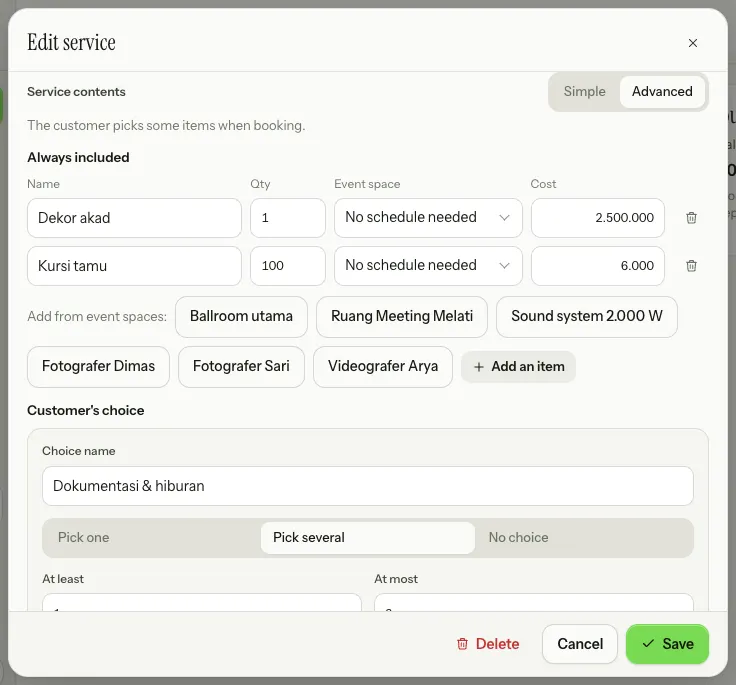
Each item can be linked to stock or a team member in the column beside it. Linked items are held on the calendar for their quantity, so they're never double-booked; choose No schedule needed for items that are just a description (such as a 20-page album). For Pick one where every option is linked, customers can also choose Whoever is free. Item names are shown to customers as Includes and Chosen; their cost prices never are.
Each item, option and extra can have a Cost. A service's cost is its cost price per unit plus the cost of its items; option costs come from what the customer picks. A booking keeps its cost from the moment it's made, and the booking details show Cost and Gross profit to owners, admins and finance.
Services made earlier keep working as before. When you open one, a service using one stock item or all of them at once shows as Simple, and one using any one of several shows as Advanced with Pick one.
Date prices
At the bottom of the service window, Date prices change the price for weekends, public holidays or a date range, up or down by a percentage or as a fixed price. Date ranges are checked first, then public holidays, then weekends.
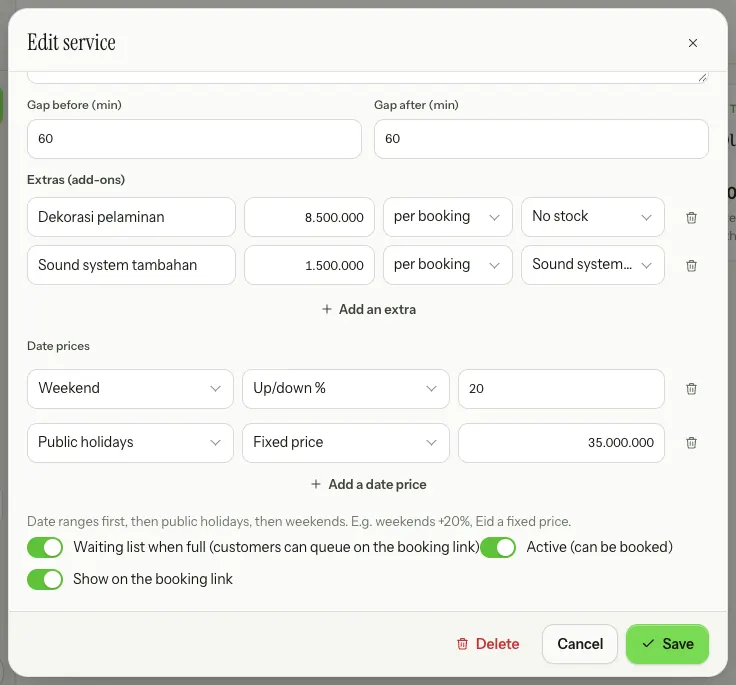
Below it is the Waiting list when full switch, so customers can queue on the booking link. Date prices and the waiting list follow your plan.
Stock & team
Stock & team are what can never be double-booked: rooms (Ballroom A, a meeting room), equipment with a Number in stock (Camera × 3) and people (a doctor, a photographer, a team). The tab name follows your type of business, such as Teams, Artists, Rental items or Event spaces. Link them to a service's contents so they're held: a booking locks its time on every stock item and team member it uses, so nothing is ever double-booked.
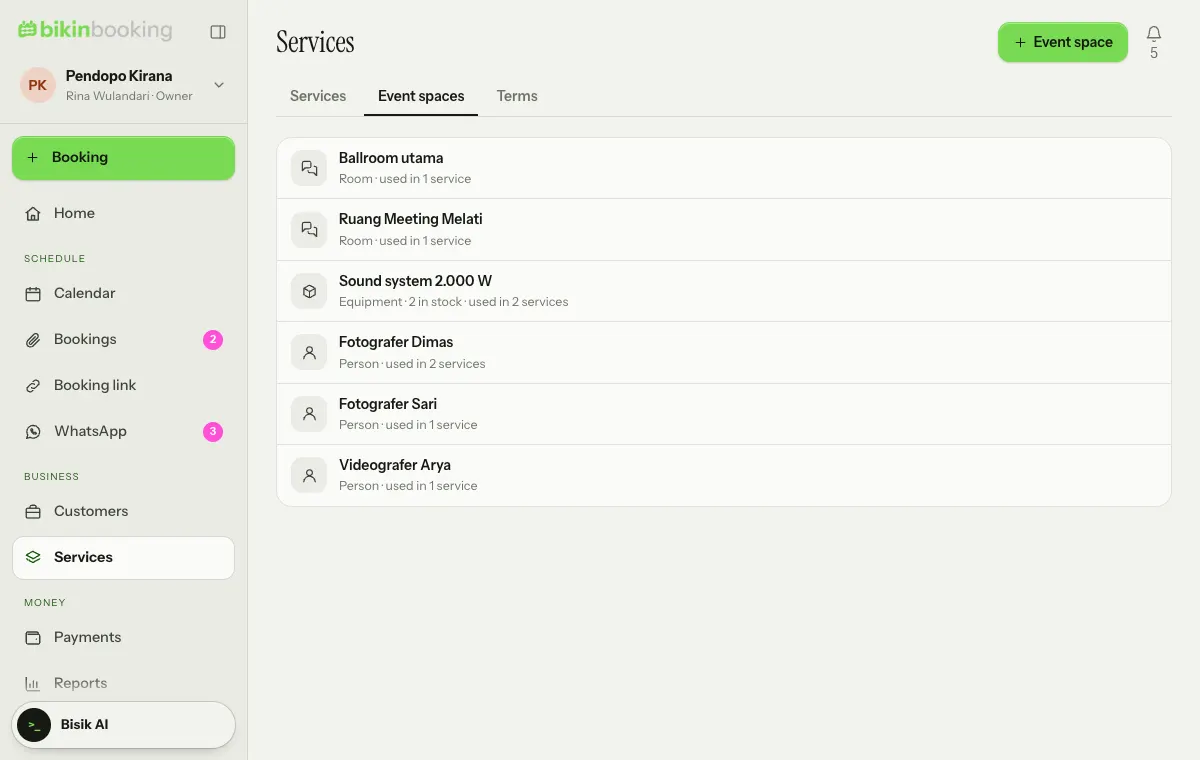
A person in Stock & team can be linked to a team member with the Staff role, so they see their own schedule (see Roles & access).
Terms
Terms are rule templates attached to services. One default is made for your type of business, and you can make more.
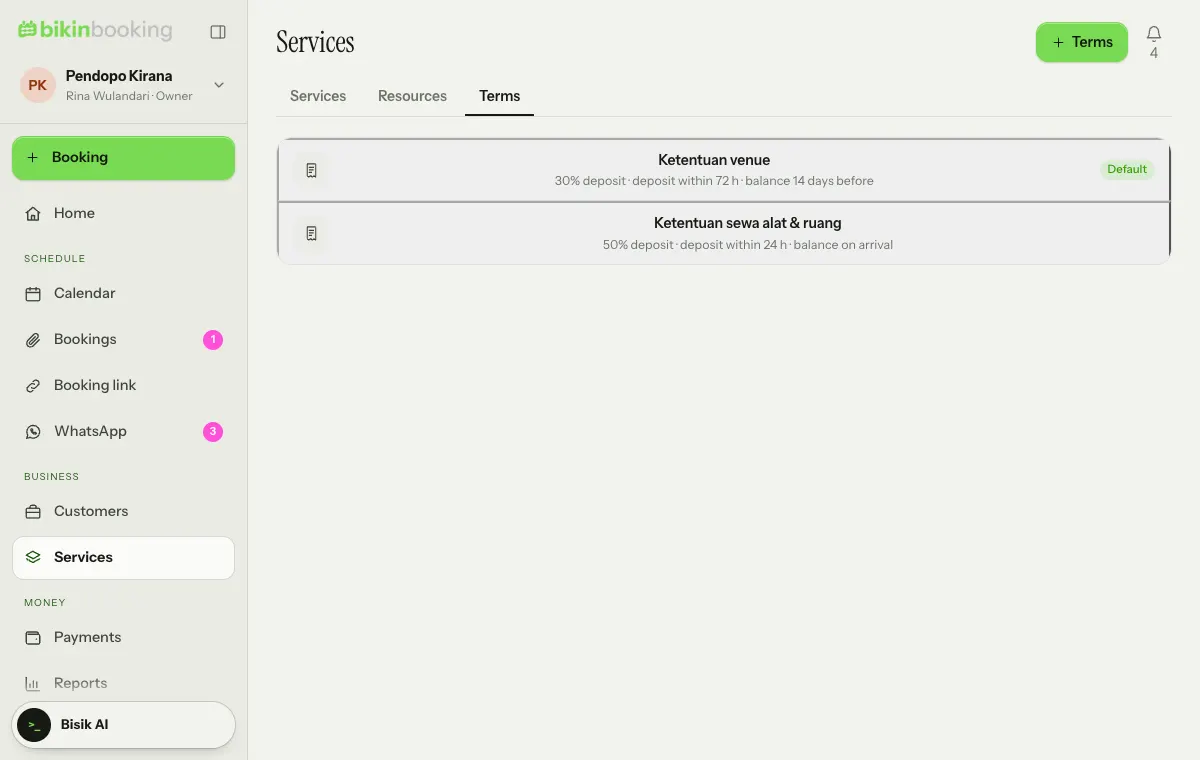
Tap a set of terms to edit it:
- Down payment: None, Percent or Fixed, with a deadline to pay it. After the deadline, a held booking is released by itself.
- Balance: Before the date (how many days before), On arrival or After it ends.
- Written terms and conditions that customers read and agree to on the link.
- The More: cancellation, rescheduling, deposit, late return part: cancellation fees by days before (a percentage of the total), rescheduling limits and fee, a late return fee per hour or day, and a security deposit.
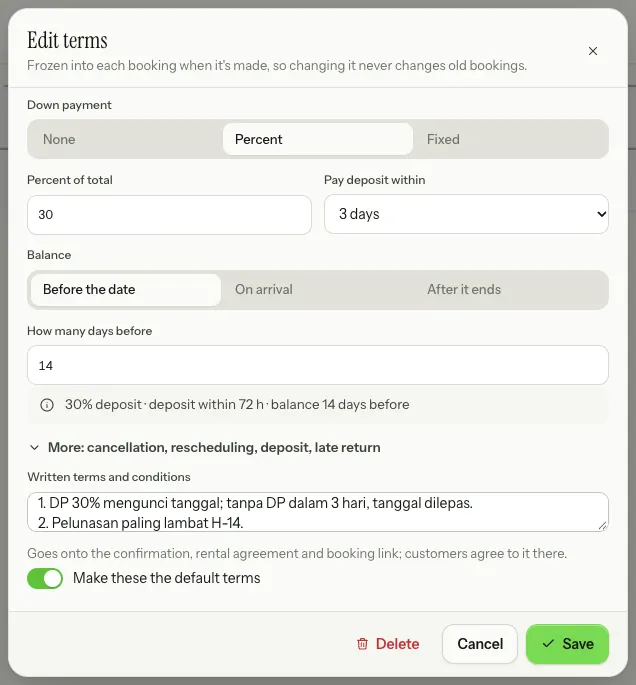
From the terms, every booking gets its own bill schedule, for example a 30% deposit within 3 days and the balance 14 days before. Cancellation fees and deposit deductions are always suggestions; a person decides.
Booking limits
Booking limits make sure you never take on more bookings than you can handle. Turn on Limit the number of bookings in Settings › Booking limits, then set one or more limits. Only the owner and admins can set them.
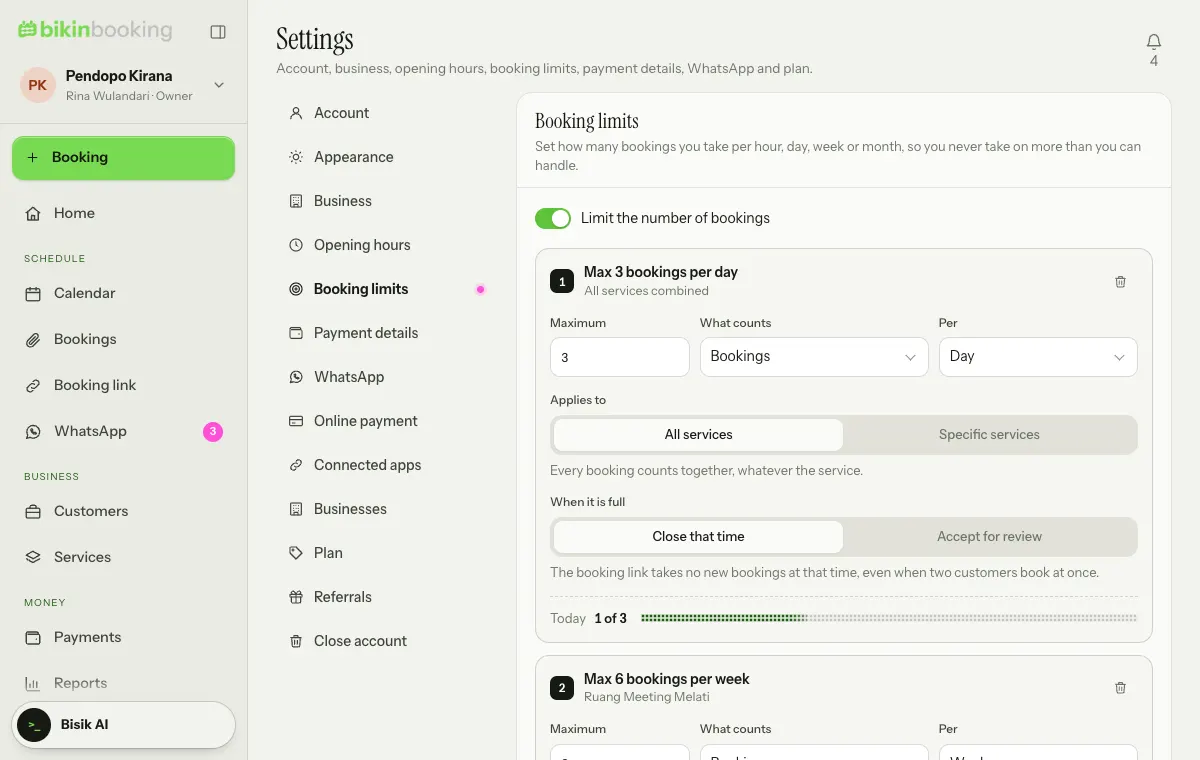
Each limit has:
- A Maximum, and What counts: Bookings (the number of bookings) or Units / people (the units or people in each booking; 3 people in one booking count as 3).
- Per: Hour, Day, Week (Monday to Sunday) or Month, by each booking's start time.
- Applies to: All services (every booking counts together) or Specific services. Several services in one limit share one quota. For separate quotas, for example service A at most 5 and service B at most 10 a day, add two limits with + Add a limit.
- When it is full: Close that time (the booking link takes no new bookings at that time, even when two customers book at once) or Accept for review (customers can still book, but the booking comes in as a Request you accept or decline first).
All limits apply together: a booking has to fit every limit that covers it. Cancelled and no-show bookings don't count; requests still being held do. Under each saved limit you see the use of this hour, day, week or month, and upcoming dates that are Already full. Turn the switch off to stop limiting; your limits stay saved.
On the booking link, dates and times whose quota is full can't be picked (Close that time), or are marked needs confirming (Accept for review). Such requests hold their time for the hold period in Link rules, just like Ask to confirm mode. Customers never see your numbers.
When you or your team add or reschedule a booking yourselves, times over a limit are marked over limit. When you save, This booking goes over a booking limit shows at the bottom of the form with the limits that are full, and the button turns into Save anyway; choose it if you can still handle it, or change the time. The booking notes this in its activity, and its details show the same warning.
Last updated: