BIKIN BOOKINGFeatures
Payments & online payment
Record deposits, balances and refunds, follow open bills, show your business bank account, turn on online payment through BIKIN, and withdraw your balance to your business account.
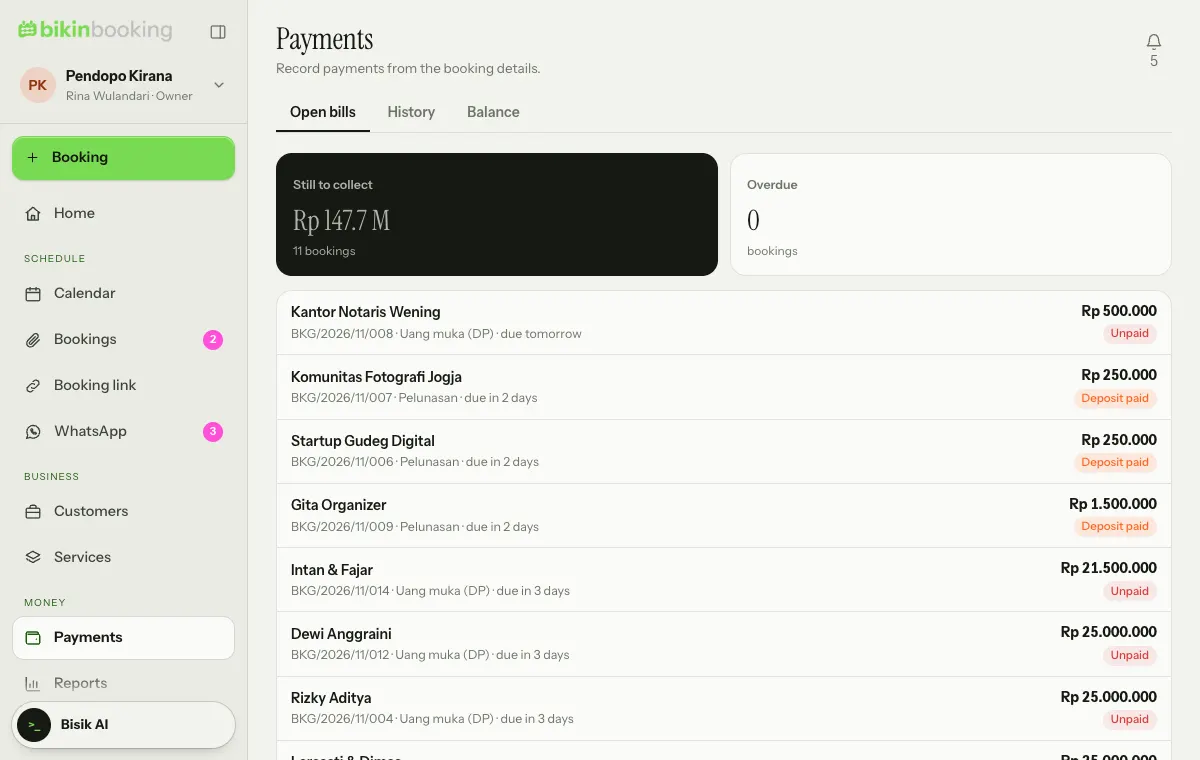
Payments has the tabs Open bills, History and Balance (when you use online payment). Payments are recorded from the booking details.
Recording a payment
- Open the booking, then choose Record payment.
- Choose Payment in or Refund.
- Fill in the Amount (or choose Pay in full), Date, Method and Note, then Save.
Once the deposit is recorded, the booking is confirmed automatically. Partial payments go to the nearest bill, and the status pill moves from Unpaid to Deposit paid to Paid. The History tab shows money in and refunds per month.
When a customer tells you they've paid on their booking link, the booking is marked To check and shows up under Needs attention. The status never changes by itself: check the transfer receipt, then record the payment.
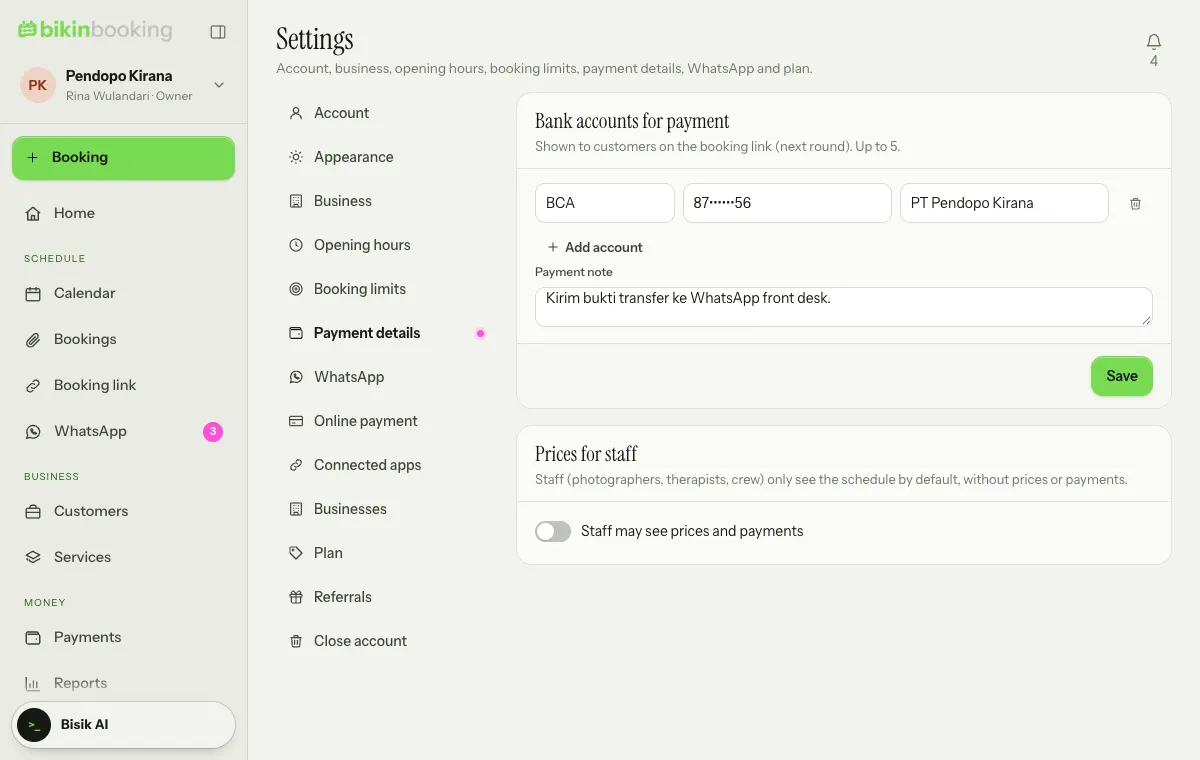
Your bank account
In Settings › Payment details, add your business bank accounts (up to 5) and a note on how to pay. They show on the booking link with a Copy button, with no BIKIN fee. In the Prices for staff card, choose whether staff may see prices and payments.
Online payment through BIKIN
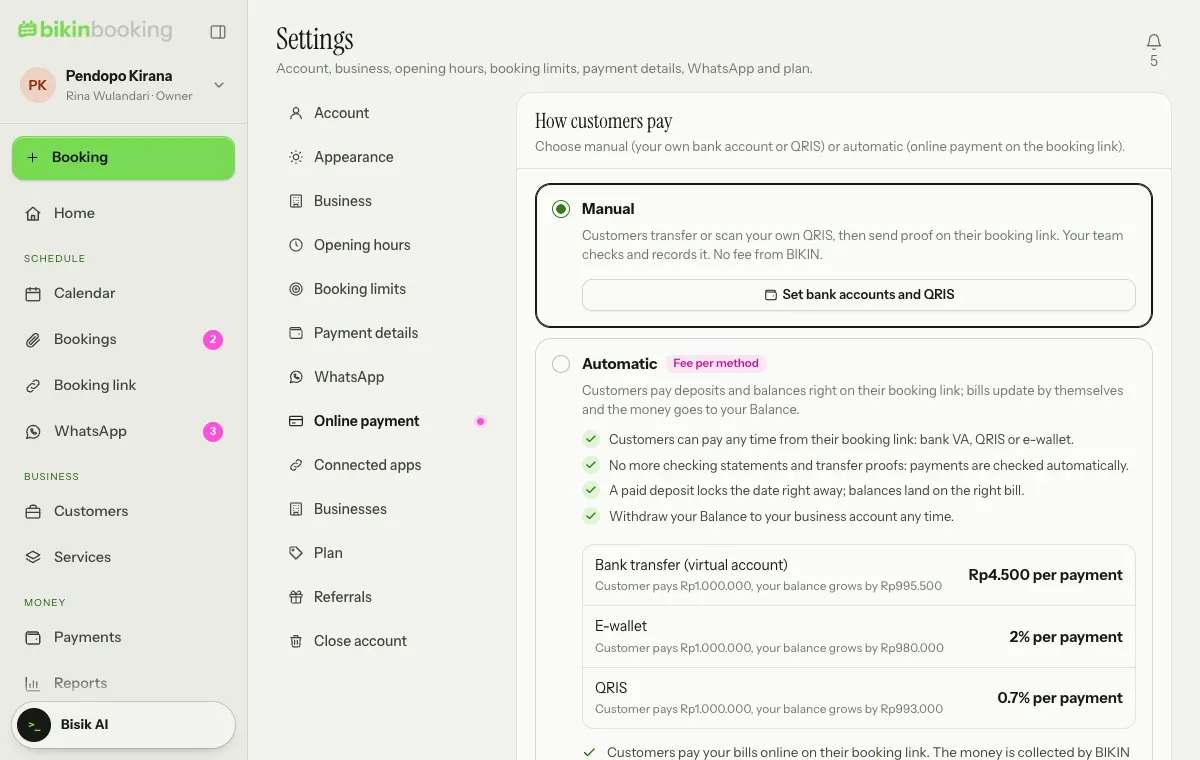
With Online payment, customers pay deposits and balances on their booking link with Pay now: bank transfer (virtual account), e-wallet or QRIS, as opened by BIKIN. Once paid, the bill is settled by itself, the payment is recorded, and the money goes to your business Balance.
- Online payment is only for businesses that use Indonesian rupiah (IDR); see Currency.
- Only the Owner turns online payment on, by agreeing to its fees with Agree & turn on.
- The fee for each payment follows the method the customer picks and is deducted from your balance. Customers pay exactly the bill amount.
- When BIKIN changes the fees, Pay now stops showing until the owner agrees to the new fees (Agree to the new fees). Bills already issued keep the fee from when they were issued.
- Refunds to customers are still made and recorded by you on the booking.
- You can turn online payment off at any time; your balance can still be withdrawn.
Balance and withdrawals
The Balance tab (owner only) shows the balance from online payments, the online payment status, your withdrawals, and the latest online payments with their fees.
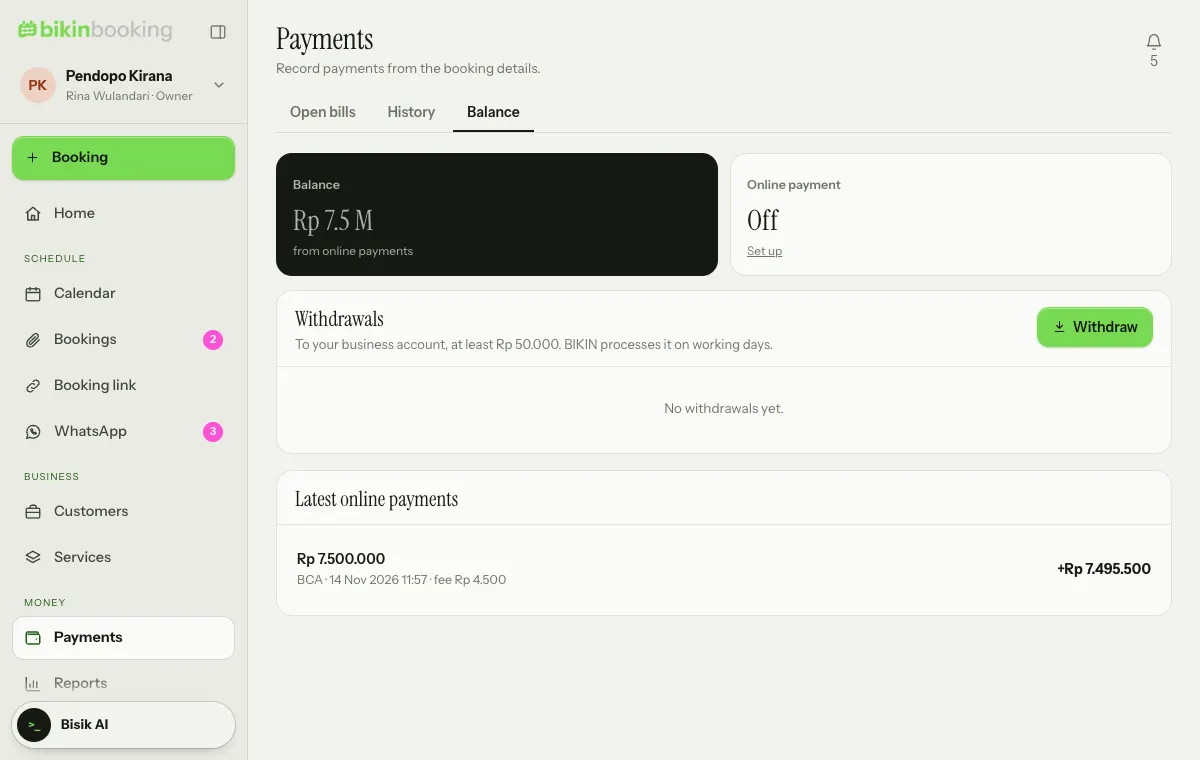
Choose Withdraw, then enter the amount, bank or e-wallet, account number and account holder. The money goes to your business account and BIKIN processes it on working days; the minimum amount is shown on screen. While it is still Processing, a withdrawal can be cancelled and the amount goes back to your balance.
Last updated: