BIKIN BOOKINGFeatures
Bookings
Make bookings, follow their status from request to done, check in, reschedule, cancel with a suggested fee, and keep track of hand-overs, deposits, rundowns and the waiting list.
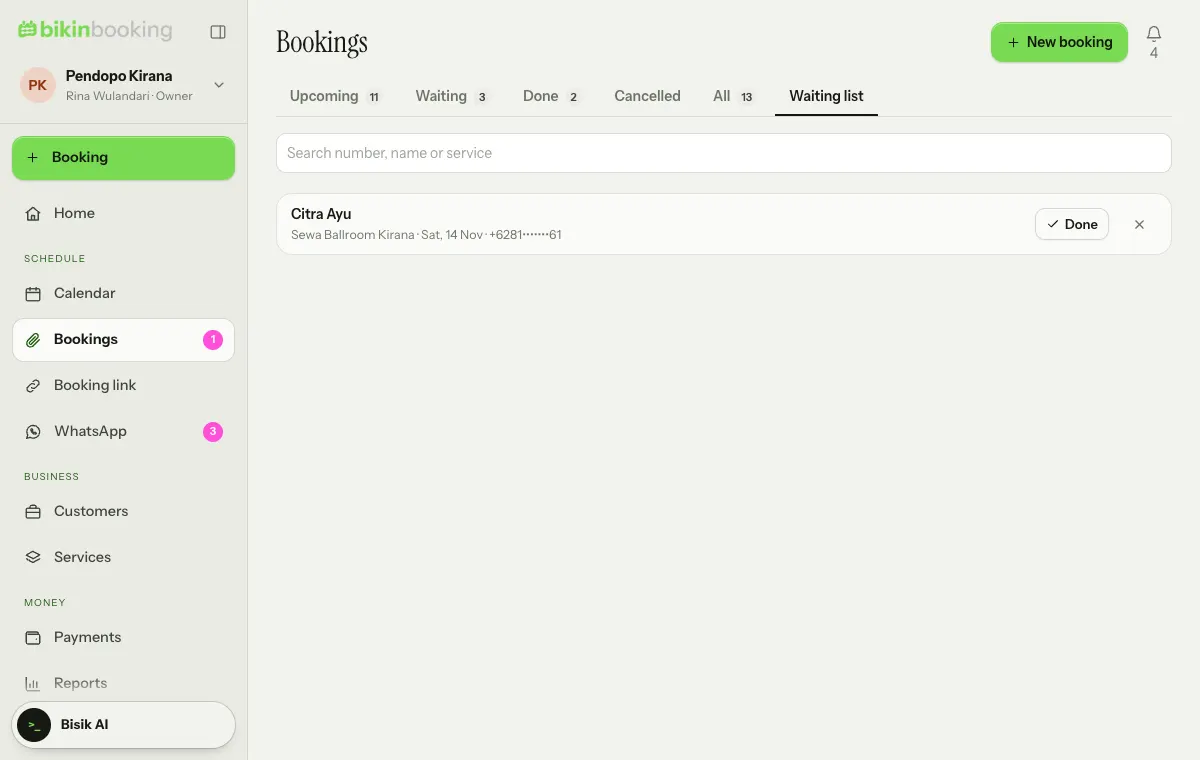
Bookings lists every booking with the tabs Upcoming, Waiting, Done, Cancelled, All and Waiting list. Search by number, name or service.
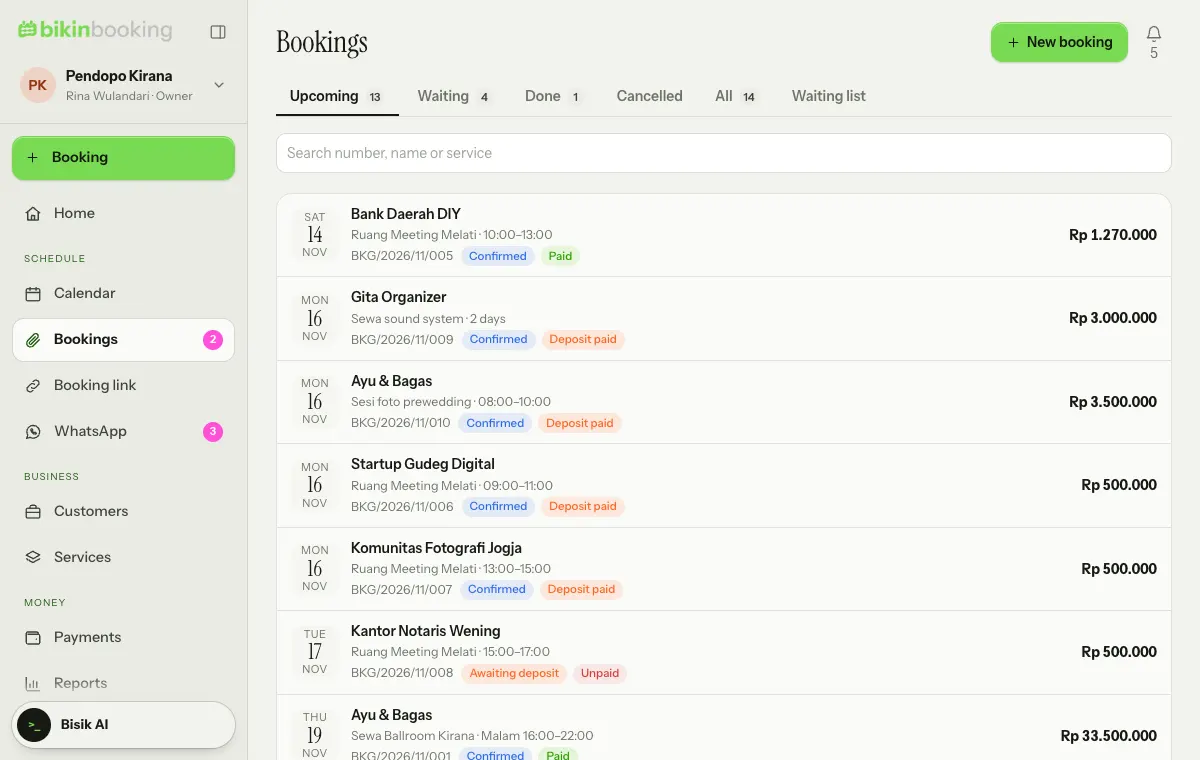
Making a booking
- Choose + Booking above the menu (on phones, in the sidebar drawer), or tap a free slot in the Calendar.
- Under Customer, choose Existing or New, then fill in the name, WhatsApp and email.
- Under Service and time, choose the service and date, then a free slot, time, session or quantity. For a service with Advanced contents, pick its options first (one or several); the items that always come with it show as Included. The price works itself out. As soon as you pick the date, a card below it shows what is on that day: No bookings on … yet with a green tick, or N bookings already on … with a yellow exclamation mark and their times, services and customers.
- Choose Add another service when one booking covers several services or days, for example service A with one option and service B with two. Each service has its own date, time and options.
- Fill in Note for the customer and Internal note if needed, then choose Save booking.
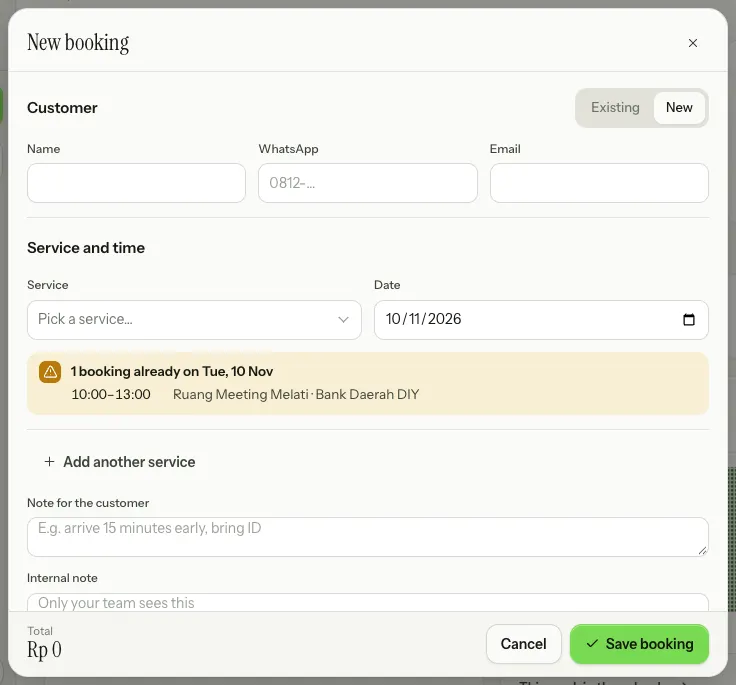
If the time clashes with another booking or a block, the booking can't be saved. When Booking limits are on, times over a limit are marked over limit; when you save, the warning shows at the bottom of the form and the button turns into Save anyway. The booking number (for example BKG/2026/11/010) is given when it is saved and is never reused.
Booking status
| Status | Meaning |
|---|---|
| Request | Came in from the booking link in Ask to confirm mode; choose Accept or Decline |
| Awaiting deposit | The time is locked while waiting for the deposit. After the deposit deadline it is released by itself |
| Confirmed | The deposit came in, or the service has no deposit |
| In progress | After Check in |
| Completed | After Done |
| Cancelled and No-show | The booking stays on record with its reason |
The payment status shows as a separate pill: Unpaid, Deposit paid, Paid, or To check when the customer sent a proof of payment.
Booking details
Open a booking to see its schedule, payments, customer link and activity. The Schedule card shows what is Included and Chosen for each service; owners, admins and finance also see Cost and Gross profit under the total. The buttons at the top follow its status: Check in, Done, No-show, Cancel, Record payment and Reschedule.
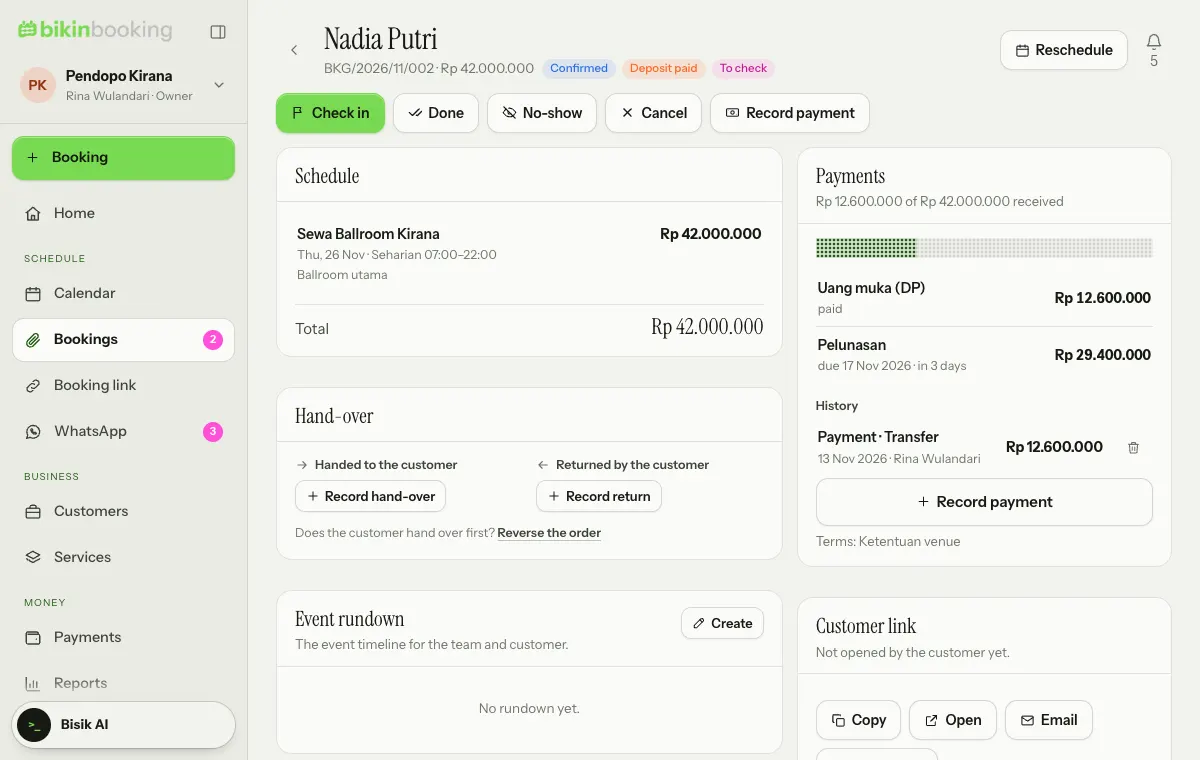
- Reschedule checks clashes and the rescheduling rules in the terms (how many times, how many days before, and the fee). Owners and admins can override them.
- Cancel shows a suggested cancellation fee and refund from the booking's terms. It is only a suggestion; you decide and record the refund.
- The Customer link can be copied, opened, or sent by email or WhatsApp (see Booking link).
Terms are frozen into a booking when it is made, so changing terms in Services never changes older bookings.
Hand-over, deposit and rundown
For equipment and venue rentals and drop-offs, the Hand-over card records what changes hands, in both directions. When the booking has a security deposit, the card is called Hand-over & deposit.
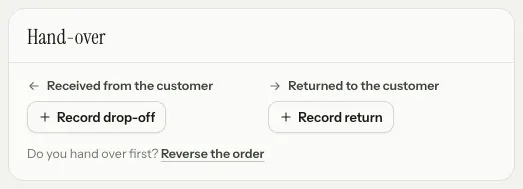
- Record hand-over when equipment or a room is handed to the customer, and Record return when the customer brings it back. Both buttons are always there, so a return can still be recorded when the hand-over was missed.
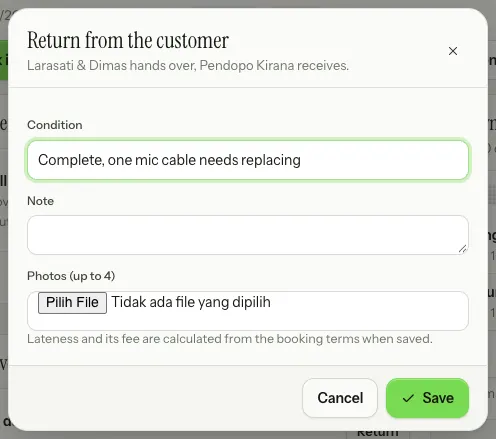
- Each record keeps the condition, a note, up to 4 photos, the time and who recorded it.
- Security deposit: choose Received when it comes in, then Return afterwards, with any deduction and its reason. You transfer the refund yourself; the app only records it.
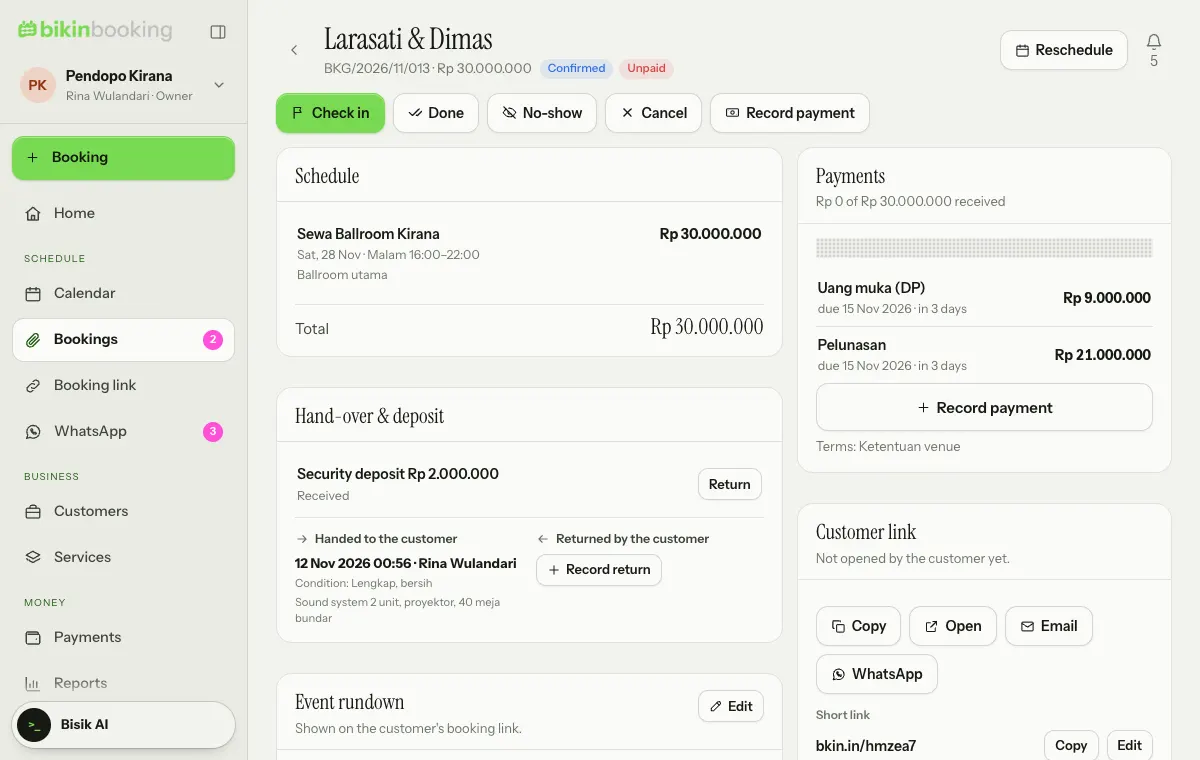
The return popup shows who hands over and who receives. Lateness and its fee are worked out from the booking terms when the return is saved, and fill in as the suggested deduction when the deposit is returned.
For drop-offs the order is reversed: Record drop-off when the customer leaves a pet, vehicle or item with you, then Record return when you give it back; lateness is counted when it goes back to the customer. Pet boarding, grooming, garages and car washes use this order from the start. Other businesses can choose Reverse the order on the card before the first record.
The Hand-over record on the booking link lists each recorded step with its own signature lines: at the hand-over the business hands over and the customer receives, at the return it's the other way round.
The Event rundown card keeps the timeline, activities and person in charge. The rundown also shows on the customer's booking link.
Waiting list
When the waiting list is on for a service, customers can queue on the booking link when a date is full. They show up on the Waiting list tab. When time frees up, the team is notified; contact the customer, then choose Done or remove them from the list.
Last updated: