BIKIN BOOKINGGet started
Get started with BIKIN BOOKING
Sign up or sign in to BIKIN BOOKING, set the currency, tune your service and opening hours, make your first booking, then finish the Quick start list.
This page takes you from signing up to your first booking. Most steps only need doing once, by the owner.
Sign up
- Open booking.bikin.studio/register, or choose Sign up on the sign-in page.
- Fill in Your name, Business name, Type of business, Email and Password (at least 8 characters), then choose Create account.
- Enter the 6-digit code sent to your email.
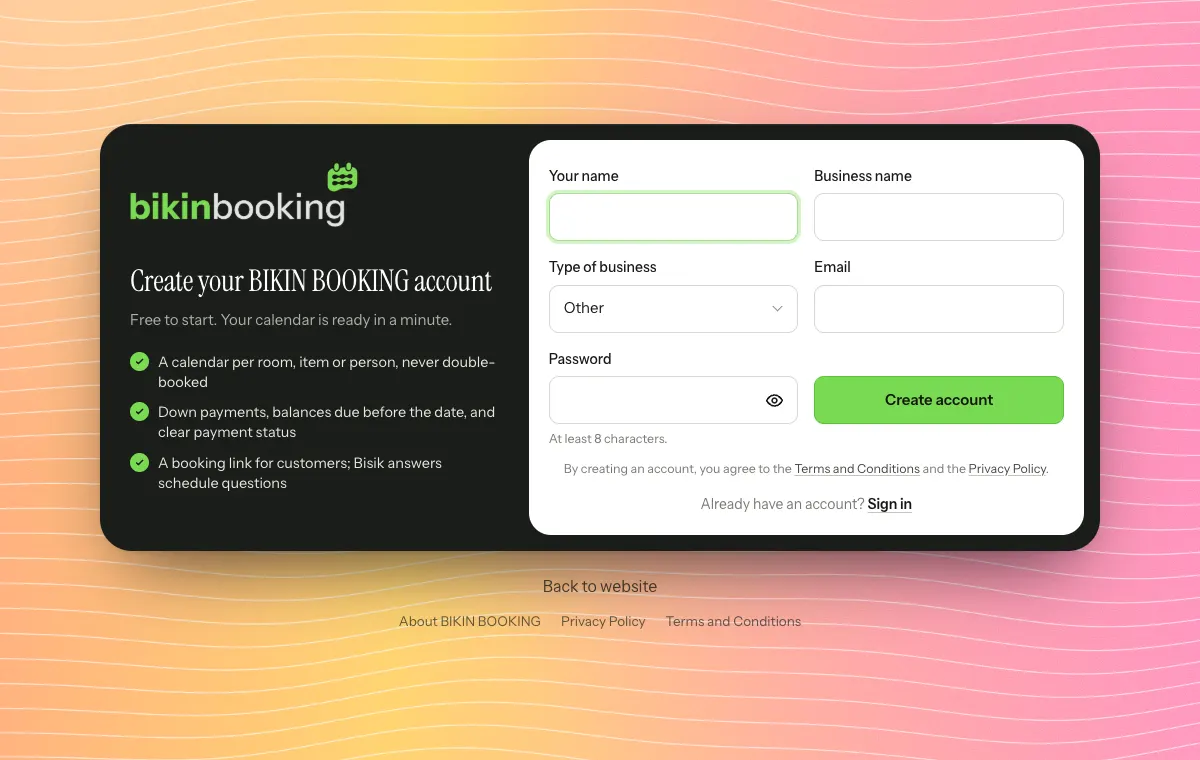
Type of business fills in a starting point: a first service with a matching schedule type, one stock item or team member, and terms for the down payment and balance. You can change all of it later in Services.
The types are grouped by sector, such as Events & weddings, Health, Sports & fitness, Rentals & vehicles and Pets. If yours is not listed, pick Other at the bottom. The type also sets the wording in menus and on the booking link: a clinic sees Patients, a padel venue sees Courts, a course provider sees Students and Classes, and rentals use Pick-up and Return dates. You can change the type in Settings → Business; only the wording changes, and your existing services stay as they are.
When the button is shown, you can also choose Sign up with Google. The person who signs up becomes the Owner of that business, and new businesses start on the free plan. One email is one business.
If the sign-up link isn't shown, sign-up is closed for now. Contact BIKIN at contact@bikin.studio to get an account.
Sign in
- Enter your email and password, then choose Sign in.
- Enter the code from your email. It works for 10 minutes.
You then stay signed in on that device for 30 days. Choose Sign in with Google if your Google account uses the same email. Forgot your password? Choose Forgot password? on the sign-in page.
Currency
Service prices, bills, payments, deposits and fees in your business use one currency, also on booking links and customer documents. It is set in Settings › Business, on the Currency card. Thousand and decimal separators follow that currency, such as Rp 1.250.000 for Indonesian rupiah and RM 1,250.50 for Malaysian ringgit, and amount fields add the thousand separators as you type.
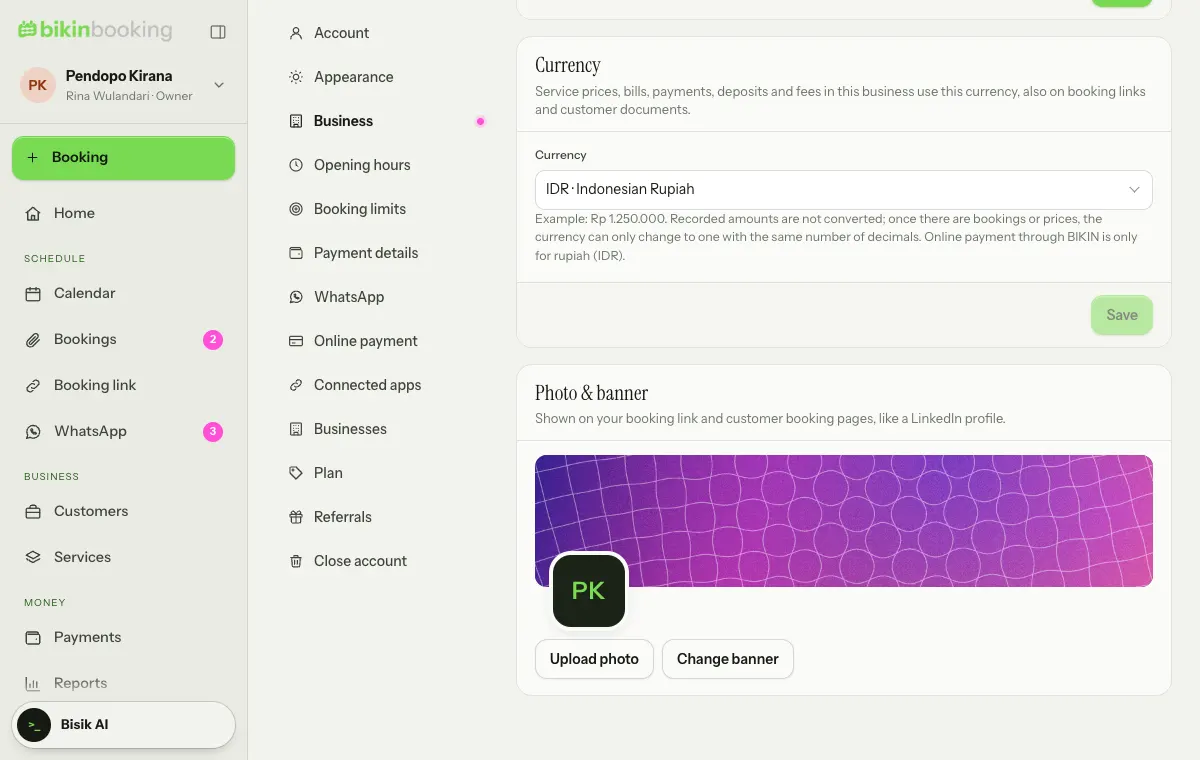
- A new business gets the currency of the country it signs up from, and extra businesses in a group follow the main business. A business in a currency other than rupiah starts with sample service prices of 0, because the defaults are in rupiah; fill in your prices in the Services menu.
- Only the owner changes it: pick a currency in the list (type in the search box to find it), then Save and Change in the confirmation. Admins see the card with Only the owner changes it.
- Until there are bookings or prices, you can change the currency freely. After that it can only change to a currency with the same number of decimals, because recorded amounts are never converted.
- Online payment through BIKIN is only for businesses that use Indonesian rupiah (IDR). With another currency it shows locked, marked Only for businesses that use Indonesian rupiah (IDR), and moving away from rupiah switches it off.
- BIKIN BOOKING plan prices, bills, referral commission, your Balance and withdrawals stay in rupiah.
Welcome and Quick start
The first time you sign in, BIKIN BOOKING shows a short welcome for your role; choose Skip to get straight to work. Owners and admins also get the dark Quick start card in the sidebar, right above Bisik (on phones, in the sidebar drawer). Tap the card to open the list of steps.
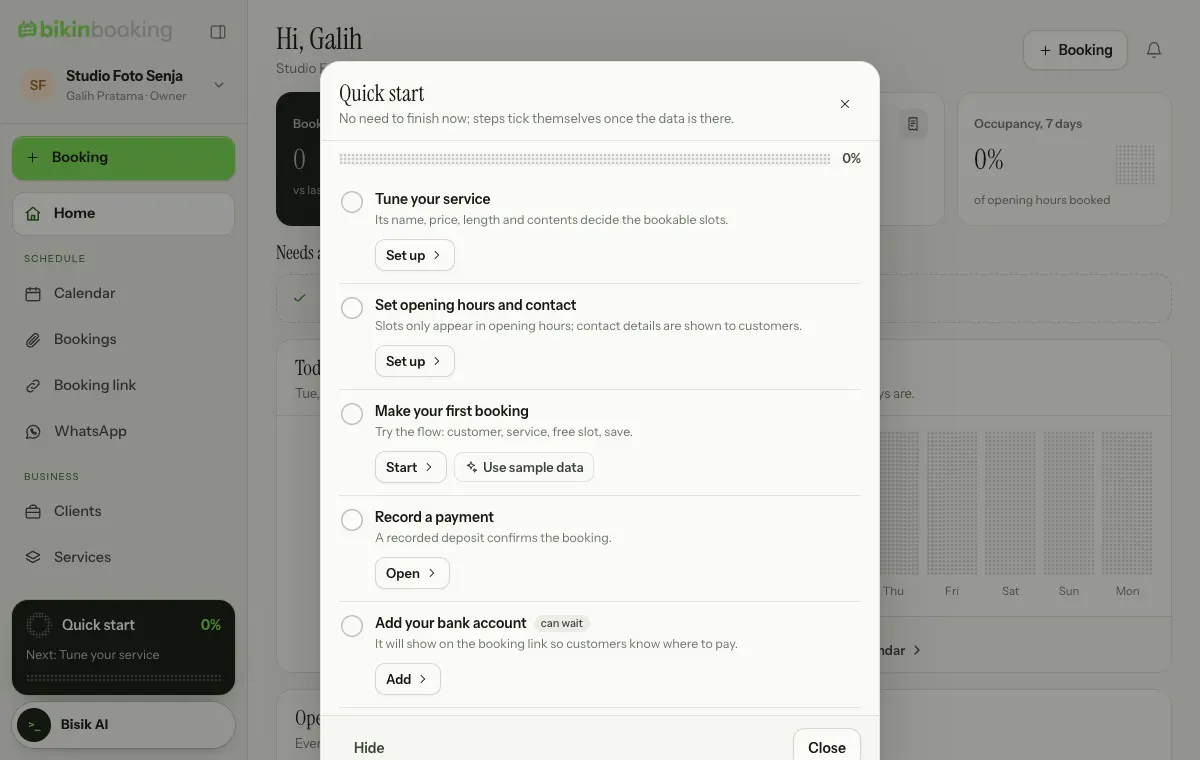
Each step says why it matters and has a button that takes you straight to its page:
- Tune your service. Its name, price, length and contents decide the bookable slots.
- Set opening hours and contact. Slots only appear in opening hours; contact details are shown to customers.
- Make your first booking. Try the flow: customer, service, free slot, save.
- Record a payment. A recorded deposit confirms the booking.
- Add your bank account and Invite teammates, marked "can wait".
Once the required steps are done, press Finish. If you'd rather not see it yet, choose Hide. The welcome, Quick start and tips can be opened again from Settings › Account › Getting started.
Sample data
Want to see BIKIN BOOKING filled in first? On Make your first booking, choose Use sample data. BIKIN BOOKING adds two customers and three bookings using your own services. Sample bookings are numbered CONTOH/…, so your own booking numbers stay untouched, and everything can be removed in one tap without touching real data.
Next steps
- Services & terms to set up what you sell.
- Calendar and Bookings for daily work.
- Booking link so customers book by themselves.
Last updated: