BIKIN BOOKINGFeatures
Booking link
Share your booking link so customers book by themselves without an account, choose Ask to confirm or Book instantly, and send booking links for status, bills and documents.
The Booking link is a page where your customers book by themselves, without back-and-forth chats and without an account. The main link turns on as soon as your first service exists, on every plan.
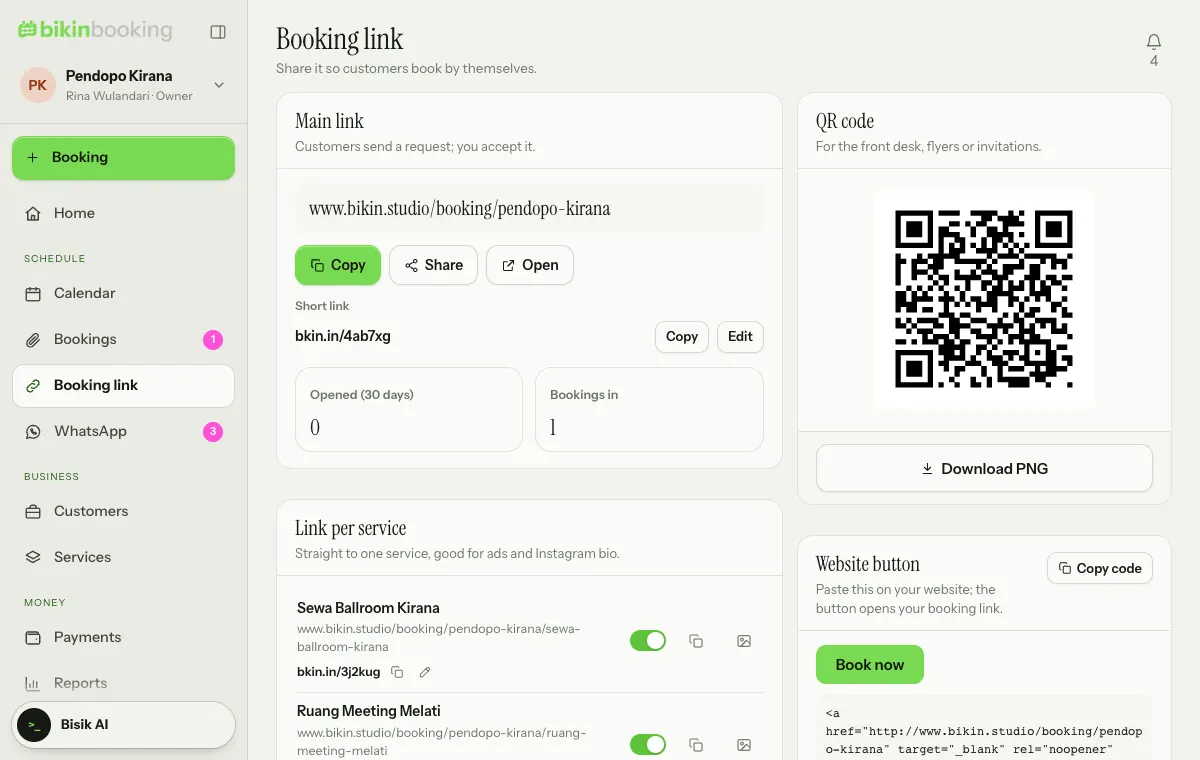
Links you can share
| Link | Address | Good for |
|---|---|---|
| Main link | booking.bikin.studio/business-name | Instagram bio, business cards, greeting messages |
| Link per service | …/business-name/service | Ads for one service, such as a ballroom rental |
| Link per person | …/business-name/@name | One doctor's, photographer's or consultant's schedule |
| QR code | Download PNG | Front desk, flyers, invitations |
| Website button | Copy code | A Book now button on your website |
Each service has a Show on the booking link switch. Special links with discounts, quotas and expiry dates are covered in iCal & special links.
The main link card also shows how often the link was opened in the last 30 days and how many bookings came in. Opens don't count link-preview fetches.
bkin.in short link
The Main link card on the Booking link page also shows its short link. Under the link is the Short link: a short bkin.in address made for you right away, for example bkin.in/k7m2qa. The real link doesn't change; bkin.in just sends visitors there.
- Copy copies the short link.
- Edit picks your own code, for example
bkin.in/promo-coffee. Availability is checked as you type. Free plans need at least 6 characters, paid plans at least 3. Use lowercase letters, numbers and dashes. The old code stops working once you save. - Anything after the short link, such as
?ref=…, is passed on to the real link.
Short links and a banner per link
Every row under Link per service, Link per person and Special links also has its own bkin.in short link under its address, with Copy and Edit icons. The customer booking link (the Customer link card in a booking's details) gets a short link too.
The image icon on the same row picks the banner for that link: keep the business banner (Settings › Business), or pick its own pattern so, for example, the ballroom link looks different from the meeting-room link. A highlighted icon means the link uses its own pattern; Use default in the banner window switches it back to the business banner. Uploaded images stay one per business.
Link rules
In the Link rules card you set:
- How bookings come in: Ask to confirm (customers send a request and the time is held for a few hours while you accept or decline) or Book instantly (the time is locked right away and the deposit bill is issued; once the deposit is paid, through Pay now or recorded by your team, the booking confirms itself with no need to accept it. Services without a deposit are confirmed right away).
- Earliest and Furthest booking times, for example 2 hours ahead to 180 days ahead.
- A Welcome note and Extra questions, such as the number of guests or the type of event, required or not.
- Requests per number per day, so the link isn't misused.
- The link Address. Changing it stops the old link from working.
What customers see
Customers pick one or several services at once, with the options of any Advanced service (such as which make-up artist, or two decoration themes). They then pick one date for all of them on a calendar that only lights up days that still fit, then a slot, time, session or quantity for each service. The price shows straight away, with Includes and Chosen in the summary. When the services have different payment terms, the summary says which terms apply. They then fill in their name, WhatsApp, email and any extra questions, read the summary and terms, tick to agree, and send.
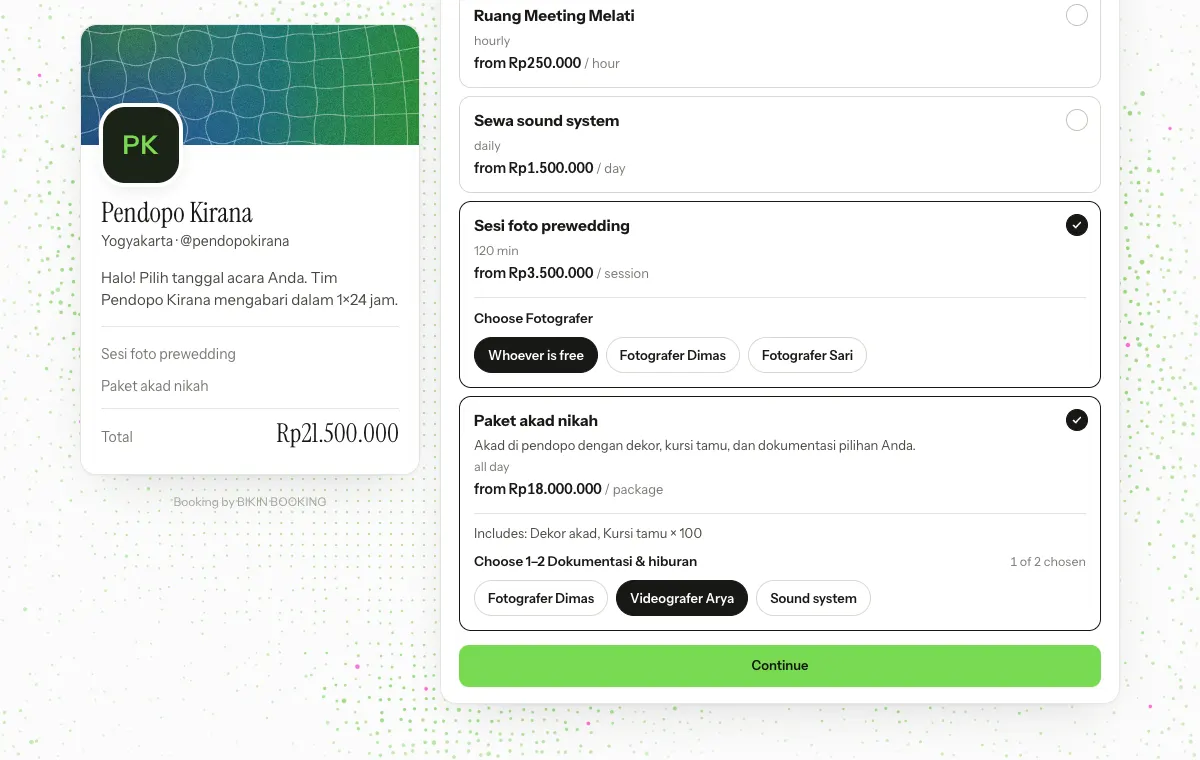
The language follows the customer's browser, Indonesian or English. Taken slots only show as taken, never who booked them. Search engines don't index this page.
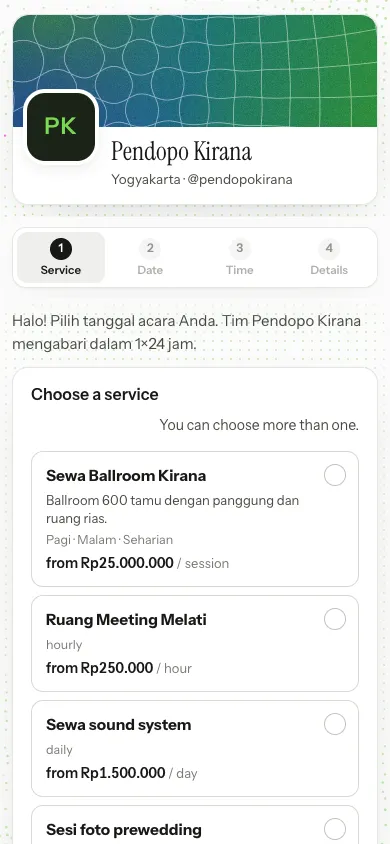
Services with a photo show it. When Booking limits are on, dates and times whose quota is full can't be picked, or are marked needs confirming so the booking becomes a request.
When a date is full and the waiting list is on for that service, customers can queue (see Bookings).
The customer's booking link
Every booking has a private booking link for its customer. There they see the schedule, status, price breakdown, bill schedule and your bank account with a Copy button, documents and the rundown, and can:
- add it to their own calendar,
- read and agree to the terms,
- pay bills with Pay now when online payment is on (see Payments),
- tell you they have paid, with a transfer receipt,
- ask to reschedule or cancel.
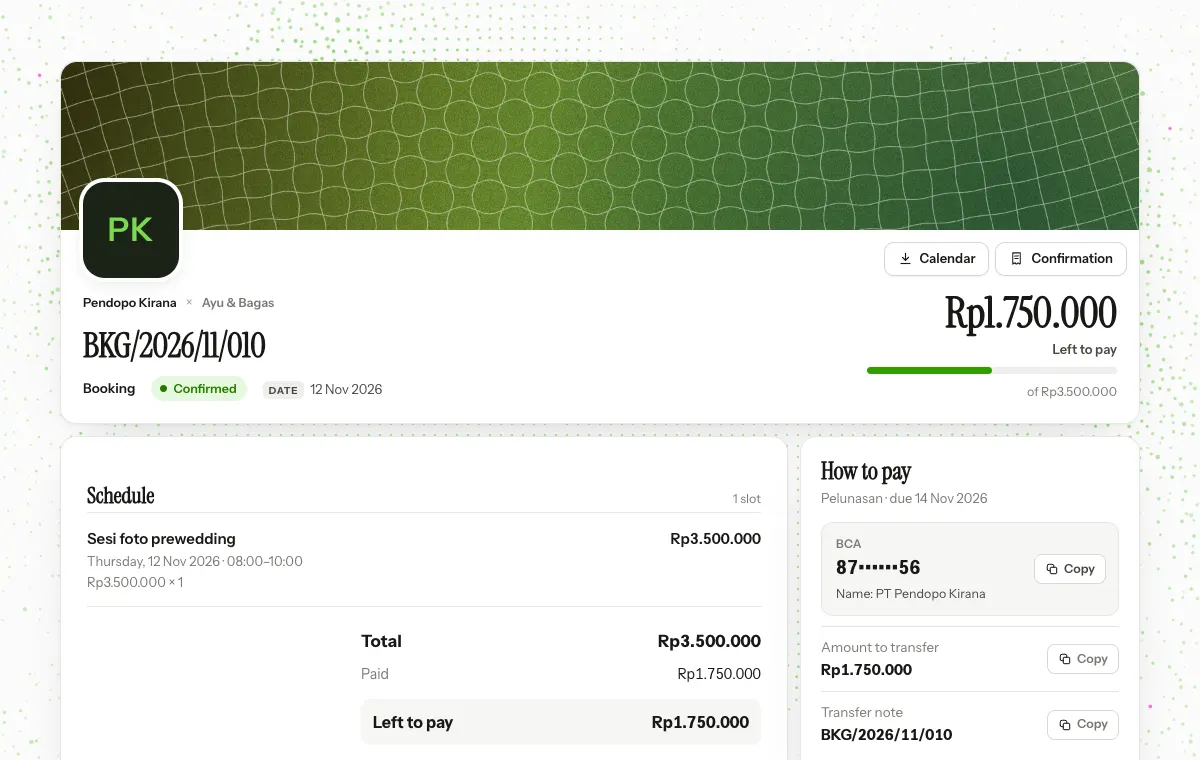
Reschedule and cancellation requests don't take effect right away; both go to Needs attention for your team to decide. Send the booking link from the Customer link card on the booking: Copy, Open, Email or WhatsApp.
Photo and banner
Booking links and booking pages open with your business banner at the top and your business photo on its bottom edge, like a LinkedIn profile. On wide screens the banner sits in the left card; on phones above the booking steps. Set it in Settings › Business, card Photo & banner: Upload photo (cropped square; a logo looks best), then Change banner. Every business in a group has its own photo and banner.
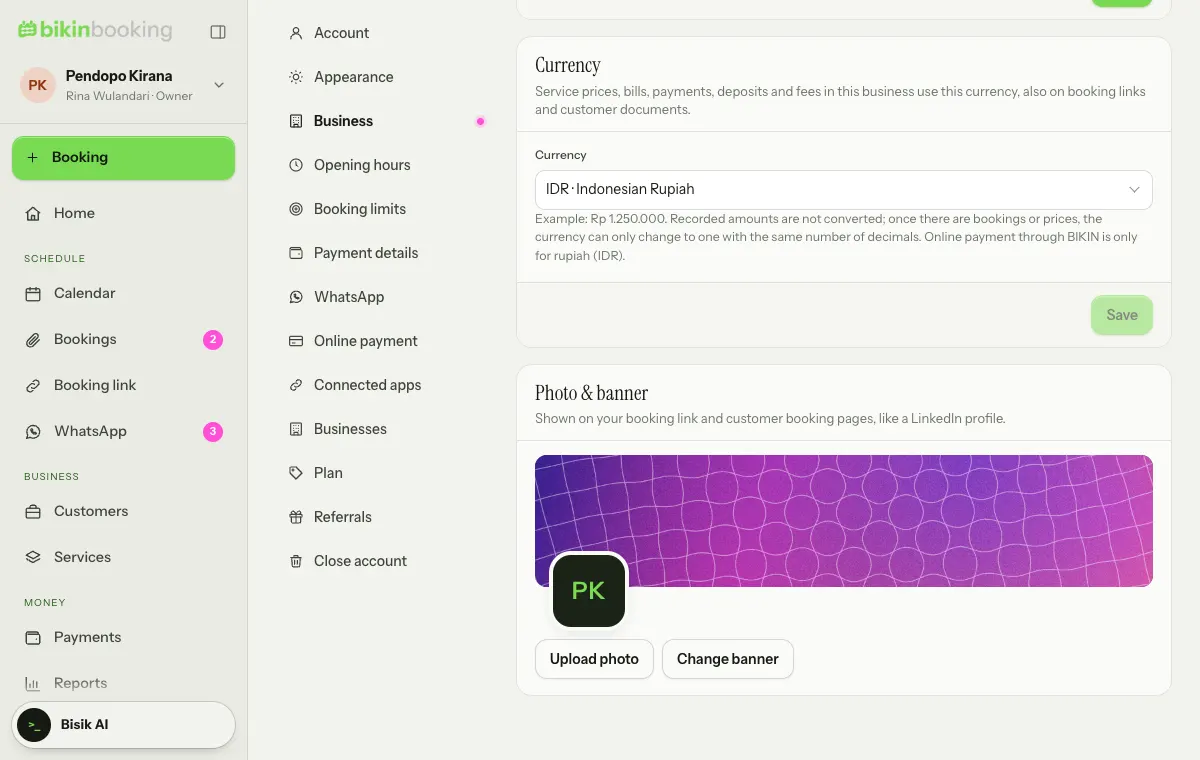
Choose Change banner: in the Pattern tab pick Grid, Waves, Rings or Silk and one of five colour sets (Shuffle gives a new variation); in the Upload tab choose a JPG, PNG or WebP image at least 600 px wide and drag the preview to choose the part that shows. Use default brings back the default pattern. The pattern moves gently on your customer's page and stays still when their device asks for reduced motion. Every plan can use the photo and banner.
Last updated: