BIKIN SPRINTFeatures
Task details
What's on a BIKIN SPRINT task card, from assignees, due date, priority, labels, sprint and custom fields to the checklist, time tracking, attachments, comments with @mentions, followers and history.
Click or tap a card to open its details (on a phone they open from the bottom). The popup title shows the task number and its project's name. Every task has a short number within its project, for example #12, which you can search for. Every change is saved and recorded in History.
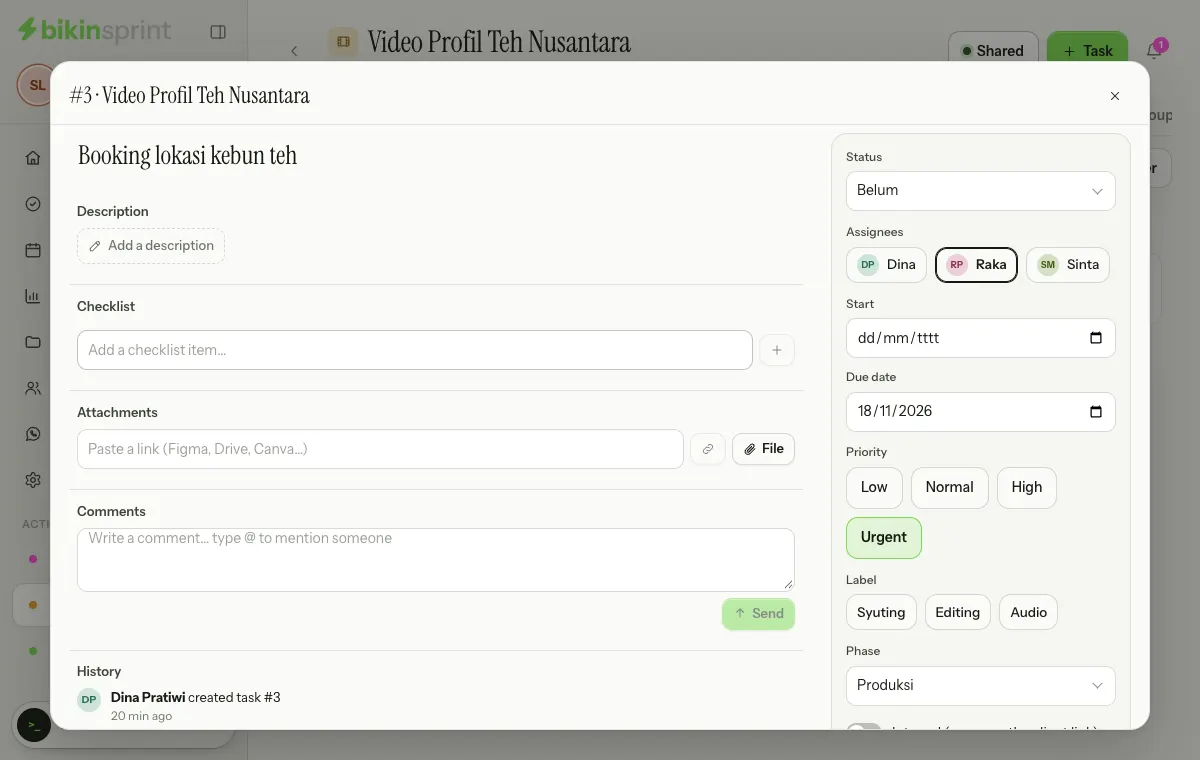
The left column holds the title (click it to edit), Description, Checklist, Time logged (when turned on), Attachments, Comments and History. The right column holds the task's fields, the Internal switch, who created the task and when, and then the Follow, Archive, Delete and Copy link buttons at the very bottom.
What's on a card
| Part | What it's for |
|---|---|
| Title and description | What needs doing: the brief, links or notes. Choose Add a description to write one, then Save |
| Status | The board column the task sits in; changing it is the same as moving the card |
| Assignees | One person or more; they're notified and the task shows up in their My tasks |
| Start and due date | When the work starts and when it must be done |
| Priority | Low, Normal, High or Urgent |
| Labels | Markers from the project's label list |
| Phase and estimate | Shown when those features are on for the project |
| Sprint | Shown when Sprints are on: the Backlog, or a running or planned sprint |
| Repeat | Shown when Recurring tasks are on: every day, week, 2 weeks, month or 3 months. When the task is done, the next one is created with a new due date |
| Waiting on | Shown when Dependencies are on: other tasks that must be done first. Until they are, the card is marked waiting on the board |
| Custom fields | Fields set up by the project's managers, for example channel or budget; text and numbers are saved when you leave the field, the rest as soon as you pick |
| Internal | Internal tasks never appear on the client link; their cards show a lock |
In a private project, assignees must be members of that project.
Checklist
Break a task into small steps in the Checklist: type an item in the Add a checklist item… box and press Enter or +, tick what's done, and remove what you don't need. Its progress shows next to the checklist title and on the board card.
Time tracking
When Time tracking is on for the project, a task's details have a Time logged section:
- Type how long, for example
1h 30m,45m,1:30or1.5(hours). Below it you see how the app reads it. - Pick the date you worked (today by default; dates that haven't happened yet can't be picked) and add a short note if you like.
- Choose Log.
One entry is at most a day, and a person can log at most 24 hours per date. The total shows next to the section title, in Reports (per person and per project) and in the CSV export. You can edit or delete your own entries; the project's managers, admins and the owner can edit or delete anyone's.
Attachments
- Links: paste a link from Figma, Google Drive, Canva or anywhere else in the Paste a link (Figma, Drive, Canva…) box, then press Enter.
- Files: choose File next to that box to attach images, PDFs, or Word, Excel and PowerPoint documents of up to 10 MB each. For bigger files, paste a link instead.
Files count towards your plan's storage, and every attachment in the project also collects in the project's Files tab. The person who attached a file, the project's managers, admins and the owner can remove it.
Comments and @mentions
Write comments in the Write a comment… type @ to mention someone box under the task details. Type @ and the first letters of a name to mention a teammate; they get a notification and see it under You were mentioned on Home. The task's assignees and followers are also notified of new comments.
Send with Send, or Ctrl + Enter (⌘ + Enter on a Mac). You can delete your own comments.
Follow, copy, archive, delete
The buttons sit at the very bottom of the right column.
- Follow: get notified when the task gets comments, even if you're not assigned to it. Choose Unfollow to stop.
- Copy link: share the task's address with your teammates.
- Archive: hide the task from the board without deleting it; bring it back with Unarchive.
- Delete: delete the task with its comments, checklist and attachments. Only the task's creator, the project's managers, admins and the owner can delete it.
Last updated: