BIKIN SPRINTFeatures
Forms
Build forms in a BIKIN SPRINT project (onboarding, brand questionnaires, website briefs, feedback after a review), publish them, and collect the client's answers from the client link.
Forms collect what you need from the client: onboarding details, brand direction, website content or feedback after a review. You build them in the project's Forms tab, publish them, and the client fills them in on the client link without an account.
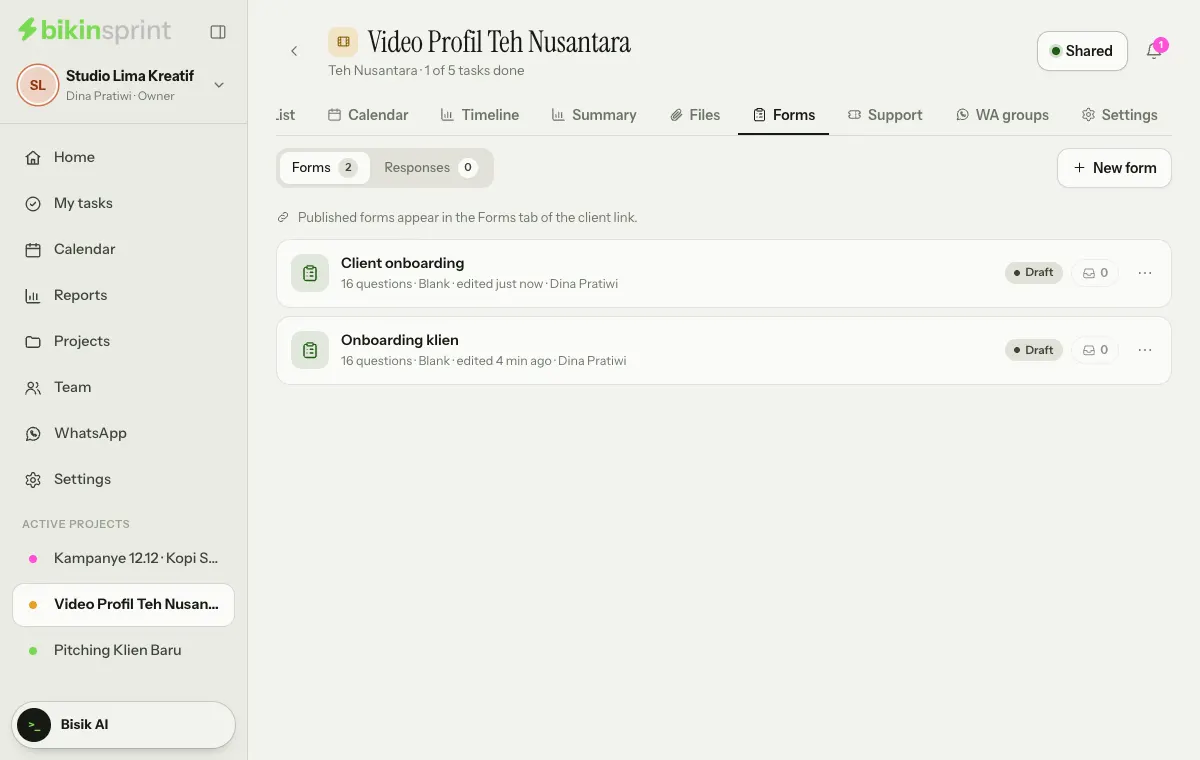
Creating a form
Open the project, then the Forms tab, and choose + New form at the top right (while there are no forms yet, the same button also sits in the middle of the page). There are three ways to start:
- Blank: start empty and write your own questions.
- From a template: onboarding, brand questionnaire, website brief and more. Check the preview, then Use template.
- Draft with Bisik: describe what you need in a sentence or two and Bisik drafts the questions. Check them, then Use this draft; everything can still be edited before you publish.
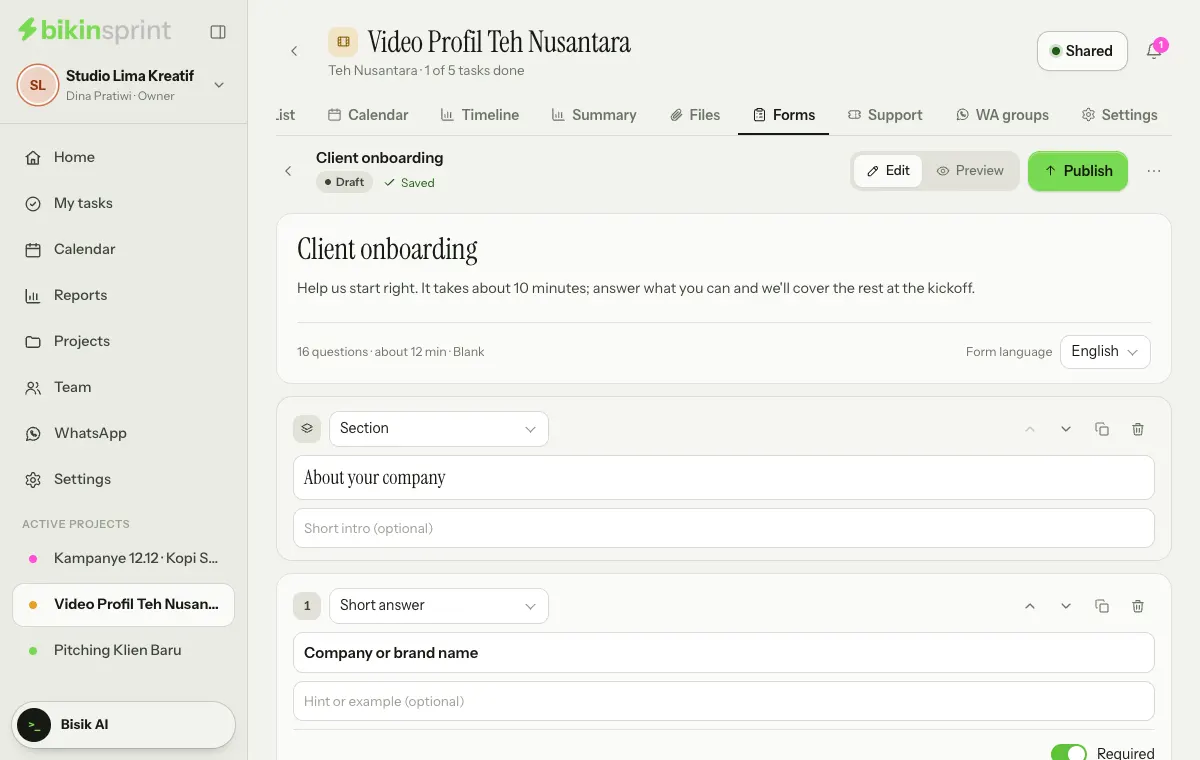
A new form is always a Draft that only the team sees. The builder saves as you type.
Question types
Short answer, paragraph, multiple choice, checkboxes, dropdown, yes or no, rating 1–5, number, date, email, phone, link, and a section to separate groups of questions. Each question can have a hint and be marked Required. Reorder them with the up and down buttons, or Duplicate a similar one.
Publishing
Choose Publish so the form shows in the Forms tab of the client link. A published form must be complete: every question has text and every choice question has at least two choices. Close stops new answers but keeps the form visible; Reopen accepts answers again; Move back to draft hides it from the client.
For the client to open it, the client link must be on and the Forms tab turned on in the Share popup. Copy link for the client copies an address that opens that form directly.
Responses
Answers from the client link land in Responses, next to Forms at the top left of the tab, with the name and email of the person who filled it in if they gave them, and the project's managers get a notification in the bell. You can also Fill in here for the client, for example after a call. Every response keeps a copy of its questions, so changing the form later doesn't scramble old answers. Download CSV downloads every response to a form.
Switch and permissions
Forms start on for every project. Turn them off in Settings → Project features if you don't use them; the tab disappears and the client no longer sees any forms. Members who work on the project can create and edit forms; deleting a form with its responses is for the project's managers, admins and the owner. Forms and their responses are deleted with the project.
Last updated: