BIKIN SPRINTFeatures
WhatsApp groups
In BIKIN SPRINT, link your project's WhatsApp groups so tasks, revisions and key updates from the group never slip through, then send status updates back.
Many teams make one WhatsApp group per project, with their own team and the client's team in it. Tasks and key information often get buried there. In BIKIN SPRINT, that group is linked to its project, so work from the group lands on the board.
How it works
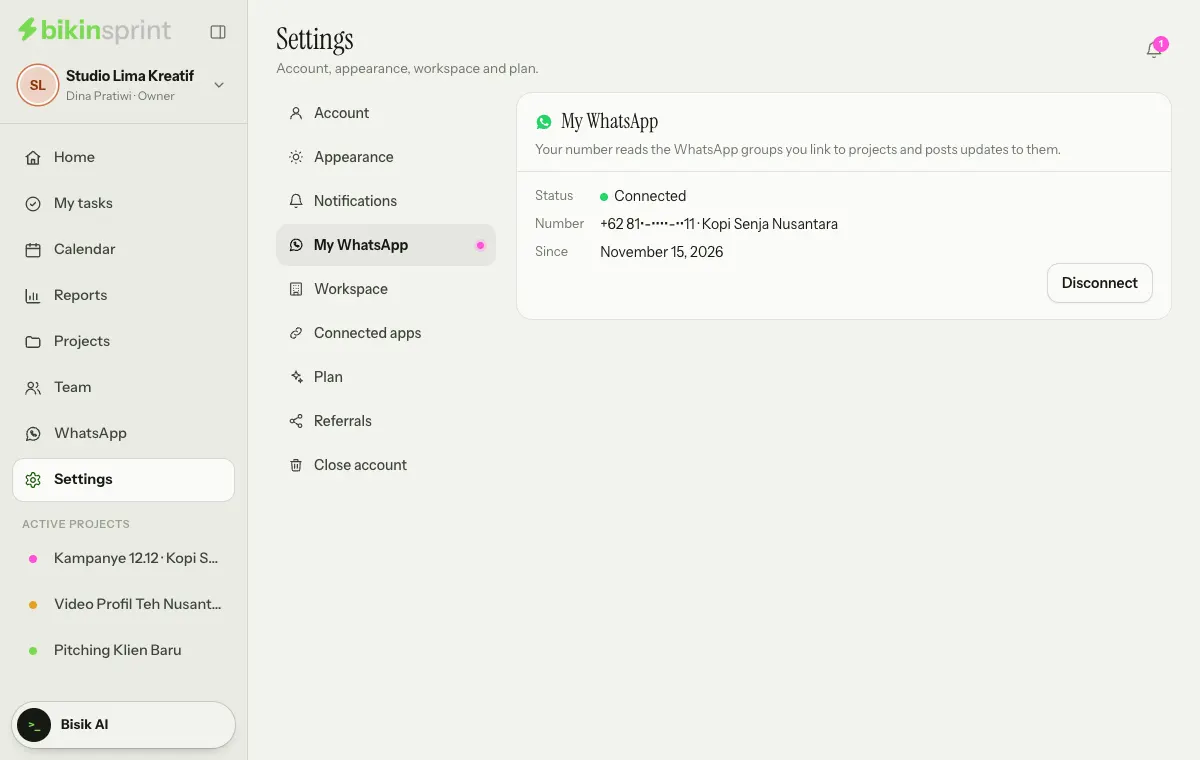
- Connect a number. In Settings › My WhatsApp, the workspace's owner or an admin, or a project manager, connects their own WhatsApp number by scanning a QR code or using a pairing code, like WhatsApp Web. Once connected, the card shows the Status, the masked Number and Since, with a Disconnect button.
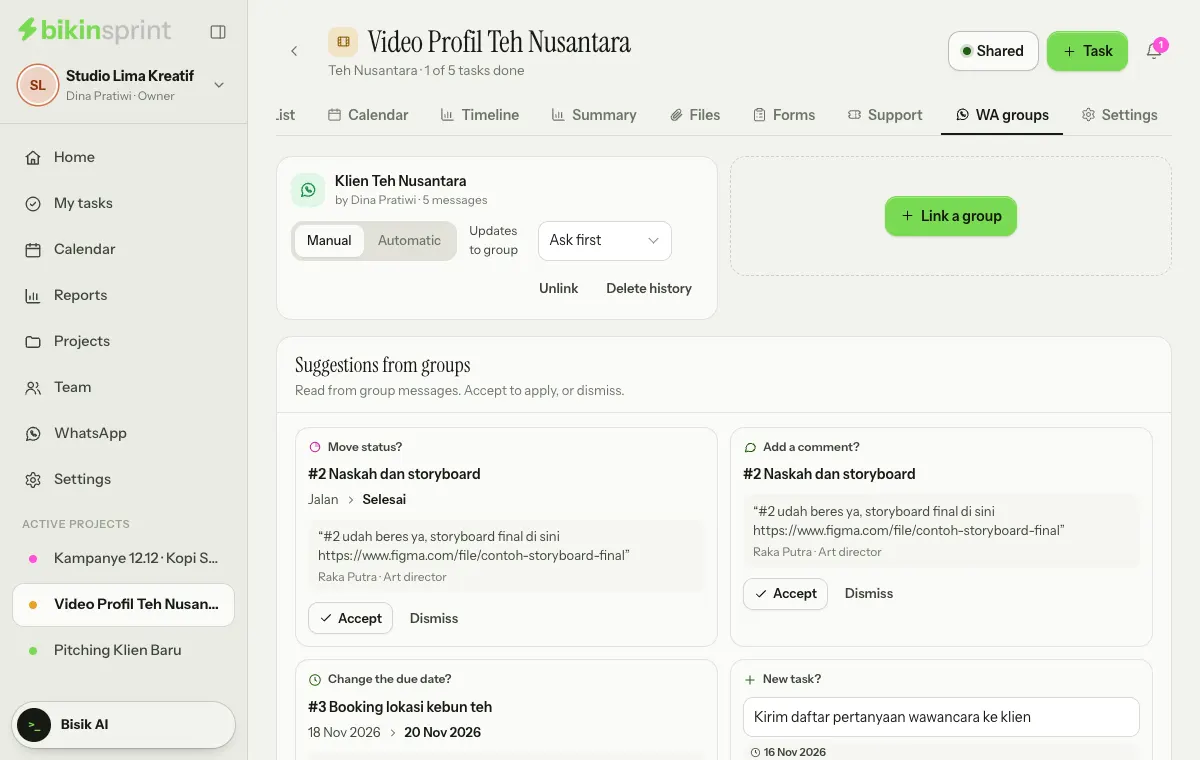
- Link a group. In the project's WA groups tab, the number's owner chooses + Link a group, then picks a group from their list of groups or pastes the group's invite link. That list comes straight from their WhatsApp and isn't stored. A project can have several groups, depending on your plan.
- A notice to the group. Once linked, that number sends one message into the group saying it is now connected to BIKIN SPRINT and that its messages are read to record tasks and project updates.
- Messages become suggestions. Messages such as "#12 is done, here's the link" or "please revise the logo, deadline Friday" appear on the Suggestions from groups card as New task?, Move status?, Change the due date?, Add a comment? or Important note, with a quote of the message and its sender.
- Updates back to the group. When a card moves to another status, BIKIN SPRINT asks whether to send the update to the group, for example "#12 12.12 promo banner → DONE". You can edit the text first, then choose Send or Don't send. For each group, a project manager picks under Updates to group: Ask first (the default), Always send or Don't send.
The same tab has a read-only Group messages feed. From a message you can Make a task or Attach it to an existing task; an attached message becomes a task comment, and its links become attachments. Photos and files from the group aren't downloaded automatically; what gets attached is the text, caption, file name and links.
Team members are recognised by the WhatsApp number in their own Settings › Account. Other senders show with a masked number; a project manager can choose Who is this? to mark them as a team member or give them a label, such as "Client · Brand Manager".
The WhatsApp menu
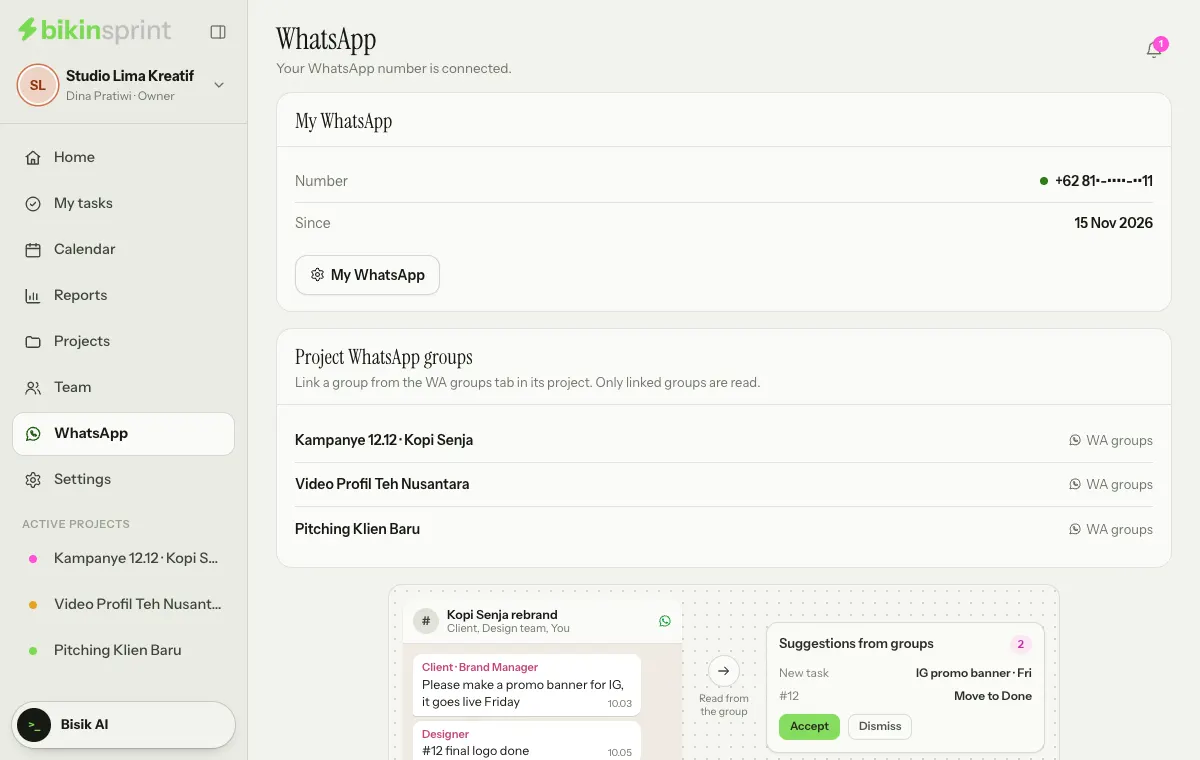
The WhatsApp menu in the sidebar (just above Settings) is always there for everyone in the workspace, even before your plan includes WhatsApp groups or a number is connected. In BIKIN SPRINT each person connects their own number, so the page shows the state of yours:
- WhatsApp isn't part of your plan: the workspace owner sees a See plans button; others are told the workspace owner can upgrade.
- Your WhatsApp isn't connected yet: for owners, admins and project managers who haven't connected their number, with a Connect WhatsApp button that opens Settings › My WhatsApp. If the connection drops, the title is Your WhatsApp is disconnected with a Reconnect button, and if the number was stopped because WhatsApp restricted it repeatedly, the title is This WhatsApp number can't be used any more with a Connect another number button.
- WhatsApp isn't available right now: BIKIN is setting up or maintaining the connection. Try again later.
Each of these comes with a short example of group messages turning into task suggestions. Once your number is connected, the My WhatsApp card shows the Number and Since, and the Project WhatsApp groups card lists the projects whose group you can link; tap WA groups on one to open its group tab. Regular members don't connect a number, so the page explains how project groups work and lists the projects, each with a WA groups link.
Manual and Automatic modes
- Manual (the default): each suggestion waits for you to Accept or Dismiss it. You can edit a New task? title first, and for an Important note you first pick the task it belongs to.
- Automatic: changes the reader is confident about are applied straight away, marked Automatic from group with a quote of the message, and listed on the Applied from groups card, where a project manager can Undo them for 7 days. Suggestions it's less sure about still wait for you.
The project manager sets the mode per group with the Manual or Automatic choice on the group's card. Automatic mode depends on your plan.
Privacy
- Only groups linked to a project are read. Personal chats and other groups of that number are never stored or shown.
- Messages are recorded from the moment the group is linked; older history isn't imported.
- Senders' numbers are always shown masked.
- Group messages are only seen by the project's members and the workspace's owner and admins, and never appear on the client link.
- BIKIN SPRINT never creates groups, adds people to groups or messages group members privately.
- Unlinking a group stops reading it at once. Its message history can be deleted at any time with Delete history.
- If the connected number leaves or is removed from the group, the group stops being read and the number's owner is notified. The group's name in the project follows when it's renamed in WhatsApp.
Good to know
- The connection works like WhatsApp Web; it isn't the official WhatsApp Business API. The phone with that number must stay on and online.
- Tell the group's members, including people who join later, that the group is connected to BIKIN SPRINT.
- Updates to the group go out slowly, with a daily limit, to keep your number safe. WhatsApp may still restrict a number it considers spammy.
Last updated: