BIKIN SPRINTAccount & plan
Roles & private projects
The three workspace roles in BIKIN SPRINT, project managers and members, open and private projects, email codes for important actions, and the log.
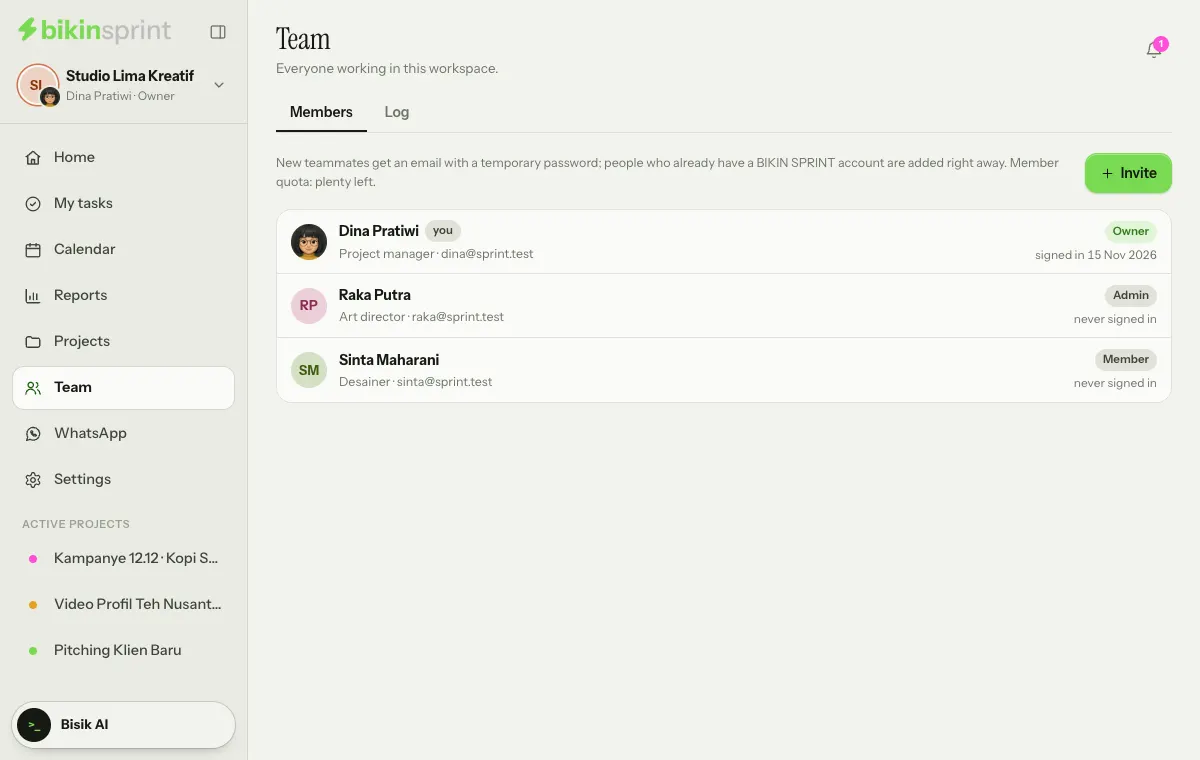
Everyone in a workspace has one role. In each project, people can also be a project manager or member. All of these rules are checked on the server, including for Bisik's answers.
Three workspace roles
| Role | Can |
|---|---|
| Owner | Everything, including the plan, roles and closing the account |
| Admin | Members, workspace settings, the log, exports and every project (private ones too) |
| Member | Create projects (if the owner allows it) and work in open projects or the ones they joined |
Project managers and members
- Managers (the project's owners) run their project: info, members, statuses, labels, features, state and deletion. Managers can also change projects that are finished or archived.
- Project members are kept informed about the project and can be assigned in private projects.
Set both in the project's Settings › Members and managers. Admins and the owner can manage every project.
Open and private projects
- The whole workspace (open): everyone in the workspace can see it and work on its tasks.
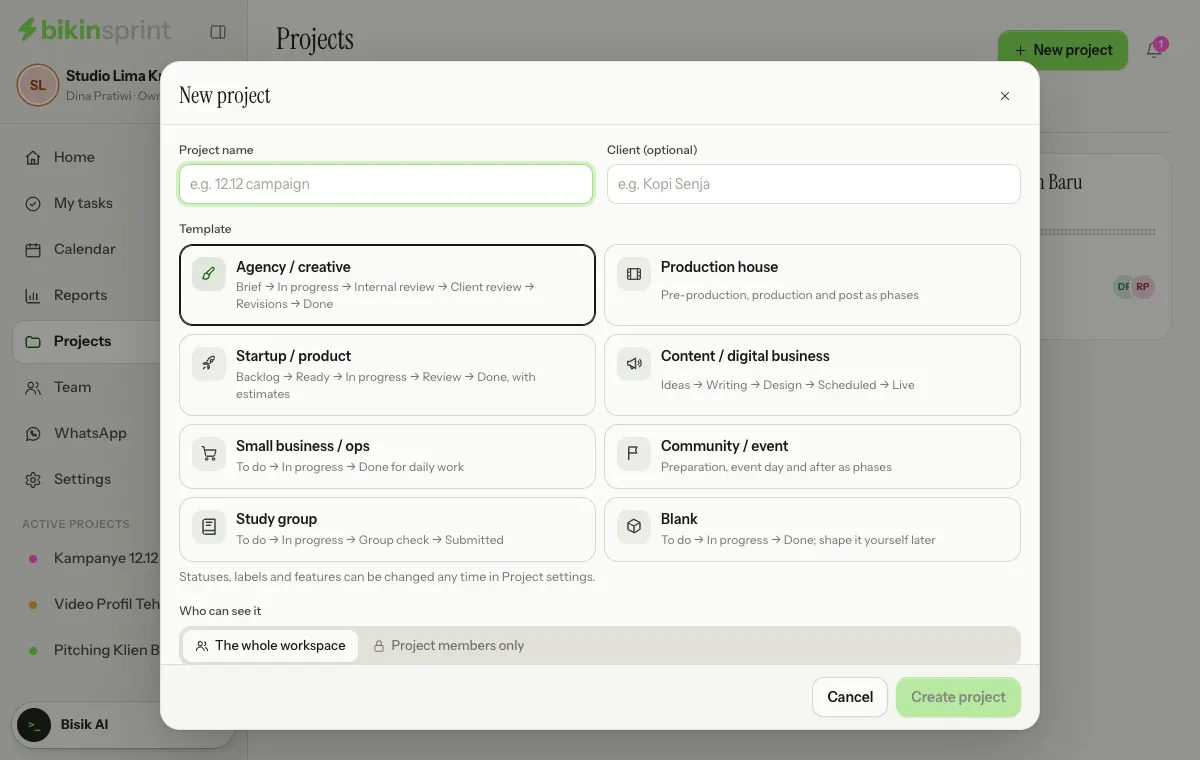
- Project members only (private): only the project's members, plus the workspace's owner and admins, can see it. For everyone else, a private project doesn't appear in lists, search, Home or Bisik's answers. Its assignees must be project members.
Choose one under Who can see it when you create the project, or change it later in the project's Settings › Project info tab. Private projects are marked Private on the Projects page.
Inviting and managing people
Open Team, choose Invite at the top right, then fill in the name, email, title and role. Invited teammates get an email with a temporary password, or you set a temporary password yourself; people who already have a BIKIN SPRINT account are added right away with their own account. Admins invite members; the admin and owner roles, and every role change, can only be given by the owner.
The owner and admins change someone's details by clicking their row on the Team page. To switch a member off, turn off the Active switch there, then choose Save; they can't open this workspace any more, while their other workspaces aren't affected. Every member sees the list of names, for assigning; emails and status are only visible to the owner and admins.
Email codes for important actions
Important actions ask for a code from your email, such as exports, deleting a project, changing roles and closing the account. Once the code is right, important actions in the next 10 minutes don't ask again.
Log
The owner and admins can see the Log tab on the Team page: exports, project deletions, invitations and role changes, with who and when. Every project and task also has its own history.
Last updated: