BIKIN SPRINTFeatures
Support
Log the client's requests and problems as tickets in a BIKIN SPRINT project, reply to the client, keep internal notes, and turn a ticket into a task.
Tickets are problems or requests from the client: bugs, changes, content updates, questions or billing. In a project's Support tab, the team logs them itself or the client opens them from the client link, and the team handles them until they're done.
Opening a ticket
- The team: open the Support tab, choose + New ticket at the top right (while there are no tickets, it's also in the middle of the page), then fill in the Title, Type (Bug or error, Change request, Content update, Question, Billing or Other), Handled by, Priority, Details and, if needed, Reported by and Reporter email. When there's a reporter email, also pick the language of the emails they get. Save with Add ticket.
- The client: in the Support tab of the client link, the client fills in the type, title, details, their name, and an email if they want replies. The project's managers get a notification in the bell. For the client to open tickets, the client link must be on and the Support tab turned on in the Share popup.
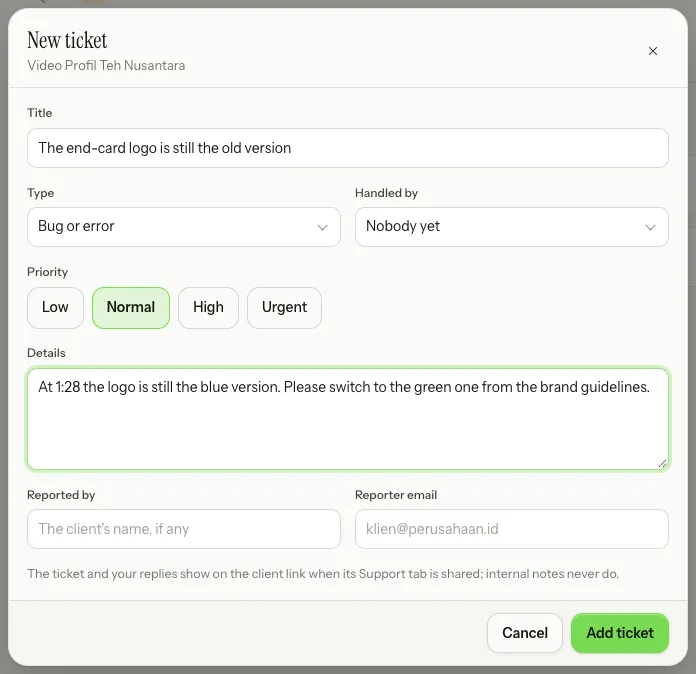
Every ticket gets a running number per project.
Handling tickets
Click a ticket in the list to open it, then set its status (New, In progress, Waiting on client, Resolved, Closed), priority and who handles it. In its conversation:
- A reply to the client shows on the client link. If the reporter gave an email, the reply is also emailed to them, and their email replies come to your inbox.
- An internal note is only seen by the project team and never shows on the client link.
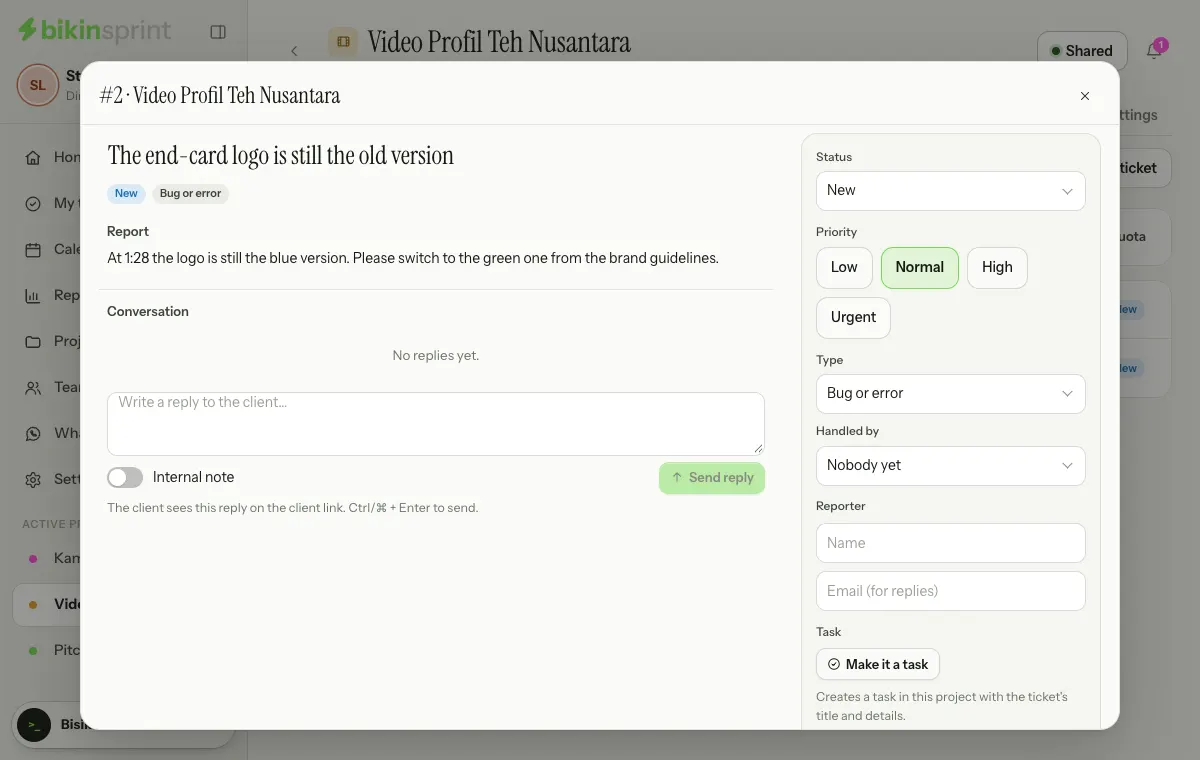
The client can reply from the client link; a resolved ticket reopens when the client replies to it. The Open, Done and All filters above the list help you focus on what still needs handling. Copy link on a ticket copies its address for your teammates.
Make it a task
Work from a ticket goes to the board with Make it a task on the ticket: BIKIN SPRINT creates a task in the same project with the ticket's title and details, and the ticket shows that task and its status, with Open the task to jump to it. The ticket's own status stays yours to set, so close it once the client has been answered.
Ticket quota
For projects with an agreed amount of support, a project manager chooses Set a ticket quota at the end of the info bar above the list, enters the number of tickets for the project, then chooses Save. Every ticket in the project counts, from the client or the team. The client sees what's left on the client link; once it's used up, the client can't open new tickets and the managers are told, while the team still can. No limit removes the quota.
Switch and permissions
Support starts on for every project. Turn it off in Settings → Project features if you don't use it; the tab disappears and the client no longer sees any tickets. Members who work on the project can open and handle tickets. Tickets and their conversations are deleted with the project.
Last updated: