BIKIN SPRINTFeatures
Board, list & My tasks
Move cards across the kanban board, read the task list, and work through all your tasks in one place with My tasks and Home.
This page covers day-to-day work: moving cards on the board, reading the list, working through My tasks, keeping an eye on Home, Calendar and Reports, and reading notifications.
Board
The board shows each status as a column, with the number of tasks next to its name. A task card shows its labels, title, number (for example #12), High or Urgent priority, due date (pink when overdue), checklist progress, comment and attachment counts, and who's working on it.
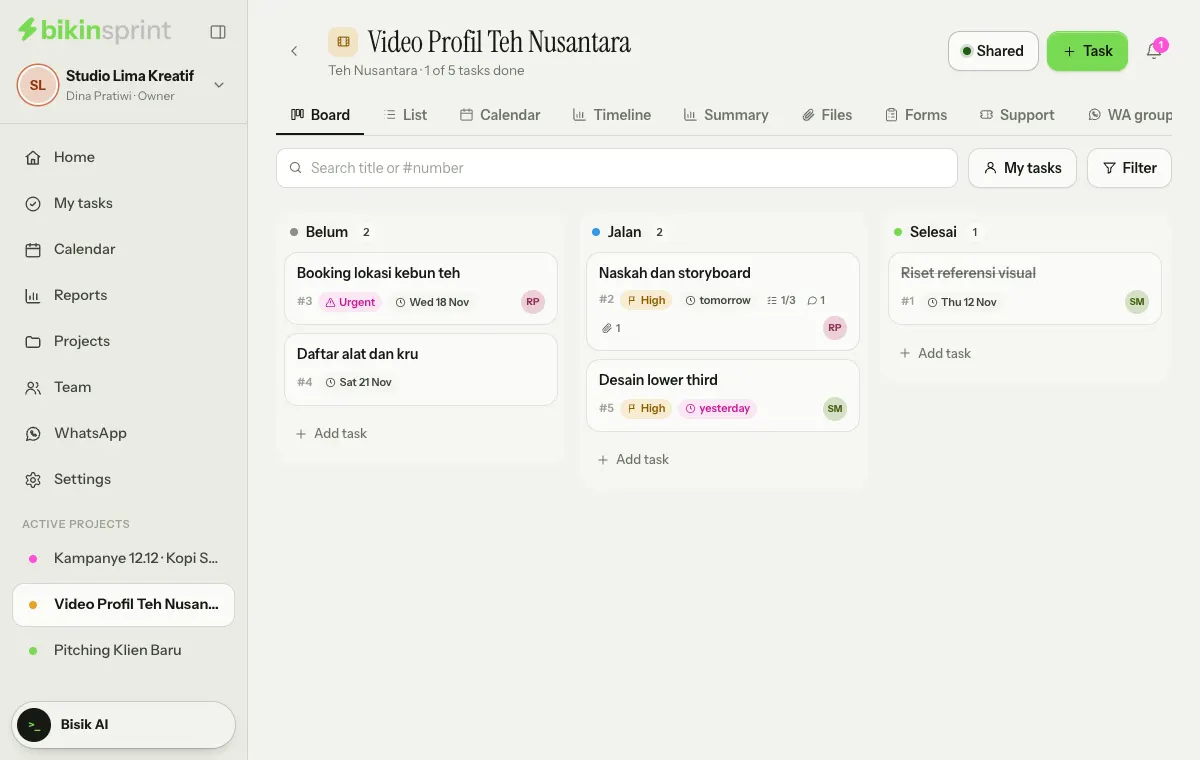
- Change status: drag the card to another column. On a phone, press and hold the card, pick the status in Move to, then choose Move.
- Reorder: drag a card up or down within its column.
- Add a task: choose + Add task under a column, then write the title. See Quick add.
- Open the details: click or tap the card. See Task details.
- Search and filter: type a task's title or number in Search title or #number, choose My tasks to see only your tasks, or Filter to narrow it down by assignee, label, priority or sprint.
Columns marked needs review are review statuses, such as Internal review or Client review. Small marks at the foot of a card: a lock means an internal task (never shown on the client link), waiting means it's still waiting on another task, and circling arrows mean a recurring task.
If the project is linked to a WhatsApp group, moving a card may be followed by a question about sending the update to the group. See WhatsApp groups.
On a phone, the board scrolls sideways with fixed-width columns, while the title, tabs and search stay in place; My tasks and Filter become icons next to the search box.
List
The List tab shows tasks as rows grouped by status. Each row shows the task number, checklist progress, comment count, priority, due date and assignee.
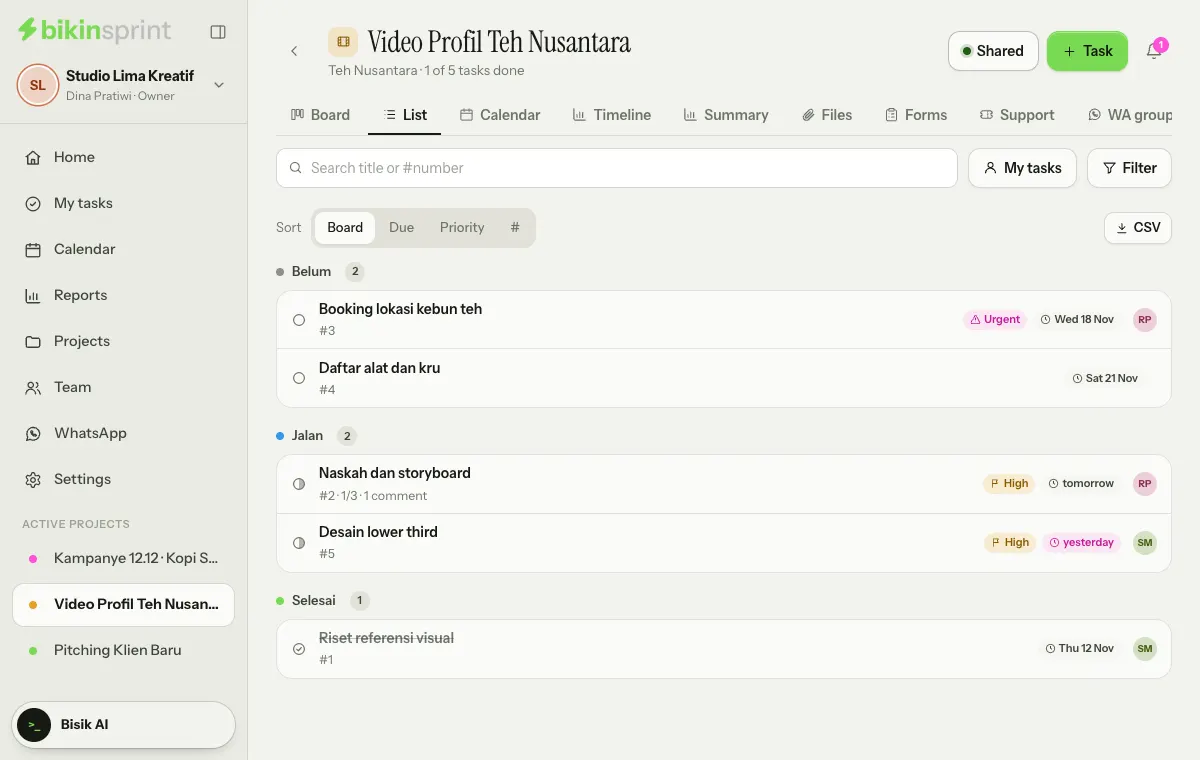
Choose Sort to order them by Board order, Due date, Priority or # (task number). Your choice is remembered on that device. Click a row to open its details. The CSV button at the right end of that row downloads every task in the project, archived ones included, for a spreadsheet (owners and admins, when your plan includes CSV export; it asks for an email code).
My tasks
My tasks in the sidebar gathers everything assigned to you across all projects, grouped by due date: Overdue, Today, Tomorrow, This week (up to seven days ahead), Later and No due date. Below them is Done in the last 7 days.
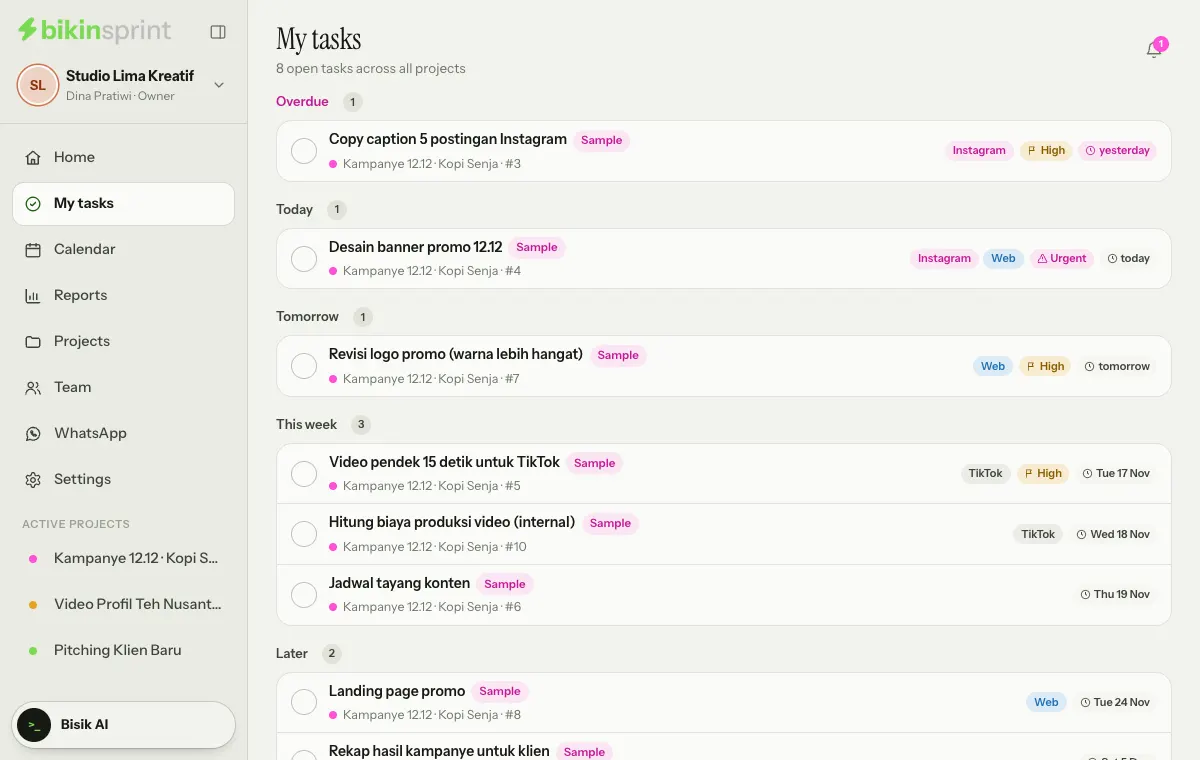
Tick the circle on the left of a task to mark it done; it moves to its project's Done status. Ticked it by mistake? Tap the circle again (Reopen) in the Done in the last 7 days group; the task goes back to a To do status in its project. Each row also shows the project and task number, labels, priority and due date.
Home
Home is the first page after you sign in. It greets you for the time of day and sums up what needs doing.
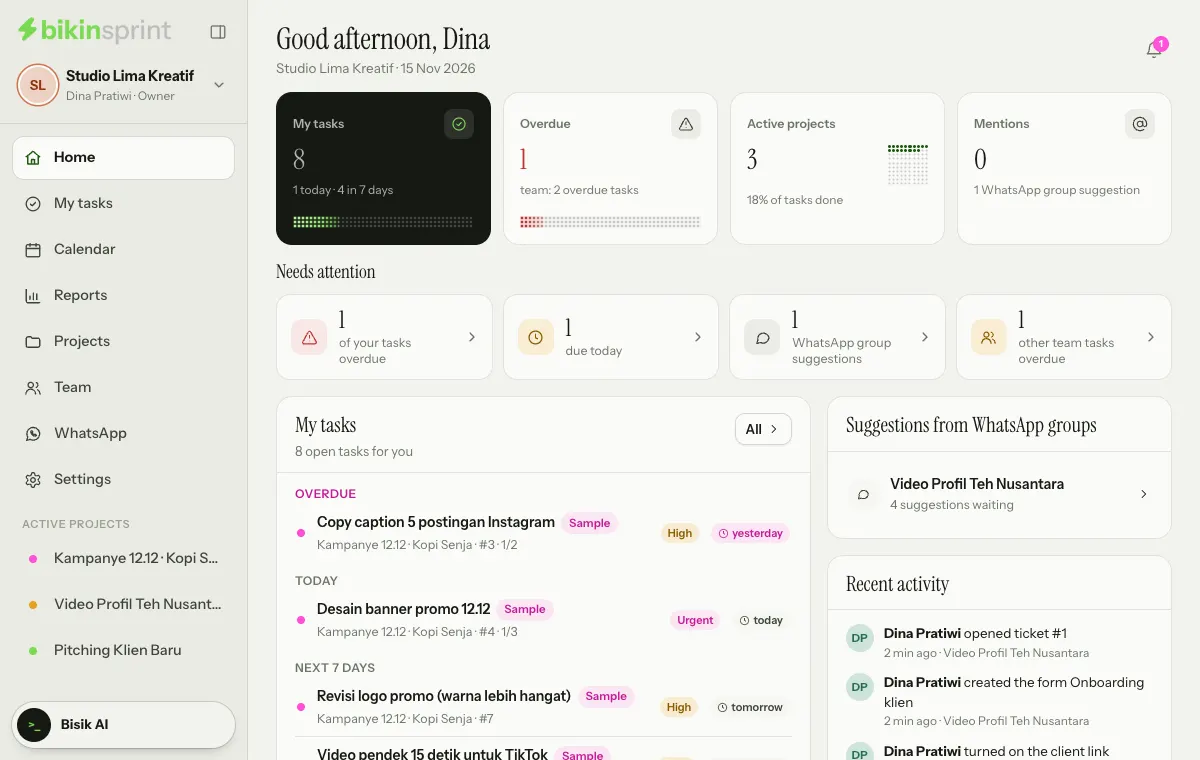
From the top:
- key numbers: My tasks (how many are due today and within 7 days), Overdue, Active projects (with a dot grid of all their tasks' progress) and Mentions,
- Needs attention: your overdue tasks, what is due today, unread @mentions, WhatsApp group suggestions and, for the owner and admins, other team members' overdue tasks; each is one tap from its page, and zeros are left out,
- My tasks: your tasks that are Overdue, due Today and in the Next 7 days (or Later when nothing is close); All opens the My tasks page,
- Suggestions from WhatsApp groups: projects with suggestions waiting, when there are any,
- You were mentioned: new comments that mention you, when there are any,
- Recent activity in the projects you may see,
- Active projects with their progress.
Calendar and Reports
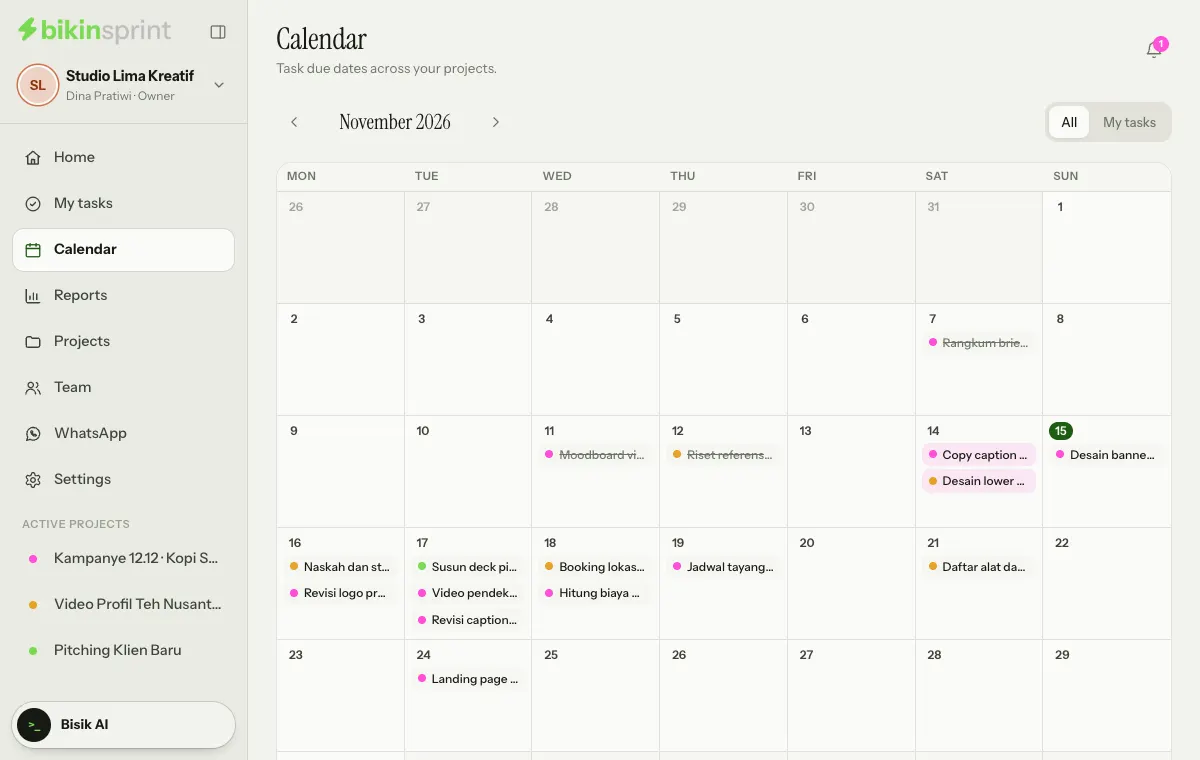
Calendar in the sidebar shows task due dates across every project you may see, by month from Monday to Sunday. Move between months with the arrows next to the month name, and choose All or My tasks at the top right. The dot before a task uses its project's colour; overdue tasks have a pink background and finished ones are struck through. Click a task to open its details; when a day has more than three tasks, the rest open from +N more. On a phone, the calendar becomes a day-by-day agenda. The Calendar tab on a project page works the same way, for that project only.
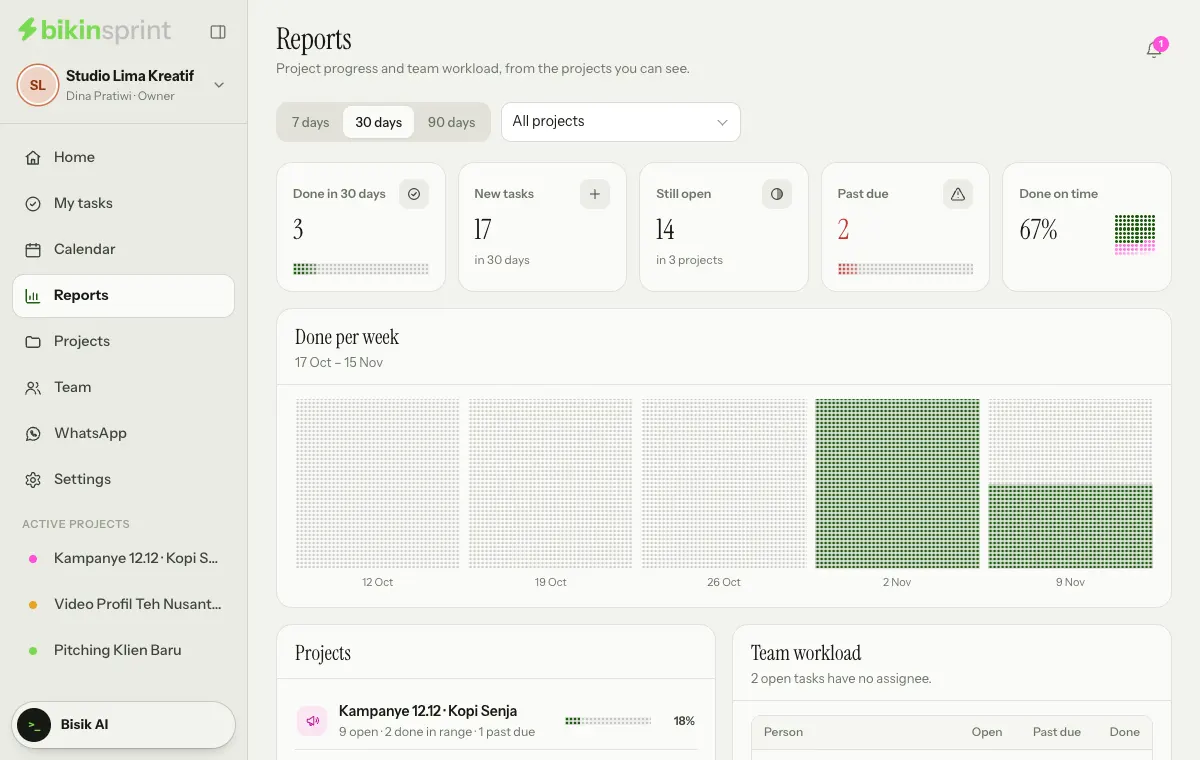
Reports sums up project progress and team workload from the projects you may see. Pick a range of 7 days, 30 days or 90 days, then one project or All projects. It shows:
- key numbers: tasks done in that range, New tasks, Still open, Past due and Done on time,
- Done per week; point at or touch a week for its numbers,
- Projects: each project's progress; click one to open its summary,
- Team workload: open, past due and done tasks per person, plus how many open tasks have no assignee,
- Time logged per person and per project, when any project uses Time tracking.
Reports are available when your plan includes them.
Notifications
The Notifications bell at the top right of every page tells you when you're assigned, mentioned or added to a project, when someone comments on a task you work on or follow, and when a task you created is done. Project managers are also told when a client approves or asks for changes, fills in a form or opens a ticket. The number on the bell shows what's unread; choose Mark all as read to clear it.
Last updated: