BIKIN SPRINTGet started
Getting started with BIKIN SPRINT
Sign up or sign in to BIKIN SPRINT, invite your team, then finish the Quick start checklist up to your first project, task and assignee.
This page takes you from signing up to your first task on the board. Most steps only need to be done once, by the owner.
Sign up
- Open sprint.bikin.studio/register, or choose Create one free on the sign-in page.
- Fill in Your name, Team, business or community name, Email and Password (at least 8 characters).
- Enter the 6-digit code sent to your email.
You can also choose Sign up with Google. Because Google has already verified your email, you only fill in your team, business or community name.
If the sign-up button doesn't appear, sign-up is closed for now. Contact BIKIN at contact@bikin.studio to get an account.
The person who signs up becomes the workspace Owner. New workspaces start on the free plan.
Already have a BIKIN SPRINT account? Don't sign up again with the same email: sign in, then choose Create a new workspace on the workspace card at the top of the sidebar (see Plan & account).
Signing in
- Enter your email and password, then choose Sign in.
- Enter the code from your email. It's valid for 10 minutes.
After that BIKIN SPRINT opens the workspace you used last, and you stay signed in on that device for 30 days. Choose Sign in with Google if your Google account uses the same email, or link a Google account in Settings › Account. Forgot your password? Choose Forgot password? on the sign-in page.
Inviting your team
The owner and admins invite teammates from Team in the left sidebar. Your plan's member quota is written in words above the list, for example plenty left.
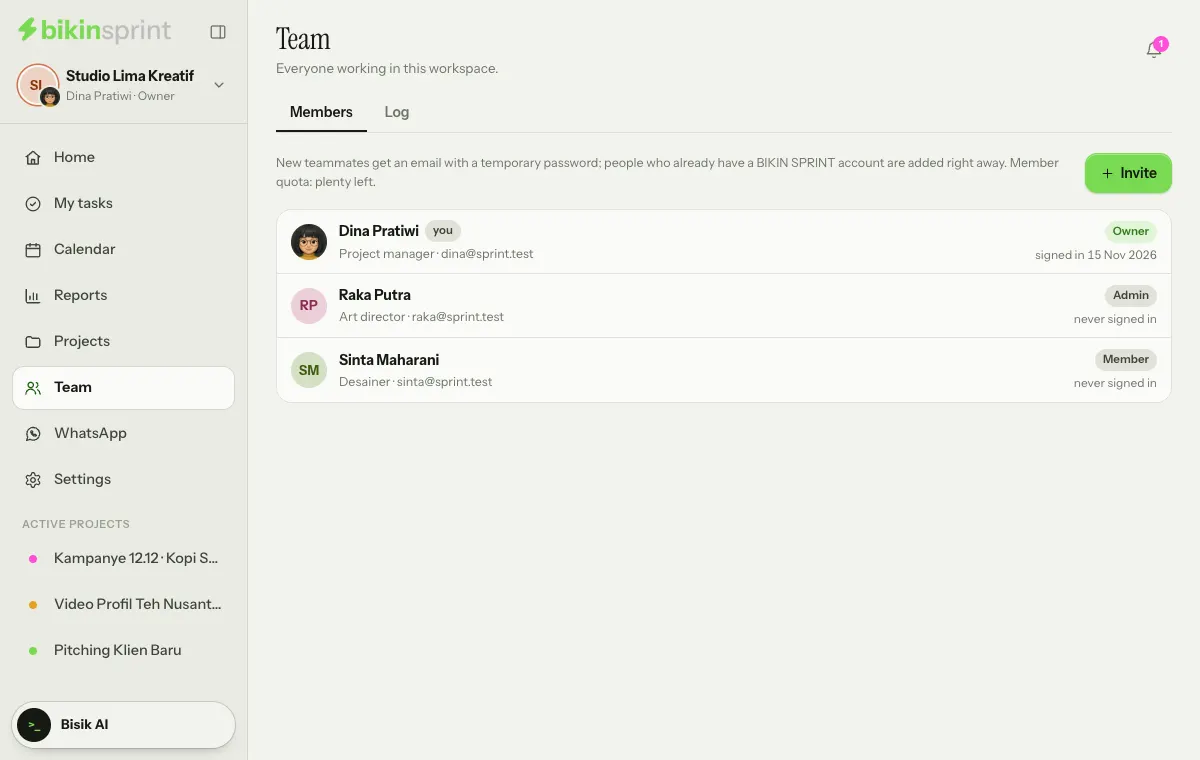
- Choose Invite, then fill in Name, Email, Title (optional), for example Designer, and Role.
- Leave Email an invitation on. Your teammate gets an email with a temporary password. If you switch it off, type a Temporary password yourself (at least 8 characters) and give it to them directly.
- They sign in with their email and that temporary password, enter the code from their email, then change their password in Settings › Account.
If your teammate's email already has a BIKIN SPRINT account (for example they're also in another workspace), they're added right away without a temporary password, then open your workspace from the workspace card in the sidebar.
Choose roles with care; see Roles & private projects. The number of members follows your plan; when the quota is full, the Invite button can't be chosen.
Welcome and Quick start
The first time you sign in, BIKIN SPRINT shows a short welcome for your role. The owner and admins also get a Quick start card in the sidebar, right above the Bisik AI button (in the sidebar drawer on a phone). The card shows your progress as a percentage and the next step; tap it to open the list of steps.
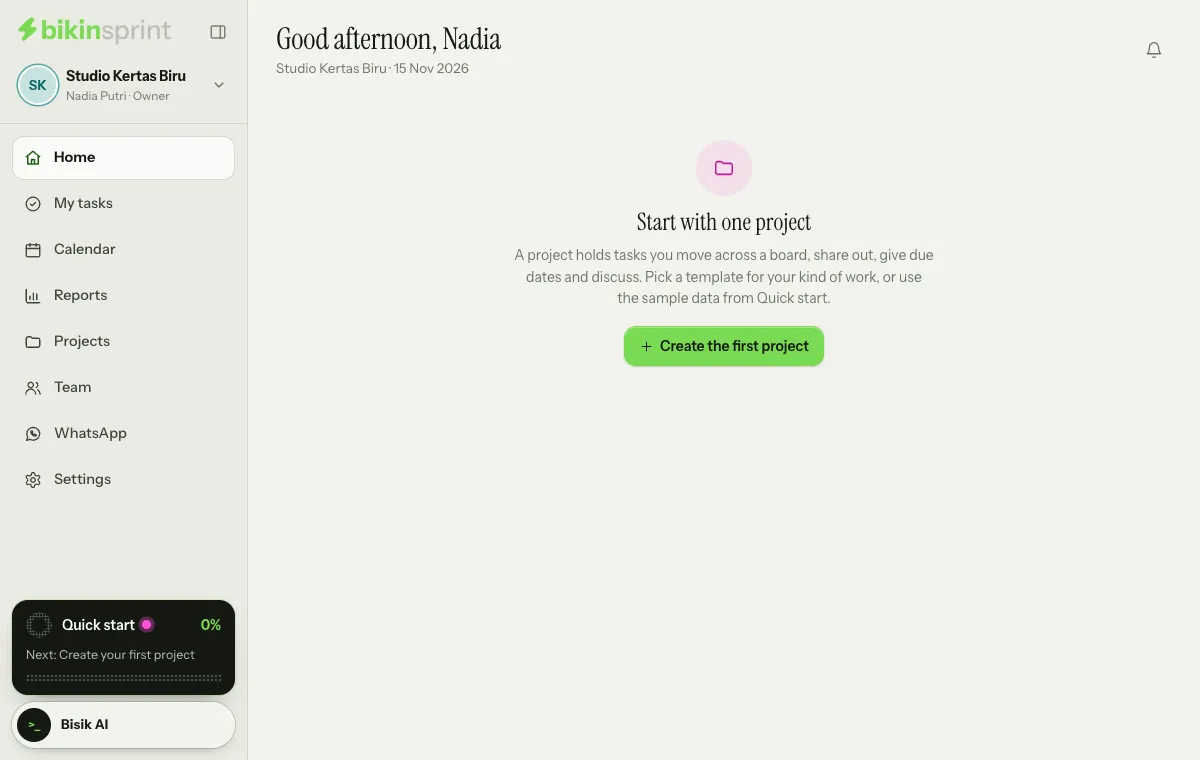
Each step explains why it matters and has a button that takes you to the right page. Steps tick themselves off as you do them:
- Create your first project. Pick the template closest to your work; statuses and labels come ready.
- Add a few tasks. Choose Add task under a board column and write it like a chat: "logo revision tomorrow @dina".
- Assign someone. The assignee is notified, and the task shows up in their My tasks.
- Set a due date and Invite teammates, which can wait.
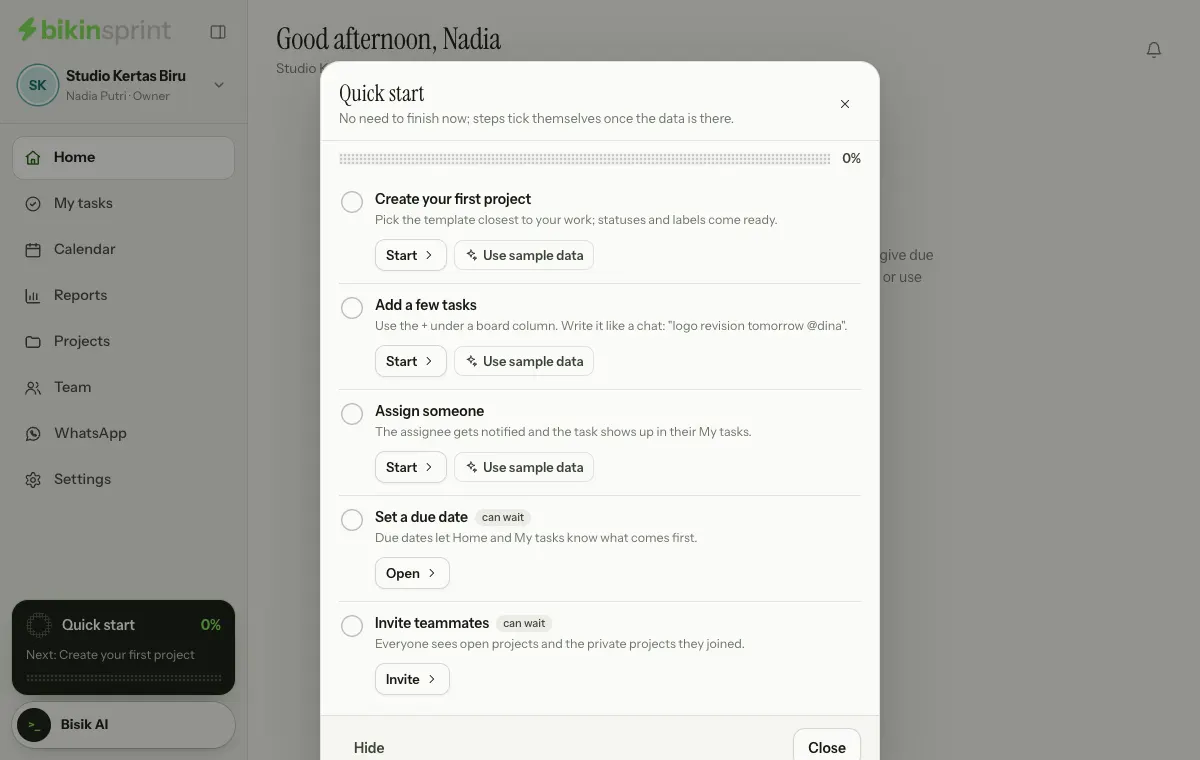
Once the required steps are done, the card reads All steps done. Tap to finish. Tap it, then press Finish to wrap up with a small celebration. Don't need the list? Choose Hide in the list of steps.
Sample data
Want to see BIKIN SPRINT filled in first? From the Quick start list, choose Use sample data. BIKIN SPRINT adds one sample project, a 12.12 promo campaign for a coffee shop, with tasks in every status, checklists, channel labels and one client comment. Everything is marked Sample, counts towards your plan's limits, and can be removed in one tap with Remove sample data without touching your real data.
You can bring back the welcome, Quick start and tips from Settings › Account › Getting started with Replay the guide or Show Quick start.
Next steps
- Projects & templates to set up the right project.
- Board, list & My tasks to start working.
- Roles & private projects before you invite your team.
Last updated: