BIKIN SPRINTFeatures
Quick add
Write a task like a chat, for example "design banner tomorrow @dina !high #instagram", and BIKIN SPRINT fills in the due date, person, priority and label.
Under every board column there's + Add task. Choose it, then write the title in the box that opens the way you'd type a chat message; certain words are recognised straight away and turned into task fields. What's recognised shows as small markers under the box before you save.
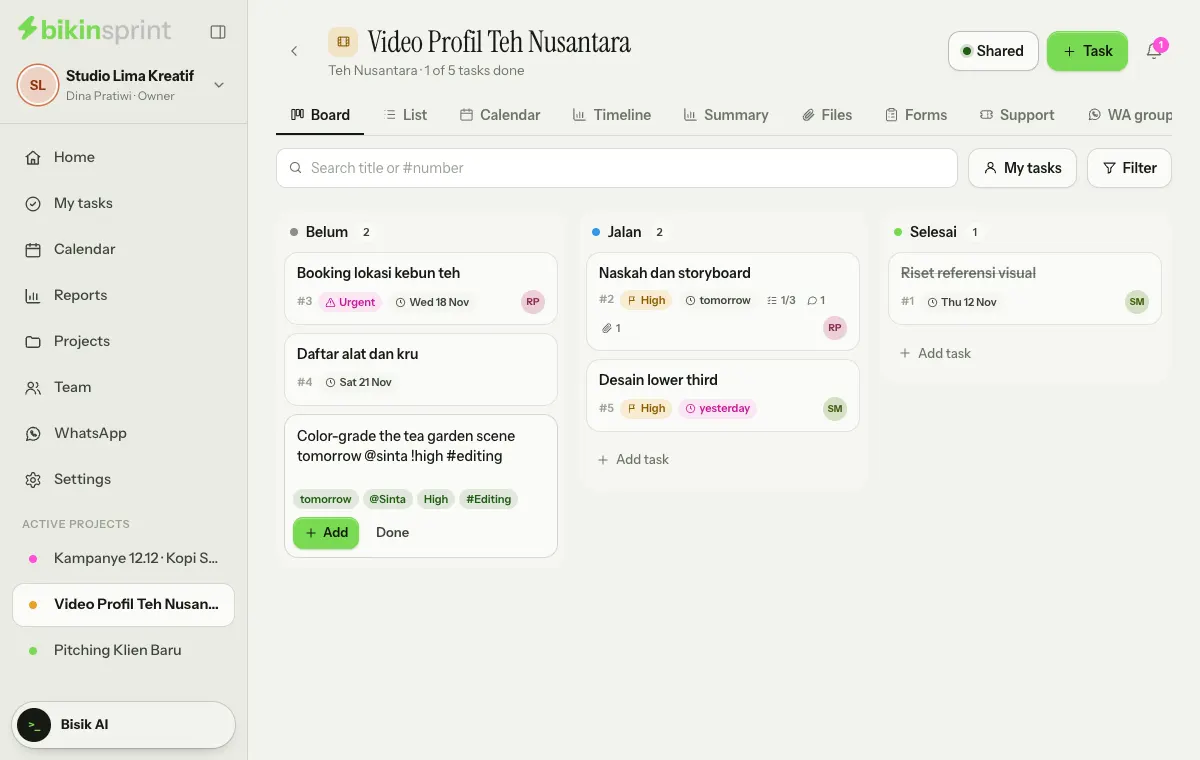
Example: design banner tomorrow @dina !high #instagram becomes the task design banner, due tomorrow, assigned to Dina, with High priority and the Instagram label.
What it understands
| Write | Result |
|---|---|
today, tomorrow | Due today or tomorrow |
next week | Due a week from today |
A day name, for example friday | Due on the next such day |
tgl 12 | Due on the 12th (next month if that date has passed) |
12/11 | Due on 12 November (day/month; next year if that date has passed). You can add the year: 12/11/2027 |
@name | Assignee: a member's first name or the start of their name. Write several to assign more than one person |
!urgent, !high, !low | Priority |
#label | The project label with that name, or one that starts with it (#insta for Instagram) |
Indonesian words work too, for example hari ini, besok, lusa, minggu depan, jumat, tanggal 12, !mendesak, !tinggi and !rendah.
How to use it
- Choose + Add task under the column you want. The box opens with the hint Task title… (try: tomorrow @name !high).
- Write the title with any of the words above, then press Enter or choose Add.
- The box stays open for the next task. Choose Done or press Esc to close it.
Recognised words are taken out of the title. Labels must already exist in the project; a #word that isn't a project label stays in the title. Create labels first in the project's Settings tab. For everything else, such as a description or the internal mark, open the card after it's created, or use the + Task button at the top right of the project.
Quick add makes one task at a time. To break a long brief into many tasks at once, ask Bisik.
Last updated: