BIKIN SALESFeatures
Themes & templates
Set up the letterhead, business profile and currency, one document theme for every type, the BIKIN SALES watermark, document content blocks, templates and your own document types.
All of a business's documents look alike: the letterhead comes from the business profile, the style from the document theme, and the content from blocks you can arrange yourself. Fonts and layout are the same on screen, in the PDF and on the public link.
Business profile and letterhead
The owner and admins set up the letterhead in Settings › Business profile:
- Letterhead: the business or company name, a short code (for
{PT}in numbers), city, address, phone or WhatsApp, email, website, NPWP, NITKU, VAT registration, the signatory and their title, bank accounts for payment (up to 5), default terms and conditions, and a default note on bills. Choose Save at the foot of the card after a change. - Logo, stamp and QRIS: PNG, JPG or WebP up to 2 MB, saved as soon as they're uploaded. The stamp is placed over your side's signature on issued documents; a transparent PNG looks best. The QRIS shows in the bills' payment block and on the public link.
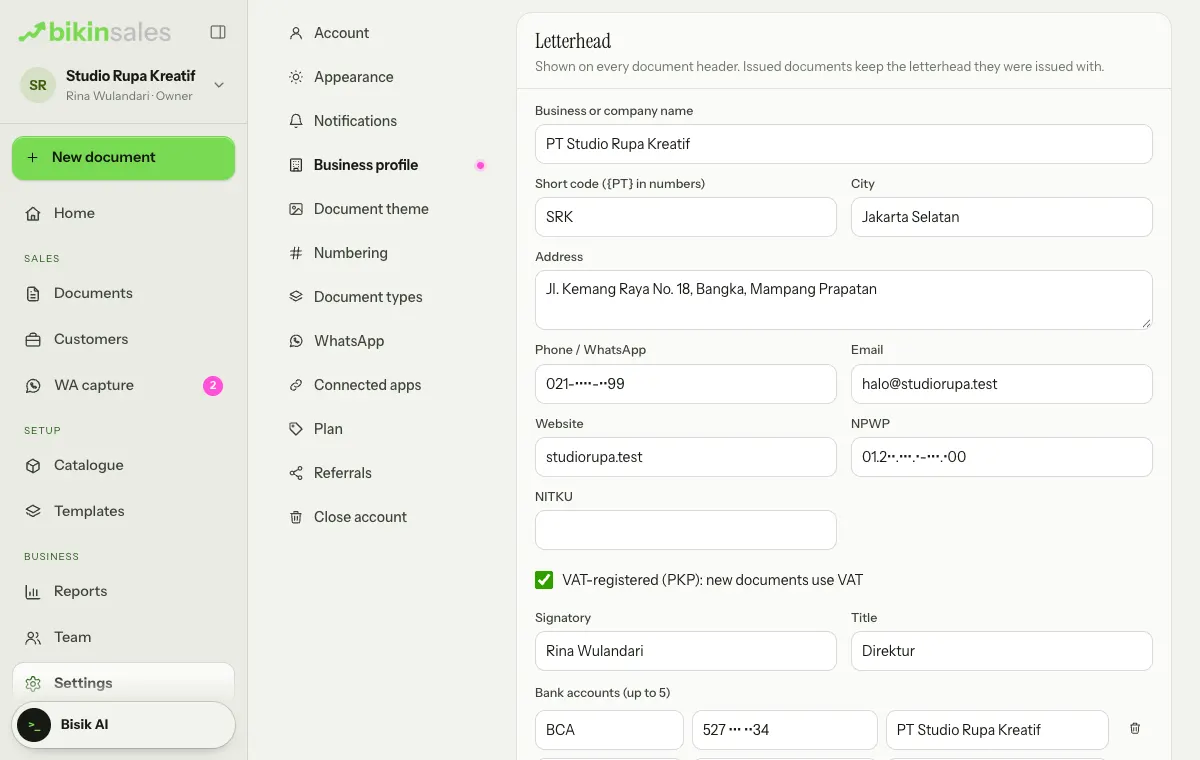
Issued documents keep the letterhead they were issued with.
Several profiles. When your plan includes it, choose Another profile at the foot of the Letterhead card for the next company. Each profile has its own letterhead, theme and number series, is picked with the tabs above the card, and is chosen per document. Make default sets the profile new documents use (marked ★).
Currency
The Currency card at the top of Settings › Business profile applies to every profile, catalogue price and document in this business. Thousand and decimal separators follow that currency, such as Rp 1.250.000 for Indonesian rupiah and RM 1,250.50 for Malaysian ringgit, and amount fields add the thousand separators as you type. A new business gets the currency of the country it signs up from.
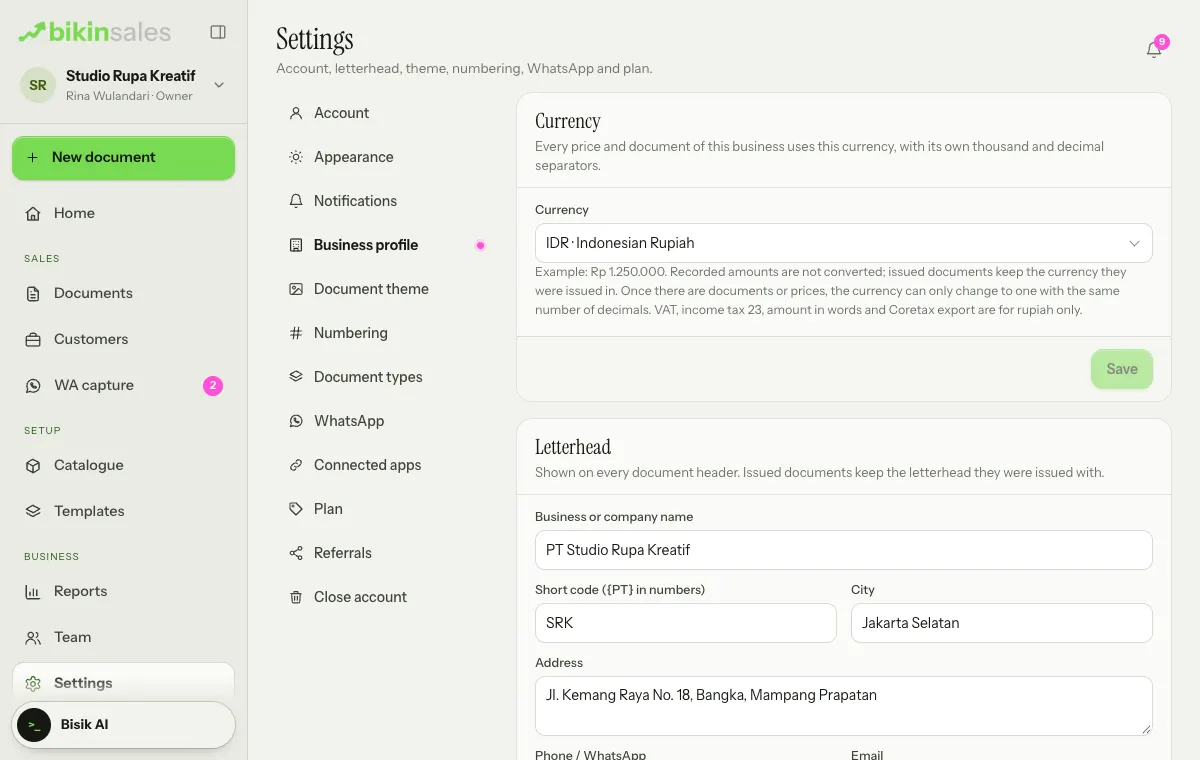
- Only the owner changes it: pick a currency in the list (type in the search box to find it), then Save. Admins see the card with Only the owner changes it.
- Until there are documents or prices, you can change the currency freely. After that it can only change to a currency with the same number of decimals, because recorded amounts are never converted. Issued documents keep the currency they were issued in.
- VAT, income tax 23, the duty stamp, the amount in words and the Coretax export are only for businesses that use Indonesian rupiah (IDR). With another currency, the VAT and income tax 23 options, the VAT-registered tick box and the Coretax export are locked, marked Only for businesses that use Indonesian rupiah (IDR).
- BIKIN SALES plan prices, bills, coupons and referral commission stay in rupiah.
Document theme
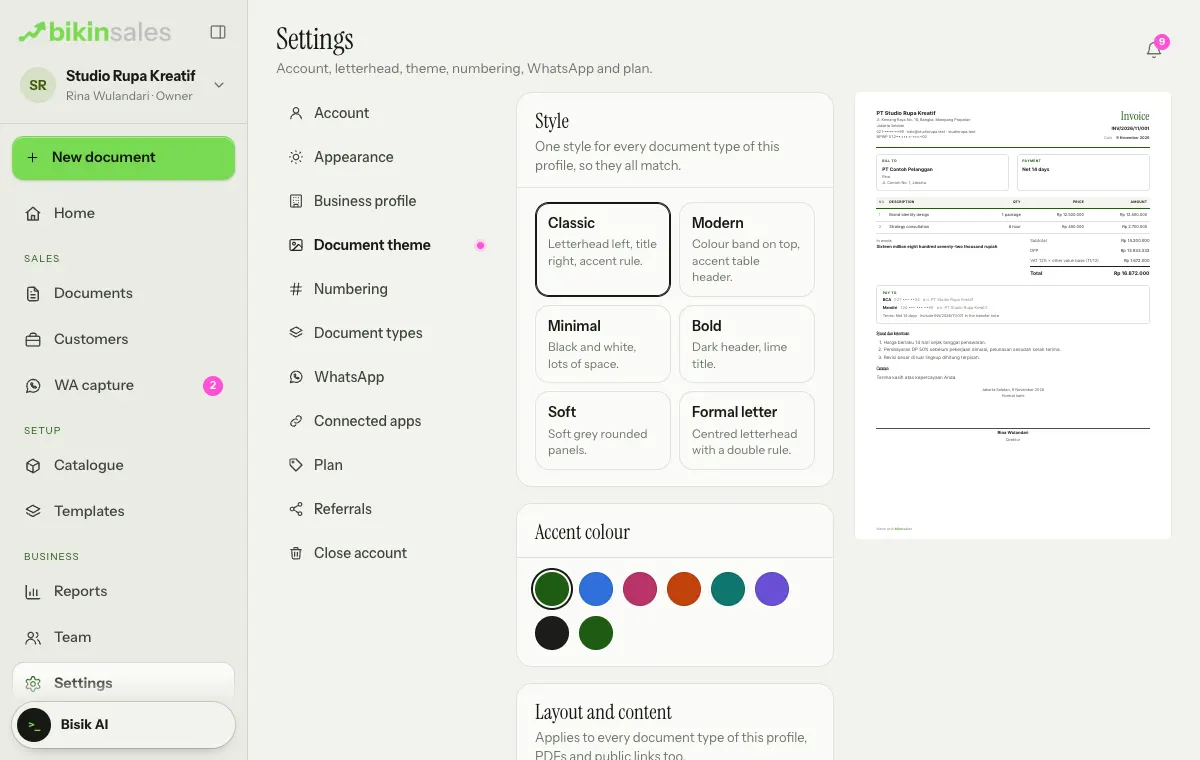
In Settings › Document theme, set the look of every document type of a profile at once. The sample invoice preview on the right changes straight away, and every choice saves itself:
- Style: Classic, Modern, Minimal (always black and white), Bold, Soft or Formal letter,
- Accent colour: pick one of the colours or any other colour,
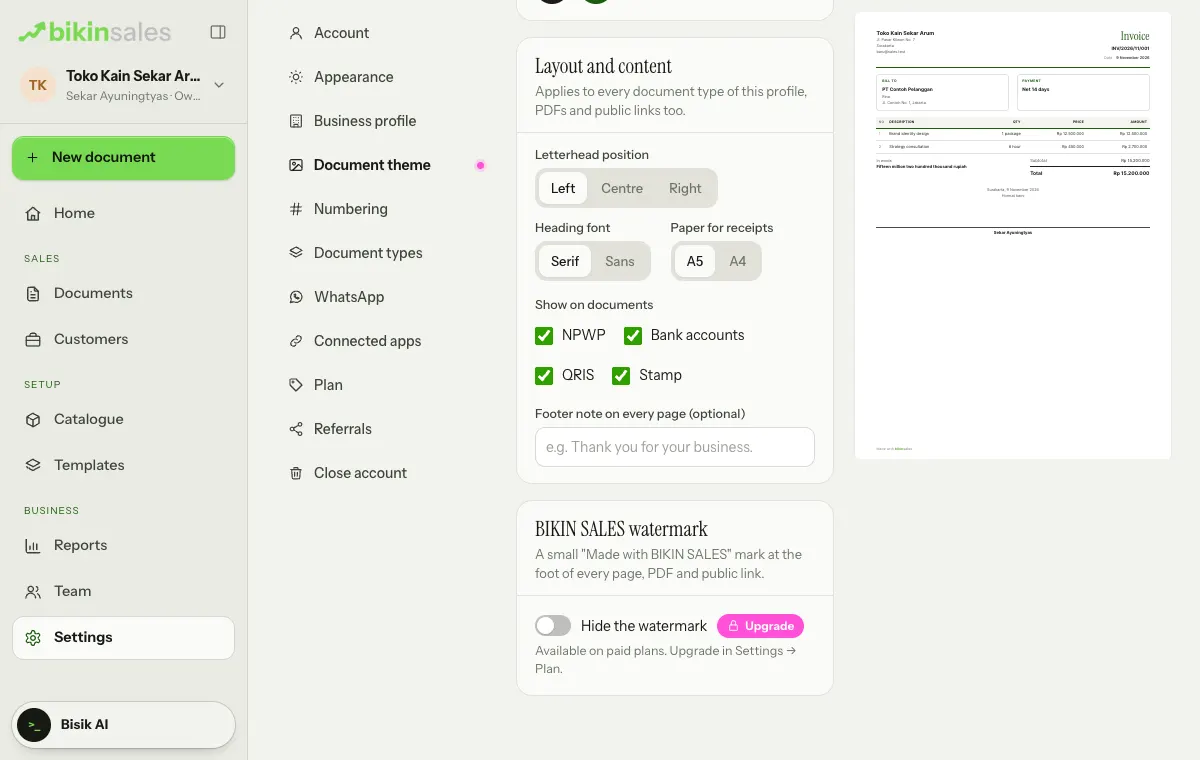
- Letterhead position: Left, Centre or Right,
- Heading font: Serif or Sans,
- Paper for receipts: A5 or A4,
- Show on documents: NPWP, Bank accounts, QRIS and Stamp,
- Footer note on every page (optional).
BIKIN SALES watermark
Every document page, PDF and public link has a small "Made with BIKIN SALES" mark at the foot. The Hide the watermark switch is on the BIKIN SALES watermark card, at the bottom of Settings › Document theme, on every plan. You can only turn it on when your plan includes it; on other plans the switch is locked with an Upgrade badge. If a paid plan ends, the watermark shows again.
Drafts and review links carry a DRAFT mark, separate from the watermark.
Document content blocks
A document's content is made of blocks in the Document content section of the editor form. Blocks can be added, reordered and removed; the block order is the order in the document:
| Block | What it holds |
|---|---|
| Text | Paragraphs, lists, bold text and simple tables |
| Section heading and Note | A heading for the next section, and an accented note box |
| Item table and Totals | Items from the Items section, plus the subtotal, tax, total and amount in words, automatically |
| Payment schedule | Stages, percentages and notes; the amounts are worked out from the total |
| Bank accounts and QRIS | From the business profile |
| Free table | Two to six columns |
| Image | Uploaded, at full, medium or small width, with a caption |
| Signatures | Signature columns, optionally with a duty stamp box |
| Page break | What follows starts on a new page |
In a text block, write ## Heading, - list, 1. numbered list, **bold**, tables with |, and [TODO: hint] for parts not known yet. A document with unfilled [TODO] fields can't be issued; how many are left shows under the Document content heading. The customer can fill in the same fields through a draft review; see Signatures & draft review.
Legal texts such as agreements and powers of attorney are drafts that are best checked by a lawyer or notary when the stakes are high.
Templates
Open Templates in the Setup menu group. The page has three cards:
- Your own document types: when your plan includes it, choose Custom type at the top right to create a new type with its own name and number code, for example "Sponsorship Offer" with code SPS that works like a Quotation. Statuses, payments and links follow the base type, and its numbers have their own series. On other plans, the card carries an Upgrade badge.
- Business templates: content you use often. Choose New template, or choose ⋯ › Save as template on any document. The customer, number and reference don't carry over; the items and prices do when you turn on Include the items and prices.
- Ready-made templates: made by BIKIN for your industry, for example a goods quotation, a services quotation, a project instalment invoice, a shop receipt, an agency SOW and a services contract. Parts to fill in are marked
[TODO].
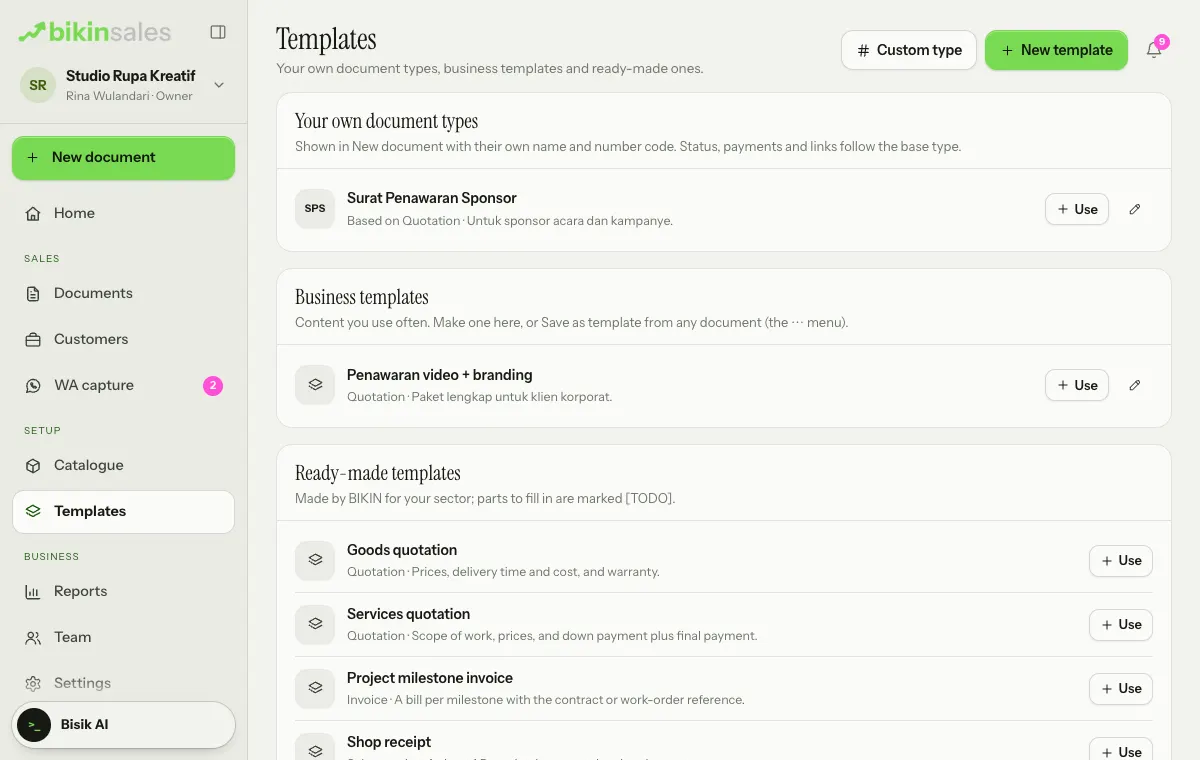
Choose Use to make a document from a template, or the pencil icon to edit a business template or your own type. Templates and your own types also show on the + New document sheet. The owner and admins manage them; everyone who may make documents can use them.
PDF and printing
Choose PDF in the document header (or Download PDF in the ⋯ and Send menus). The PDF is drawn from the same page as the preview, so it looks exactly the same and its text can be selected and copied. Customers can also download the PDF from the public link.
Public link photo and banner
Public document links open with a banner at the top and your business logo on its bottom edge, like a LinkedIn profile. Set it in Settings › Business profile, card Photo & banner; every business profile has its own banner. The photo is the logo in the Logo, stamp and QRIS card.
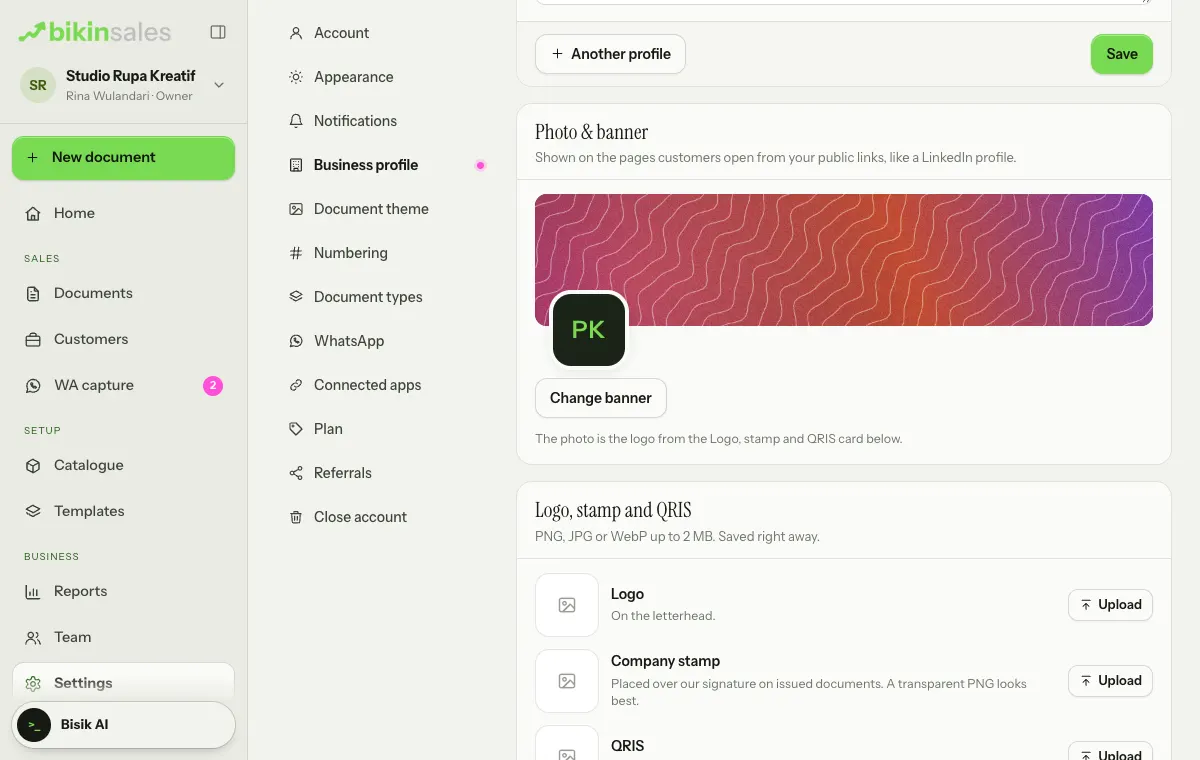
Choose Change banner, then:
- Pattern: pick Grid, Waves, Rings or Silk and one of five colour sets. Shuffle gives a new variation. The pattern moves gently on your customer's page and stays still when their device asks for reduced motion.
- Upload: choose a JPG, PNG or WebP image at least 600 px wide. A wide shape (3:1) fits best; drag the preview up or down to choose the part that shows. Images are shrunk automatically before upload.
Use default brings back the profile's default pattern. Every plan can use the photo and banner.
Last updated: