BIKIN SALESFeatures
Customers & catalogue
Save customers and products or services in BIKIN SALES once, and their details, prices and taxes fill into every document. Includes the lead, prospect and customer stages, and cost prices that are never printed.
Customers and the catalogue make documents fill in within seconds: pick the customer, pick the items, and the rest follows.
Customers
Open Customers in the Sales menu group. The list has the tabs All, Customer, Prospect and Lead, plus a search box for name, city, email or number. Each row shows the name, contact person, city and WhatsApp number, with total sales and receivables (or the number of documents) on the right.
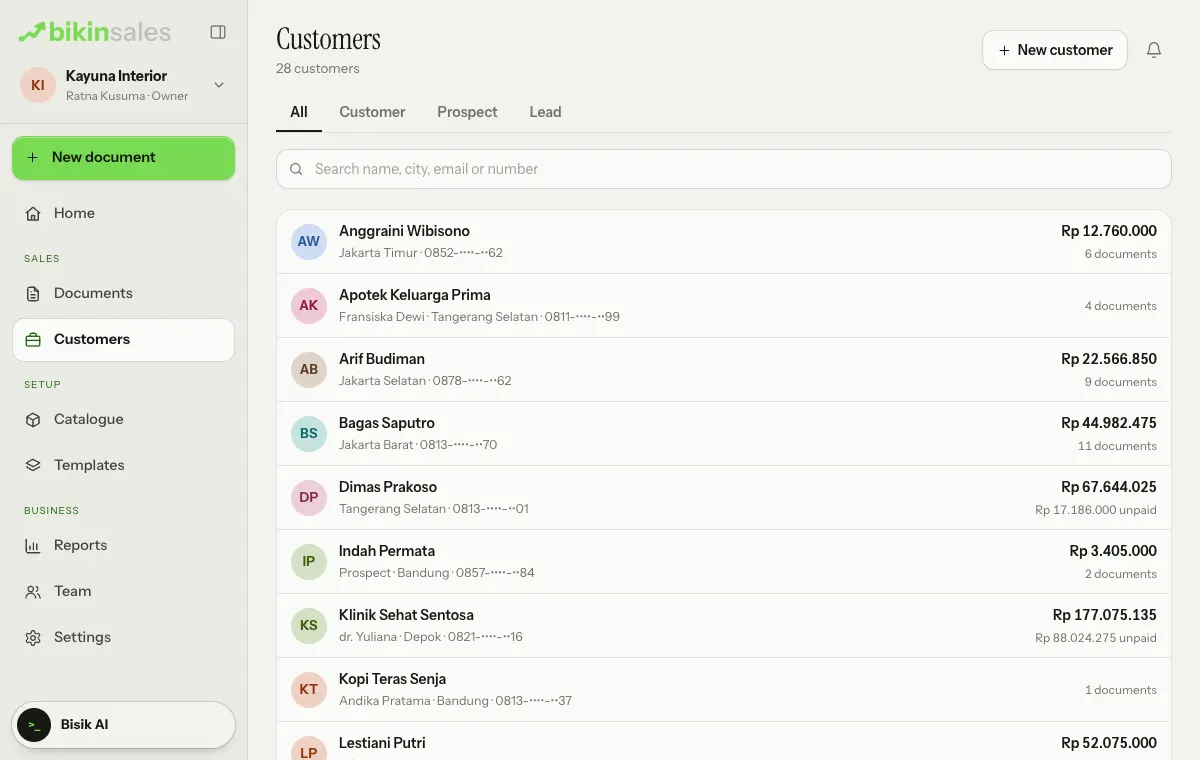
To add a customer, choose New customer at the top right (on a phone, New). You fill in:
- Type: Company or Person,
- Stage: Lead, Prospect or Customer,
- Name, plus Contact person and Contact title for a company,
- WhatsApp and Email,
- Billing address, City, and Delivery address (if different),
- Default terms (days) (0 means cash), which fill in the due date of new bills,
- NPWP / NIK and NITKU (22 digits), used on sales invoices (tax) and the Coretax export,
- Notes.
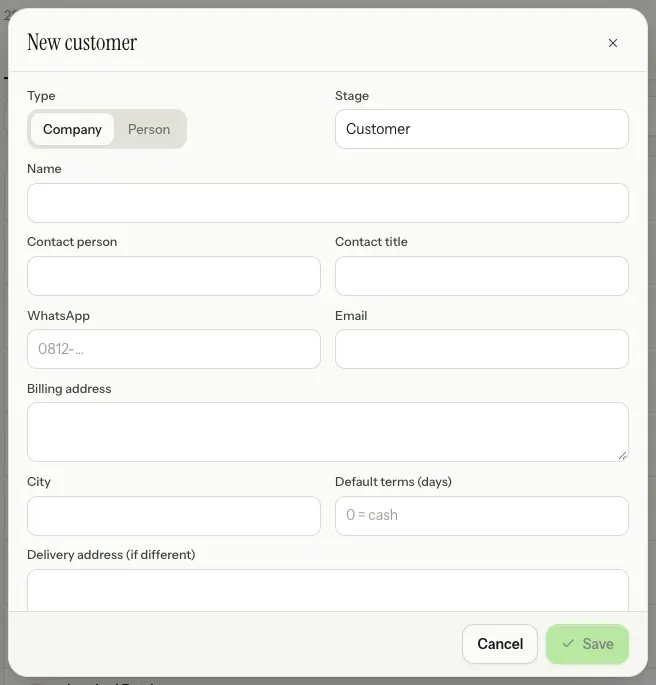
Choose Save. You can also create a customer straight from the document editor (in the Customer and details section, choose Choose, then New) or from WhatsApp capture.
A customer's page shows Total sales, Receivables, the number of documents, the Customer details card, Activity and all their Documents. Choose New document there for a new document already filled in with that customer, or Edit to change their details.
Customer details are copied into a document when it's issued. Changing a customer's address or tax ID doesn't change documents already issued. A customer can only be deleted (the bin icon on the Customer details card) when no issued document uses it.
Whose customer
Customers you add are yours. If the owner sets sales to see Own only, each salesperson only sees their own customers and documents. See Roles & access.
Catalogue
Open Catalogue in the Setup menu group. You can filter the list by category with the tabs at the top, and search by name or code. Each row shows the selling price per unit; the cost price also shows for those allowed to see it.
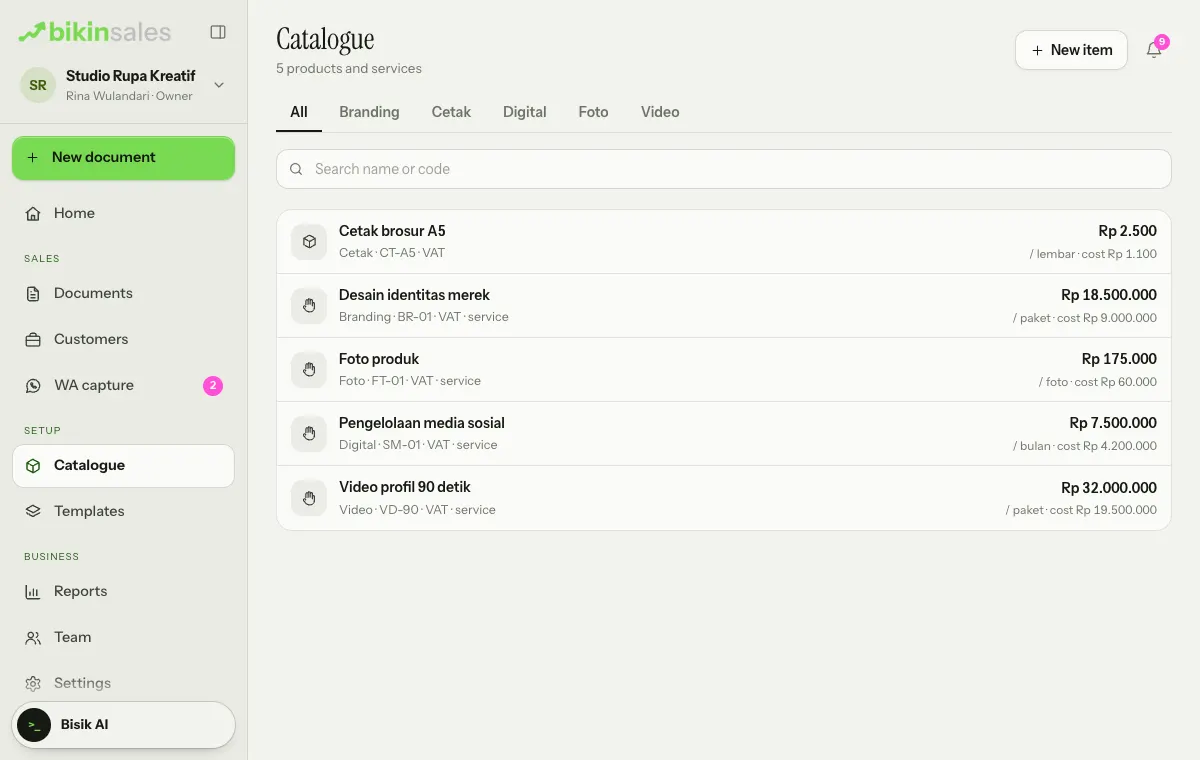
To add one, choose New item at the top right (on a phone, New). You fill in:
- Name, Selling price and Unit (for example pcs, hour, package or m²),
- Cost price, which shows the margin; only visible to those allowed and never printed on customer documents,
- Category, Code / SKU and Description (goes onto documents),
- Subject to VAT and Service (income tax 23 base),
- Still for sale (when editing an item): items no longer for sale aren't suggested in documents.
Tap an item in the list to edit or remove it. In the document editor, type an item name and pick it from the catalogue suggestions; the name, unit, price and tax fill in at once. The price on a document can still be changed for that document only.
The owner and admins manage the catalogue. Other roles use catalogue items in documents.
Cost prices and calculations
Cost prices are used in the Price calculation to work out margins and gross profit. The owner, admins and finance can see them; sales only when the owner turns on Sales may see cost prices and calculations in Team › Access. When a quotation is made from a calculation, only selling prices carry over.
Last updated: