BIKIN SALESFeatures
Signatures & draft review
Place signature spots for you, the customer or other parties on BIKIN SALES documents, sign in the app, through the link or in person on a team device, and have the customer review a draft before it's issued.
Signature spots
Signatures are set up on the Signatures card in the document's right-hand panel (on a phone, the Status tab). The card lists every signature spot with its state, for example "1 of 4 signed". There are two kinds of spot:
- Signatures block columns. Many types come with default columns, for example a contract for both parties, a receipt of payment for the person receiving the money, and a delivery order for the sender, driver and receiver. These columns follow the content, so they stay above the names even when the page shifts. Each column's name, title and duty stamp box are set in the Signatures section of the form on the left. In the preview, columns that can be signed have a dashed outline.
- Free boxes. Choose + Box on the Signatures card, then pick the party: Us, Customer or Other party for a signature, or Our initials and Customer's initials for a small initials box. The box is placed on the last page; drag it into place in the preview, or pick its page on the card. For another party, enter their name or role (for example Driver). Boxes that are already signed are locked in place.
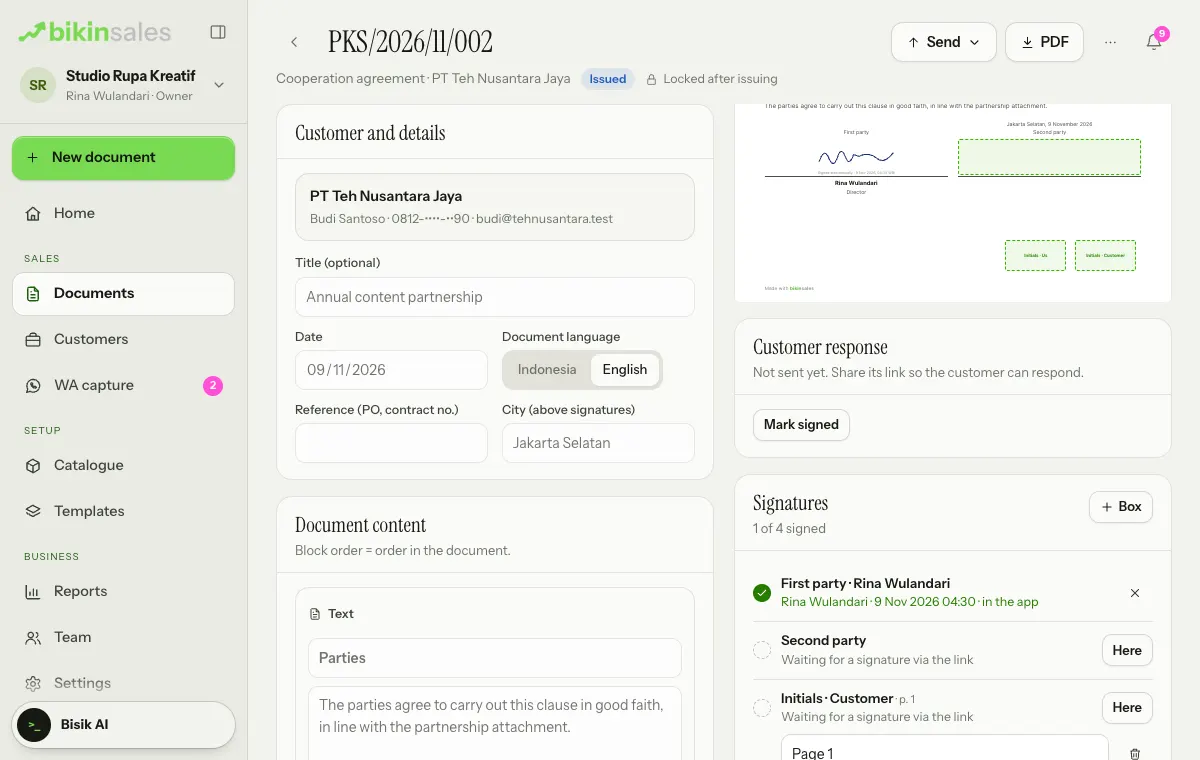
A signature column can have a duty stamp box (the Stamp button in the Signatures section of the form). BIKIN SALES only prepares the spot; official electronic duty stamps still come from Peruri.
Signing
Signing opens once the document is issued. Each row on the Signatures card has its own button:
- Your side: choose Sign, then choose My signature, Draw (finger, pen or mouse) or Type your name. Save My signature once in Settings › Account (or tick Save as my signature while drawing), then add it to documents in one tap; it's always added by you, one at a time. When the theme shows the stamp, the business profile's stamp is added to your side's box.
- Customers and other parties sign through the public link, without an account: on the link, they choose Sign. Share the document's link; see Link, email & WhatsApp.
- In person on a team device, for example a driver or receiver at a handover: choose Here on that signer's row. The Sign on this device sheet opens; hand the device over. The signer draws their own signature and ticks the consent statement, and it's recorded as "in person".
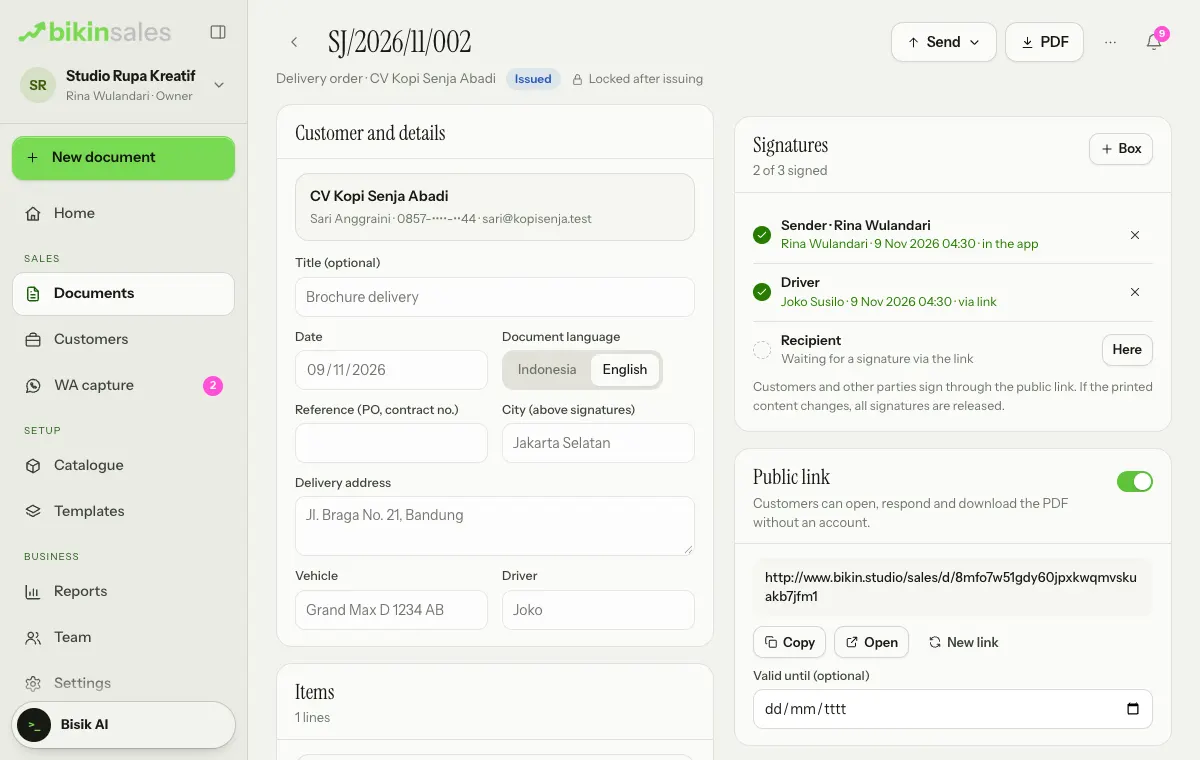
Each signed row shows the name, time and how it was made (in the app, via the link or in person); the × button on the row releases that signature. Contracts and letters become Signed once every outside party has signed. Delivery orders and acknowledgement receipts become Received once the receiver signs.
Signatures and document content
A signature applies to the content that was signed. If the printed content changes through Edit document, all signatures are released, and BIKIN SALES warns you before saving. Each signature records the name, the time, how it was made (in the app, via the link or in person) and a fingerprint of the document's content at signing. IP addresses aren't stored.
Signatures show in the preview, the PDF and Download PDF on the public link.
Draft review by the customer
Send a draft to the customer to review before it's issued, for example a quotation or contract whose details aren't complete yet. This is available when your plan includes draft review links.
- Mark the parts the customer should fill in with
[TODO: hint], for example[TODO: project contact name]. - On the draft, choose ⋯ › Send for review. The review link is copied; send it to the customer, or choose ⋯ › Send the review on WhatsApp.
- The customer opens the link without an account and sees the draft marked Draft for review. On the Fields for you card, they fill in the highlighted parts and choose Save (Find takes them to each field in the document), write comments with their name on the Comments card, then choose Approve draft once every field is filled in, or Ask for changes.
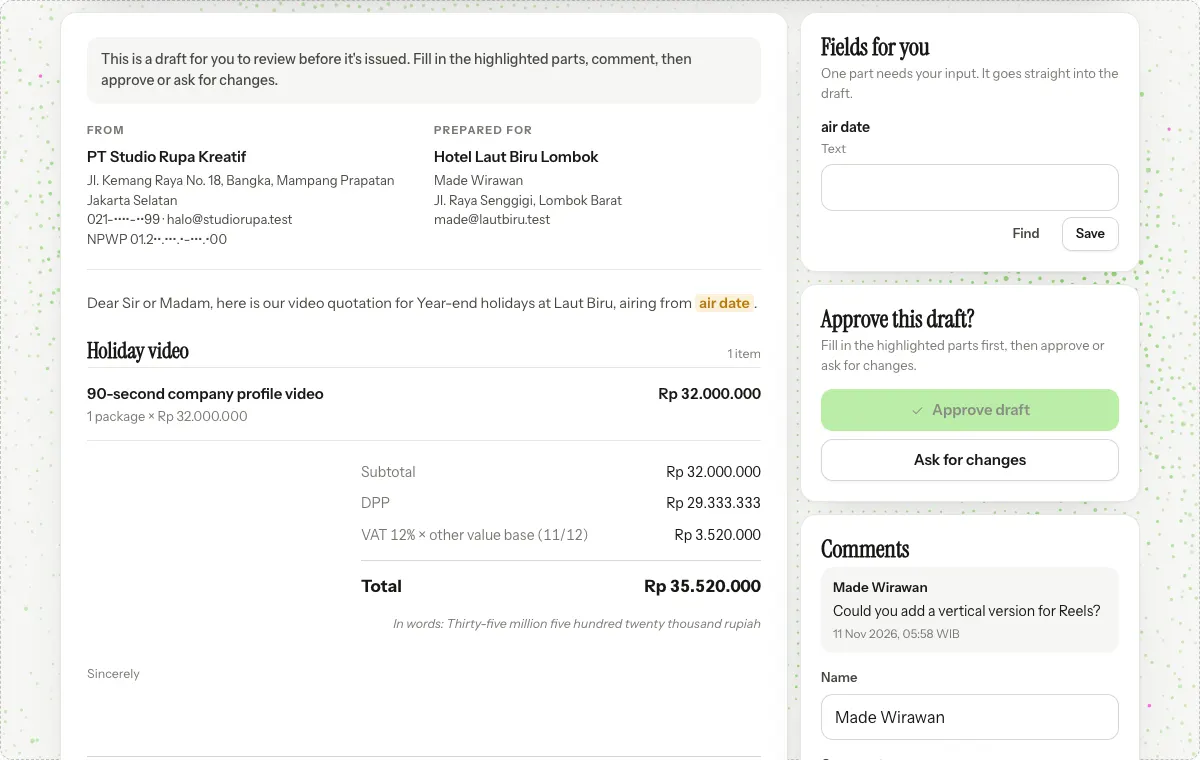
The customer's input goes straight into the draft and is recorded in the activity. In the editor, the Draft review card shows the link switch, Copy, Open and New link, the customer's response, and how many [TODO] fields are still empty. The customer's comments show on the Activity card, and you can reply from there; your replies also show on the review link. If the draft open in your editor is older than the customer's input, the draft reloads so their input isn't overwritten.
When the draft is issued, the review link becomes the document's link at the same address. New link on the Draft review card makes a new review address; the old one stops working at once.
Last updated: