BIKIN SALESGet started
Getting started with BIKIN SALES
Sign up or sign in to BIKIN SALES, complete your business profile, issue your first document, invite your team, then finish the Quick start checklist.
This page takes you from signing up to your first issued document. Most steps only need to be done once, by the owner.
Sign up
- Open sales.bikin.studio/register, or choose Create one free on the sign-in page.
- Fill in Your name, Business name, Type of business, Email and Password (at least 8 characters), then choose Create account.
- Enter the 6-digit code sent to your email.
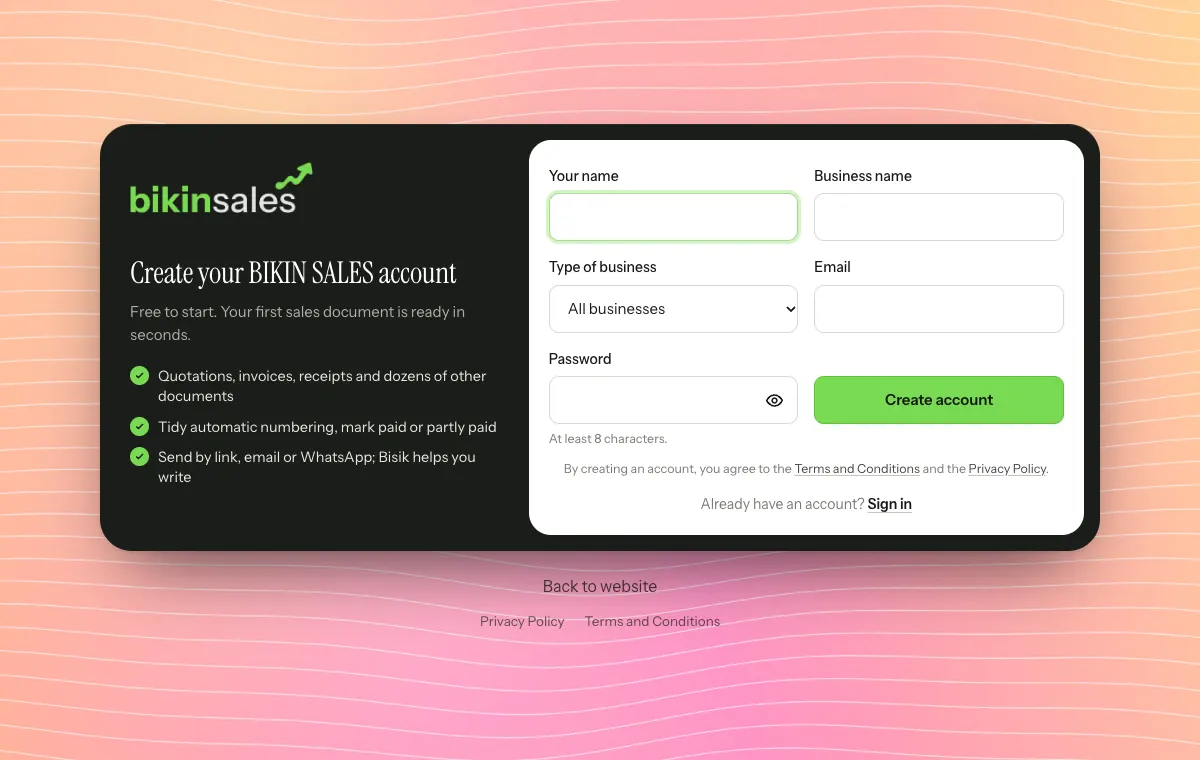
Type of business decides which document types show first when you make a document. You can change it any time in Settings › Document types.
When the button shows, you can also choose Sign up with Google. Because Google has already verified your email, you only fill in your name, business name and type of business.
If the sign-up link doesn't appear, sign-up is closed for now. Contact BIKIN at contact@bikin.studio to get an account.
The person who signs up becomes the business Owner, and new businesses start on the free plan. One email is for one business. For a second company, for example a PT and a CV, add a business profile in the same business (see Themes & templates).
Signing in
- Enter your email and password, then choose Sign in.
- Enter the code from your email. It's valid for 10 minutes.
After that you stay signed in on that device for 30 days. Choose Sign in with Google if your Google account uses the same email, or link a Google account in Settings › Account. Forgot your password? Choose Forgot password? on the sign-in page.
Complete your business profile
Every document's letterhead comes from Settings › Business profile. Fill in the Letterhead card: business name, short code, city, address, phone, email, website, NPWP and NITKU, the signatory's name and title, and bank accounts for payment (up to 5), then choose Save. The logo, stamp and QRIS are uploaded on the Logo, stamp and QRIS card and saved right away.
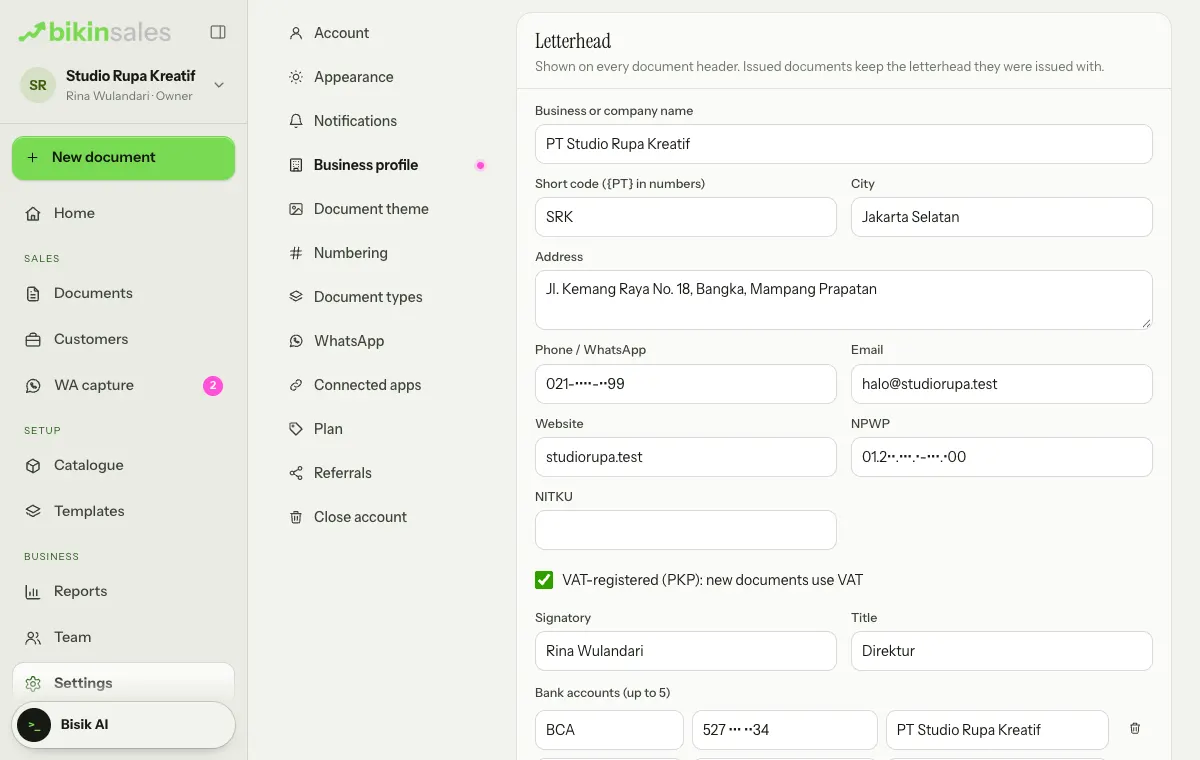
Tick VAT-registered (PKP) if your business charges VAT, so new documents use VAT straight away.
The Currency card above the Letterhead card sets the currency for every price and document. Check it before your first document is issued, because once there are documents or prices the currency can only change to one with the same number of decimals; see Currency.
Your first document
- Choose + New document above the menu (on a phone, open the sidebar drawer first: tap the menu button or swipe right).
- Pick the type, for example Quotation or Invoice. If you don't see it, type in the search box (for example "receipt" or "contract") or pick another industry in the row of industries.
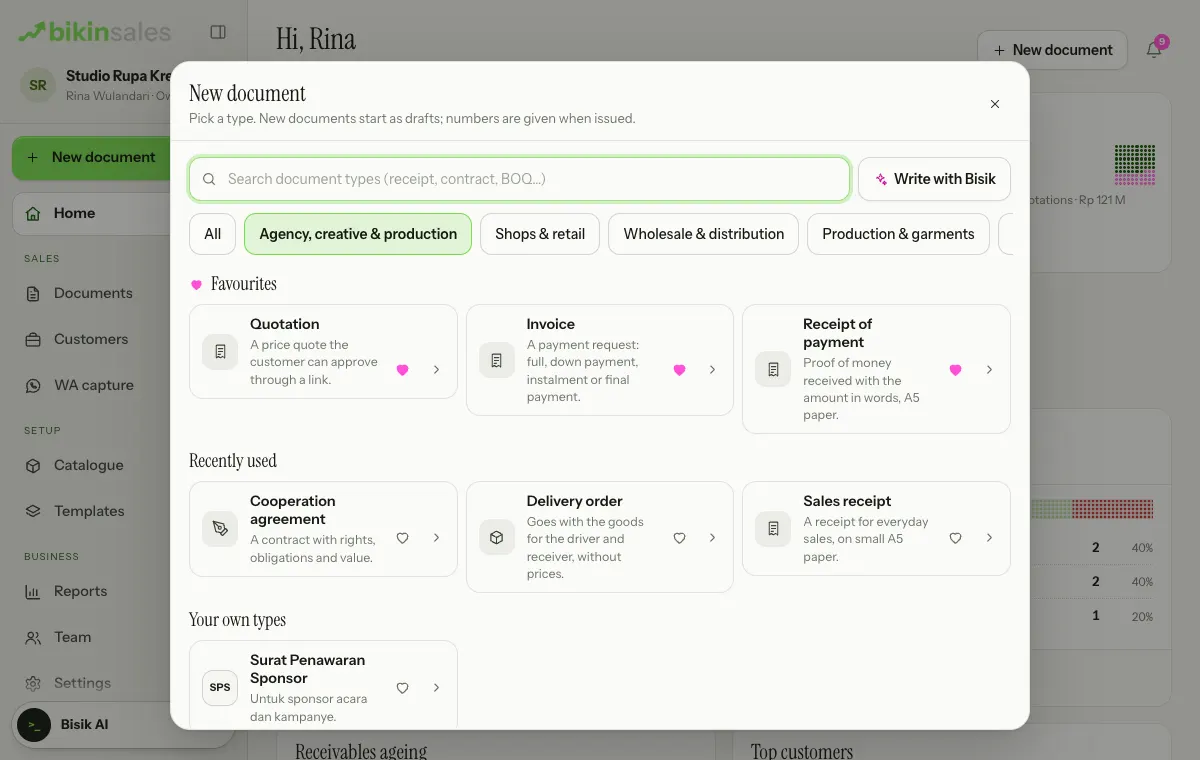
- In the Customer and details section, choose Choose to pick a customer or create a new one. Then in the Items section, type an item name or pick one from the catalogue.
- Check the preview on the right. The draft saves itself as you type; the document header shows Saved.
- Choose Issue, then confirm. The document gets its official number and is ready to send by link, email or WhatsApp.
See Documents & numbering for every type and how it works.
Inviting your team
The owner and admins invite teammates from Team:
- On the Members tab, choose Invite, then fill in the name, email and role.
- Leave Email an invitation on. Your teammate gets an email with a temporary password.
- They sign in with their email and that temporary password, enter the code from their email, then change their password in Settings › Account.
Choose roles with care; see Roles & access. The number of members follows your plan.
Welcome and Quick start
The first time you sign in, BIKIN SALES shows a short welcome for your role; choose Skip if you'd rather get straight to work. The owner and admins also get a dark Quick start card in the sidebar, right above Bisik (in the sidebar drawer on a phone). The card shows your progress and the next step; tap it to open the list of steps.
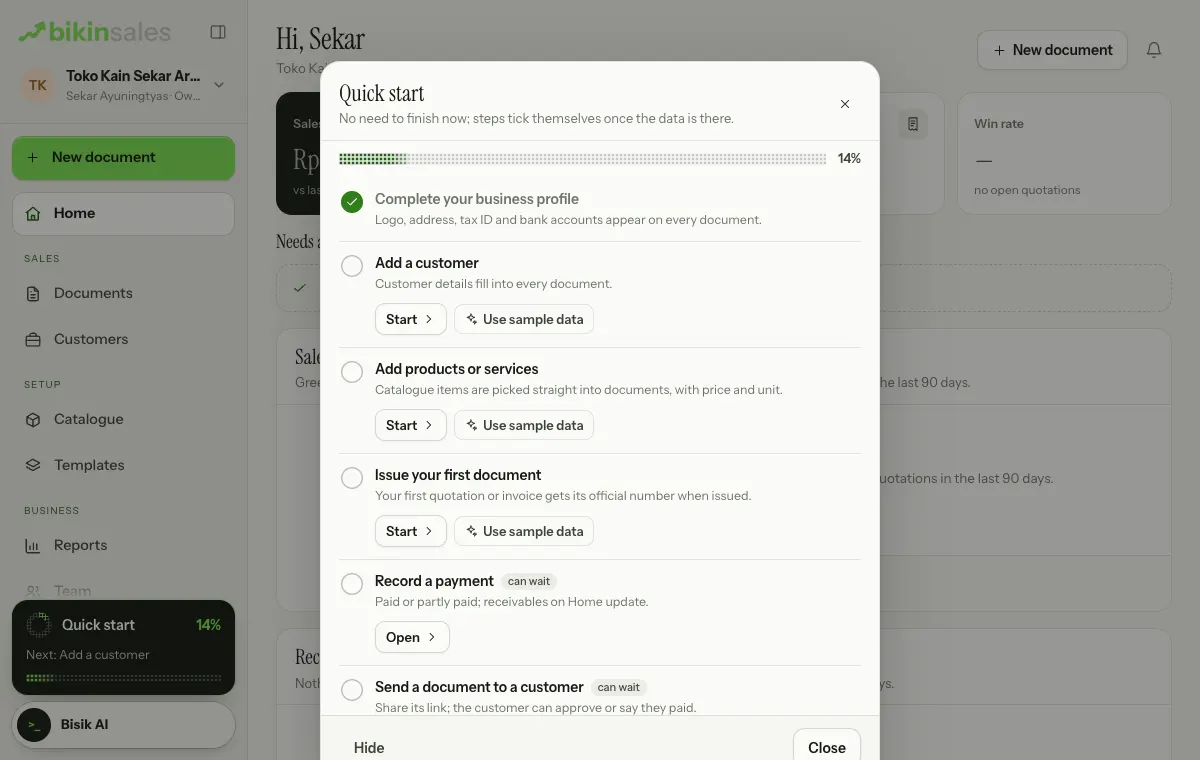
Each step has a button that takes you straight to its page (Set up, Start, Open or Invite), and steps tick themselves off as you do them:
- Complete your business profile. The logo, address, tax ID and bank accounts appear on every document.
- Add a customer. Their details fill into every document.
- Add products or services. Catalogue items are picked straight into documents, with price and unit.
- Issue your first document. Your first quotation or invoice gets its official number when issued.
- Record a payment, Send a document to a customer and Invite teammates, which are marked "can wait".
Once the required steps are done, press Finish. If you don't want to see it for now, choose Hide at the foot of the list.
Sample data
Want to see BIKIN SALES filled in first? In the Quick start list, choose Use sample data. BIKIN SALES adds 2 customers, 4 products and services, plus an approved quotation, a partly paid down-payment invoice, a paid sales receipt and a draft delivery order, so Home and the document list fill up right away. Everything is marked Sample and numbered CONTOH/…, so your own numbering isn't used. Sample data counts towards your plan's limits and can be removed in one tap (Remove sample data) without touching your real data.
You can bring back the welcome, Quick start and tips from Settings › Account › Getting started.
Next steps
- Documents & numbering to get to know every document type.
- Customers & catalogue so documents fill in faster.
- Roles & access before you invite your team.
Last updated: