BIKIN SALESFeatures
Documents & numbering
Document types in BIKIN SALES and the industry filter, making documents by hand or with Make from…, issuing and cancelling, document statuses, and number patterns per type.
Every document in BIKIN SALES is made the same way: pick its type, fill in the customer and content, then issue it. The type only decides the default content, the number code, the default signatures and the statuses it uses.
Document types
There are more than 50 document types commonly used in Indonesia, in these groups:
| Group | Examples |
|---|---|
| Core sales | Price calculation, quotation, price offer letter (SPH), proforma invoice, sales order, invoice, sales invoice (tax), sales receipt, receipt of payment |
| Goods & delivery | Delivery order, packing list, acknowledgement receipt, sales return note, handover report (BAST), warranty card |
| Billing & payment | Credit and debit notes, billing letter, payment reminder letter, statement of account, consignment note |
| Agreements & letters | Sale and purchase agreement, cooperation agreement, MOU, NDA, work order letter (SPK), addendum, reseller agreement, rental agreement, power of attorney |
| Projects & services | Project proposal, SOW, brief, rate card, change request, SLA, work report, timesheet |
| Industry specific | Bill of costs (RAB), bill of quantities, progress report, repair estimate, service intake, production order, itinerary, commercial invoice, price list |
The Price calculation is internal: it holds cost prices, margins and selling prices, never gets a public link, and only people who may see cost prices can open it.
In Settings › Document types, the owner and admins choose the Type of business (the types shown first) and hide types they don't use. Hidden types don't show when making a document, while existing documents stay. When your plan includes it, you can also create your own document types; see Themes & templates.
Making a document
Choose + New document above the menu (on a phone, in the sidebar drawer; Home and Documents also have a New document button at the top right). The New document sheet opens, with, from top to bottom:
- a search box for document types (for example "receipt", "BOQ" or "contract") and the Write with Bisik button, so Bisik writes the draft from a short brief (see Bisik in BIKIN SALES),
- a row of industries: All, your own industry (already selected), then the others,
- Favourites and Recently used: tap the heart on any type to make it a favourite (tap again to remove it), and the types you've just made show up in Recently used by themselves. Both are yours alone and follow you to other devices,
- Your own types and Templates (your business templates and the ready-made templates for your industry),
- every type by group, each with a one-line description of what it's for.
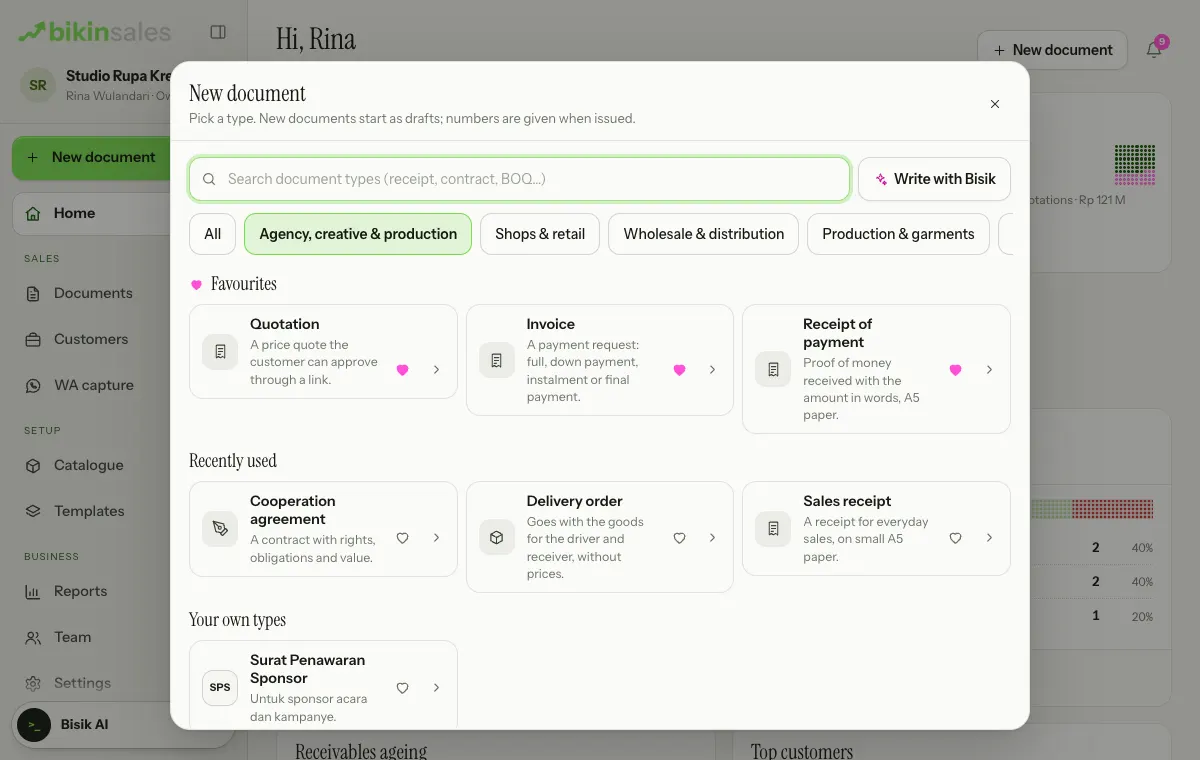
New documents always start as a draft without a number, and the editor opens straight away.
Filling in a document
On a computer, the form is on the left and the A4 page preview (A5 for sales receipts and receipts of payment) on the right, exactly like its PDF. The document header stays at the top: the title (the number, or "Draft …" before issuing), the type and customer, the status pill, then the Issue, PDF and ⋯ buttons. Drafts save themselves about a second after you stop typing; you'll see Saving… then Saved next to the Issue button.
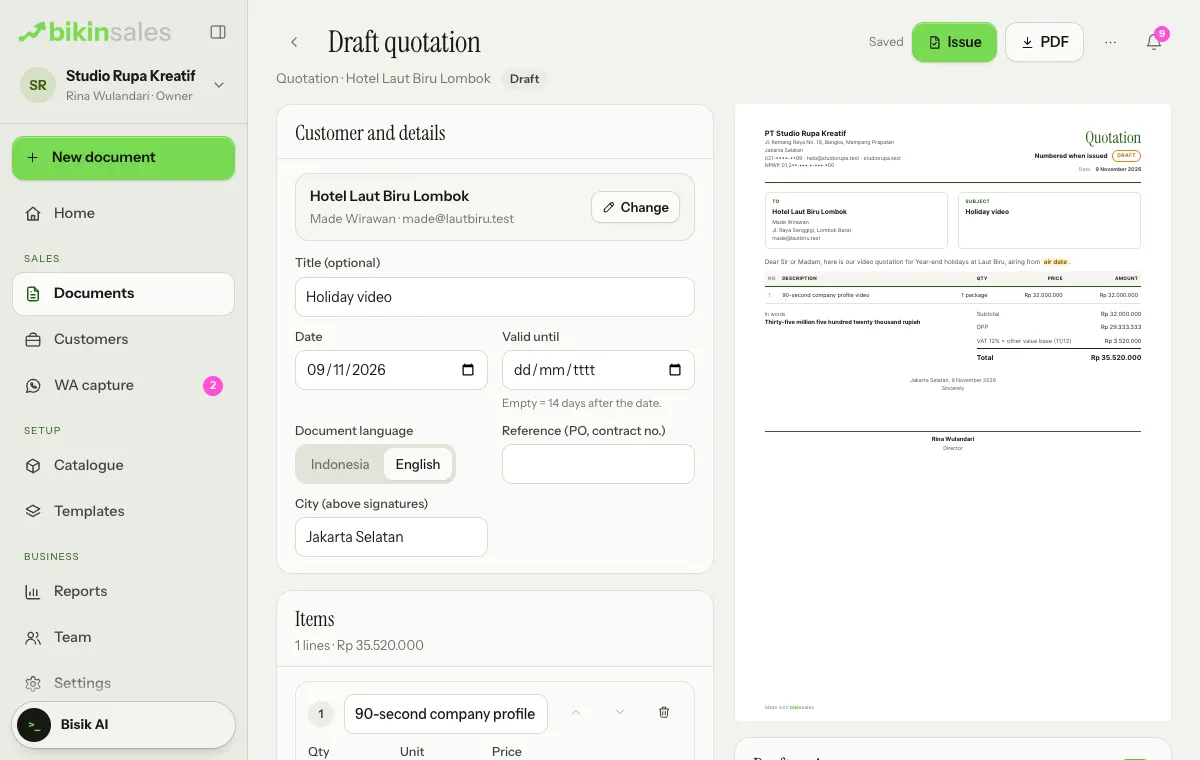
The form has several sections:
- Customer and details. Choose the customer (or create one), the date, the valid-until or due date, the business profile (letterhead), a reference such as a PO number, and the Document language (Indonesia or English). Customer details are copied into the document when it's issued, so older documents don't change when you edit the customer.
- Items. Type an item name or pick one from the catalogue. Each line can have notes, a discount, VAT and a service flag (the income tax 23 base). Bills of costs and quantities can use work groups.
- Tax, discount and charges. VAT 12% × other value base 11/12 (the default for VAT-registered businesses), VAT 12% full, VAT 11% or no VAT; prices that already include VAT; a document discount; a note about income tax 23 withheld by the customer; other charges such as shipping; and for bills, the Payment terms: cash, net a number of days, or deposit + balance.
- Document content. Text, tables, payment schedules, bank accounts and QRIS, signatures and more; see Themes & templates.
- Signatures. The name and title for each signature column, plus a duty stamp box; see Signatures & draft review.
Totals, VAT and the amount in words are calculated for you. VAT, income tax 23, the duty stamp and the amount in words are only for businesses that use Indonesian rupiah (IDR); see Currency.
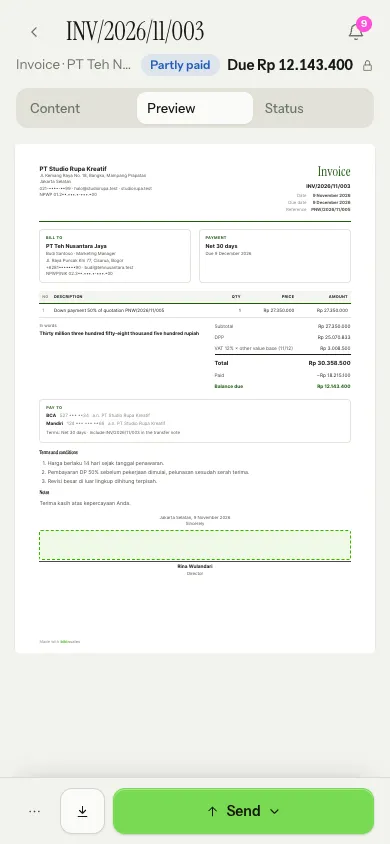
On a phone, the document header stays at the top with Content, Preview and Status (payments, link, signatures, chain and activity). The action buttons sit in the bottom bar: ⋯ and the main button, which is Issue for a draft, or Send for an issued document with a PDF download button next to it.
Make from…
Any document can be made by hand, but it's faster to make it from another one. On the source document, choose ⋯ › Make from this document…, or the Make from… button on the Document chain card in the right-hand panel. The Make from sheet opens with the types usually made from that document under Suggested, then every other type below.
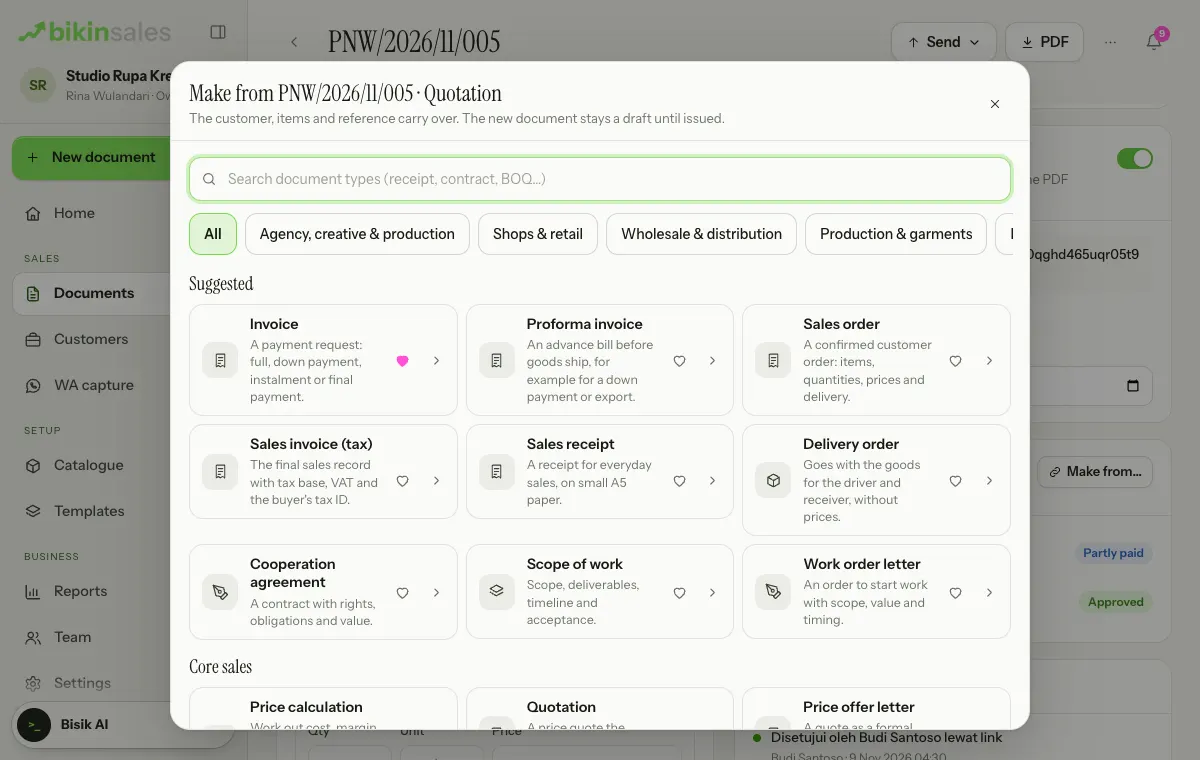
The customer, items and reference carry over; the new document stays a draft until issued. For example:
- calculation → quotation: choose ⋯ › Make a quotation from this…. Only selling prices carry over; cost prices and margins never leave;
- quotation → invoice: choose Full amount for the whole value, or Down payment with its percentage (30%, 50%, 70% or type your own), then make the Final invoice from the same quotation later;
- invoice → sales invoice (tax), receipt of payment or delivery order; sales invoice (tax) → receipt of payment or sales return note.
The Document chain card shows where a document came from and what was made from it; tap one to jump to it. Choose ⋯ › Duplicate for a new copy as a draft.
Issuing
Choose Issue, then confirm. The document gets its official number and is locked; the header shows Locked after issuing. To change an issued document, choose ⋯ › Edit document, make your changes, then Save new version (or Discard). If the printed content of a signed document changes, all its signatures are released, and BIKIN SALES warns you before saving.
For a calculation, the button is Lock calculation: the calculation gets a number and is locked, but stays internal and doesn't count as an issued document for your plan's limits.
Cancelling and deleting
- Drafts can be deleted with ⋯ › Delete draft. Drafts aren't numbered yet, so no number is lost.
- Issued documents are never deleted. Mistakes are cancelled with Cancel document at the very bottom of the right-hand panel, with a reason; the number stays on record. Remove its payments first, if any. Its public link is turned off too, and anyone opening the old link sees that it was cancelled.
- To replace it, choose ⋯ › Duplicate on the cancelled document, then issue the copy.
Numbering
Numbers are given when a document is issued, following a pattern per type in each business profile. Set it in Settings › Numbering, then choose Save:
- Pattern, by default
{KODE}/{YYYY}/{MM}/{NNN}, for example INV/2026/11/014. Tokens you can use:{KODE}(the type's code),{PT}(the business profile's short code),{YYYY},{YY},{MM},{ROMAWI}(the month in Roman numerals, for example XI) and{NNN}(the sequence, required; 2 to 6 letters N). - Restart at 1: yearly (the default), monthly or never.
- Start: the first sequence number, to carry on from an old book.
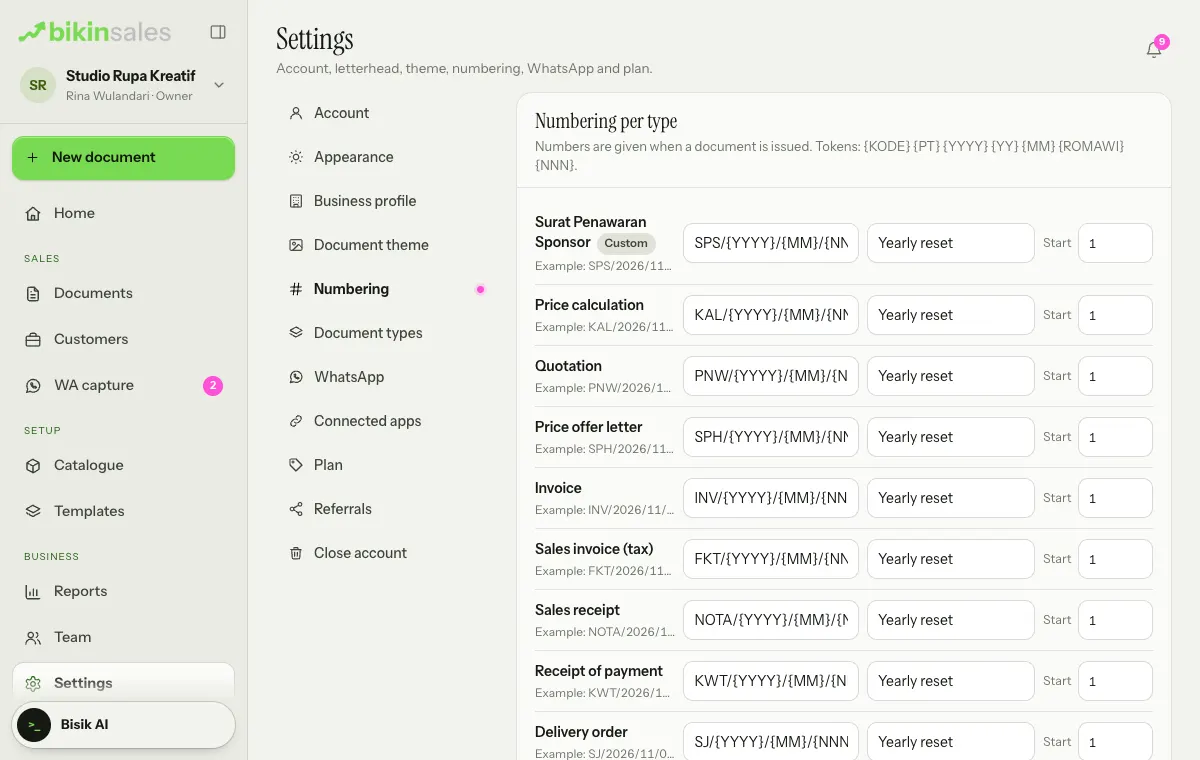
An example number shows under each type's name. The list starts with the commonly used types; turn on Show every type at the foot of the card to set up the others. Each business profile has its own number series, and numbers never repeat, even when two people issue at the same moment.
Document statuses
Each document has one status pill, used in lists, the editor, the public link and Bisik:
| Type | Statuses |
|---|---|
| Quotations and similar | Draft, Issued, Sent, Viewed, then Approved, Declined, Changes requested or Expired (past the valid-until date) |
| Bills (invoices, sales invoices, receipts) | Unpaid, Partly paid, Paid, Overdue (automatic) or Written off |
| Contracts and letters | Signed once every outside party has signed |
| Goods (delivery orders, acknowledgement receipts) | Received once the receiver signs or confirms |
| Every type | Cancelled |
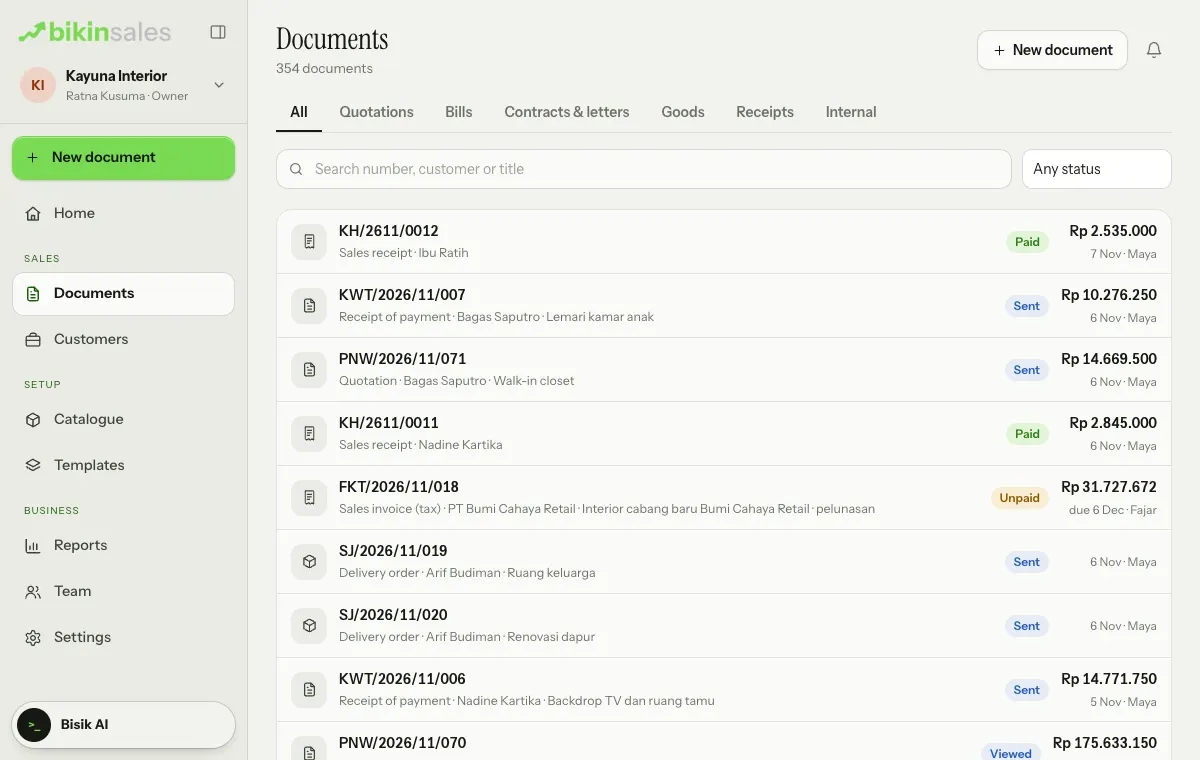
The Documents page has the tabs All, Quotations, Bills, Contracts & letters, Goods, Receipts and Internal, plus a status filter (Any status) and search by number, customer or title. Each row shows the number, the type · customer · title, the status pill and the amount; for bills that aren't paid yet, the amount shown is what's left, with the due date.
Last updated: