BIKIN SALESFeatures
Payments & receivables
Record payments on BIKIN SALES invoices, sales invoices and receipts, mark them paid or partly paid, record tax withheld, write off the rest, respond to customers who say they've paid, and understand the sales and receivables numbers.
BIKIN SALES doesn't take money and never moves money. Customers pay into your business's bank account or QRIS as usual, and the payment is recorded on its bill. A bill's status is worked out from those payments, never typed in.
Recording payments
Payments are recorded on the Payments card, the first card in the right-hand panel of an issued bill, such as an invoice, a sales invoice (tax), a sales receipt or a consignment note (on a phone, the Status tab). The card shows what's left to pay, a payment progress bar, the Paid and Left amounts, and the payments recorded so far. Below them are three buttons:
- Mark paid: records a payment of the remaining amount today (transfer) once you confirm. You can remove it if it's wrong.
- Partly paid: opens the Record a payment sheet. Fill in the Amount (the remaining amount by default), Date, Method (transfer, cash, QRIS, e-wallet, cheque or other), Notes and Proof as a photo or PDF if you have it, then choose Save. The amount can't be more than what's left.
- Write off: see Writing off the rest below.
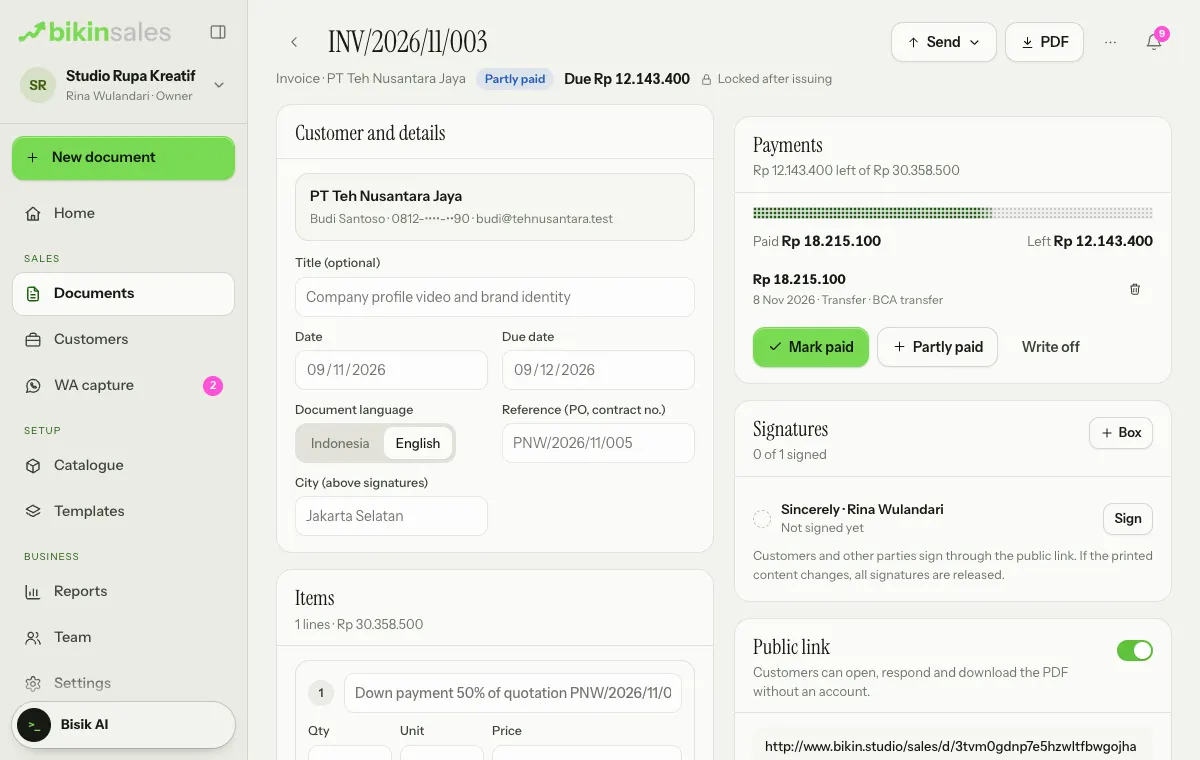
A wrong payment can be removed with the bin icon in the list. The owner, admins, finance and sales (on documents they may edit) can record payments.
Bill statuses
| Status | What it means |
|---|---|
| Unpaid | No payment recorded yet |
| Partly paid | Some of it is paid; the Payments card shows "Rp x left of Rp y" |
| Paid | Nothing left to pay |
| Overdue | Something is still due after the due date; it changes by itself |
| Written off | The rest is no longer billed |
Tax withheld by the customer
Company customers often withhold income tax 23 (for example 2% of services) before paying. Record it so the bill can be paid in full even though less money arrived:
- On the Payments card, choose Partly paid.
- Under Type, choose Tax withheld by customer.
- Enter the amount withheld and the date, add a note (for example the withholding slip number), then choose Save.
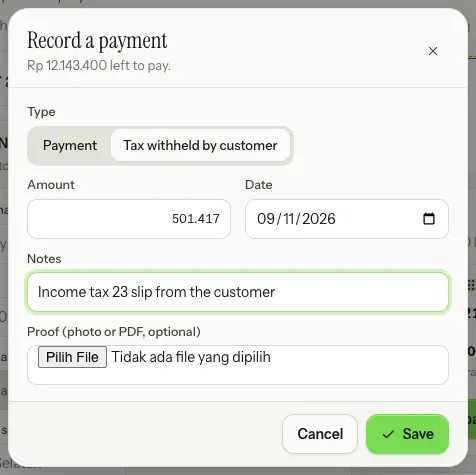
The amount withheld is listed as Tax withheld in the payments list, separate from the customer's transfer. The income tax 23 note can also be shown on the document; see Documents & numbering.
Writing off the rest
If the rest of a bill won't be paid, for example a small difference or a new agreement, choose Write off, enter a reason, then choose Write off again. The rest is no longer billed or counted as receivable. You can undo it with Undo on the Payments card.
Customers who say they've paid
On a bill's public link, the customer sees the How to pay card with your bank accounts and QRIS, the amount to transfer and the transfer note, each with a Copy button. Below it, the customer can choose I've paid with notes such as the bank, amount and date.
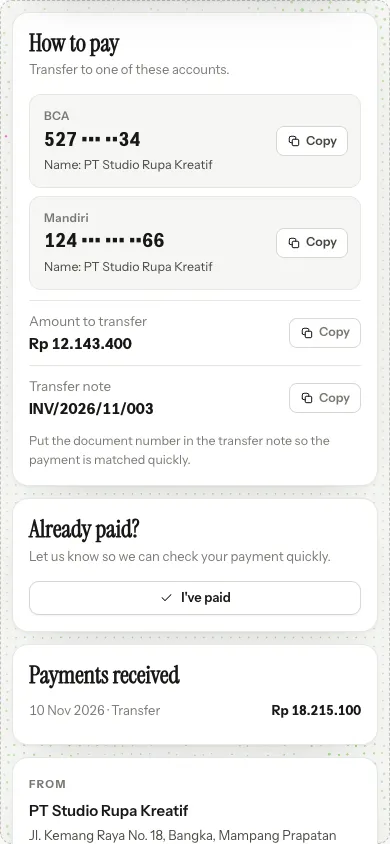
You get a notification in the bell, and the Payments card shows that customer's message. The bill's status doesn't change by itself: check your account, then record the payment. The "customers say they paid" tile on Home reminds you.
Receipts and follow-on documents
For proof of money received, make a Receipt of payment from an invoice or sales invoice with ⋯ › Make from this document…. When a sales invoice (tax) is made from an invoice, its payments are recorded on the original invoice; the Payments card on the sales invoice points there.
Sales and receivables numbers
So that a document chain isn't counted twice, sales are the issued invoices, sales receipts, consignment notes, debit notes and commercial invoices, plus sales invoices (tax) without an issued invoice in their chain, minus sales return notes and credit notes. Drafts and cancelled documents don't count.
- Money received comes from payments, by their payment date.
- Receivables are what's left on issued bills that aren't paid or written off.
These numbers show on Home, on each customer and in Reports & export.
Last updated: