BIKIN SALESAccount & plan
Roles & access
The five roles in BIKIN SALES, who sees whose documents and customers, cost prices and WA capture for sales, email codes for important actions, and the log.
Everyone in a business has one role. The owner also decides whether a role sees every document and customer, or only their own. All of these rules are checked on the server for every request, including Bisik's answers and connected apps.
Five roles
| Role | Can |
|---|---|
| Owner | Everything, including the plan, billing, referrals, the WhatsApp number, WA capture, roles and closing the account |
| Admin | Everything except the plan, billing and closing the account: team, business profiles, theme, numbering, catalogue, templates, documents and exports |
| Sales | Their own customers and documents (or all of them, if the owner allows): make, issue and send documents, record payments, see their reports, and WA capture when allowed |
| Finance | All documents, payments, receipts, sales invoices, reports, CSV export and the Coretax export; doesn't manage the team or business profiles |
| View only | Reads documents, customers and reports without changing anything |
Who sees what
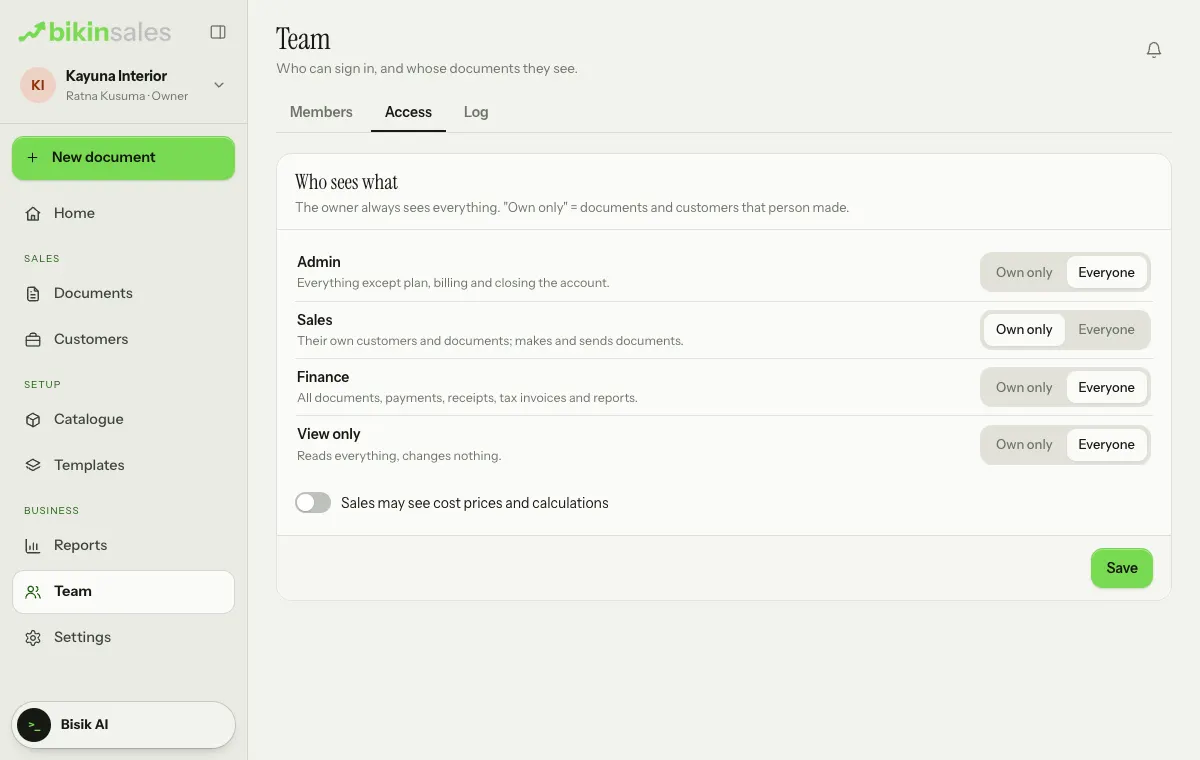
In Team › Access, the Who sees what card sets for each role (admin, sales, finance and view only) whether it sees Everyone or Own only. "Own only" means the documents and customers that person made. By default, sales see their own and the other roles see everything. The owner always sees everything. Choose Save after a change.
Documents and customers someone may not see never appear for them in lists, search, Home, Reports, Bisik or connected apps.
Two extra permissions for sales, set by the owner:
- Sales may see cost prices and calculations (in Team › Access). Off by default. Cost prices and margins are never printed on customer documents.
- Sales may see and follow up captures (in Settings › WhatsApp). On by default.
Inviting and managing people
Open Team. The Members tab lists everyone with their email, role and when they last signed in.
- Choose Invite. The Invite a teammate sheet opens; fill in the name, email and role.
- Leave Email an invitation on so your teammate gets an email with a temporary password, or turn it off and fill in a Temporary password to give them yourself.
- Choose Invite. The number of members follows your plan; when it's full, the Invite button can't be chosen.
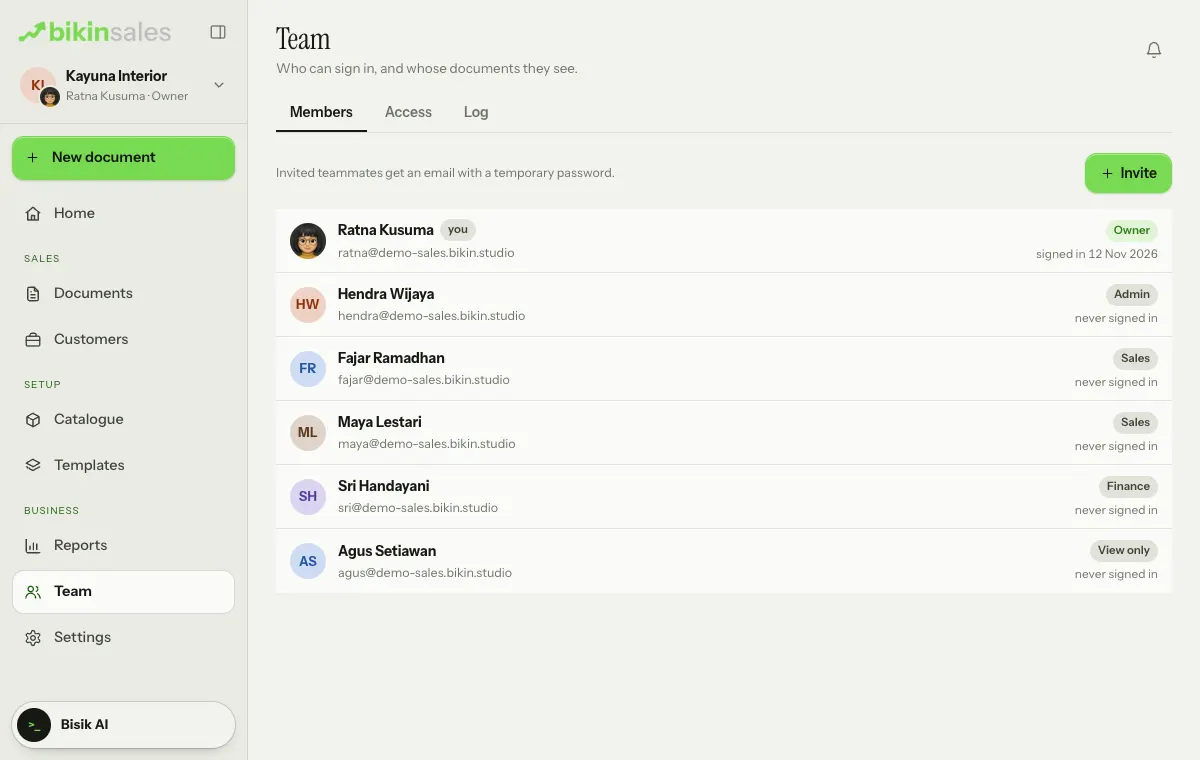
Tap someone in the list to change their name or role, or switch them off:
- Admins can invite sales, finance and view only.
- The owner and admin roles, and every role change, can only be given by the owner, with an email code.
- A business always has at least one owner, and nobody can change their own role.
- Members can be switched off at any time; they can't sign in again, and the documents they made stay.
Email codes for important actions
Important actions ask for a code from your email, for example CSV and Coretax exports, changing roles, connecting or disconnecting the WhatsApp number, turning on WhatsApp capture, linking a Google account and closing the account. Once the code is right, important actions in the next 10 minutes don't ask again.
Log
The owner can see Team › Log: role and access changes, cancelled documents, deletions, removed payments and exports, with who and when. Every document also has its own Activity card.
Last updated: