BIKIN SALESFeatures
Link, email & WhatsApp
Send BIKIN SALES documents through a public link customers can approve, sign or pay without an account, by email with the PDF attached, or from your business WhatsApp with ready-made, tidy texts.
Issued documents are sent from the Send button in the document header (on a phone, the green button in the bottom bar). Its menu has Copy link, Send on WhatsApp, Send by email and Download PDF. Calculations can never be sent, and drafts can only be shared as a review link (see Signatures & draft review).
Public link
Every issued document except a calculation can have a public link at sales.bikin.studio that the customer opens without an account. Manage it on the Public link card in the document's right-hand panel (on a phone, the Status tab):
- a switch to turn the link on or off at any time,
- Copy and Open to see the page the customer sees,
- Valid until (optional): after that date the link can no longer be opened,
- New link: the old address stops working at once; send the new one to the customer.
The link turns itself on when you copy it, send the document on WhatsApp, or send an email that includes the document link. Search engines never index it.
What the customer can do on the link, depending on the document:
| Document | Customer actions |
|---|---|
| Quotations and similar | Approve (with their name, optionally a signature), Ask for changes or Decline with a reason |
| Bills | See your bank accounts and QRIS with Copy buttons, then I've paid |
| Documents with signatures | Sign the boxes for the Customer or Other party |
| Delivery orders and acknowledgement receipts | Confirm received, optionally with the receiver's signature |
| All | Download PDF |
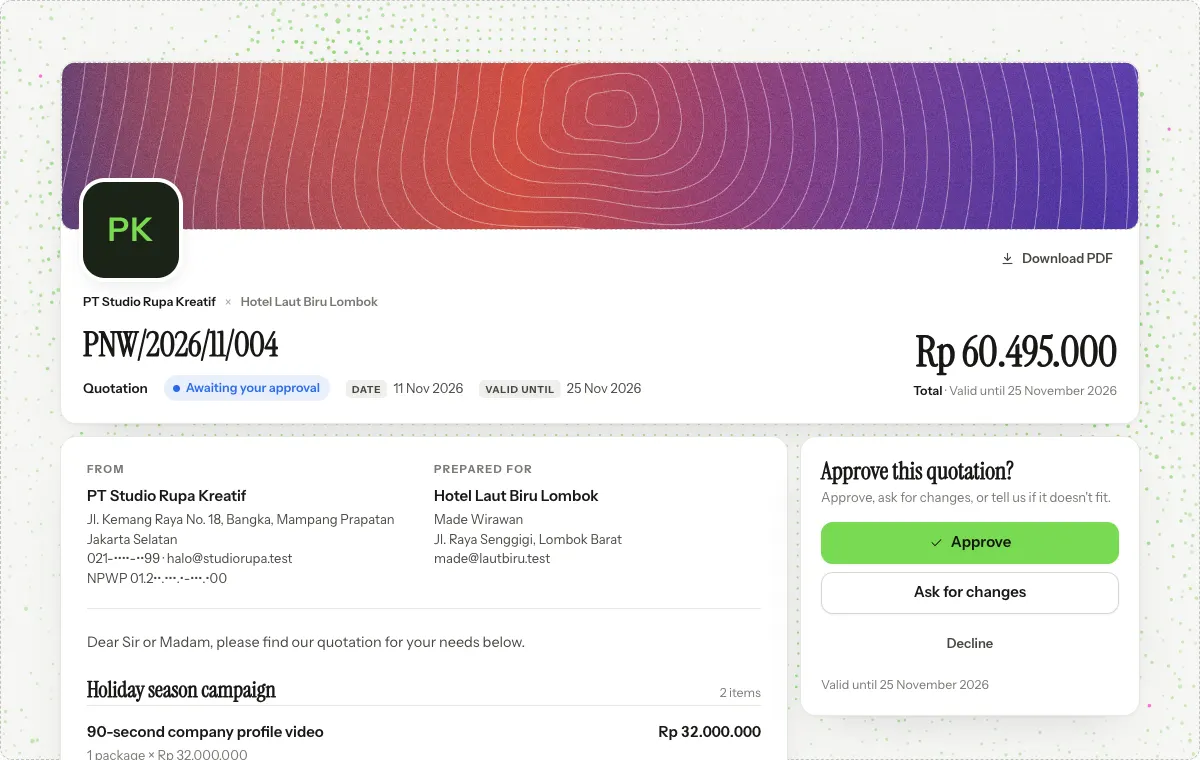
Every response is recorded in the document's activity and shows up in the notification bell. The Public link card shows how many times the customer opened it and when they last did; automatic fetches for link previews and your own team members who are signed in don't count. If the customer approves by phone, record it yourself on the Customer response card (for example Mark approved or Mark declined).
When the link is shared on WhatsApp or social media, its card shows a preview image with the business name, the document type and number, the customer and the amount.
bkin.in short link
While the public link is on, the Public link card also shows its short link. Under the link is the Short link: a short bkin.in address made for you right away, for example bkin.in/k7m2qa. The real link doesn't change; bkin.in just sends visitors there.
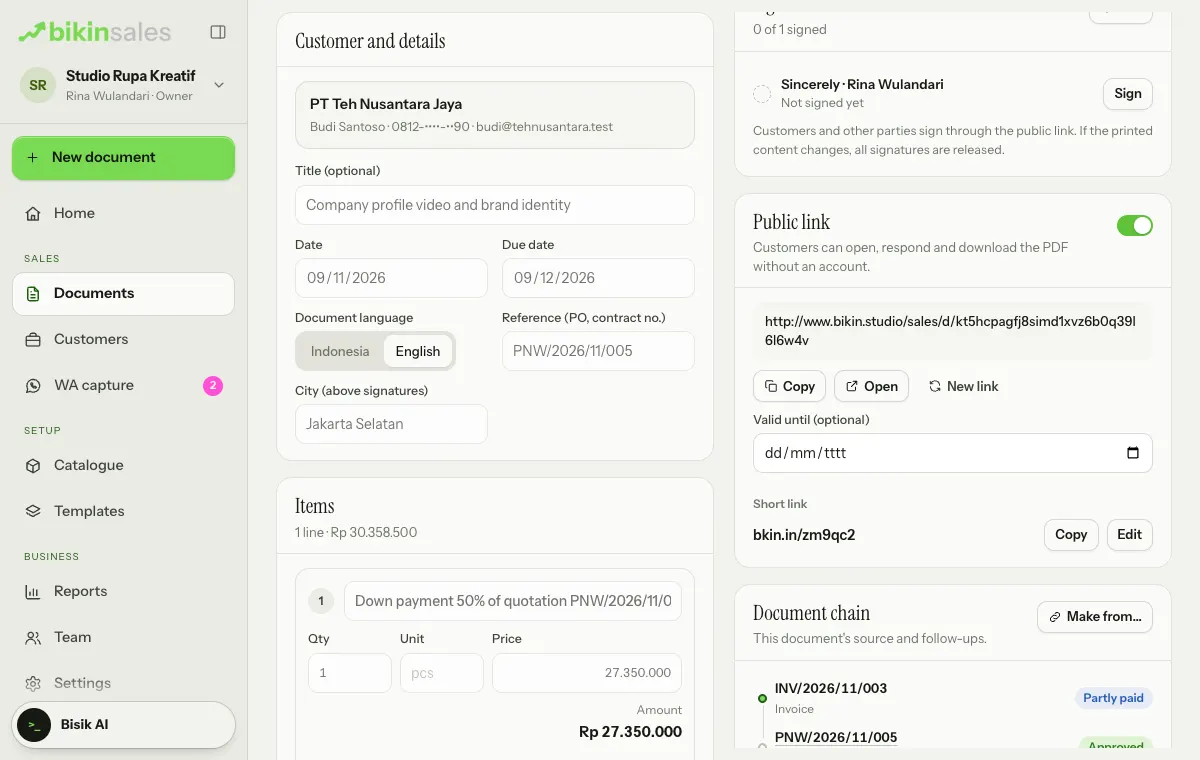
- Copy copies the short link.
- Edit picks your own code, for example
bkin.in/promo-coffee. Availability is checked as you type. Free plans need at least 6 characters, paid plans at least 3. Use lowercase letters, numbers and dashes. The old code stops working once you save. - Anything after the short link, such as
?ref=…, is passed on to the real link.
Send by email
Choose Send › Send by email:
- Fill in To (the customer's email is already there; at most 5 recipients, separated by commas) and Cc (optional) if needed.
- Check the Subject and Message, which are filled in for you to match the document's type and language.
- Leave the Include the document link switch on so the customer can respond, pay or sign there.
- Choose Send. The document's PDF is made and attached automatically; its file name shows under the message.
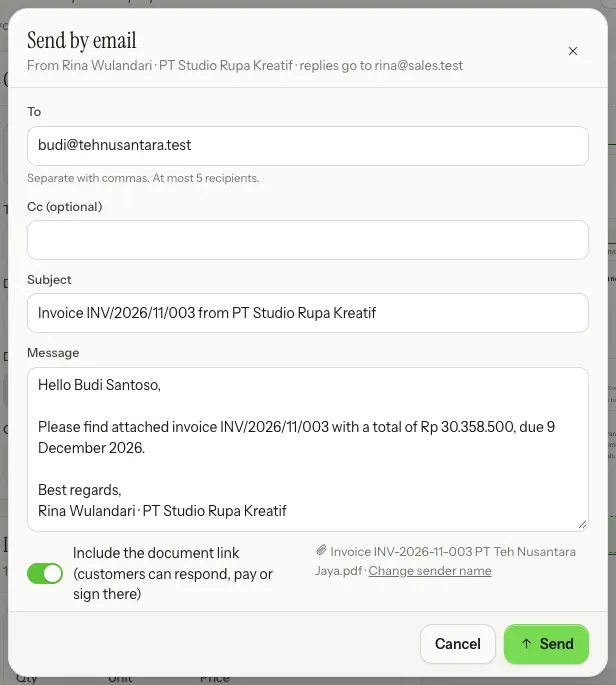
Emails go out from a BIKIN SALES address with the sender name you set, and the customer's replies go to your email; both show under the sheet's title. Set them in Settings › Account (Sender name for document emails and Replies go to), or choose Change sender name on the sheet. Document emails go out one at a time, never as bulk email, and how many you can send a day follows your plan.
Send on WhatsApp
Choose Send › Send on WhatsApp. This is only available when the document's customer has a WhatsApp number. The message is a fixed text that's already tidy, with key numbers in bold and the document link on the last line; there's no free text box. You only choose:
- the Message, depending on the document's type and status: send the document (for example Send the invoice), Follow up on the quotation (while it isn't approved or declined), Due date reminder (while something is still due), Thank you, paid in full, Ask for a signature, Delivery update or Ask to review the draft,
- the Greeting, for documents in Indonesian: Mr/Ms, Mr, Ms or first name, followed by the customer's name,
- the Tone: Formal or Casual.
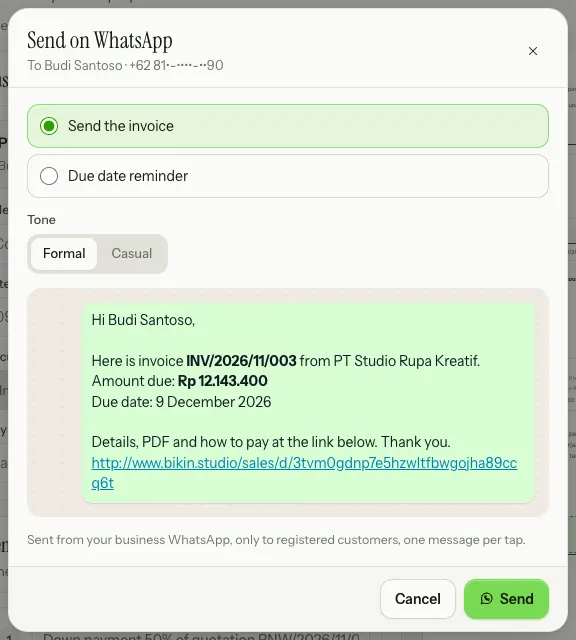
The chat-bubble preview shows the exact text before it's sent. Choose Send to send it.
With your business WhatsApp number connected, the message goes out from that number, only to the WhatsApp number of that document's customer, one message per tap, through a queue that keeps your number safe. There's no sending to many customers at once and no broadcast. BIKIN SALES doesn't keep a chat history; the document's activity only records "Sent on WhatsApp" with its state: queued, sent, delivered, read or failed. Sending from your business number depends on your plan.
Without a connected number, the button becomes Open WhatsApp, which opens WhatsApp on your device with the same text.
Connecting your business WhatsApp number
The owner connects the number in Settings › WhatsApp, on the Your business WhatsApp card:
- Choose Connect a number, then read the Before you connect notes.
- On the phone with the business number, open WhatsApp › Linked devices › Link a device, then scan the QR code. Without a camera, choose Use a code: enter the business WhatsApp number, then type the code into the phone (Link with phone number).
- The card changes to Connected, with the number and the date it was connected.
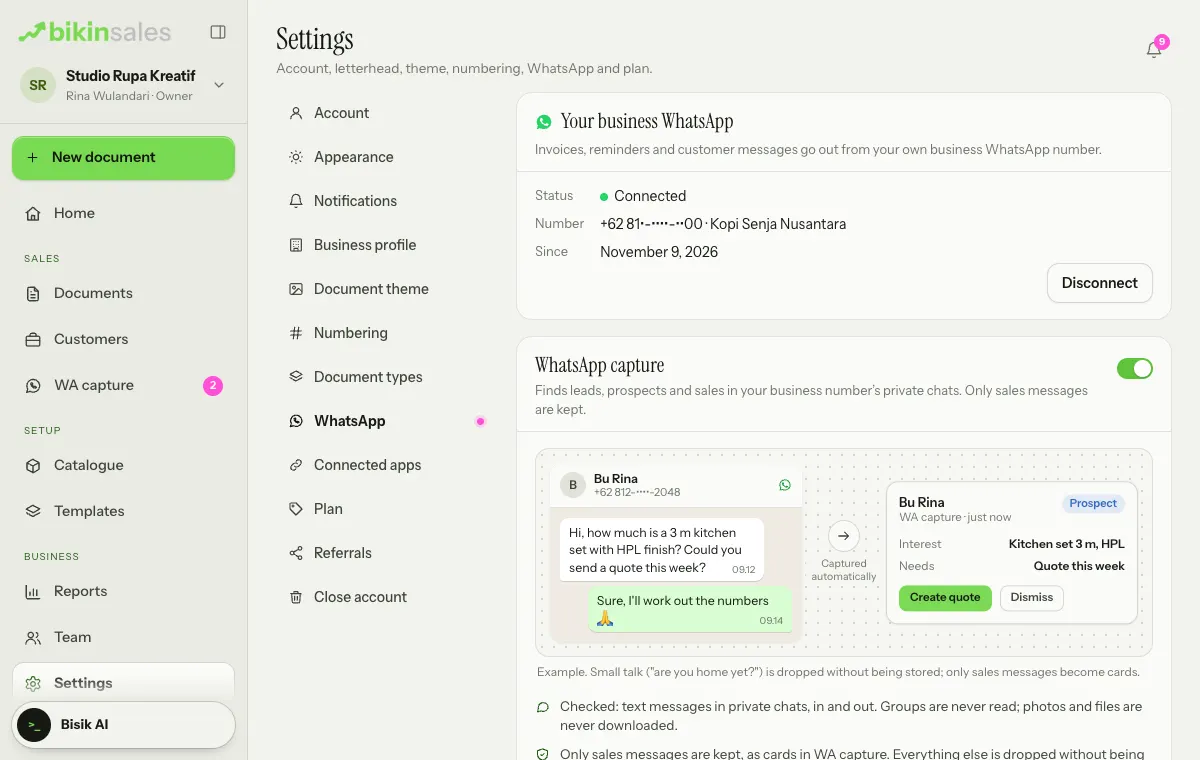
Connecting and disconnecting the number (Disconnect) ask for an email code. Use the business number, not a personal one. The connection works like WhatsApp Web, not the official WhatsApp Business API, so the phone with that number must stay on and online. Messages go out slowly to keep your number safe, but WhatsApp can still restrict a number it considers spammy.
A number already connected in Bikin Fin, Bikin CRM or BIKIN SPRINT can also be connected in BIKIN SALES. Within BIKIN SALES, a number belongs to one business only. The same number is used for WhatsApp capture.
Last updated: