Bikin AsetAccount & plan
Roles & access
The five Bikin Aset roles (owner, admin, asset manager, finance, staff), location limits, prices for staff, how to invite your team, and the log of important actions.
Every team member has one role. Roles and location access are checked on the server for every request, so what someone may not see can't be opened through a direct address or a QR label either.
Five roles
| Role | Can |
|---|---|
| Owner | Everything, including the plan, adding businesses, the log and Close account |
| Admin | Everything except the plan, adding businesses, the log and Close account |
| Asset manager | Assets, hand-overs, maintenance, documents, QR labels and asset checks; sees values and reports. Can be limited to some locations |
| Finance | Sees every asset, value, maintenance record, document and report without editing; can export CSV |
| Staff | The assets they hold (and their locations, if given), damage reports, and ticking asset checks assigned to them; no prices or values unless allowed |
Every role can report damage on assets they may see and ask Bisik within their role.
With several businesses, the plan, referrals and removing an added business are for the owner of the main business only; the owner of an added business manages everything else in that business.
Inviting your team
The owner and admins invite teammates from Team:
- On the Members tab, choose Invite.
- Fill in the Name and Email, then pick the Role.
- For asset managers and staff, pick their locations under Outlet access (named after your location wording, such as Branch access) when their access should be limited.
- Leave Email an invitation (temporary password made for you) on. Your teammate gets an email with a temporary password. If you turn it off, fill in a Temporary password and share it yourself.
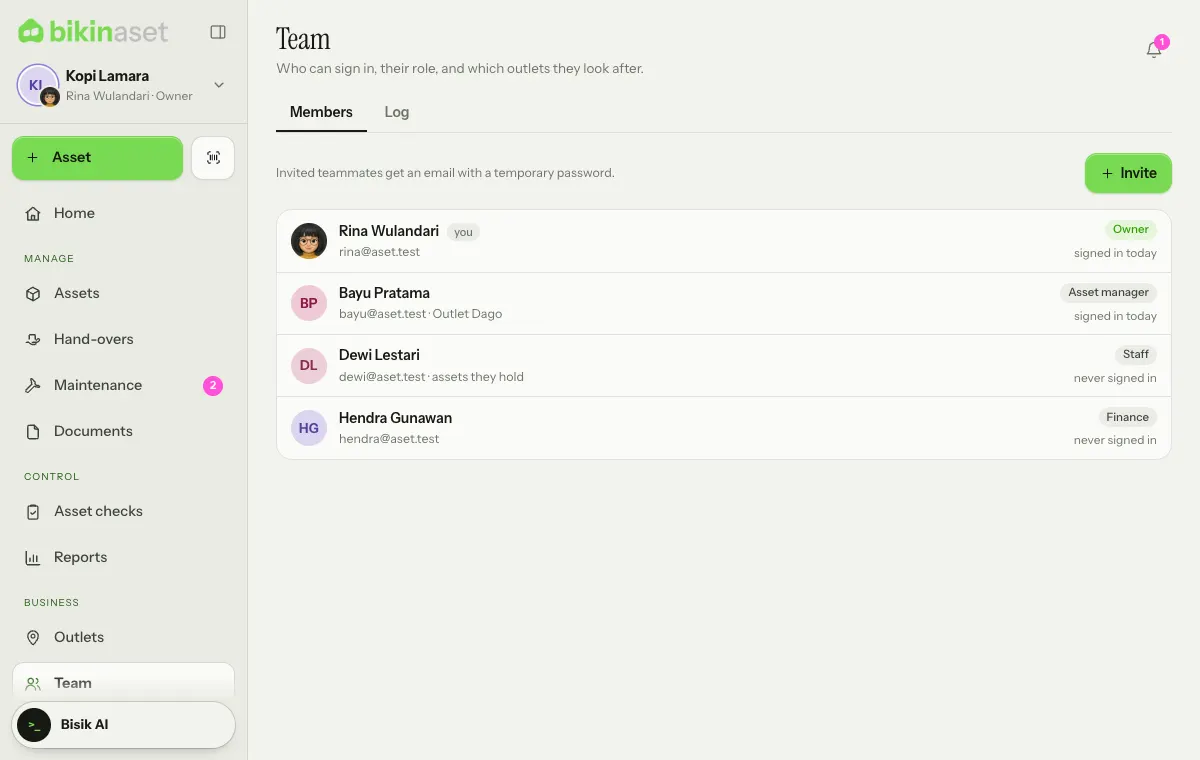
Admins can invite asset managers, finance and staff. Only the owner gives the owner or admin role, changes roles (with a code from their email) and edits owner and admin accounts. Tap a member to change their name or location access, or to switch them off. The number of team members follows your plan.
Access per location
Asset managers and staff can be limited to some locations, which suits outlet or branch heads. Rooms inside those locations are included.
- An Asset manager without picked locations manages every location; with picks, they only see and manage the assets there.
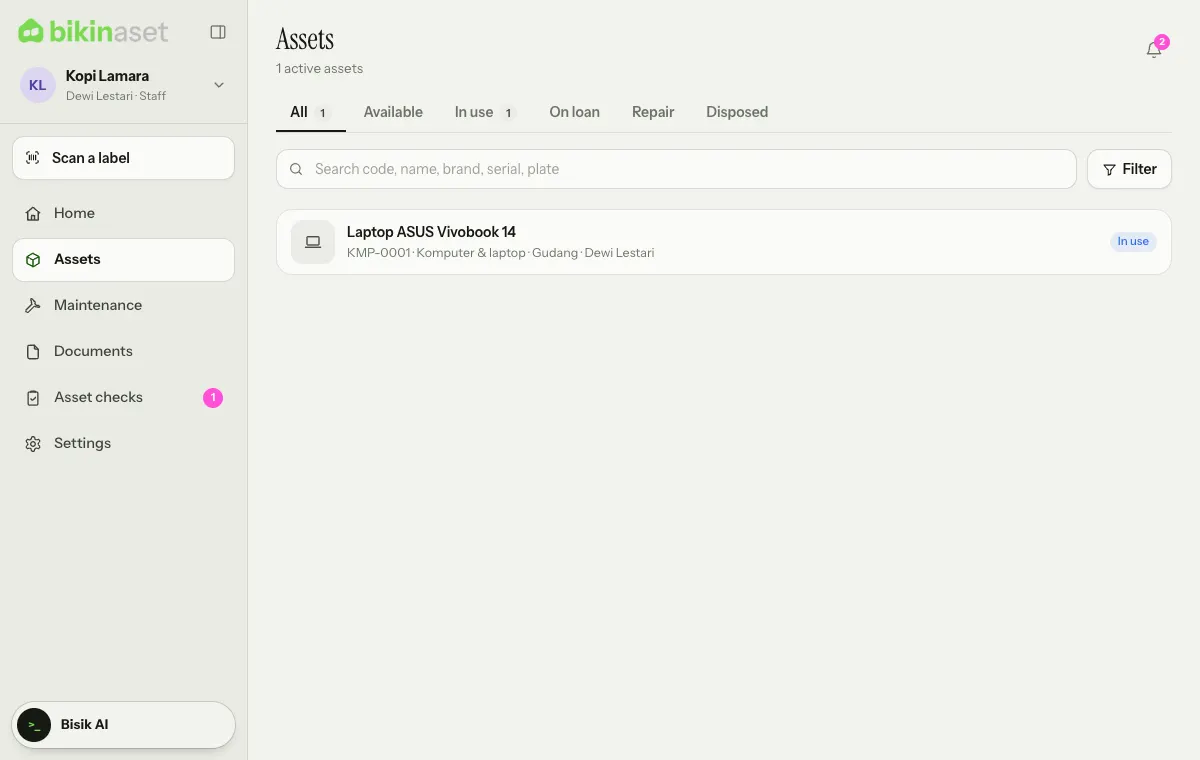
- Staff without picked locations only see the assets they hold; with picks, they also see the assets at those locations.
Prices for staff
By default, staff don't see purchase prices, costs or book value. The owner can allow it in Settings › Business, on the Prices and value for staff card, with the Staff may see prices and book value switch.
Log
The Log tab in Team (owner only) records role changes, assets added, disposed of or deleted, exports and settings changes, with who and when. Important actions such as CSV export, deleting an asset that has history, and changing roles ask for a code from your email.
Last updated: