Bikin AsetFeatures
Asset checks
A stocktake per location: start a check, tick or scan each asset's label, note what moved, went missing or isn't registered yet, then apply the result in one go.
Asset checks match your records with reality at each location, for example at the end of every month or before closing the books. Nothing changes in your asset data until a manager chooses Finish & apply.
Asset checks are part of plans with Asset checks (stocktake). On other plans, the New check button carries an Upgrade badge.
Starting a check
Open Asset checks, then choose New check.
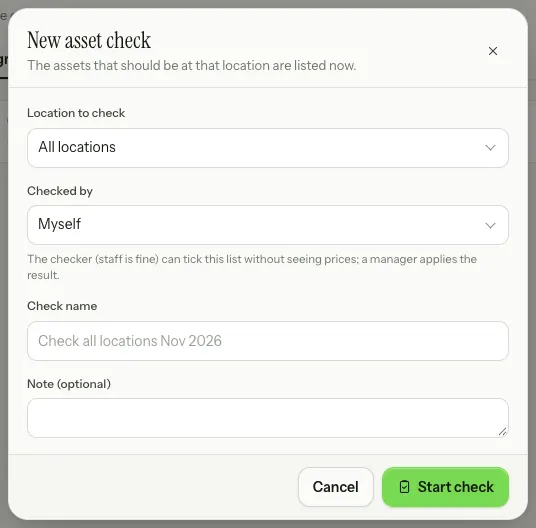
- Pick the Location to check. All locations is only offered to people who manage every location.
- Pick who it's Checked by: Myself or a teammate. The checker can be staff; they only tick this list, without seeing prices.
- Give it a Check name (by default "Check <location> <month>"), then choose Start check.
The assigned checker gets a notification, and Asset checks appears in their menu while they have a check to do.
Marking assets
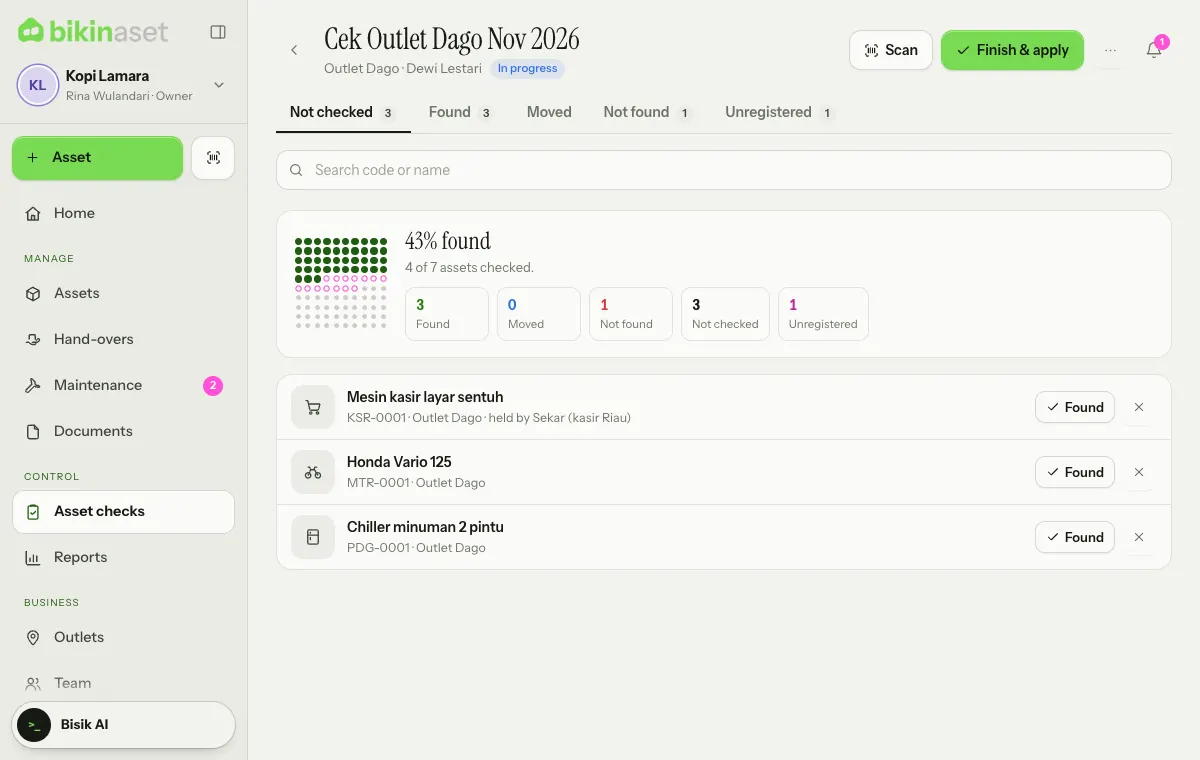
In a check, the Not checked tab lists the assets not marked yet.
- Tap Found if the asset is in place, or × if it's not found.
- Tap an asset's name for details: Moved (pick where it was Found at), change its Condition, or add a note.
- Choose Scan to scan labels one after another with the camera. Every label read is marked Found straight away; assets from another location are noted as moved to this one. If the camera can't open, type the code and press Enter.
- Items that are there but aren't recorded as assets go on the Unregistered tab with + Item. A manager can turn them into assets any time with Record.
The Found, Moved, Not found and Unregistered tabs split the results. The summary at the top shows the share found so far.
Finish & apply
The owner, an admin or the manager of that location chooses Finish & apply once every asset is checked.
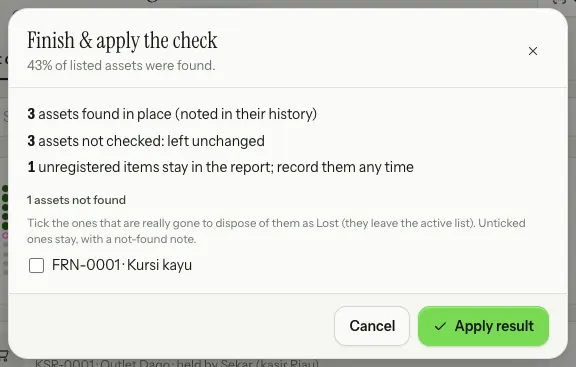
The popup sums up what will change:
- moved assets are recorded at the location where they were found;
- assets whose condition changed are updated;
- assets found in place get a note in their history;
- assets not checked are left unchanged;
- unregistered items stay in the report.
Assets that weren't found are not marked lost automatically. Tick the ones that are really gone to dispose of them as Lost; unticked ones stay, with a not-found note. Choose Apply result.
A finished check moves to the Finished tab as a check report. Choose ⋯, then Print result to print it. The results of every check are also in Reports, on the Asset checks tab.
Last updated: