Bikin AsetFeatures
QR labels & scanning
Print asset QR labels on A4 sticker paper in three sizes, then scan a label with a phone camera or the Scan button to open its asset card straight away.
Every asset can get a QR label stuck right on it. Scanning the label opens that asset's card, so anyone on the team can see its condition, holder, maintenance schedule and documents without searching the list.
Printing labels
- Open Assets, then choose Select at the top of the page.
- Tap the assets that need a label, or Pick all for every asset currently shown. Filter by location or category first if you like.
- Choose QR labels in the bar at the bottom.
- Pick a size, then Print.
For a single asset, open its card, choose ⋯, then QR label.
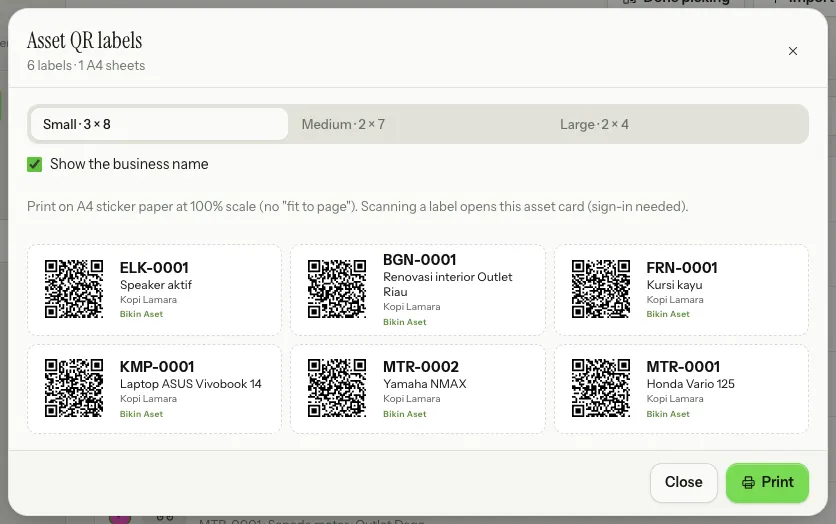
| Size | Labels per A4 sheet | Good for |
|---|---|---|
| Small · 3 × 8 | 24 | Laptops, cash registers, small equipment |
| Medium · 2 × 7 | 14 | Machines, air conditioners, furniture |
| Large · 2 × 4 | 8 | Vehicles, shelving, large machines |
Print on A4 sticker paper at 100% scale, without "fit to page", so the labels line up with the sticker cuts. Turn off Show the business name if you don't need it. The small Bikin Aset mark can be hidden when your plan includes QR labels without the Bikin Aset mark. Every print is noted in the asset's history.
The QR code holds the asset's fixed address, not its code or name. So labels never need reprinting when an asset's code, name or location changes.
Scanning a label
There are two ways:
- A regular phone camera. Point it at the label and open the link. If you're signed in to Bikin Aset and may see that asset, its card opens straight away. If not, you're asked to sign in first and then taken to that asset.
- The scan button (a QR icon) next to + Asset in the sidebar, on phones in the sidebar drawer. Staff see it as Scan a label. The back camera opens inside the app and the asset card opens as soon as a label is read. If the camera can't open, type the code instead, for example KMP-0001.
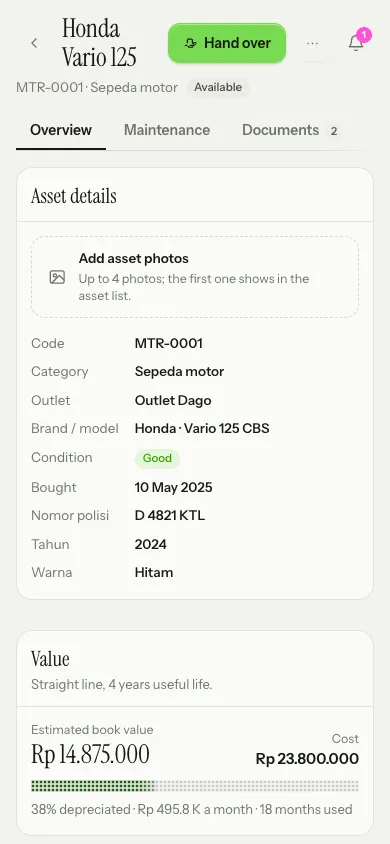
A label opens nothing for people who aren't signed in to your business. Staff can only open assets they're allowed to see.
Who can print
Owners, admins and asset managers can print labels. Every role can scan a label to open the assets they're allowed to see.
Last updated: