Bikin AsetFeatures
Import from Excel/CSV
Move your asset list from Excel or CSV in one go: match the columns, check wrong rows and plan limits first, import, then undo within 7 days if it was the wrong file.
Have an inventory list in Excel? Import it in one go instead of recording assets one by one. Importing is part of plans with Import from Excel/CSV; on the free plan, record assets one by one with + Asset.
Open Import from Excel/CSV with the Import button at the top of the Assets page (desktop), from the Assets page while it's still empty, or with the Import them at once link in the new asset form.
Preparing the file
- Use .xlsx or .csv. Old .xls files aren't supported yet; save them again as .xlsx or CSV.
- The first row holds the column titles, such as Name, Category, Location, Brand, Quantity, Unit, Condition, Purchase date, Purchase price and Warranty until.
- At most 2,000 rows per import; split the file if it's longer.
- No file yet? Choose Download a sample file (.xlsx) in the import popup.
Values it understands: dates such as 2025-08-12 or 12/08/2025; prices such as 1250000, Rp 1.250.000 or 1,25 jt; conditions in words (Good, Needs a check, Broken). Codes may be empty and are made per category.
Matching the columns
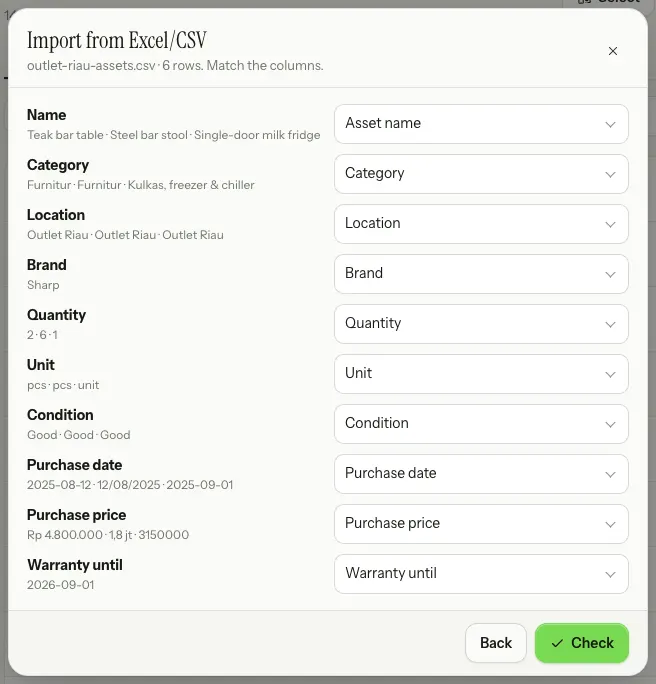
Pick your file. Bikin Aset reads it in your browser and guesses each column from its title. Check the pairs, change them if needed, or choose Skip this column for columns you don't need. The asset name column is required.
Checking before saving
Choose Check. The server checks every row again before anything is saved.
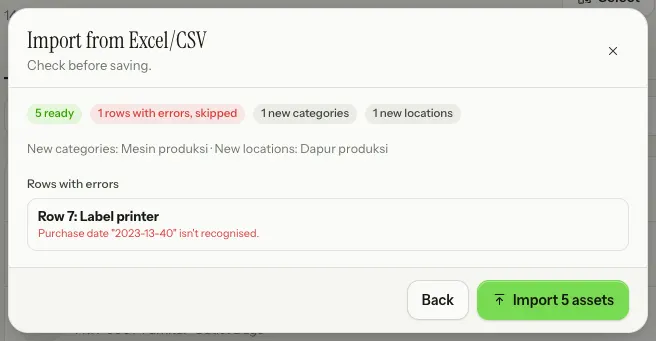
- Ready: the rows that will become assets.
- Rows with errors: skipped, with the reason, such as a date that isn't recognised.
- Warnings: the row still goes in, but a field was left empty or adjusted.
- New categories and new locations: names that don't exist yet are created. Only the owner and admins can create them; for asset managers, unknown categories are left empty and locations must be within their access.
- Plan limits: if the number of assets or new locations goes over your plan, the import waits until you remove rows or upgrade.
When it looks right, choose Import with the number of assets, such as Import 5 assets.
Undoing an import
Wrong file? Choose Undo this import on the finished screen, or Undo in the Recent imports list within 7 days. Assets from that import without any history are removed again; those already handed over, serviced or given documents stay.
Last updated: