BIKIN AIFeatures
Websites
Build websites in the CODE tab, launch them to www.bikin.studio/web, edit visually with the AI & Style panel, and set SEO, tracking and the watermark.
The CODE tab can build a complete website, with one page or several, then launch it to www.bikin.studio/web/website-name and let you edit it visually.
Website builder switch on or off
| Switch off | Switch on | |
|---|---|---|
| Model | Your choice in the model picker | Orchestrated: top models chosen by BIKIN |
| Best for | Code, quick pages, testing ideas | The most polished, launch-ready website |
| Process | Lighter and faster | Longer, with deeper thinking |
With the switch on, every message is treated as website work: a planning model asks the right questions and writes the plan and design brief, the strongest coding model builds the page, the best image model makes the visuals, and an art-director review pass polishes typography, colour, layout and motion before it is shown. Each site gets one art direction chosen for its brand, with tested font pairings, and the common AI-template look is avoided on purpose.
With the switch off, asking for a website in the CODE tab still runs the website flow (a few questions when needed, a brief, images, the page), but with your chosen model and a lighter pass.
Building a website
- Open the CODE tab and turn on the Website builder switch at the bottom left of the message box (on a phone: Website). The quick way: press Create one in the sidebar. The CODE tab opens with the switch on and "Build a premium website about …" already started in the message box.
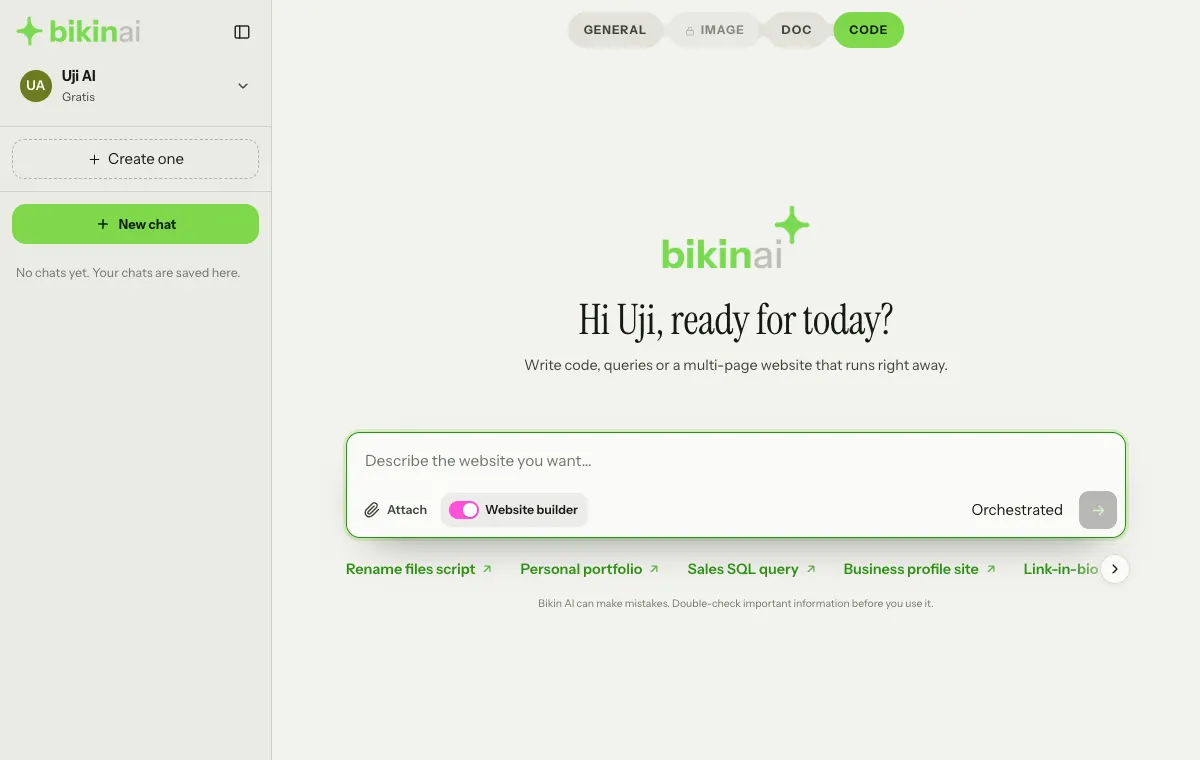
- Describe the website you want: the business, who it's for, the content and the mood, then send it.
- If a question card appears, answer it, or press Skip, just build it.
- Check the preview in the chat, then ask for changes until it's right.
A website can have several pages (up to 8) when the content needs room, such as a full menu, a catalogue or project stories, or when you ask for it. All pages share one design, navigation and footer, and the preview has a tab for each page.
Launching a website
- Press Launch website below the preview.
- Fill in Website name and Address (3 to 40 characters: lowercase letters, numbers and hyphens). The address is checked as you type.
- Press Launch. Your website goes live at www.bikin.studio/web/the-address, and each extra page at www.bikin.studio/web/the-address/page.
The website runs on its own with no access to your account, and is checked for safety before it goes live. How many live websites you can have depends on your plan; when you've used them all, the sidebar button says Website limit reached.
Each launched website has its own chat in the Your websites section of the sidebar (below the profile menu); the number next to it is how many websites are live. Open the section to pick a website, or press New website to start another. Ask for changes in the website's chat, then press Update website to put them live.
Editing visually: Edit website
In a website's chat, the badge at the top centre shows your website's name and address. Press the ☰ menu on that badge and choose Edit website (the same menu has View website, Share and Settings). You edit right on the page:
- Click any part to change its text (including buttons with icons), images, background images, links, colours, font size and weight, alignment, spacing, corners, borders and icons in the AI & Style panel.
- Ask the AI in that panel: Change this changes the selected part, Add below adds a new element or section under it. The AI writes it in your site's own style, creates the images it needs, and the result can be undone. Each AI request uses one message.
- YouTube videos show as a thumbnail card that opens the video.
- For multi-page websites, edit page by page. The header, menu and footer are edited on the home page.
- Press Save & publish for a website that is already live.
The website editor works best on a desktop.
Website settings
For a live website, open ☰ › Settings on the website badge, or ⋯ › Settings on the website's row in the sidebar. The Website settings window has:
- the name, the address (the old link stops working once you save), and visits in the last 7 days;
- SEO and sharing: page title, description, the share image for WhatsApp and social media, and the favicon;
- Show on Google to let search engines index it;
- Tracking with a Google Analytics Measurement ID or a Meta Pixel ID (ID only, no pasted code). The built-in visit counter is always on.
Press Save to apply your changes.
Take down (in the ⋯ menu on the website's row in the sidebar, or on the Assets page) takes the website offline; the address becomes free for others, and its chat stays in your history.
bkin.in short link
The live website card in the chat also shows its short link. Under the link is the Short link: a short bkin.in address made for you right away, for example bkin.in/k7m2qa. The real link doesn't change; bkin.in just sends visitors there.
- Copy copies the short link.
- Edit picks your own code, for example
bkin.in/promo-coffee. Availability is checked as you type. Free plans need at least 6 characters, paid plans at least 3. Use lowercase letters, numbers and dashes. The old code stops working once you save. - Anything after the short link, such as
?ref=…, is passed on to the real link.
Watermark
Live websites show a small "Made with Bikin AI" badge in the corner. The Hide BIKIN watermark switch is in the Launch website window and in Website settings. It starts off, and can only be turned on in some plans; on other plans the switch is locked with an upgrade link. If your plan changes to one without this feature, the watermark shows again.
Limits
Each website made or changed in the CODE tab counts as one website build for that day, with the switch on or off. Images made for a website don't count as images. Where it stands today is in Settings › Usage, on the Web development row (and Web live for your live website capacity).
Last updated: