BIKIN AIFeatures
Connected BIKIN apps
Connect BIKIN apps such as Bikin POS, Bikin Fin, BIKIN BOOKING and BIKIN FILE to BIKIN AI, then ask about all your businesses in one chat, read-only, or focus on one business with @.
Connected BIKIN apps make BIKIN AI one door for all your businesses. Connect the BIKIN apps you use, then ask about them in a chat: "How was my shop this week?", "What matters today?", "What's the company's cash balance right now?" or "Which tasks are overdue?".
Apps you can connect
| App | What Bikin AI can read |
|---|---|
| Bikin POS | Sales and comparisons, best sellers, best customers, low stock, transactions, products, customers, and the open cash shift |
| Bikin HR | Headcount, attendance, leave, joiners and leavers, and payroll cost |
| Bikin Fin | Cash and bank balances, profit and loss, balance sheet, cash forecast, receivables and payables ageing, tax calendar, budgets, and pending approvals |
| Bikin CRM | Pipeline and sales forecast, deals closing soon or stuck, won and lost deals, activities and follow-up tasks, contact counts, quotes and invoices, and WhatsApp inbox and broadcast counts |
| BIKIN SPRINT | Project progress, your tasks and the team's workload, tasks due soon or overdue, recent activity, and workspace report numbers |
| BIKIN SALES | Sales and money received, receivables and overdue bills, quotation results and win rate, documents with their items, totals, payments and status, top customers and products, and sales team performance |
| BIKIN BOOKING | The booking schedule and booking details, revenue and money received, unpaid amounts and overdue deposits, occupancy of rooms, equipment and people, and booking reports per service, cancellations and security deposits |
| Bikin Aset | Asset counts and estimated book value, condition and damage reports, maintenance schedules and costs, documents and warranties about to expire, who holds what and overdue loans, and asset check results |
| BIKIN FILE | File details: newest and largest files, folder contents, file counts by category, type and size, subcategories of files that aren't sensitive, and storage use. File contents are never read |
More BIKIN apps will join the same way.
Connecting
- Tap your name at the top of the sidebar to open the profile menu, then choose Settings. The Connectors tab opens first, with the Connected BIKIN apps card.
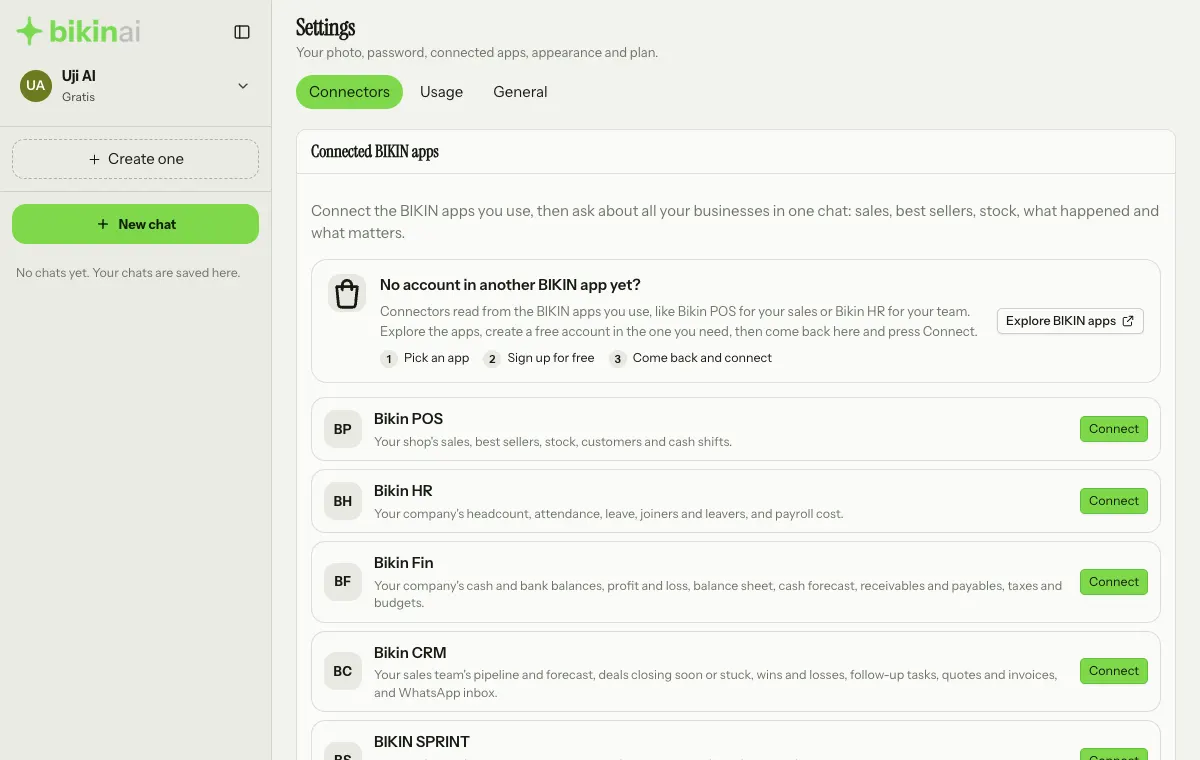
- Press Connect on the app you want.
- The app opens on an approval page that shows what can be read. Sign in first if asked. If a code is needed, press Send a code to allow and enter the code from your email, then press Allow.
- You come back to Settings › Connectors with a "Connected" message, and the connection shows above the list of apps. Start a new chat in the GENERAL or DOC tab and ask about your business.
Who can approve a connection:
- Bikin POS: the business owner or a manager.
- Bikin HR: the company's owner or an HR admin.
- Bikin Fin: the owner or the finance manager.
- Bikin CRM: the owner or a manager.
- BIKIN SPRINT: the workspace owner or an admin.
- BIKIN SALES: the owner or an admin.
- BIKIN BOOKING: the owner or an admin.
- Bikin Aset: the business owner or an admin. Each business in a group is connected on its own.
- BIKIN FILE: the space's owner or an admin.
Several businesses in the same app? Once one is connected, the app's button changes to Add business; press it to connect another. Each business is one connection.
No account in another BIKIN app yet?
Connectors read from the BIKIN apps you already use, so you need an account in that app first. On the Connectors tab, the No account in another BIKIN app yet? card shows the three steps:
- Pick an app: press Explore BIKIN apps to open the list of BIKIN apps at www.bikin.studio/apps in a new tab.
- Sign up for free in the app you need, for example Bikin POS for your sales or Bikin HR for your team.
- Come back and connect: open the Connectors tab again and press Connect on that app.
While nothing is connected, the card shows above the list of apps. Once something is connected, it moves below the list.
Focus on one business with @
Every connected business has an @ handle: its name in lower case, without spaces or punctuation. For example, Kopi Teras Senja becomes @kopiterassenja. If another connection already uses that name, the newer one gets its app's short name as a suffix, such as @kopiterassenja-fin, so existing handles never change. Each business's handle is written on its row in the Connectors tab, with a hint about typing @ in the chat.
In GENERAL and DOC chats, while the Deep research or Presentation builder switch is off:
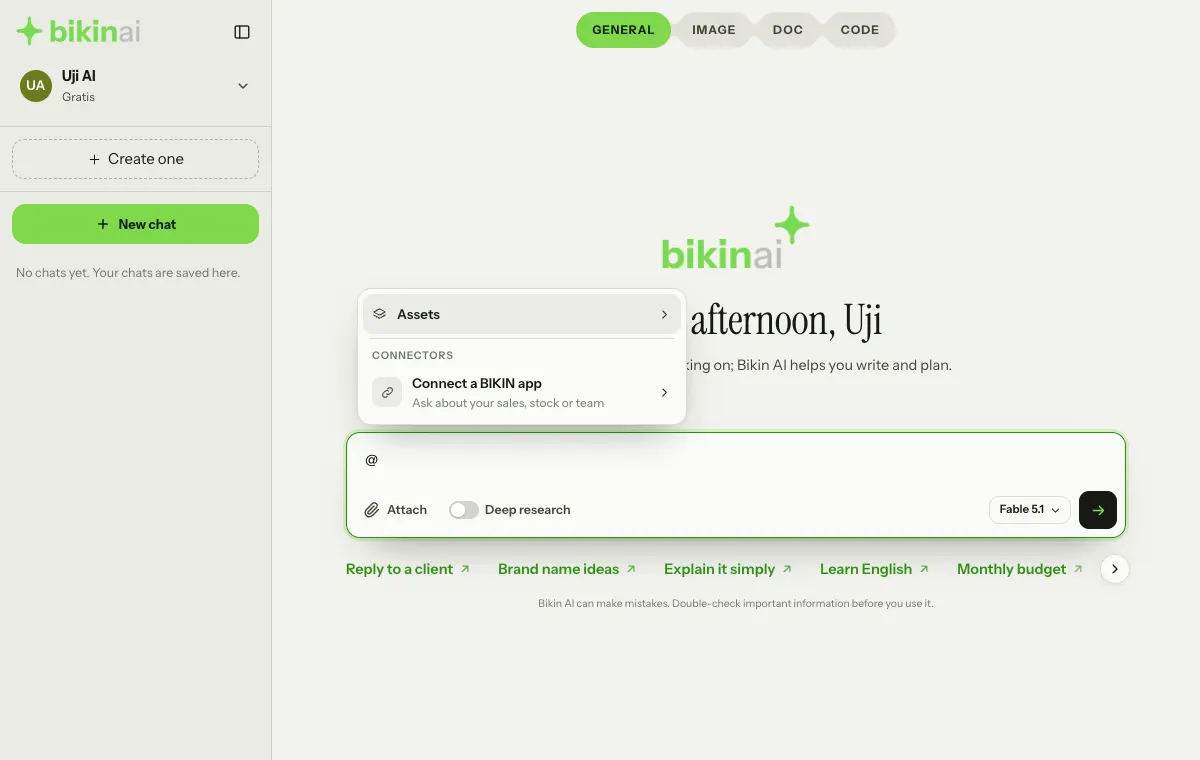
- Type @ in the message box. The @ menu shows a Connectors section above your assets, listing the connected businesses with their app icon, handle and app name. Type a few letters after @ to filter by handle or business name.
- Pick the business. Its handle is written into your message, for example "What were total sales this week at @kopiterassenja?".
- Send. BIKIN AI reads and answers about that business only, without mixing in your other connected businesses. Tag two or more businesses when you want to compare them.
If the connection for a business you tagged has ended, BIKIN AI asks you to connect it again in Settings › Connectors and doesn't guess its figures. If the app can't be reached right now, BIKIN AI says so and suggests trying again shortly.
No connections yet? The @ menu still shows a Connectors section with a Connect a BIKIN app row, which opens Settings › Connectors.
Good to know
- Read-only. Bikin AI can't sell, change prices, record, send or change anything in those apps.
- By role. What can be read follows the role of the person who approved the connection in that app.
- Sensitive data never comes along:
- Bikin HR: ID numbers (NIK), family card numbers, NPWP, bank accounts, pay per person and document files.
- Bikin Fin: NPWP, bank account numbers, full contact details, journal lines, attachments and files. Only summary numbers are read.
- Bikin CRM: phone and WhatsApp numbers, emails, addresses, birthdays, religion, NPWP, NIK, NIB, bank account numbers, message contents, attachments and files.
- BIKIN SPRINT: task descriptions, comment text, attachments, client links, WhatsApp group messages and numbers, and members' emails and phone numbers.
- BIKIN SALES: price calculations and cost prices, NPWP and NIK, bank account numbers, customers' email, phone and address, signatures, attachment and paragraph text, and anything from WhatsApp.
- BIKIN BOOKING: customers' WhatsApp numbers, emails and addresses, bank account numbers and QRIS, cost prices, notes, payment proofs and hand-over photos, and anything from WhatsApp.
- Bikin Aset: the business's tax ID and address, document numbers (vehicle registrations, ownership books, insurance policies, certificates, permits) and serial numbers, receipts and invoices, shop or supplier names, uploaded photos and files, free-text notes, and anyone's email and phone number.
- BIKIN FILE: file contents, their preview images and download links, share links and their passwords, the titles, summaries and subcategories of sensitive files, the Trash and other members' My files, identity numbers in file names (masked), and who uploaded a file.
- GENERAL and DOC tabs. Business data is used in these two tabs, so you can also ask for a document report built from the numbers.
Bikin Fin, Bikin HR and BIKIN SALES never move money or file tax for you. Payments still come from your company's own bank account, and you still file tax yourself in Coretax.
Disconnecting
Press Disconnect on the connection's row (above the list of apps) and confirm. Bikin AI stops answering about that business until you connect it again.
A connection can also end by itself, for example a Bikin POS connection when your password there changes or your role changes. An ended connection is marked "ended, connect it again". To link it again, press the app's button (Add business) and approve the same business; the old connection is replaced right away.
If something goes wrong
| Message | What it means |
|---|---|
| The connection was declined | Access wasn't approved in the app. Try again and choose to allow |
| That took too long. Try connecting again | The approval page was left open too long. Start again from Connect |
| Couldn't connect. Try again | A temporary problem. Try again in a moment |
Also make sure your account in that app has a role that is allowed to approve connections; if not, the approval page says "Can't connect".
Last updated: