BIKIN AIFeatures
Chat and tabs
How to use BIKIN AI chat - the GENERAL, IMAGE, DOC and CODE tabs, advanced switches and Orchestrated, the model picker, attachments, voice and chat history.
Everything in BIKIN AI starts from a chat. Press New chat in the sidebar to start one; a new chat always opens on the GENERAL tab with every switch off.

The parts of the screen:
- Tabs GENERAL, IMAGE, DOC and CODE at the top centre.
- Message box in the middle: Attach and the advanced switch at the bottom left, the model picker and the send button (the arrow) at the bottom right.
- Suggested questions as green text below the message box.
- Sidebar on the left: the profile menu (your name and plan), Create one (for websites, when your plan includes them), New chat and your chat history. The icon at the sidebar's top right hides it.
Four tabs
Pick the tab at the top centre that fits your work. The selected tab is green, and the hint in the message box changes with it, for example "Describe the image you want…" on the IMAGE tab.
- GENERAL: everyday questions, writing, translation, analysis and planning. If your plan includes web search, Bikin AI can look up current information on the web.
- IMAGE: create images from a description, and edit or vary an image you attach.
- DOC: complete A4 documents such as proposals, quotations, minutes, SRS, reports, letters and CVs. It can also read and explain documents you attach.
- CODE: code in any language, scripts, SQL queries, debugging, explanations, and small tools or HTML pages with a live preview.
A tab that isn't in your plan still shows, with a padlock icon. When you open it, it explains that the mode isn't in your plan yet, with an invitation to upgrade (or to contact BIKIN while online subscriptions aren't open).
Advanced switches and Orchestrated
Each tab has one switch at the bottom left of the message box, next to Attach:
| Tab | Switch | Result |
|---|---|---|
| GENERAL | Deep research | A cited research report (Deep research) |
| IMAGE | Motion builder | Motion you can download as MP4 (Images and motion) |
| DOC | Presentation builder | 16:9 slides, PDF and PPTX (Documents and presentations) |
| CODE | Website builder | A launch-ready website (Websites) |
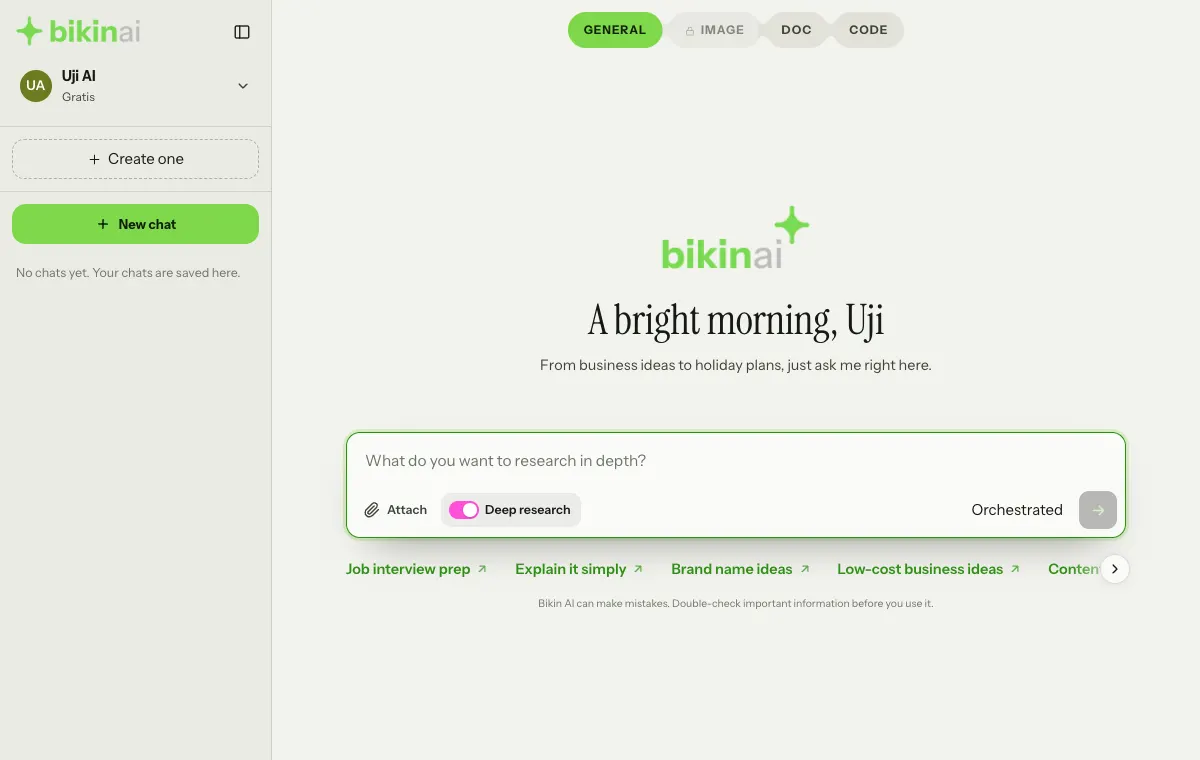
Tap a switch to turn it on; it turns magenta. A switch always turns off again when you start a new chat or change tabs, so turn it on before you send your message. A switch only shows when your plan includes its feature. On a phone the names are shortened to Research, Motion, Slides and Website.
While a switch is on, the model picker is replaced by the Orchestrated label: several top models chosen by BIKIN work together (planning, searching, writing, coding, making images and reviewing), and their work is combined into one answer. You don't pick a model yourself then. Hover over the Orchestrated label, or tap it on a phone, to read the explanation.
Model picker
With the switch off, the tab answers with the model you choose in the model picker, just left of the send button. Each tab starts with its default model, and your choice applies to your next message. The models available depend on your plan. On the IMAGE tab, the same picker holds the Image model (marked with an image icon).
Not sure which model fits? Just ask Bikin AI, for example "How do the models in my plan differ?".
Suggested questions
A new chat shows a few suggested questions as green text below the message box, for the open tab. Tap one to send it right away. They change every time you sign in, reload the page or start a new chat. To see others, press the › arrow at the right end of the row, or swipe the row sideways on a phone.
Attachments and voice
- Attach (the paperclip at the bottom left of the message box): images, PDFs, Office files, text or recordings. You can also drag files onto the message box or paste them. Up to 40 MB per file, at most 6 attachments per message. HEIC photos the browser can't open need to be saved as JPG first.
- Voice (the microphone next to Attach, when your plan includes voice): press it, speak, then press the check mark to finish. Your speech is turned into text in the message box, so you can check it before sending. Cancel throws the recording away. Allow the microphone in your browser settings when asked.
- Type @ in the message box to attach assets you made earlier (images, documents, presentations, files or websites); see Assets. In the GENERAL and DOC tabs, the same menu also mentions businesses from connected BIKIN apps so the answer focuses on that business; see Connected BIKIN apps.
Press Enter to send, or Shift + Enter for a new line.
On every answer
- Copy copies the answer.
- Listen reads the answer aloud; press Stop to end it.
- While an answer is being written, the send button turns into Stop; press it to stop the answer.
Answers keep going when you switch to another chat or close the page. While a chat is working, its row in your history shimmers; when it's done, a dot marks the new answer.
BIKIN app suggestions
In the GENERAL tab, when your question is about running your business or your work and one of BIKIN's apps is made for exactly that, such as a café cashier, payroll, sales documents, bookings, customer follow-ups, project tasks or bookkeeping, Bikin AI answers first and then ends the answer with one app card.
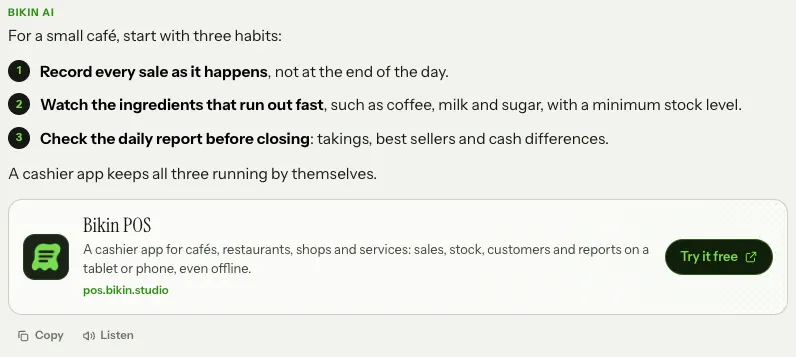
The card shows the app's icon and name, one line on what it does, and its address. Try it free opens that app's page in a new tab, where you can read about its features and sign up on the Free plan. There is at most one card per answer, and none for unrelated questions. Copy and Listen leave the card out.
Chat history
Your history is in the sidebar, below New chat, grouped by day: Today, Yesterday, Last 7 days, Last 30 days and Older.
- Search chats: scroll the history down a little and the search field appears above the list. It finds chats by their title or by any word in their messages.
- The ⋯ button next to a chat has Rename, Invite people (for chats that have been answered) and Delete.
- Deleting a chat removes it from your history on every device.
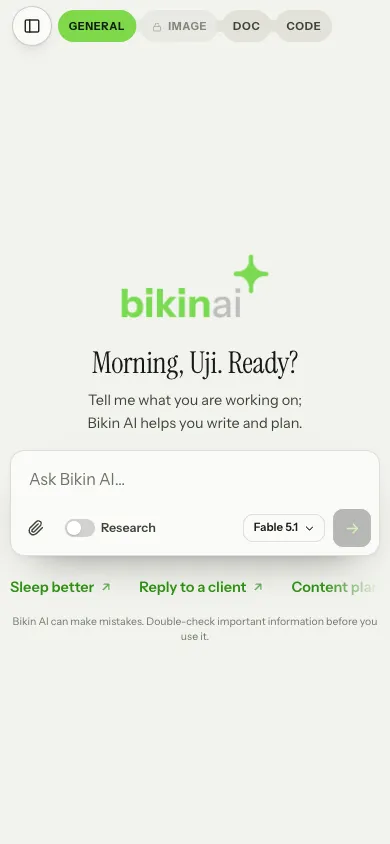
On a phone, open the sidebar with the round button at the top left or by swiping right, and close it by swiping left.
Keep one chat to one topic. For new work, press New chat so the answers stay focused.
Last updated: