BIKIN AIFeatures
Images and motion
The IMAGE tab creates and edits images from a description, and with the Motion builder switch makes motion graphics you can download as MP4 video.
The IMAGE tab creates images from a description and edits images you attach. Turn on the Motion builder switch to make motion graphics you can download as MP4 video.
Creating images
- Open the IMAGE tab at the top centre. The hint in the message box changes to "Describe the image you want…".
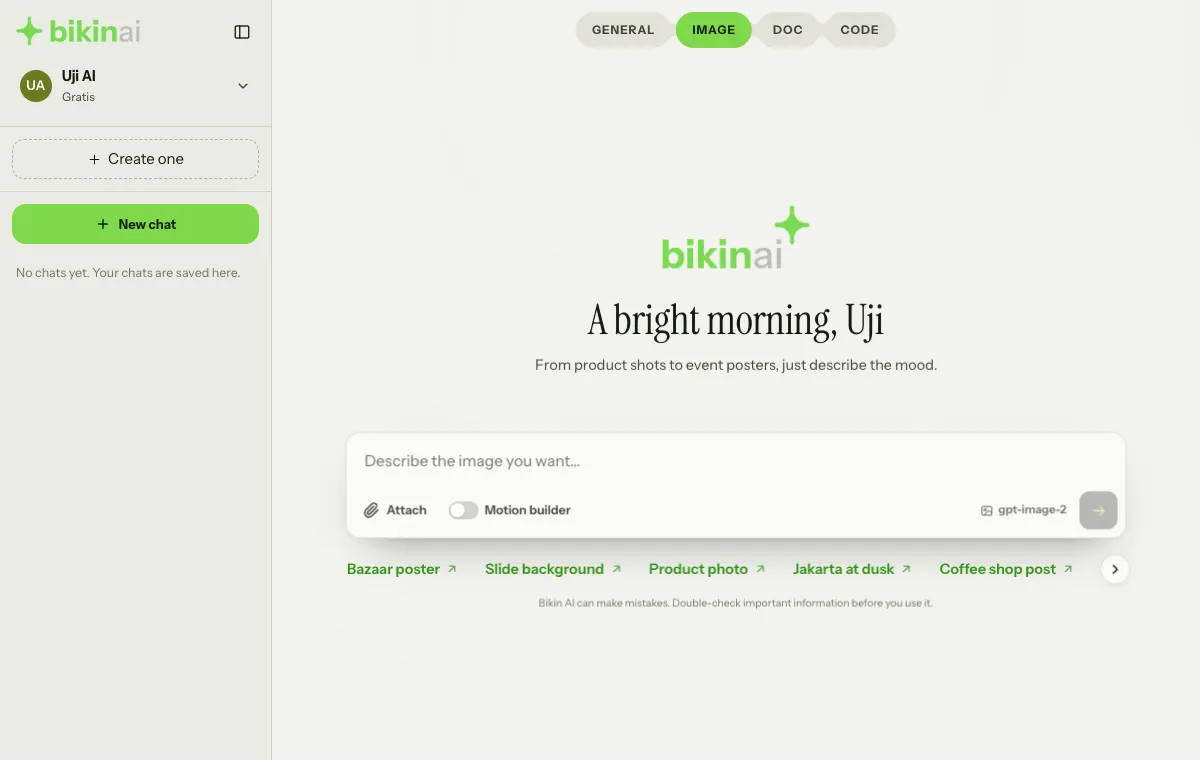
- Describe the image you want: what's in it, the style, colours and size. Attach a photo as a reference if you have one.
- Press the send button. The image appears in the chat; tap it to enlarge, or press Download.
To edit an image or make variations, attach it and describe the change, for example "make the background plain white" or "make a brighter version".
Images are made with the image model in your plan. On this tab, the model picker at the bottom right of the message box holds the Image model (marked with an image icon). If your plan doesn't include an image model yet, the picker says No image model.
Example requests
- An Instagram feed post for a coffee shop: a cup of iced milk coffee on a wooden table, morning light, empty space for text at the top.
- A minimal app icon in lime and black on a plain background.
- A product photo of a clear glass skincare bottle on a wet stone, editorial style.
- A brand moodboard: colour palette, textures, typography and mood in one image.
Making motion
Motion is a short silent animation: animated posters and greetings, kinetic typography, promos and announcements for Reels, TikTok, Stories, feed posts, YouTube or screens. Sizes are 9:16, 4:5, 1:1 or 16:9, usually 5 to 15 seconds (at most 20 seconds).
- Open the IMAGE tab and turn on the Motion builder switch at the bottom left of the message box (on a phone: Motion). The switch turns magenta, the hint in the message box changes to "Describe the motion you want…", and the model picker changes to Orchestrated. The switch shows when your plan includes motion.
- Describe the motion you want: its purpose, the words that must appear, the size and the mood. If the purpose or the text is unclear, Bikin AI asks first.
- Top models plan the storyboard, make an image when needed, then animate it with smooth movement.
- The motion plays right in the chat. Press Replay to watch it again.
- Press Download MP4. The video is usually ready in under a minute, and it's still made if you leave the page.
On a phone, Save / Share sends the video to Photos, Instagram or WhatsApp.
You can also animate an image or poster made earlier in the same chat, for example "turn this into motion". Ask for changes (words, colours or timing) to get a new version.
Without the switch, asking for a motion or a video in the IMAGE tab still makes one.
Bikin AI doesn't make videos with sound or realistic camera footage. Motion is animated graphic design.
Limits
- Each image made counts as one image for that day. Images made for a website or a presentation don't count.
- Each motion made or changed counts as one motion build.
Where your image limit stands today is in Settings › Usage, on the Images row. All images and motion are also saved on the Assets page.
Last updated: