BIKIN AIFeatures
Assets
The Assets page collects every image, document, research report, presentation, motion, file and website you make in BIKIN AI in one place.
The Assets page collects everything you have made in BIKIN AI in one place, so you don't need to hunt for it chat by chat. Items show up by themselves every time you make something.
Opening Assets
Tap your name at the top of the sidebar to open the profile menu, then choose Assets. The address is www.bikin.studio/ai/assets.
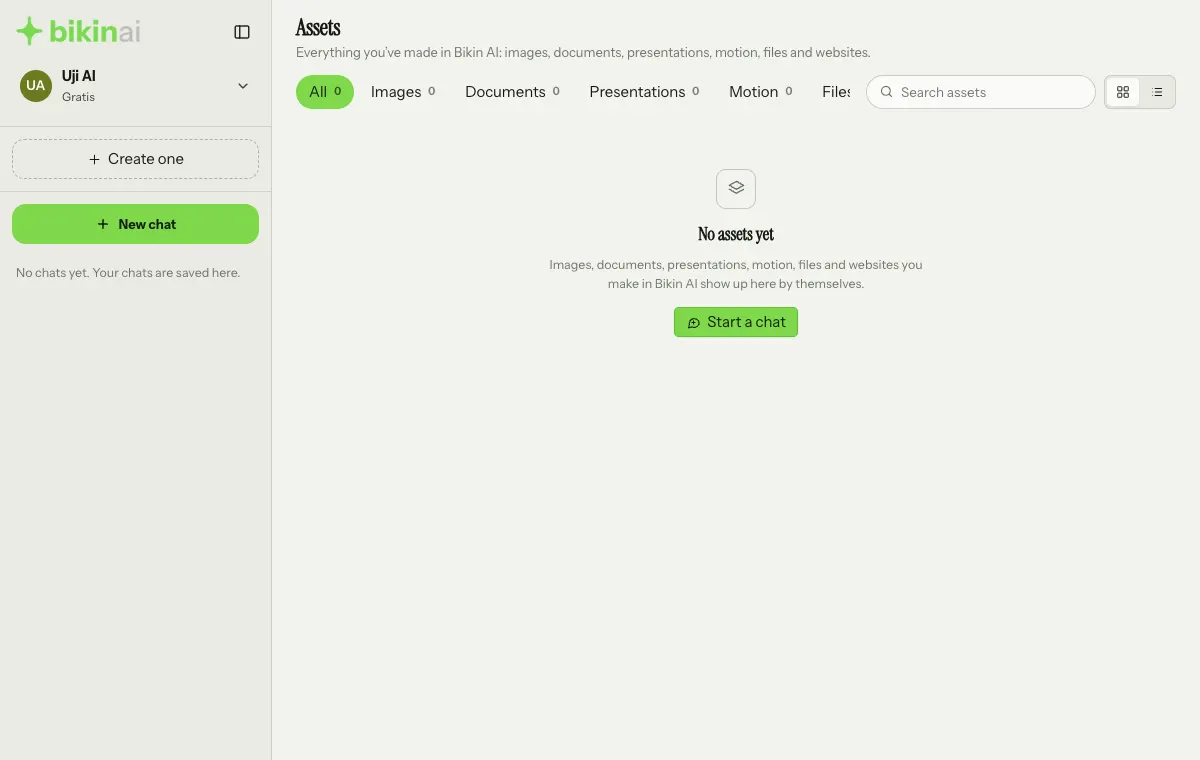
Until you have made something, the page says No assets yet with a Start a chat button.
Asset types
Assets are grouped in tabs, starting with All. Each tab shows how many assets it holds. On a narrow screen, swipe the row of tabs sideways to see the rest.
| Tab | What's in it |
|---|---|
| Images | Images from the IMAGE tab |
| Documents | Documents from the DOC tab, including deep research reports |
| Presentations | Presentations from the DOC tab |
| Motion | Motion from the IMAGE tab |
| Files | HTML pages and code |
| Websites | Websites that are live |
Attachments you upload to a chat aren't kept here.
Searching and viewing
- Search assets filters assets by name.
- Choose the Grid or List view with the two icon buttons at the top right. Your choice is remembered in this browser.
- More assets load by themselves as you scroll down.
What you can do with each asset
Tap an asset to open it larger. The ⋯ button on its card opens the actions menu:
- Open (for a website: Open website);
- Download: images, documents as PDF or DOCX, presentations as PDF or PPTX, motion as MP4, and files;
- Copy text or Copy code;
- Open chat where the asset was made (for a website: Open website chat);
- Delete the asset, or Take down a website.
Documents, presentations, HTML pages and live websites also have an Edit button (the pencil icon) on their card. It opens the same editor as in the chat, and your changes are saved to the chat the asset came from; for a live website, the changes go live right away.
Deleting assets
An image, document, presentation, motion or file deleted from Assets also disappears from its chat and can't be restored. In the chat, its place shows a note that it was deleted.
Taking a website down stops it being live. The address can be used by someone else, but the website's chat stays in your history.
Using assets again in a chat
Type @ in the message box, then choose Assets to attach an image, document, presentation, file or website you made earlier to a new message. It's a quick way to ask, for example, "turn this poster into motion" or "make a presentation from this research report". See also Shared chats for mentioning people with @.
Last updated: