BIKIN AIGet started
Getting started with BIKIN AI
Sign up for BIKIN AI with email or Google, sign in, set your language and theme, then install BIKIN AI as an app on your phone or computer.
This page explains how to create an account, sign in, set up your account and its look, install BIKIN AI on your phone's home screen, and start your first chat.
Sign up
Sign-up is at www.bikin.studio/ai/register. New accounts always start on the free plan.
Sign up with email
- Fill in Name, Email and Password (at least 8 characters), then press Create account.
- Open your email. We send a 6-digit verification code that works for 10 minutes.
- Enter the code in Verification code, then press Verify. Your account is created and you're signed in straight away.
No code? Check the Spam or Promotions folder. You can also press Resend code (after a short wait) or Use another email if you made a typo.
Don't share the verification code with anyone, including the BIKIN team.
Sign up with Google
Press Sign up with Google at the very top of the sign-up page (above the email form) and pick your Google account. Your BIKIN AI account is created without a separate password. We only receive your Google account's name, email address, profile photo and ID.
By creating an account, you agree to our Terms and Conditions and Privacy Policy. If the page says "Sign-up isn't open yet", sign-up is closed for now; contact BIKIN to get an account.
Sign in
Open www.bikin.studio/ai, then:
- press Continue with Google at the top, or
- fill in Username or email and Password, then press Sign in.
Tick Keep me signed in for 30 days if the device is your own.
Set up your account
Tap your name at the top of the sidebar to open the profile menu. It has Assets, Settings, Referral (while the referral program is open), Subscription, Help guide, Other apps, the Theme and Language choices, and Sign out.
Choose Settings. It has three tabs at the top: Connectors (your connected BIKIN apps), Usage (your plan and today's usage) and General.
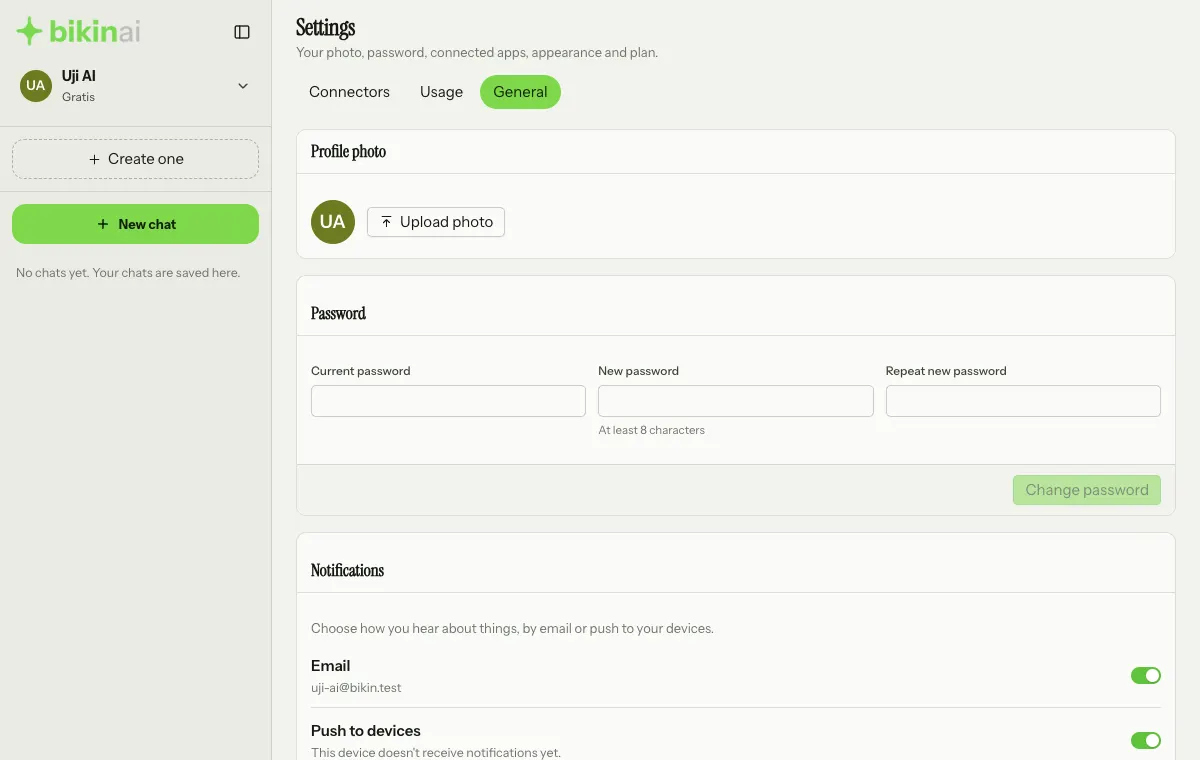
On the General tab you can:
- Profile photo: press Upload photo (or Change photo) and pick an image; it's cropped to a square for you. Remove takes the photo off.
- Password: fill in Current password, New password (at least 8 characters) and Repeat new password, then press Change password. Other devices are signed out afterwards.
- Sign in with Google: when this card shows (below the Password card), press Link Google account to sign in with one tap. Your Google email can be different from this account's email.
- Appearance: pick a Theme (Light or Dark; until you choose, it follows your device) and the interface Language (Bahasa Indonesia or English).
Theme and language can also be changed straight from the profile menu. The interface language doesn't change the answers: Bikin AI still replies in the language you write in.
Notifications
In Settings › General, the Notifications card chooses how you hear when research, a website, a presentation or a motion is ready (when it took more than a minute), and when your plan is about to end.
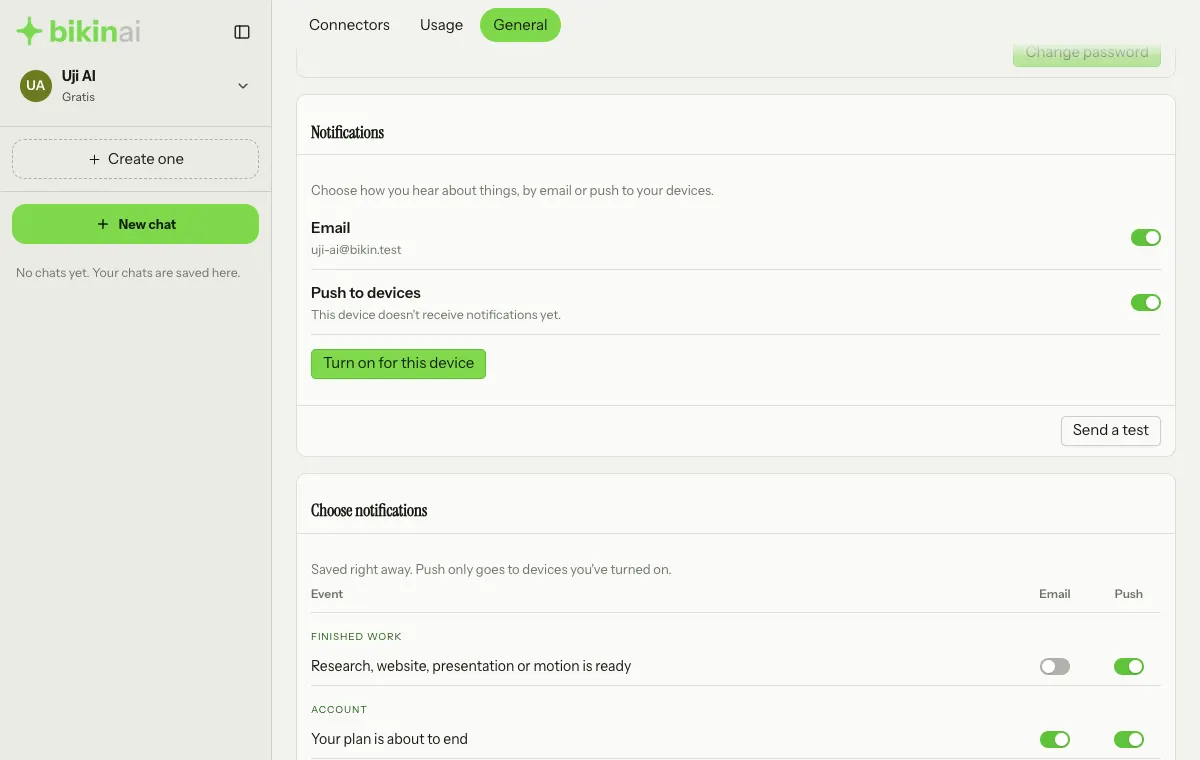
- Email goes to your account address. By default it is on for a plan about to end, and off for finished work (push is enough).
- Push to devices: tap Turn on for this device and allow it in your browser. Do it on every phone or computer that should get notifications; Turn off on this device stops it. On iPhone, push only works once the app is on your home screen (Share › Add to Home Screen).
- Send a test sends one test notification to your active devices and your email, so you know everything arrives.
- Demo accounts don't send emails or push notifications.
Install as an app
BIKIN AI can be installed on your home screen so it opens full screen like an app, without the browser bars. Press Install app at the bottom of the sidebar and follow the steps. The button doesn't show when BIKIN AI is already open as an app, or when your browser can't install apps. On a phone, the steps also appear by themselves once, a few seconds after you first sign in. In short:
| Device | Steps |
|---|---|
| iPhone (Safari) | Tap Share, choose Add to Home Screen, then tap Add |
| Android (Chrome) | Tap the menu at the top right, choose Install app or Add to Home screen |
| Mac (Safari) | File menu or Share, choose Add to Dock |
The built-in browser inside other apps (for example when you open a link from Instagram) can't install BIKIN AI. Open it in Safari or Chrome first, then press Install app again there.
Your first chat
A new chat always opens on the GENERAL tab. On a phone it looks like this:
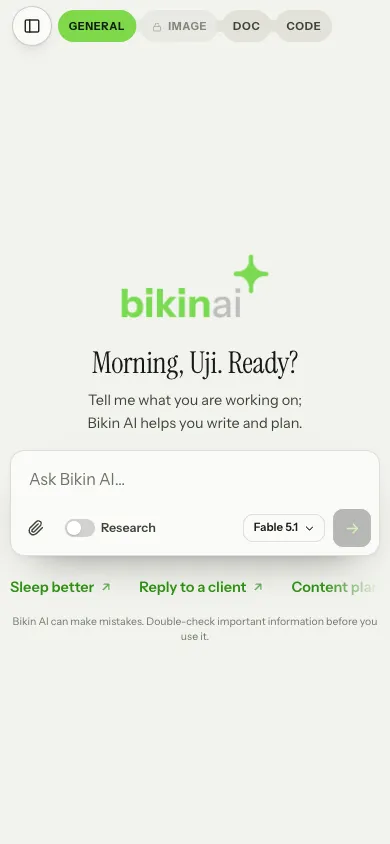
- Pick a tab at the top: GENERAL, IMAGE, DOC or CODE. The selected tab is green.
- Tap one of the green suggested questions (it's sent right away), or write your own request in the message box.
- Press the send button (the arrow) at the bottom right of the message box, or Enter. The answer keeps going even if you switch chats or close the page.
Continue to Chat and tabs to get to know every button.
Last updated: