BIKIN AIFeatures
Documents and presentations
The DOC tab makes A4 documents (PDF and DOCX) and, with the Presentation builder switch, slides you can download, edit right on the slide, and share by link.
The DOC tab makes tidy documents that are ready to use. Turn on the Presentation builder switch to make slides. Both can be downloaded and edited by hand, without AI.
A4 documents
Open the DOC tab at the top centre with the switch off (the message box says "What document should I write?"), then ask for any document: proposals, quotations, minutes of meeting, SRS, reports, letters, CVs and more. The result shows as a document page in the chat and can be downloaded as PDF or DOCX. You can also attach a document to have it read and explained.
Editing a document
- Press Edit on the document card. The Edit document editor opens: an A4-wide page with a format bar on top.
- Type straight on the page. The format bar has paragraph styles (Normal text, Document title, Heading 1 to 3), bold, italic, bulleted and numbered lists, quotes, tables and a divider line.
- Press Save. The changes are saved in the chat, and the PDF and DOCX downloads follow right away.
Or just ask Bikin AI in the same chat, for example "add a timeline section".
Presentations
On the DOC tab, turn on the Presentation builder switch at the bottom left of the message box (on a phone: Slides), then describe the presentation you want: the topic, who it's for, and the main message.
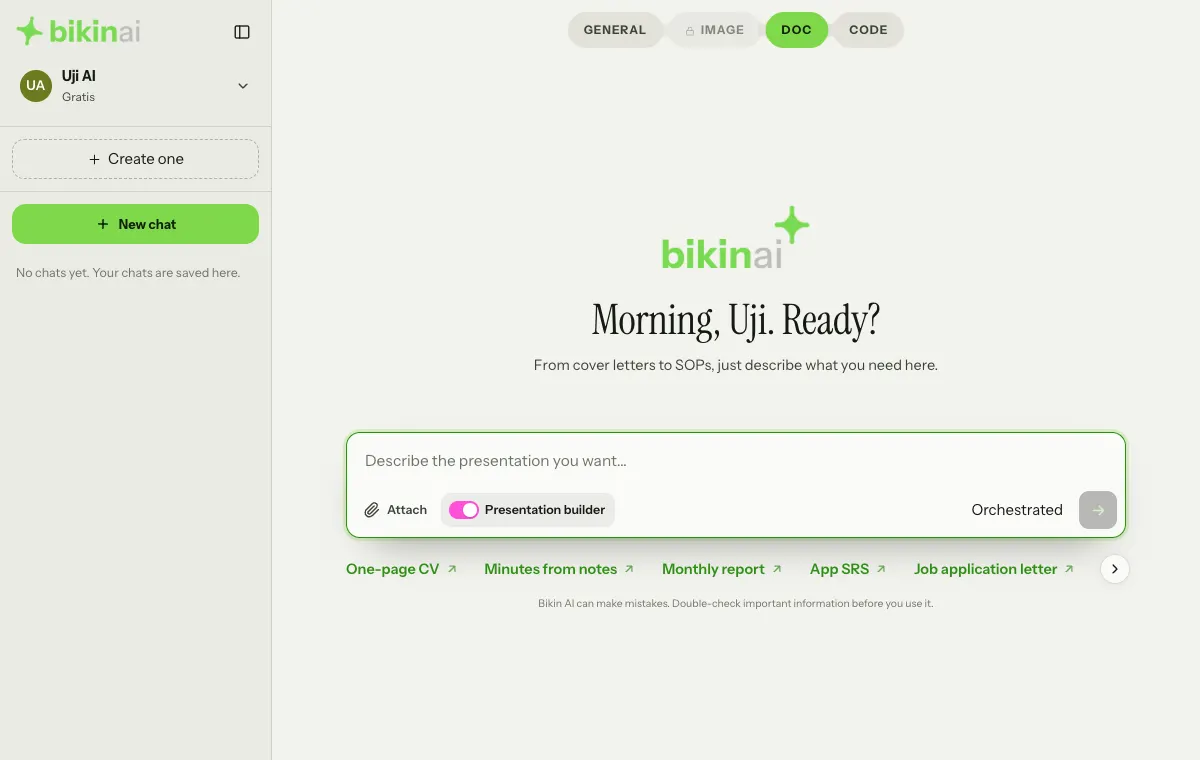
Several top models plan the storyline and structure first, pick one of six visual styles to fit the topic, then make charts, diagrams and images (not always photos: also illustration, flat, 3D or sketch). The layout varies from slide to slide, and the deck is reviewed before it is shown. Slides are 16:9.
- No slide limit. The deck has as many slides as the content needs, or exactly the number you ask for. Long decks are built part by part; the first part shows while the rest is written.
- Ask for changes in the chat. Only the slides concerned change; the rest stay the same.
- Download as PDF or PPTX. In PPTX the charts stay editable.
Without the switch, a deck can still be made when you ask for one, with your chosen model and a lighter pass.
Editing a presentation
Press Edit on the presentation card to open the Edit presentation editor:
- Click any element (title, text, box, line, shape, icon, corner pattern, image, chart, table, page number) to select it, then move, resize, delete, duplicate or recolour it. Alignment guides help you line things up.
- Click selected text again (or double-click) to type straight on the slide, with font size, Sans or Serif, bold, italic, all caps, alignment and spacing.
- Replace an image, or drop an image file from your computer onto the slide.
- The Element panel has the selected element's settings and a list of all layers. Add adds headings, text, shapes, lines, icons, images, charts and tables. Layout and Design change the slide layout and the deck's style and theme colours.
- Drag slides in the strip to reorder them.
Shortcuts: ⌘ + Z undo, ⌘ + D duplicate, ⌘ + C and ⌘ + V copy to another slide, Delete delete, arrow keys to nudge.
Slides you change by hand are kept exactly as they are, unless you ask Bikin AI to change them.
The document and presentation editors work best on a desktop. On a phone, some features may not work smoothly. Documents and presentations can also be edited from the Assets page.
Sharing a presentation by link
- Press Share on the presentation card.
- Pick the address. Your deck goes live at www.bikin.studio/slide/your-address.
- Copy the link and send it to anyone. They can view it without signing in, on any screen, with arrow keys, taps or swipes, plus a grid of all slides.
The link keeps the version you shared until you press Update to this version in the Share window. In the same window you can change the address (the old link stops working), turn on Show on Google, or press Stop sharing to take it down. The free plan can share a few decks at a time; paid plans many more.
Shared presentations show the words "Made with Bikin AI" above them. On plans that support it, the Hide BIKIN watermark switch is in the Share window.
bkin.in short link
The presentation Share window also shows its short link. Under the link is the Short link: a short bkin.in address made for you right away, for example bkin.in/k7m2qa. The real link doesn't change; bkin.in just sends visitors there.
- Copy copies the short link.
- Edit picks your own code, for example
bkin.in/promo-coffee. Availability is checked as you type. Free plans need at least 6 characters, paid plans at least 3. Use lowercase letters, numbers and dashes. The old code stops working once you save. - Anything after the short link, such as
?ref=…, is passed on to the real link.
Limits
Each presentation made or changed in the DOC tab counts as one presentation build for that day. Images inside a presentation don't count as images. Where it stands today is in Settings › Usage, on the Presentations row.
Last updated: