BIKIN AIFeatures
Deep research
The Deep research switch in the GENERAL tab makes a cited report from many web sources, with Answer, Sources and Steps tabs.
Deep research is a switch in the GENERAL tab for questions that need many sources: comparing options, a market overview, recent data, or a step-by-step plan. On a phone the switch says Research. The result is a report with numbered citations you can check one by one.
For a quick factual question you don't need it: the normal GENERAL tab can already search the web if your plan includes web search.
How to use it
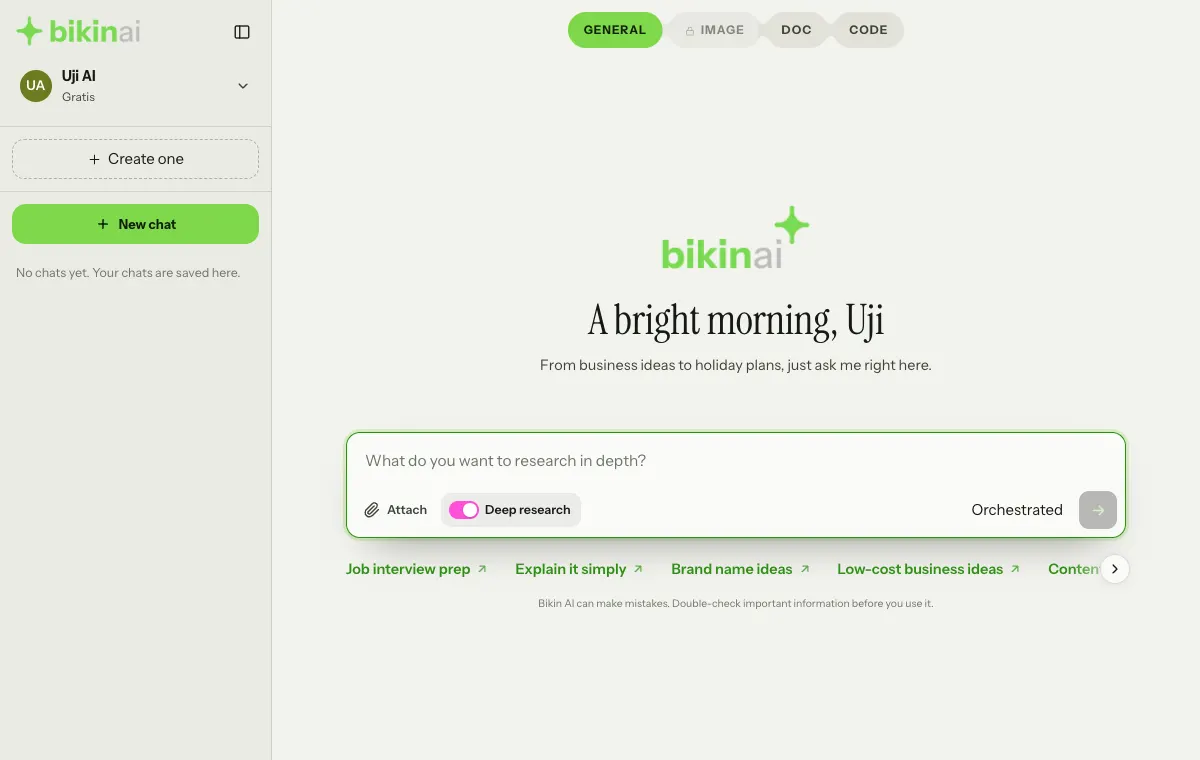
- Open the GENERAL tab and turn on the Deep research switch at the bottom left of the message box. The switch turns magenta, the hint in the message box changes to "What do you want to research in depth?", and the model picker changes to Orchestrated.
- Write your question as clearly as you can, for example the country, time range or budget you mean.
- Press the send button. If something important is unclear, Bikin AI first asks one to three questions with choices.
- Wait a few minutes. While it runs, the latest findings appear live ("Just found"), along with how many angles are done and how many pages have been reviewed.
The research keeps going even if you close the page or switch chats.
How it works
- Plan. Your question is split into several angles as needed, and the best form of answer is chosen: a comparison, numbers, a timeline, a step-by-step plan, a recommendation, a landscape of players, the latest news, or an explanation.
- Parallel search. Several AI models search the web at the same time and read the most important pages in full.
- Going deeper. Another model looks for gaps and contradictions between sources and sends them back to be searched again.
- Filtering. Findings are ranked by relevance, source authority, recency and agreement between sources.
- Writing. The report is written with citations backed by quotes from the sources.
Reading the report
The report doesn't always look the same; its shape follows your question. It can include:
- a highlighted direct answer at the top;
- key-number cards, charts, comparison tables or a timeline where they help;
- In this report (a table of contents) for long reports;
- numbered citations; tap one to see its source;
- Related questions; tap one to ask it right away.
Above the report are three tabs:
| Tab | What's in it |
|---|---|
| Answer | The full report |
| Sources | Every source used and cited |
| Steps | What was searched and reviewed during the research |
Research reports are also saved on the Assets page, on the Documents tab.
Limits and plans
Each finished research counts as one research report for that day; clarifying questions before the research don't count. Deep research needs a plan that includes web search; if the switch doesn't show on the GENERAL tab, your plan doesn't include deep research yet. Higher plans give more research reports a day. Where it stands today is in Settings › Usage, on the Deep research row.
Deep research summarises public sources on the web. For important decisions, open the original sources from the Sources tab and check them yourself.
Tips
- Give context: "for small food businesses in Bandung", "2025 data", "budget under 50 million rupiah".
- Ask for a specific form if you need one: "make a comparison table", "sort from cheapest".
- Keep going in the same chat to ask more about part of the report.
Last updated: