Bikin CRMFeatures
WhatsApp & email
Reach customers with click-to-chat templates, connect your business WhatsApp number for the Inbox and broadcasts, and send email from Bikin CRM.
WhatsApp is the main channel in Bikin CRM. There are two ways to use it: click-to-chat, which works on every plan, and automatic WhatsApp from your own business number, which brings customer replies into the Inbox.
Every message to your customers goes out in your business's name and only to numbers registered as contacts. BIKIN's WhatsApp number never messages your customers; it's only used for BIKIN's own notices to you, such as sign-in codes and task reminders.
Click-to-chat
The WhatsApp button is on contact and deal pages, on every row of the Contacts list (the round button on the right), when sending a quote, and in the Agenda. Without automatic WhatsApp, it opens the WhatsApp chat dialog:
- Pick the number if the contact has more than one.
- Pick a template, or Write my own. Details such as the contact's name, the deal name or a quote link fill in by themselves; edit the Message if needed.
- Choose Open WhatsApp. WhatsApp opens on your phone or computer with the message ready.
You press send in WhatsApp, and Bikin CRM records it in the contact's history. The owner and managers manage the message templates in Settings › Data › WhatsApp templates.
When automatic WhatsApp is active, the same button opens Send WhatsApp: the message goes out from your business number without opening WhatsApp, and Open in WhatsApp is still there for click-to-chat.
Your business WhatsApp
When your plan includes it, the owner connects the business WhatsApp number to Bikin CRM once:
- Open Settings › WhatsApp & email. On the Your business WhatsApp card, choose Connect a number.
- Read the Before you connect notes, then choose Show the QR (or Use a code if you can't scan).
- On the phone with the business number, open WhatsApp › ⋮ or Settings › Linked devices › Link a device and scan the QR. With a code: enter the business number, choose Get a code, then type the code into the phone under Link with phone number.
- The card changes to Connected, with the number and the date it was connected.
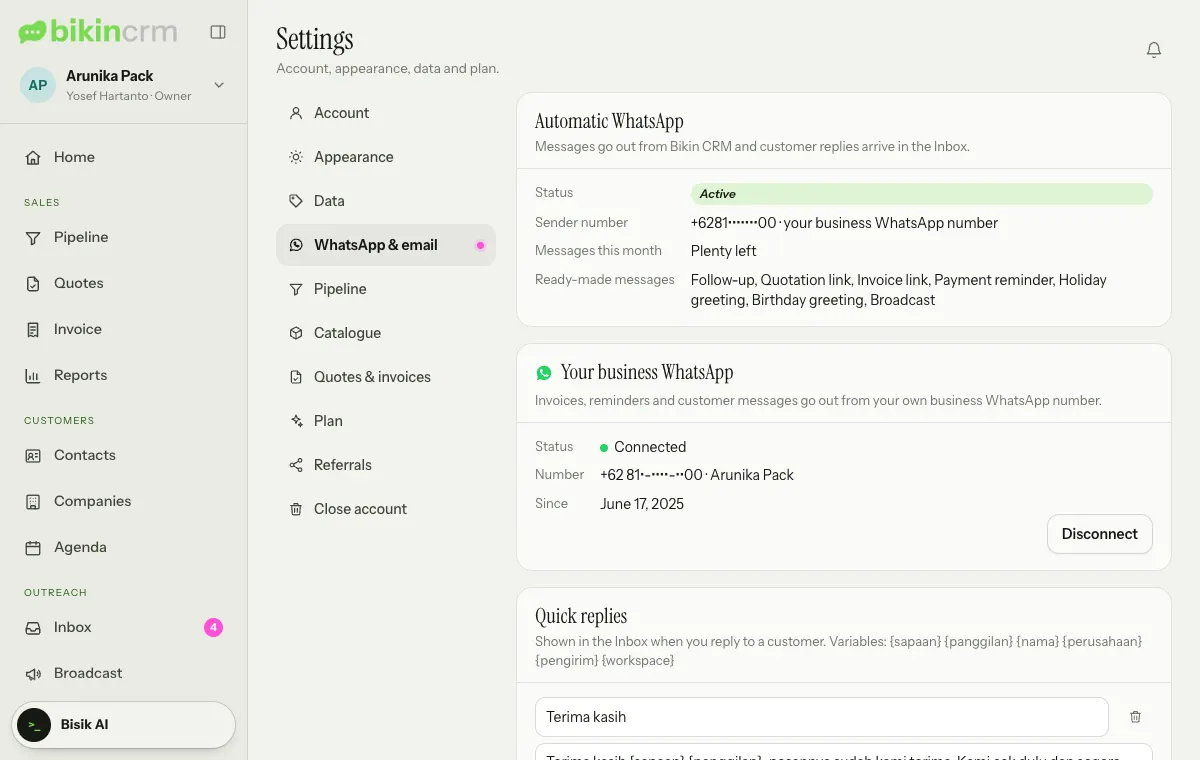
Use the business number, not a personal one. It works like WhatsApp Web, so the phone with that number must stay on and online. Once connected, quotes, invoices, due-date reminders, Inbox replies and broadcasts go out from that number, and customer replies land in the Inbox. The Automatic WhatsApp card above it shows the Status, Sender number, Messages this month in words (such as Plenty left) and Ready-made messages.
Good to know:
- Registered contacts only. Bikin CRM only sees and sends messages with numbers registered as contacts in your workspace. Other chats on the phone (family, friends, groups) are never read, stored or shown, and cannot be messaged from the app.
- Sent slowly. Messages are queued and sent one at a time with pauses. Automatic messages aren't sent during quiet hours at night, and greetings and broadcasts only go to contacts who agreed. If WhatsApp restricts the number for a while, sending is held and the card shows On hold and until when.
- Disconnected? If the phone logs out of WhatsApp or stays offline for long, the status changes to Disconnected and the owner is notified. Turn the phone on, choose Reconnect, then scan again.
- Disconnecting the number. Disconnect on the same card stops sending by WhatsApp until a number is connected again; queued messages are cancelled. It asks for an email code.
- Not the official WhatsApp Business API. WhatsApp can still restrict a number it considers spammy; Bikin CRM paces the messages but cannot guarantee it. Want the official WhatsApp Business API on your own account? Contact BIKIN; we'll set it up for you.
Inbox
The Inbox (left sidebar, Outreach group) shows WhatsApp conversations per contact. The number on the menu counts unread conversations.
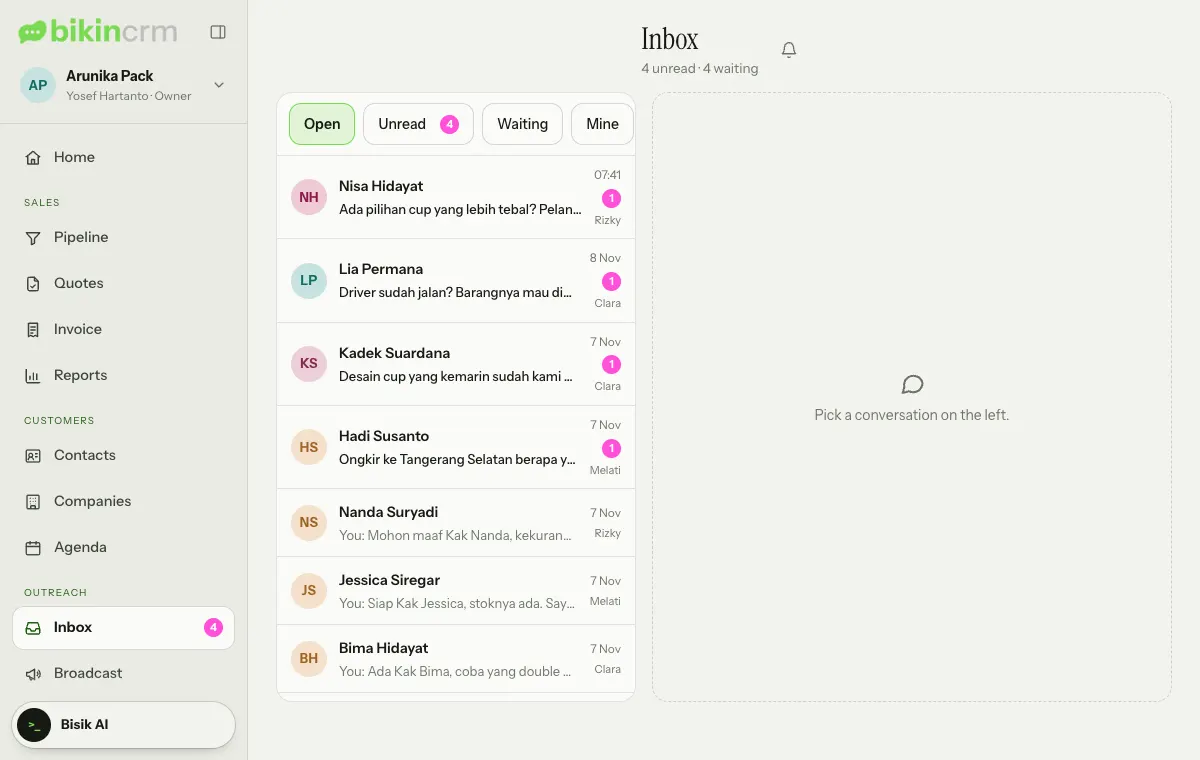
- Filter with Open, Unread, Waiting, Mine or Done. Pick a conversation on the left to open it on the right.
- The ticks on each outgoing message show its status: Sending, Sent, Delivered, Read or Failed.
- Reply any time in your own words, pick one of the Quick replies, or tap Ready-made (follow-up, greetings) and choose Send message. There's no 24-hour window: messages go out from your own business WhatsApp number.
- Assign a conversation to a teammate with the name picker in the conversation header (default Unassigned), then choose Done when it's sorted; Reopen opens it again. A conversation that belongs to a teammate can be answered once it's assigned to you.
- Photos from customers show small in the conversation; tap one to open it in full. Documents, videos and voice notes show as named links that open in a new tab. WhatsApp keeps attachments only for a while, so older ones may no longer be available.
- Only conversations with registered contacts appear; add the number as a contact first if you want to chat through Bikin CRM.
The Inbox menu is always in the sidebar for every role, even before your plan includes automatic WhatsApp or the business number is connected. While there are no conversations and WhatsApp can't be used yet, the page explains why, with a short example of a customer reply landing in the Inbox:
- WhatsApp isn't part of your plan: the owner sees a See plans button; other roles are told the workspace owner can upgrade.
- WhatsApp isn't connected yet: the owner sees a Connect WhatsApp button that opens Settings › WhatsApp & email; other roles are told the workspace owner can connect it.
- WhatsApp isn't available right now: BIKIN is setting up or maintaining the connection. Try again later.
Meanwhile, the WhatsApp button on contacts still opens click-to-chat.
Quick replies and email templates are managed in Settings › WhatsApp & email.
Broadcasts
The owner and managers send Broadcasts (left sidebar, Outreach group) to a saved segment, a tag or a special day (birthdays or religious holidays).
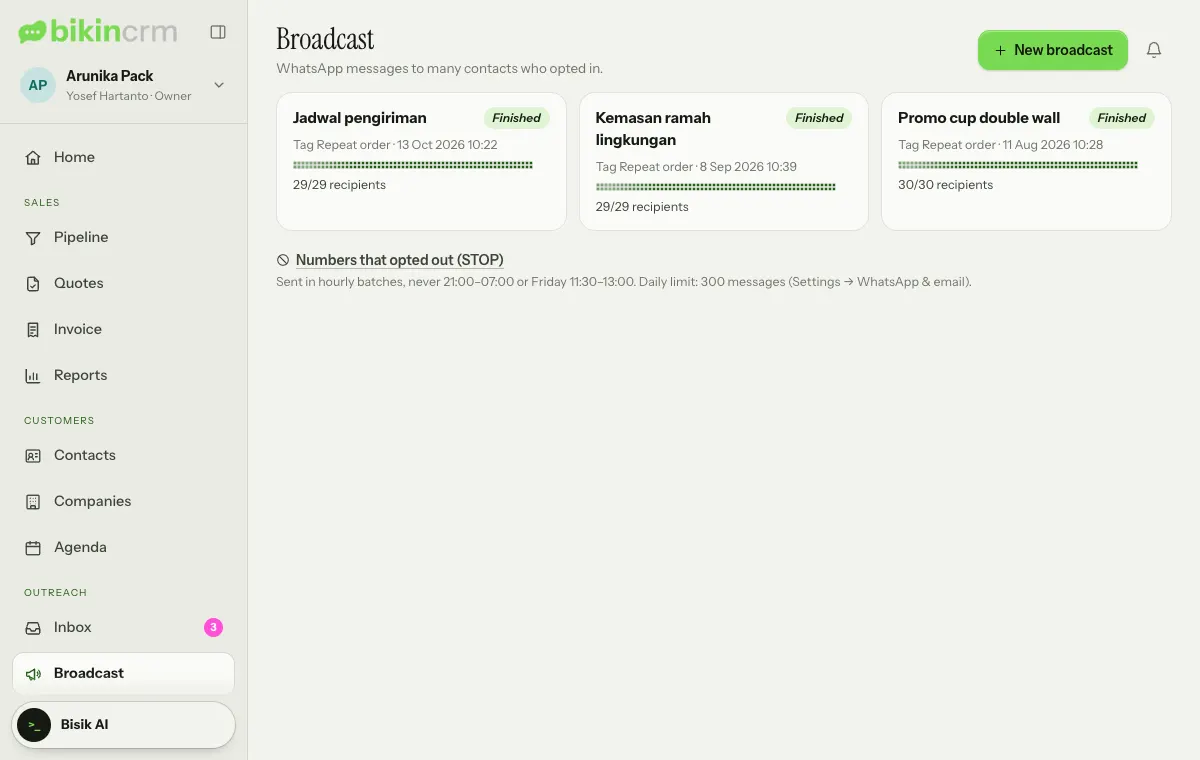
- Choose New broadcast at the top right.
- Fill in Name (team only), pick the Recipients (Segment, Tag or Special day), then write the Message or Greeting.
- Choose When: As soon as possible or Schedule. The Preview shows the message, the number of recipients and how many are skipped (not opted in, opted out or without a mobile number).
- Choose Schedule or Send now, or Save draft if it isn't ready.
The rules:
- Only to contacts with a WhatsApp number whose Agreed to receive WhatsApp from us switch is on.
- Every broadcast carries a "Reply STOP to stop" line. Contacts who reply STOP or BERHENTI get no more broadcasts or greetings and receive a confirmation; replying START or MULAI turns them back on. The list is under Numbers that opted out (STOP) on the Broadcast page.
- Broadcasts go out in hourly batches, never between 21:00 and 07:00, can skip Friday prayers (11:30–13:00), and are capped per day, so a large broadcast finishes over a few days. The Friday prayers switch and the daily cap are in Settings › WhatsApp & email, on the Broadcast card.
Open a broadcast for its report: sent, delivered, read, replied, failed and opted out. A broadcast that's running can be stopped with Stop. This feature depends on your plan.
The Email button on contacts and deals opens the Send email dialog: pick a template if you have one, fill in the Subject and message, then send. Email goes out as "<workspace> via Bikin CRM", with replies going straight to the sender's email. Email templates are prepared in Settings › WhatsApp & email › Email templates. Bikin CRM doesn't track whether emails are opened, and customer replies land in the sender's mailbox, not in Bikin CRM.
Last updated: