Bikin CRMFeatures
Agenda & follow-up
Set follow-up tasks and reminders in Bikin CRM, run follow-up sequences, reach out to contacts you haven't spoken to in a while, and send birthday or holiday greetings.
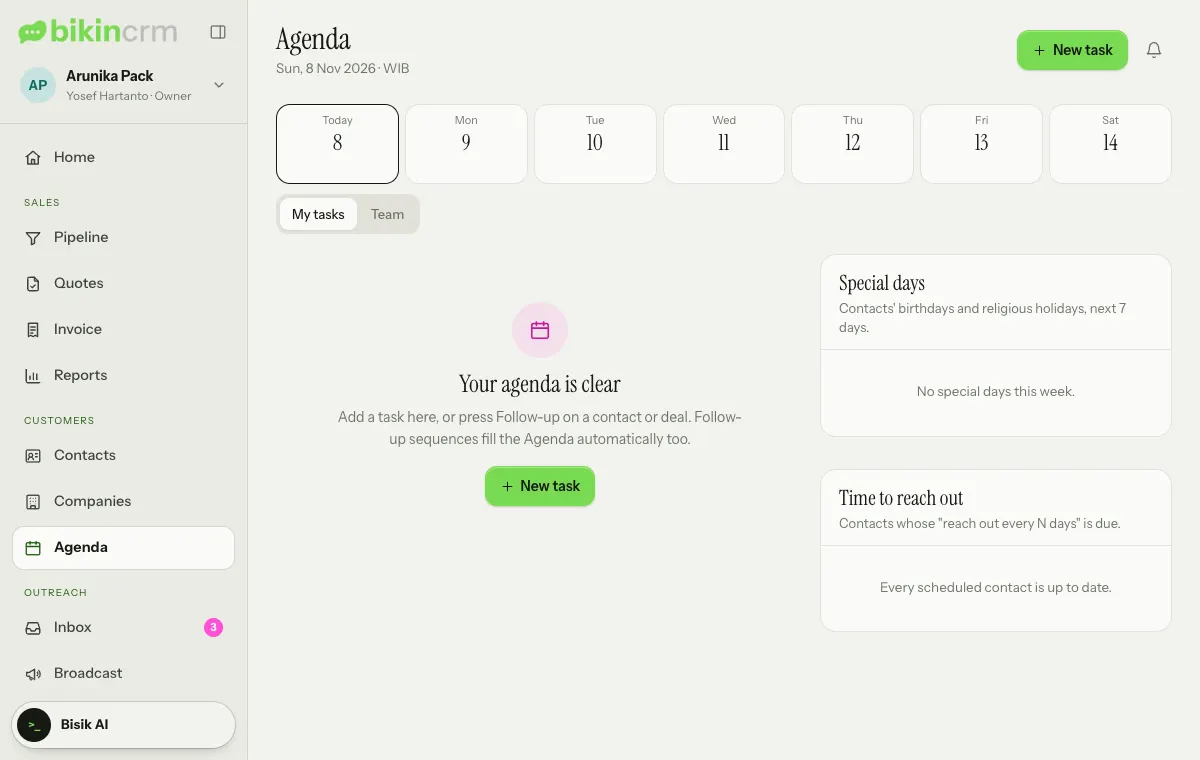
The Agenda (left sidebar, Customers group) is your daily worklist: who to contact today and what is already late.
Tasks
Add a task with New task at the top right of the Agenda, with the Follow-up button on a contact or deal page, or ask Bisik to prepare one. In the task dialog, fill in What needs doing, Type (task, call, WhatsApp, email or visit), Date (with Today, Tomorrow and Next week shortcuts), Time if needed, the Assignee, Priority and Contact.
The Agenda groups tasks into Overdue, Today, This week, Later and Done in the last 7 days. Tap a day in the seven-day strip to see only that day's tasks, then All to go back. Tap the circle in front of a task to mark it done. If you may see more than your own contacts, choose Team to see teammates' tasks; My tasks takes you back to yours.
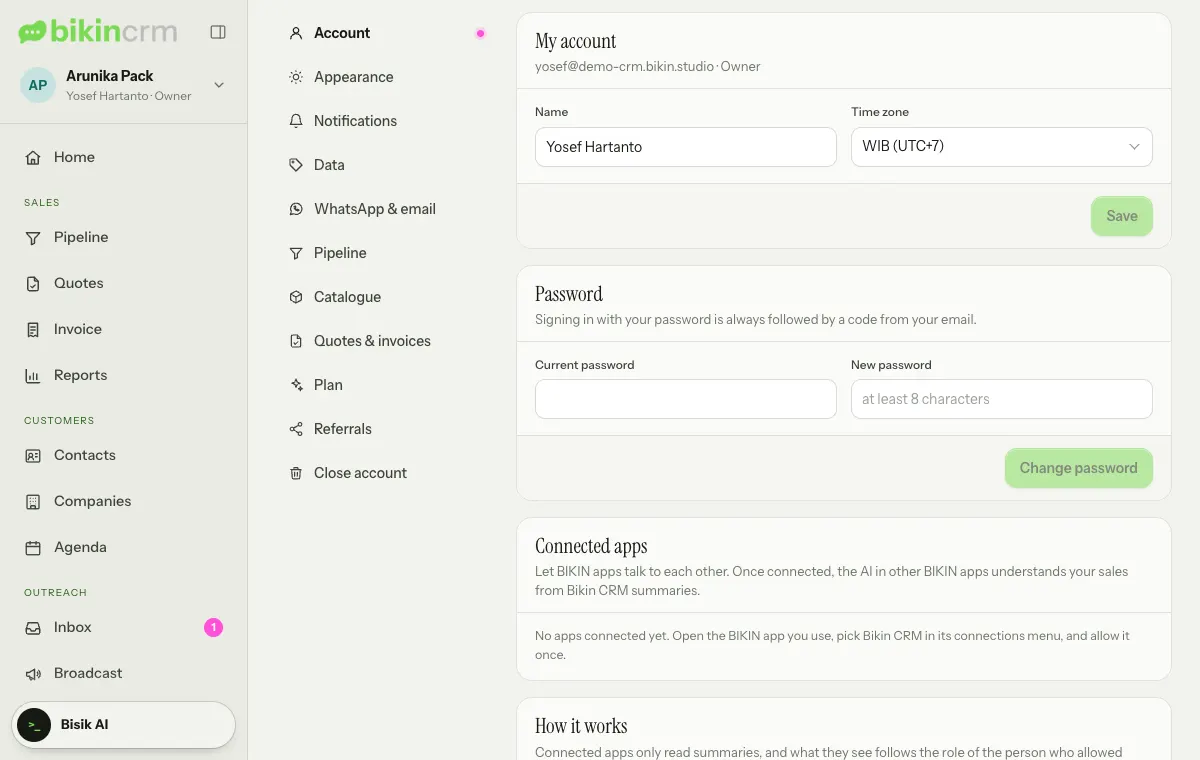
Times follow your time zone (WIB, WITA or WIT), set in Settings › Account.
Reminders
- The bell at the top right of every page shows tasks from teammates, the morning summary and tasks due soon.
- A morning summary by email around 07:00 in your time zone.
- WhatsApp: turn on Remind me by WhatsApp in Settings › Account (the Reminders by WhatsApp card, which appears when WhatsApp is active for your workspace). Your WhatsApp number must already be verified on the WhatsApp number card on the same page. These reminders come from BIKIN's WhatsApp number, not your business number.
Follow-up sequences
A Sequence (left sidebar, Outreach group) is a ready-made series of steps, such as day 0 send the quote, day 3 check in on WhatsApp, day 7 call.
- The owner and managers build templates on the Sequences page: choose New sequence, or Use the 7-day quote example to start from an example.
- To apply one, open a contact or deal, choose Sequence, pick the template and its start date, then Apply. Sales can apply sequences too.
- Each step becomes an Agenda task on its day.
Unfinished sequence tasks are removed by themselves when the deal is won or lost. This feature depends on your plan.
Reach out
A contact joins the Reach out list after a number of days without a call, WhatsApp, email or visit. The number of days is set in Settings › Data › Reach out, and can be set per contact with Reach out every … days on the contact. Important contacts come first.
The list appears on the Reach out card on Home (and the customers to reach out to tile under Needs attention) and in the To reach out filter on the Contacts page. In the Agenda, the Time to reach out card shows contacts whose Reach out every … days schedule is due.
Birthdays and holidays
When a contact's date of birth and religion are filled in, the Special days card in the Agenda and on Home shows their birthday and the matching religious holiday in the next seven days (Eid al-Fitr, Eid al-Adha, Christmas, Lunar New Year, Nyepi or Vesak). Choose Send greetings to send a prepared message by WhatsApp; the greeting is recorded in the contact's history.
Both fields are optional. Fill them in only with the contact's permission or another lawful basis.
Last updated: