Bikin CRMFeatures
Contacts & companies
Keep contacts and customer companies in Bikin CRM, log their history, import from CSV, Excel or VCF, merge duplicates and build segments.
Everything in Bikin CRM revolves around contacts. A Contact is a person; a Company is the B2B customer they work for. Both are in the left sidebar, Customers group.
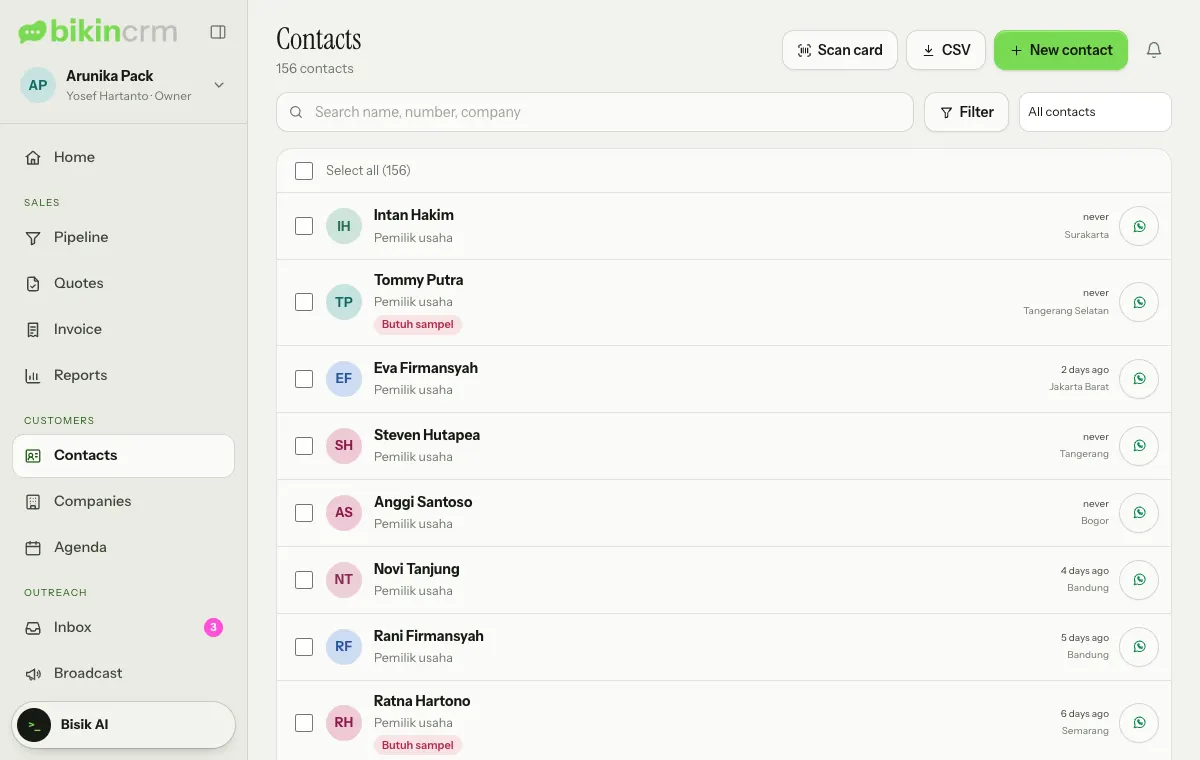
Each row shows the name, job title, tags, when they were last reached and their city. Tap a contact's name to open their page.
Adding a contact
- Open Contacts, then choose New contact at the top right.
- Fill in what you know: Full name (required), Nickname (used in WhatsApp greetings), Phone / WhatsApp (choose + Another number for a second one), Email, Company, Job title and Tags.
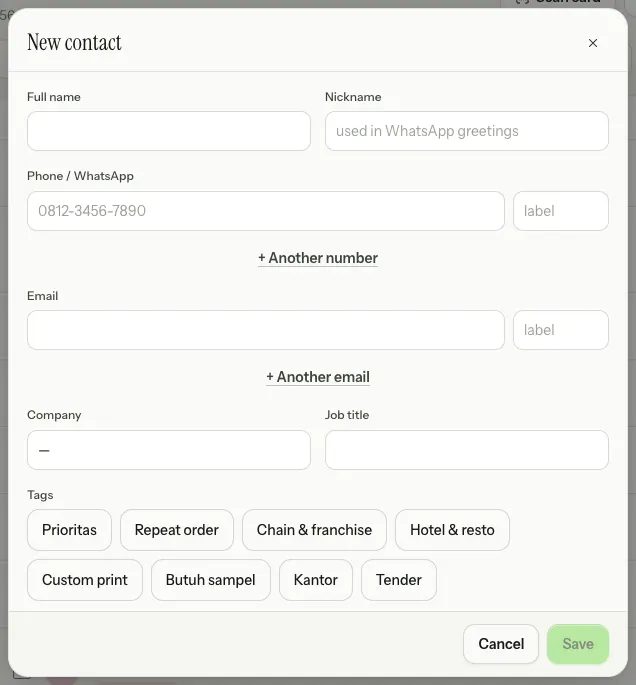
- Scroll down for Source, Owner, Birthday, Religion, Province, City/regency, Address, custom fields and Notes, then choose Save.
Numbers like 0812…, 62812… or +62812… are tidied to +62 automatically. Write numbers from other countries with their country code, like +1 415 555 0123; they can be reached on WhatsApp too. If the same number or email is already used by another contact, Bikin CRM tells you and links to that contact; choose Save anyway if it really is a different person.
Other options at the bottom of the form:
- Owner: the person responsible for this contact. Only the owner and managers can change it.
- Important contact: shows at the top of the reach-out list.
- Reach out every … days: how often this contact should be contacted. Leave it empty to use the default from Settings › Data.
- Agreed to receive WhatsApp from us: turn it on only when the person has given permission. Broadcasts require it.
- Birthday and Religion (optional): only used to remind you of birthday greetings and the right religious holidays. Fill them in only with permission or another lawful basis; they can stay blank.
Business card scan
- Choose Scan card at the top right of the Contacts page.
- Take or pick a photo of the Front of the card, and the Back if needed, then choose Read card.
- AI reads the name, job title, company, numbers and email, then opens a filled-in contact form. Check it, then Save.
If the contact may already exist, Bikin CRM shows it first so you don't create a duplicate. The photo isn't stored. This feature and its monthly scanning allowance depend on your plan; when this month's allowance is used up, fill in the contact yourself.
Companies
Open Companies for B2B customer details. Choose New company at the top right, then fill in Company name, Industry, NPWP / NIK, NIB, Province and City/regency from the official list, Address and Billing address (or tick Billing address is the same).
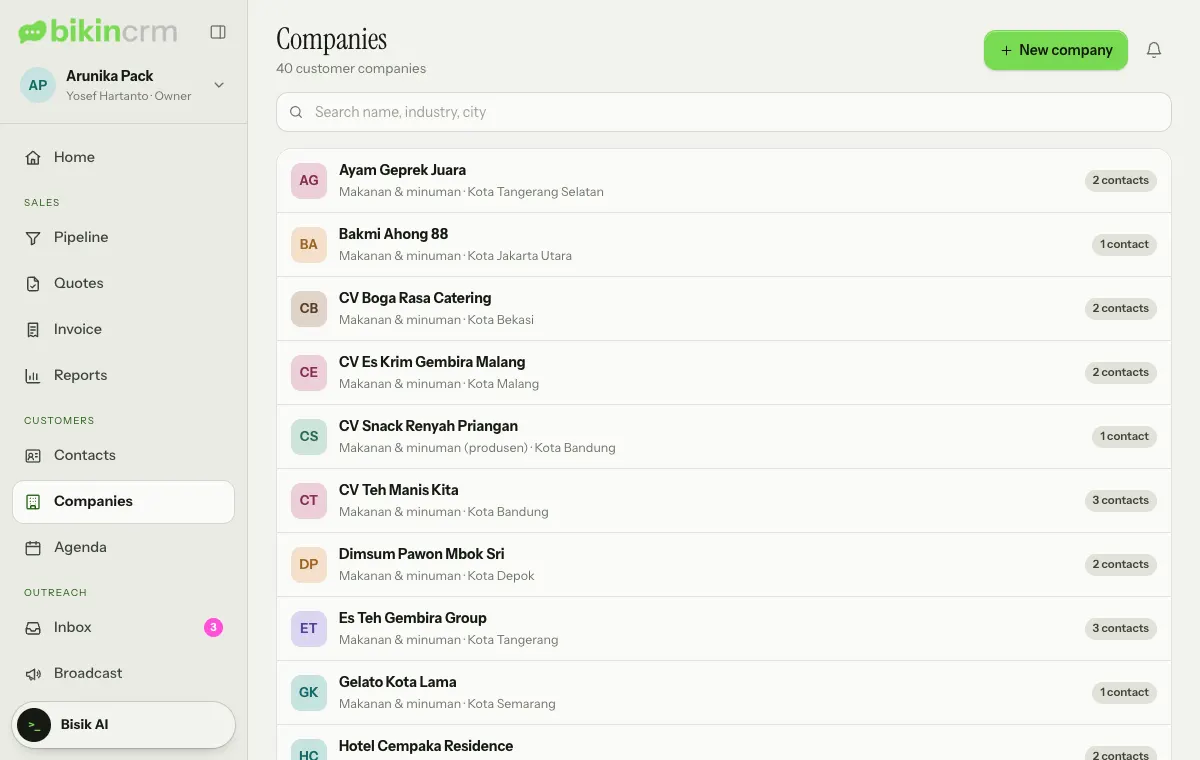
A company page shows the Company details, all its contacts and their combined history. You can add new contacts straight from it. Deleting a company doesn't delete its contacts; they're just no longer linked to it.
History
Tap a contact in the list to open their page.
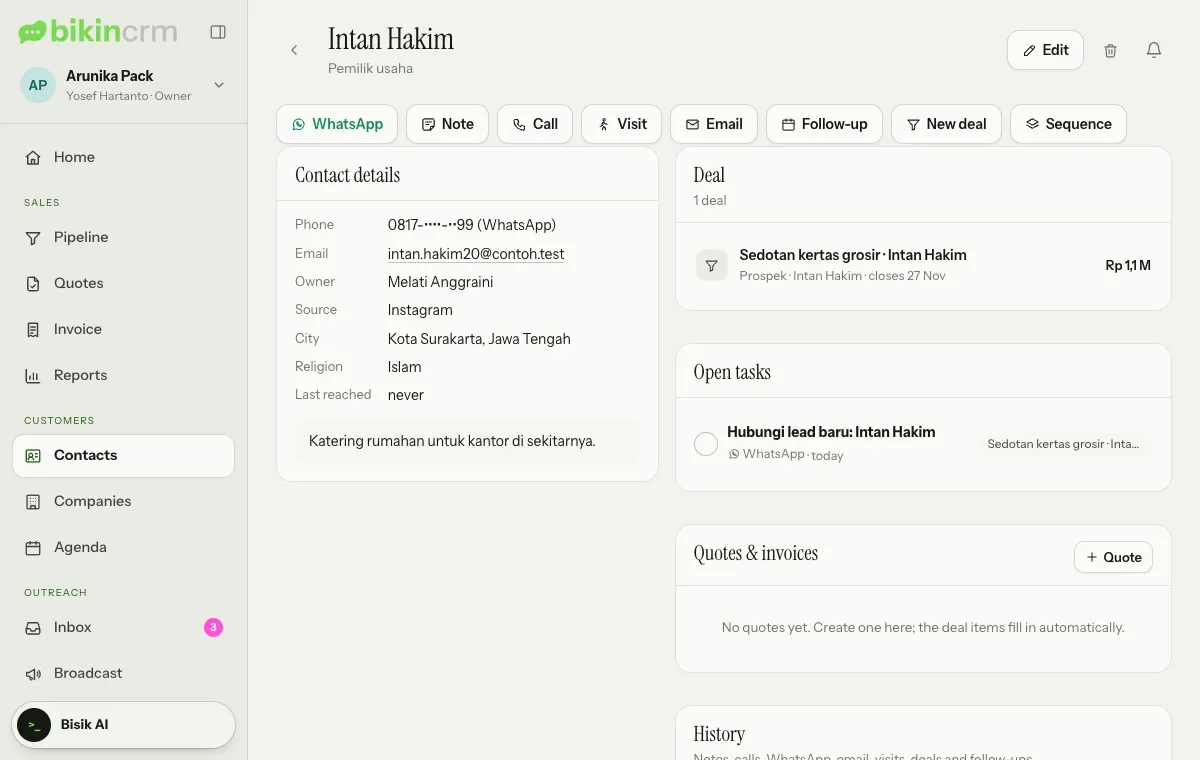
The button row on top holds WhatsApp, Note, Call, Visit, Email, Follow-up, New deal and Sequence. When you log a call, you can pick the outcome (such as Connected or No answer) and its duration. Every note, call, WhatsApp, email and visit lands in the History together with deals, quotes and tasks, so anyone on the team knows what happened last. The Contact details card on the left shows the phone, email, owner, source, city and when they were last reached.
Importing contacts
Open Import (left sidebar, Admin group). There are three steps: File, Columns and Review.
- In the File step, choose or drag a CSV, Excel (.xlsx) or phone contacts (.vcf) file onto Choose or drop a file. The first row holds the column titles. The file is read on your device.
- Match each file column to a Bikin CRM field. Bikin CRM guesses from the column titles; choose — skip — for columns you don't need. Then choose Check duplicates.
- Review the result. Numbers are tidied to +62 and duplicates are looked for: the same number or email is suggested for merging, similar names are only flagged. For each row choose Create new, Merge into … or Skip.
- Choose Save … contacts.
Imported the wrong file? In Import history on the same page, choose Undo on the latest import: its new contacts are deleted and merged contacts go back to how they were.
Search, filters and segments
Type in the Search name, number, company box. Choose Filter to narrow by Tags, Source, Owner, City, To reach out, Birthday this month, Has a WhatsApp number or Important, then Apply. Active filters show as chips under the search box; choose Save segment there to keep them. Segments appear in the picker next to Filter (default All contacts) and are also used for broadcasts.
Tick several contacts (or Select all) to Tag them, assign an Owner or Delete them at once. Bulk delete asks for an email code.
Tags, sources and custom fields
The owner and managers manage Tags, Lead sources and Custom fields (text, number, date or choice, for contacts or companies) in Settings › Data. The Currency card above them is covered in Getting started with Bikin CRM.
Export
The owner can download every contact as a CSV file with the CSV button at the top right of the Contacts page. Export asks for an email code, is logged, and depends on your plan.
Last updated: