Bikin CRMFeatures
Quotes & invoices
Make VAT-ready quotes on your letterhead in Bikin CRM, send an approval link, turn them into invoices with down payments, record payments and send reminders.
Bikin CRM makes quotes and light invoices from your deals, then helps you collect. It isn't bookkeeping: payments are recorded by hand, and Bikin CRM never moves money. The Quotes and Invoice menus are in the left sidebar, Sales group. This feature depends on your plan.
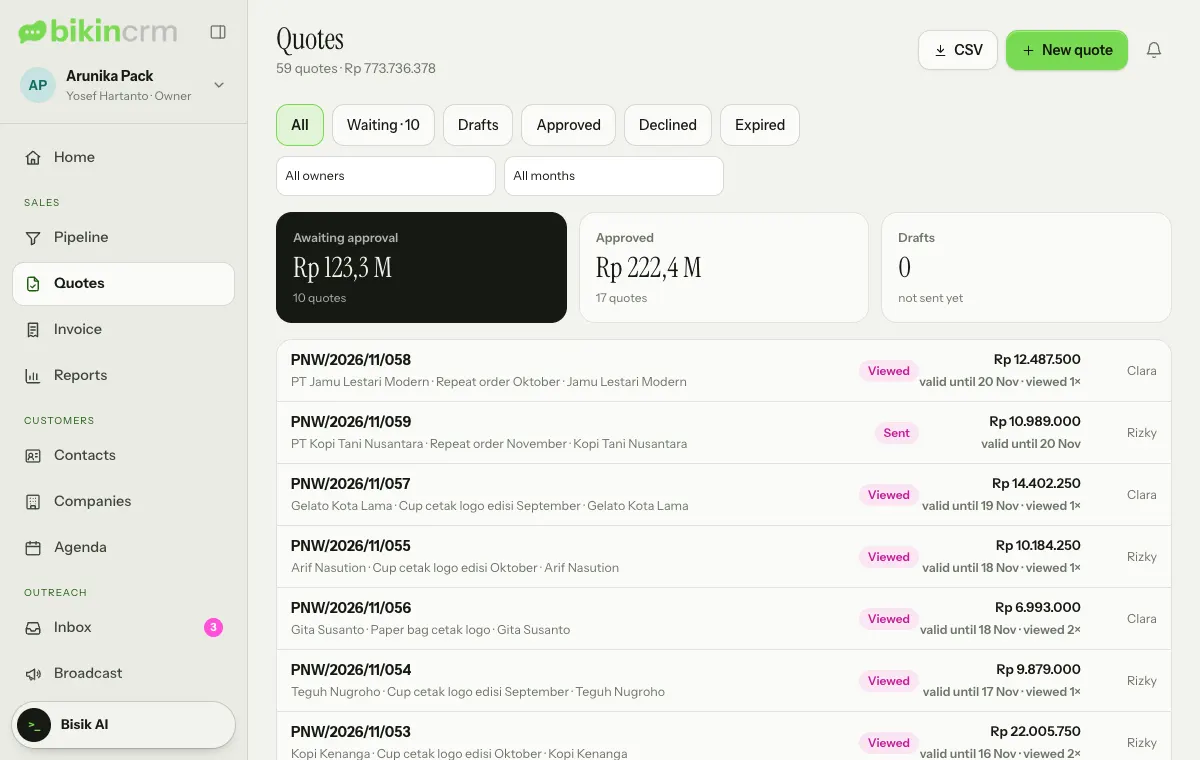
Letterhead
Before the first quote, the owner fills in Settings › Quotes & invoices.
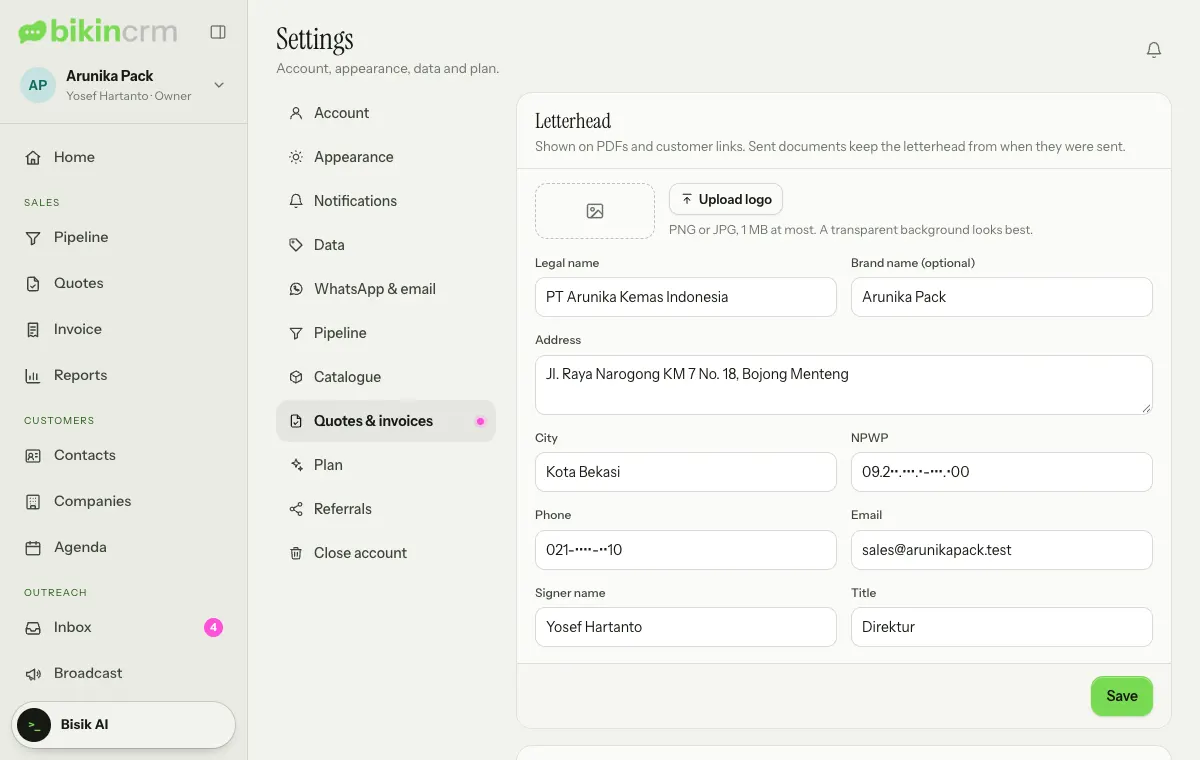
From top to bottom:
- Letterhead: logo (Upload logo, PNG or JPG), Legal name, brand name, address, city, NPWP, phone, email, plus Signer name and Title.
- Bank accounts printed on invoices and customer links.
- Numbering: the number pattern for quotes and invoices, and when the sequence restarts at 1 (every year, every month or never).
- Defaults for new documents: tax, how long quotes stay valid, default notes and terms, and email reminders for new invoices.
- When a quote is approved: the stage the linked deal moves to automatically once the customer approves.
Making a quote
The easiest way: open a deal and choose New quote; the deal's items fill in. You can also use + Quote on a contact page, or New quote at the top right of the Quotes page.
- Under Recipient, pick the contact and company.
- Under Contents, add a title (optional) and add items with + From catalogue or type them in: quantity, unit, price and a discount per line (tap the % sign to switch to Rp).
- Set Tax, Payment terms, and Notes and terms. The document preview updates as you go.
- Choose Save draft, then send it from the quote page.
Good to know:
- VAT (PPN): 12% · other value DPP (11/12) by default, 12% full, or 11%.
- PPh 23 (2% on services) can be shown as information on what the customer withholds; mark the service items with Service (tax 23).
- VAT, PPh 23 and the amount in words are only for businesses that use Indonesian rupiah (IDR); see Currency.
- Payment terms: Full, Net terms (a number of days) or DP (a down payment percentage, with the rest due a number of days later).
- Numbers are made automatically, such as PNW/2026/11/001.
Sending and approval
On the quote page, choose Send, then pick how:
- WhatsApp: when your business WhatsApp number is connected, choose Send automatically so a message with the link goes out from that number and replies land in the Inbox. Or choose Open WhatsApp for click-to-chat; you press send in WhatsApp yourself.
- Email: sent to the customer's email, with the PDF when Attach the PDF is on.
- Copy link: paste it anywhere yourself.
The customer opens their private link without an account, then:
- Approves by typing their name, signing (drawn or typed) and ticking the agreement, or
- Declines with a reason.
The quote status moves from Sent to Viewed, then Approved or Declined; a quote past its validity becomes Expired. The quote page also shows when and how often the link was opened. When it's approved, the deal can move to the stage the owner chose. Did the customer decide by phone or WhatsApp? Choose Record decision and fill in who decided.
Need to change a quote you've sent? Choose Revise, then confirm with Revise: the new version becomes a draft with the same number and link; send it again after editing. Older versions stay under Earlier versions.
bkin.in short link
Sent quotes and every invoice show their public link with a copy button. Under it is the Short link: a short bkin.in address made for you right away, for example bkin.in/k7m2qa. The real link doesn't change; bkin.in just sends visitors there.
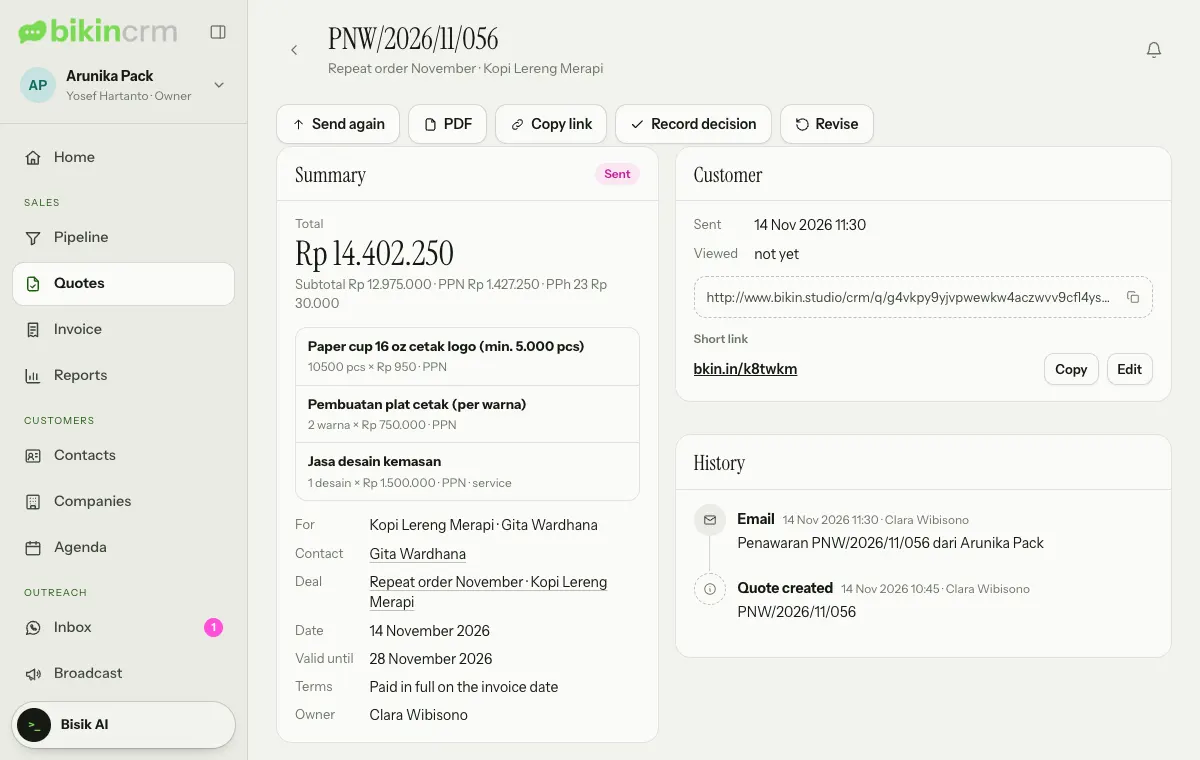
- Copy copies the short link.
- Edit picks your own code, for example
bkin.in/promo-coffee. Availability is checked as you type. Free plans need at least 6 characters, paid plans at least 3. The old code stops working once you save.
Invoices and down payments
From an approved quote, choose Create invoice. With DP terms, Bikin CRM creates two invoices: the Down payment and the Final payment. Invoices can also be made without a quote with New invoice at the top right of the Invoice page.
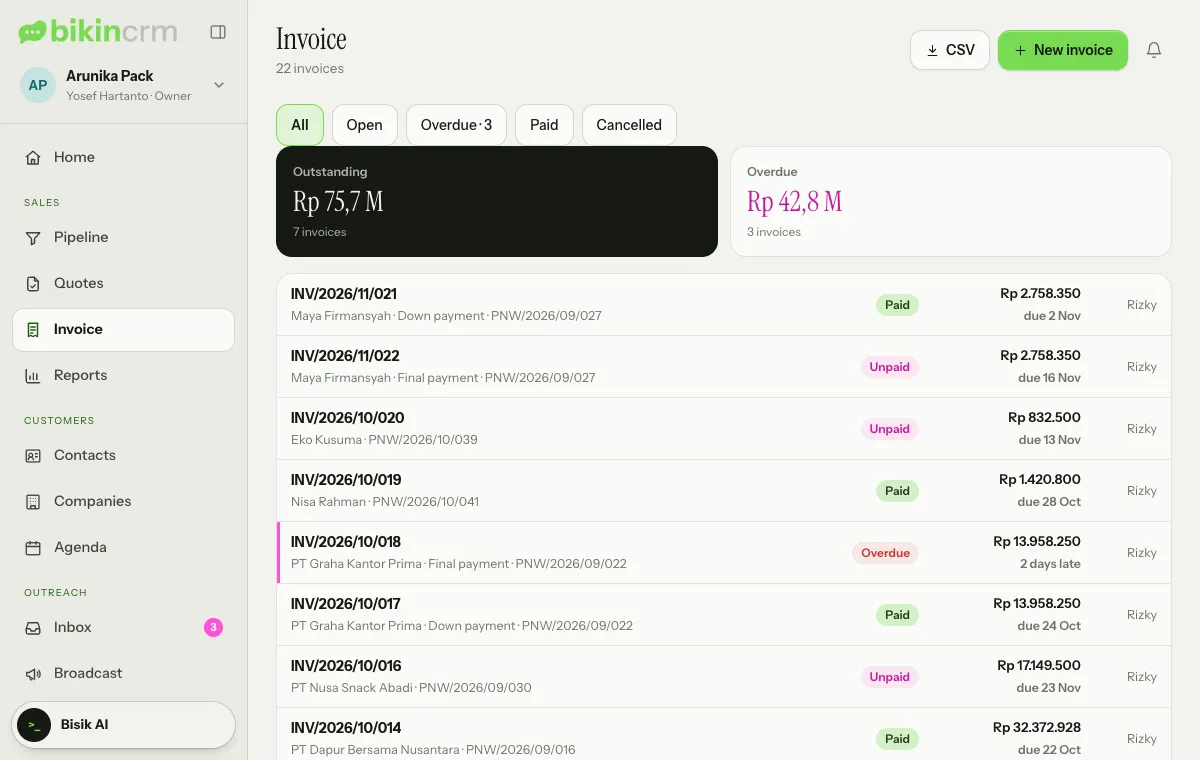
When the customer pays, open the invoice and choose Record payment: fill in the Amount, date and Method (Transfer, QRIS, Cash or Other), attach proof if you have it, then Save payment. The Balance due and status (Unpaid, Part paid or Paid) update by themselves. An unpaid invoice can be cancelled with Cancel and a reason; its number stays on record and the customer link shows it as cancelled.
Due-date reminders
An invoice can remind the customer 3 days before, on, and 3 days after the due date, during working hours. The invoice page has two switches:
- Remind … by email (3 days before, on the day, 3 days after): for new invoices it follows the default in Settings › Quotes & invoices › Defaults for new documents.
- Also remind by WhatsApp (3 days before, on the day, 3 days after): available when automatic WhatsApp is active; the messages go out from your business WhatsApp number.
The owner also gets reminders in the bell and by email.
CSV export
The owner can export quotes, invoices and payments as CSV for Bikin Fin or an accountant: the CSV button at the top right of the Quotes page, and on the Invoices page a CSV button with a choice of Invoice or Payments. Export asks for an email code and depends on your plan.
Who sees what
The owner, managers and sales make quotes and invoices (sales for their own deals). Support sees documents without amounts and without the PDF.
Customer link banner
Quotation and invoice links open with a banner at the top and your letterhead logo on its bottom edge, like a LinkedIn profile. Set it in Settings › Quotes & invoices, card Customer link banner, right under the letterhead. Change the logo in the Letterhead card.
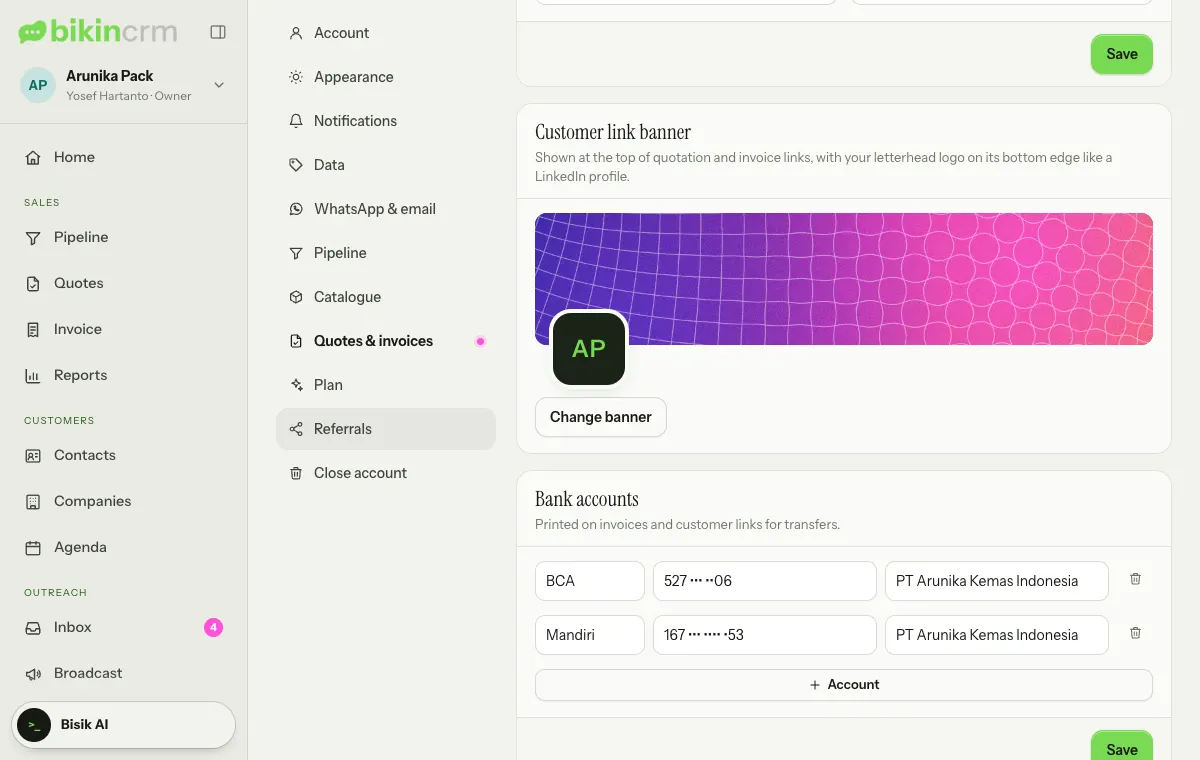
Choose Change banner: in the Pattern tab pick Grid, Waves, Rings or Silk and one of five colour sets (Shuffle gives a new variation); in the Upload tab choose a JPG, PNG or WebP image at least 600 px wide and drag the preview to choose the part that shows. Use default brings back the default pattern. The pattern moves gently on your customer's page and stays still when their device asks for reduced motion. Every plan can use the photo and banner.
Last updated: