Bikin CRMFeatures
Connected apps
Connect Bikin CRM to BIKIN AI and BIKIN SIGHT so they can read customer and pipeline summaries, without numbers, emails or message contents.
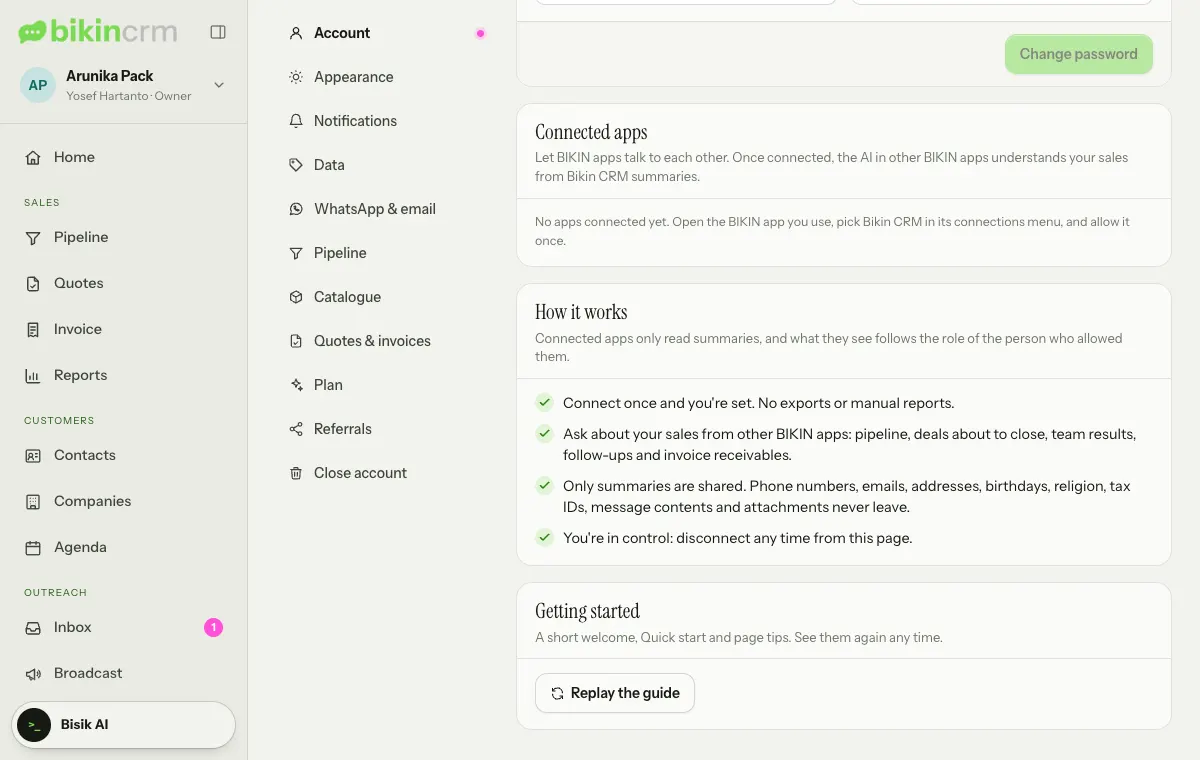
Connected apps let other BIKIN apps read summaries from Bikin CRM. Connect once, with no manual exports. This feature is available when your plan includes connected BIKIN apps. The list of connections is in Settings › Account, on the Connected apps card, which the owner and managers can see.
Apps that can connect
| App | What it does |
|---|---|
| BIKIN AI | You can ask about your pipeline, deals, tasks and quotes from a BIKIN AI chat |
| BIKIN SIGHT | The executive dashboard shows a Pipeline card: open pipeline, weighted forecast, deals won, win rate, stuck deals and overdue follow-ups |
Connecting
A connection starts from the app that wants to read the data, not from Bikin CRM.
- Open BIKIN AI or BIKIN SIGHT and choose Bikin CRM in its connections menu.
- Sign in to Bikin CRM if you aren't already.
- The Connect page explains what can be read and what is never shared.
- If asked, choose Send a code to allow and enter the code from your email. For your safety, connecting an app needs an email code.
- Choose Allow, or Decline if you change your mind.
Only the Owner or a Manager can allow it. What's read follows the role and visibility of the person who allowed it: if a manager may only see their team's contacts, the connection only reads that team's contacts and deals.
What is shared and what isn't
A connected app only reads summaries, such as the pipeline and deals, targets, tasks, and quotes and invoices. A connection can't add, change or send anything.
What never leaves Bikin CRM through a connection:
- phone and WhatsApp numbers, and email addresses,
- NPWP, NIK, NIB and addresses,
- dates of birth and religion,
- bank accounts,
- WhatsApp and email message contents, and attachments,
- passwords and anything about how you sign in.
If your plan ends and no longer includes this feature, the connection stops reading.
Disconnecting
A connection can be ended at any time. In Bikin CRM, open Settings › Account, find the app on the Connected apps card, then choose Disconnect; or end it from the connected app. The app stops reading straight away and can be connected again any time from that app.
A connection also stops by itself if the person who allowed it is switched off, is no longer an owner or manager, or changes their password. Closing the Bikin CRM account ends every connection.
Last updated: