Bikin CRMFeatures
Pipeline & deals
Track sales opportunities on Bikin CRM's kanban board, move deals between stages, mark them won or lost, and watch stuck deals, targets and reports.
The Pipeline (left sidebar, Sales group) shows who is about to close and how much it is worth. Each sales opportunity is a deal that moves from stage to stage, left to right.
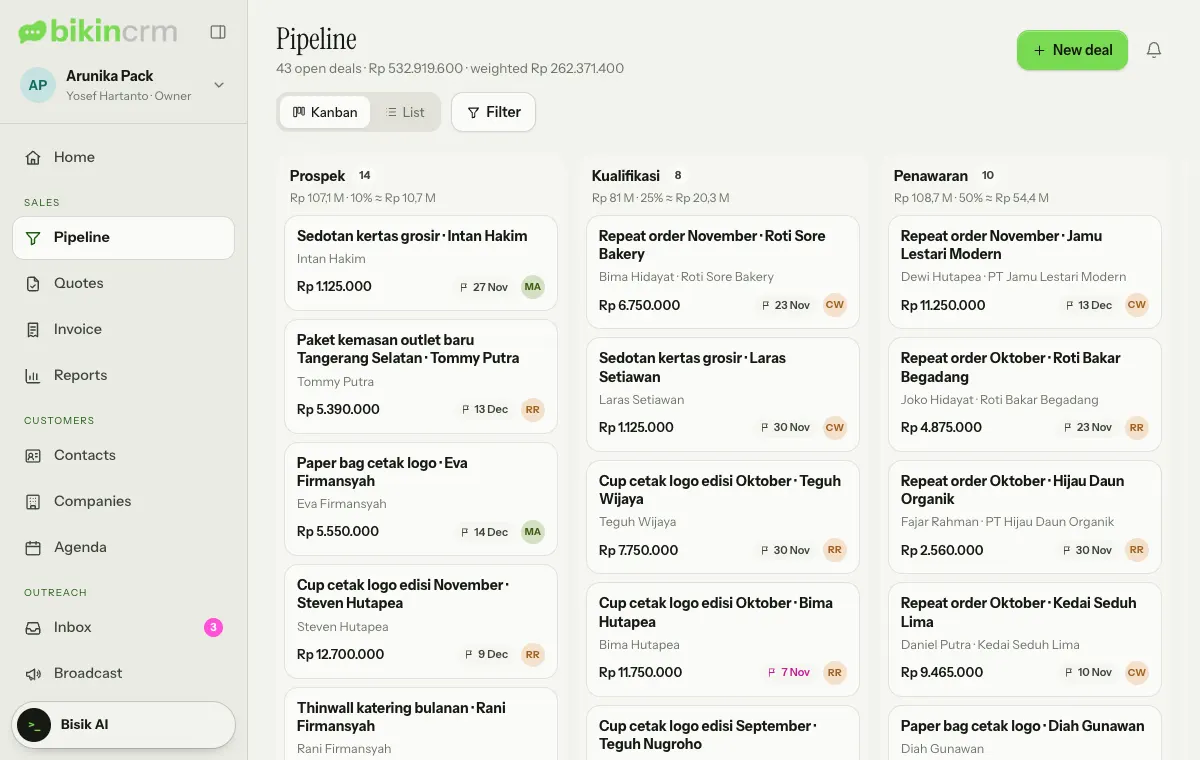
Each card shows the deal name, its contact and company, value, expected close date and the owner's profile photo or initials. Above the board are a summary of all open deals (count, total value and weighted value), the Kanban and List switch, and Filter.
Pipelines and stages
A new workspace comes with one sales pipeline with four open stages, Lead (10% probability), Qualified (25%), Proposal (50%) and Negotiation (75%), then Won and Lost on the far right. If the pipeline was first opened in Indonesian, it's called Penjualan and its stages are Prospek, Kualifikasi, Penawaran and Negosiasi, as in the screenshot above. The probability is used to work out the weighted value: the deal value times its stage's probability, so a Rp 10 million deal at 50% is worth Rp 5 million weighted.
The owner and managers can change the order, names and probabilities of stages, and add more pipelines (for projects, subscriptions or branches, say) in Settings › Pipeline. With more than one pipeline, a pipeline picker appears next to Filter.
Creating a deal
Choose New deal at the top right of the Pipeline page, or the New deal button on a contact page. Then:
- Fill in Deal name, Stage, Contact and Company.
- Add items with + Add from catalogue (price, unit, discount and VAT fill in), or type the value in Or enter the deal value (Rupiah, before VAT).
- Complete Expected close, Deal owner, Source, Tags and Notes, then choose Save.
The deal value is the subtotal after discounts, before VAT. The product and service catalogue is managed in Settings › Catalogue.
The deal page
Tap a deal card to open its page. Everything you need to do for that deal is in one place.
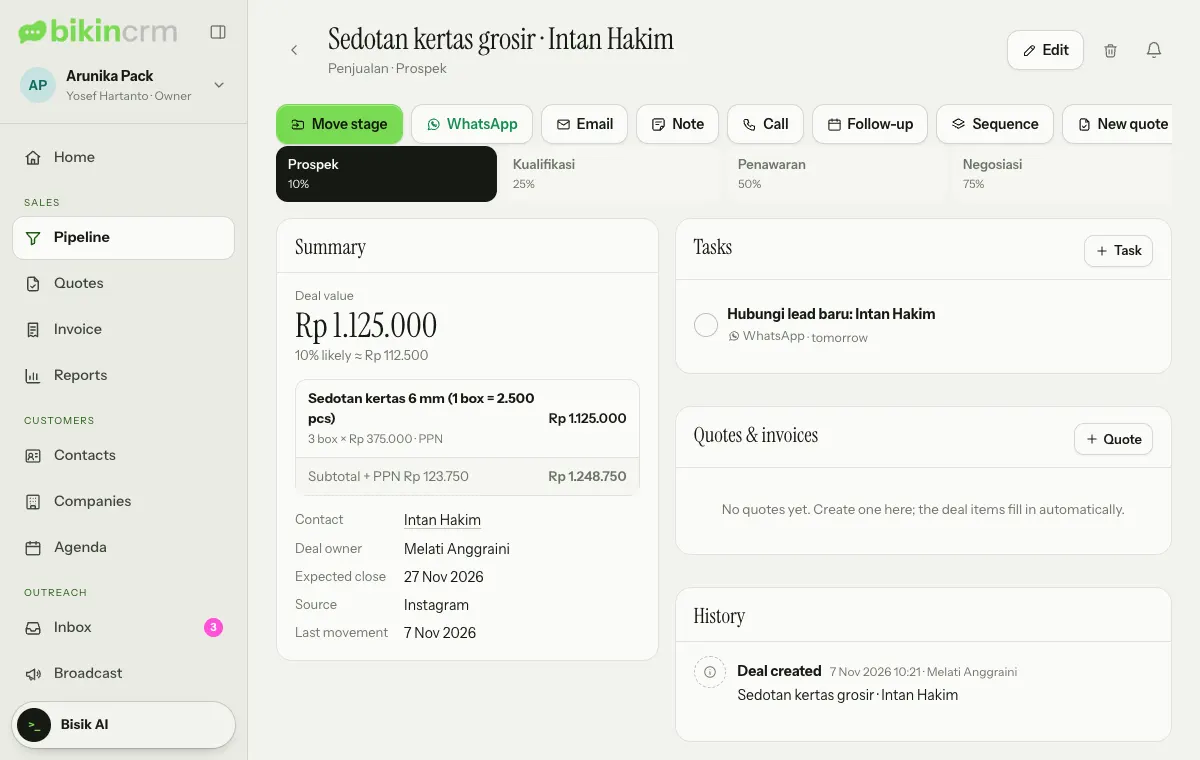
- Button row: Move stage, WhatsApp, Email, Note, Call, Follow-up, Sequence and New quote. Buttons outside your role don't appear; Sequence and New quote that your plan doesn't include still show with a small lock and show an upgrade note when pressed.
- Summary on the left: the deal value and its weighted estimate, items, contact, deal owner, expected close, source and when the deal last moved.
- Tasks, Quotes & invoices and History on the right. A quote started here is filled with the deal's items.
- Edit and the bin icon are at the top right.
Moving a deal
- On a computer, drag the deal card to another stage's column.
- On a phone, press and hold the card; the Move stage dialog opens.
- On the deal page, choose Move stage, pick the stage, then Move.
Choose List to see deals as a list. Filter narrows them by owner (such as Mine), Expected close month or stalled deals only.
Won and lost
To close a deal, drag its card to the Won or Lost column (which shows deals closed in the last 30 days), or pick that stage in the Move stage dialog. The button changes to Mark as won or Mark as lost.
When it's lost, pick a reason under Why it was lost; it's required so the lost-reasons report is useful. A reason for winning is optional. Both reason lists are managed in Settings › Pipeline. Unfinished follow-up sequence tasks for that deal are removed by themselves.
Stalled deals
A deal is marked Stalled after a number of days without a stage change or activity. The number of days is set in Settings › Pipeline › Stalled deals. Stalled deals show up on Home (the stalled deals tile and the Stalled deals card) and can be filtered in the Pipeline with Filter. Logging an activity on the deal or moving its stage clears the mark.
Targets and reports
The Reports page (Sales group) summarises the deals you may see. Pick the period, 3 mo, 6 mo or 12 mo, at the top left.
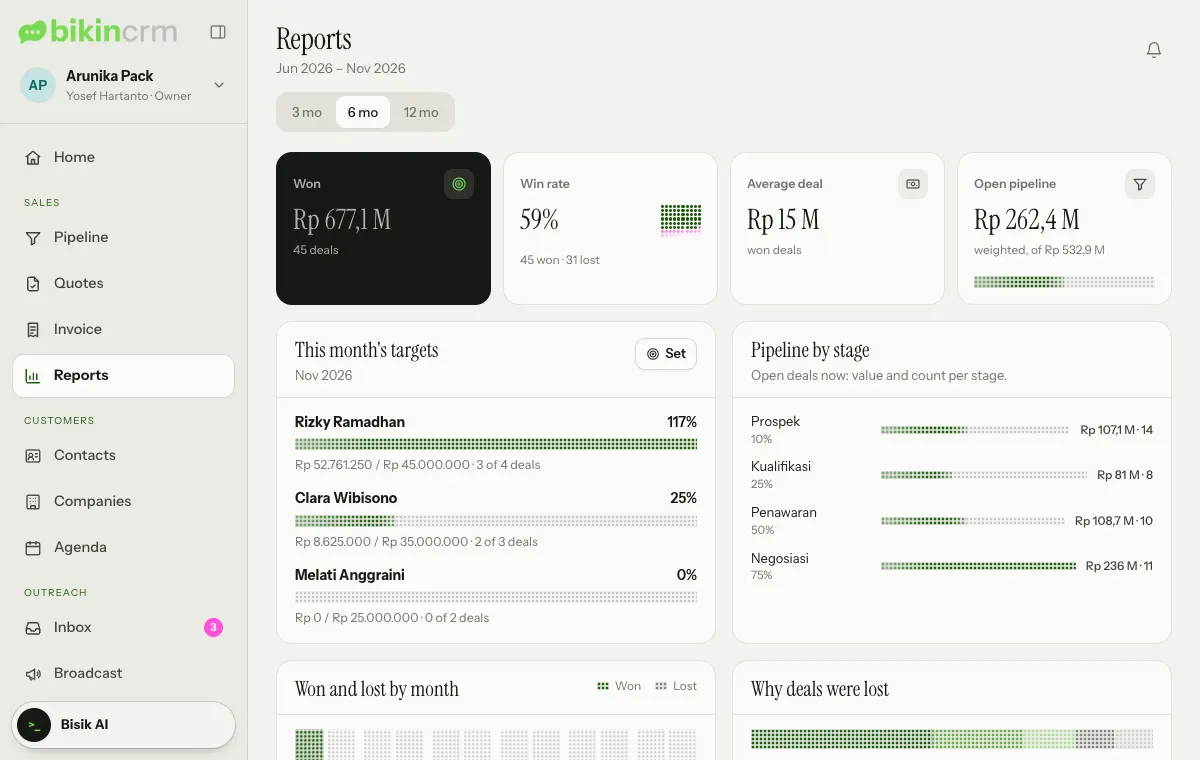
It shows deals won, win rate, average deal value, open pipeline, the pipeline by stage, won and lost by month, why deals were lost, figures per salesperson, and summaries of quotes and receivables. To set targets, the owner or a manager chooses Set on the This month's targets card, then fills in the Won value target (Rupiah) or the Won deals target for each salesperson. Home shows the progress.
Who sees what
Sales see their own deals and those shared with them. Support sees deals without their values and doesn't create deals. See Roles & access.
Last updated: