Bikin CRMAccount & plan
Plan & billing
Bikin CRM plans, choosing and paying for a plan online, renewals, coupons, referrals, and what happens when a plan ends.
Each Bikin CRM workspace has one plan. New workspaces start on the free plan, with no end date.
What a plan limits
Plans differ in:
- the number of users,
- the number of contacts,
- the number of pipelines,
- file storage (logos and payment proofs),
- the monthly allowance of automatic WhatsApp messages,
- features, e.g. quotes & invoices, follow-up sequences, automatic WhatsApp, broadcasts, business card scan, CSV export and connected BIKIN apps.
Bikin CRM shows limits in words, e.g. Plenty left, Almost full or Full, and higher plans give more or the most. Features in your plan are marked Included; others, Not included. Bisik is on every plan.
Features your plan doesn't include yet aren't hidden; they show locked. The Quotes, Invoice and Broadcast menus stay in the sidebar with a small magenta lock and open a page that explains what they do, such as Quotes is on paid plans. The CSV buttons on the Contacts, Quotes and Invoice pages and Scan card on Contacts show a mini lock and an upgrade note when pressed, and the Inbox menu is always there (see WhatsApp & email). The owner sees See plans (or a note to contact BIKIN when plan purchases aren't open yet); other roles are asked to contact the workspace owner.
Seeing your plan
Open Settings › Plan (the Settings menu is in the left sidebar, Admin group).
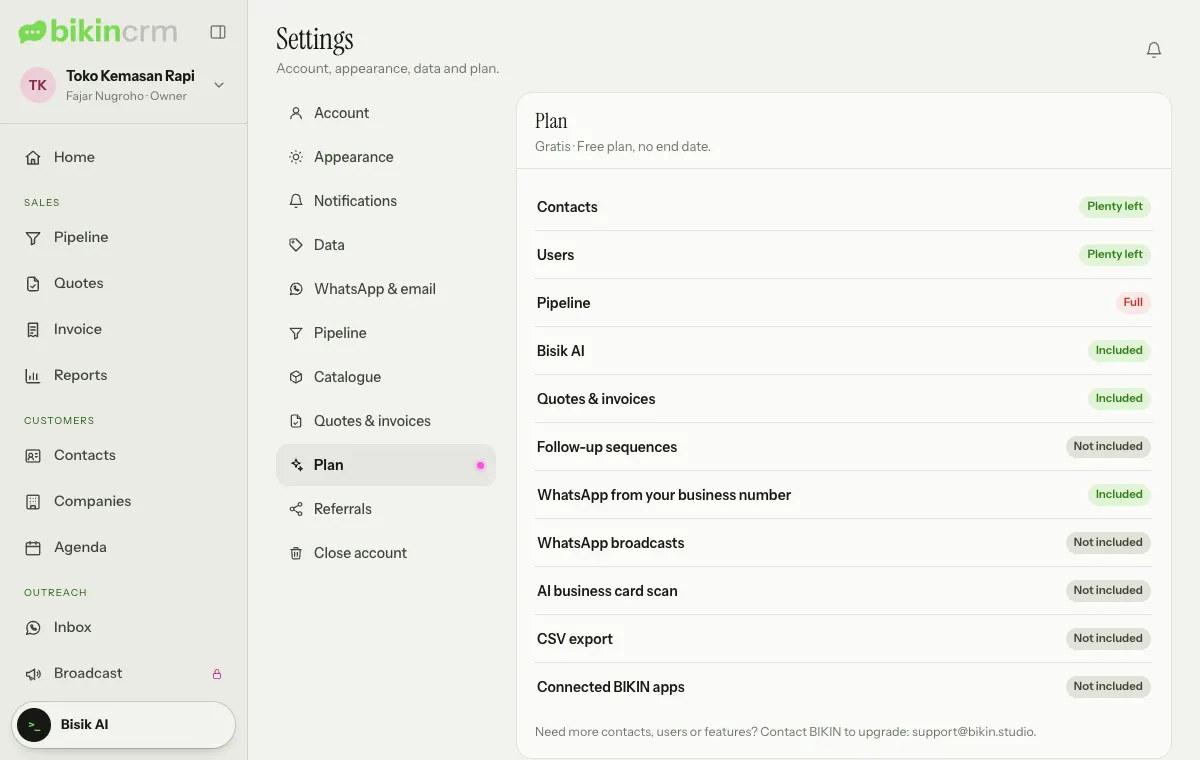
- The Owner sees the active plan and how long it lasts, usage and features, the plan choices and the list of bills.
- Other roles see usage in words. To upgrade, ask the workspace owner.
Choosing and paying for a plan
- In Settings › Plan, under Choose a plan, pick the period: Monthly, 3 months or Yearly.
- Choose Choose on the plan you want (or Renew for the same plan).
- Enter a Coupon code if you have one, then Apply.
- Check the breakdown (price, coupon or referral discount, and Total), then choose Pay.
- You're taken to the online payment page. Pay by virtual account, QRIS, e-wallet or retail outlet.
- After paying, you return to Bikin CRM. The plan is active as soon as the payment is received.
If you renew or switch plans before the current one ends, the remaining days are taken into account. Remaining days on a free referral trial aren't counted; after your first payment, the remaining days count as usual. The details show before you pay.
If buying a plan isn't open for your workspace yet, the Plan page asks you to contact BIKIN at support@bikin.studio to upgrade.
Bills and renewal
The Bills section lists every plan bill with its status. A pending bill can be paid (Pay) or cancelled (Cancel) from there. Turn on Send a renewal bill before the plan ends, the switch under the feature list, so the owner gets a renewal bill by email before the plan runs out. Turning it off cancels a renewal bill that's still waiting for payment.
When a paid plan ends
If a paid plan ends and isn't renewed, the free plan's limits apply again:
- All data stays readable. Nothing is deleted.
- Adding or changing beyond the free plan's limits is paused until your plan is active again, and features outside the free plan stop.
- The owner can always sign in.
If the workspace's data goes beyond the free plan, the Plan page shows a Some things are paused card. Choose Choose what stays to pick the users who can still sign in on the free plan; the rest are paused, with their data untouched.
Referrals and coupons
The owner opens Settings › Referrals. When BIKIN has the referral program open, choose Share on the Invite other teams card to share your invite link. Workspaces that sign up through it count as your invitations and can get a trial plan or a discount. Commission and discounts are shown on the Referrals page; commission is held for a few days after it arrives, then can be paid out with Withdraw to the bank account you give.
Coupons from BIKIN promotions are entered when choosing a plan. A coupon doesn't combine with a referral discount; the bigger one applies.
Closing the account
The owner can close the account in Settings › Close account. See Privacy & security.
Last updated: