Bikin CRMAccount & plan
Roles & access
The five roles in Bikin CRM, contact visibility per role, teams, inviting users, email codes for important actions, and the log.
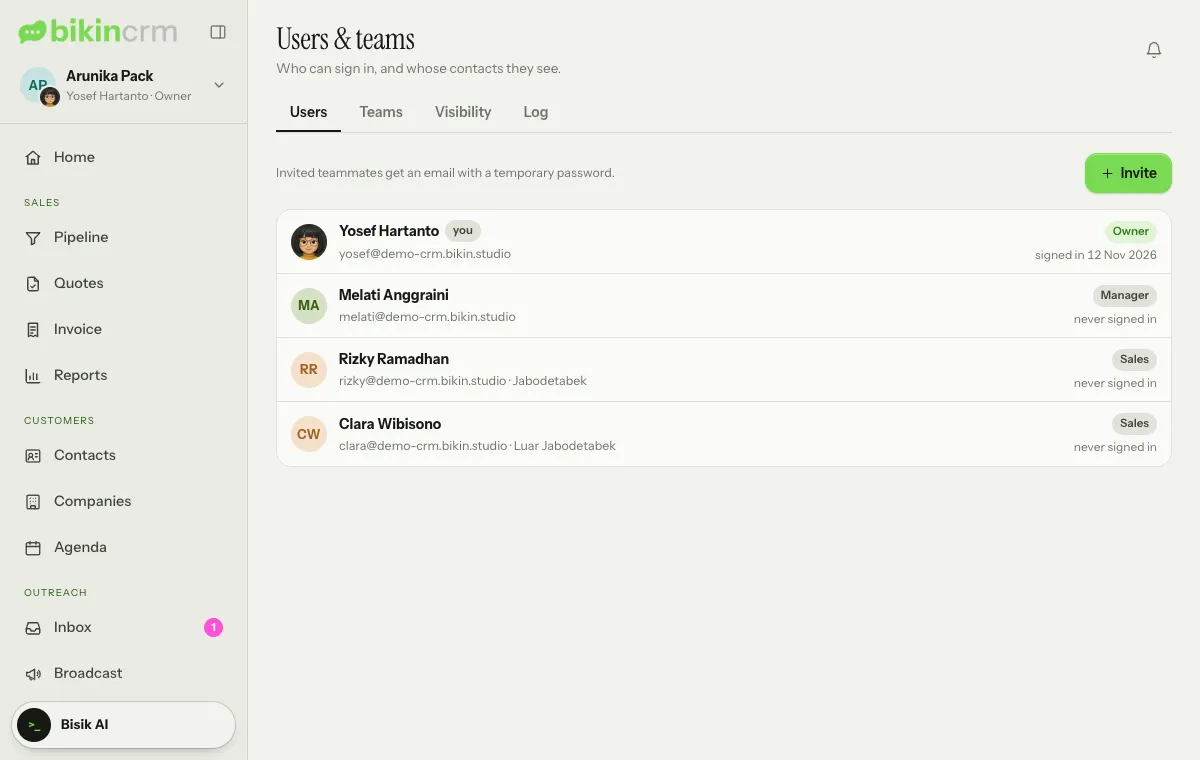
Everyone in a workspace has one role. The role decides what they can do; visibility decides which contacts they can see. Both are managed in Users & teams (left sidebar, Admin group), which has four tabs: Users, Teams, Visibility and Log.
Five roles
| Role | Can |
|---|---|
| Owner | Everything, including the plan, users and roles, visibility, quote letterhead, WhatsApp, export, the log and closing the account |
| Manager | All team data, pipelines and stages, targets, reports, sequences, broadcasts, data settings and inviting users |
| Sales/AM | Their own contacts and deals and those shared with them, import, quotes and invoices, tasks, the inbox and applying sequences |
| Support | Contacts, the WhatsApp inbox (including assigning conversations) and tasks; no deal values, quotes or invoice amounts |
| View only | Reads without changing anything |
Visibility
The owner sets which contacts each role sees on the Visibility tab:
- Own only: contacts they own and those shared with them,
- Their team: contacts owned by people in their team,
- Everyone: every contact in the workspace.
The owner always sees everything. By default, sales see their own and the other roles see all. Contacts someone may not see also stay out of their search, import duplicates and Bisik's answers.
Teams
Group people into teams, for example per branch or per key account. Create teams on the Teams tab (type a new team name, then Add), then set members from the Users tab: tap a person and pick their Team. Teams are used for the Their team visibility.
Inviting users
On the Users tab, choose Invite at the top right, fill in Name, Email and Role, plus Team if you have teams, then choose Invite in the dialog. With Email an invitation on, the teammate receives an email with a temporary password; if you turn it off, type a Temporary password yourself and give it to them.
Managers can invite sales, support and view-only users; only the owner can give the owner or manager role or change roles. To switch an account off, tap the person and turn off the Active switch; they can't sign in until it's switched back on.
Email codes for important actions
Important actions ask for a code from your email, such as export, bulk delete, role changes and closing the account. After a correct code, the next important actions within 10 minutes don't ask again.
Log
The owner can see the Log tab: exports, deletions, imports, role changes and visibility changes, with who and when.
Last updated: